Language: English
Attachment fields store one or more files, which can include photos, signatures, videos, audio recordings, documents, PDFs or any other type of file.
Design
In the Form Designer, you add a field of type “Attachment.” You can further restrict the upload type and the type of files a user can upload.
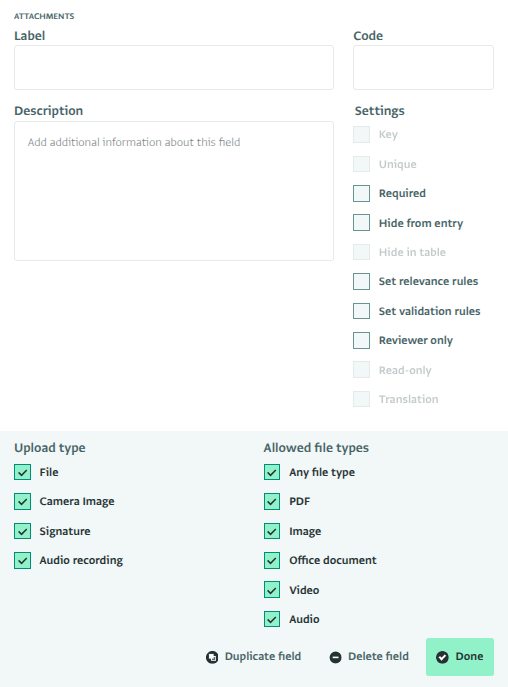
Upload types
You can enable one or more upload types for an Attachment field. Each enabled type appears as a button, and you can also drag a file directly into the attachment field.
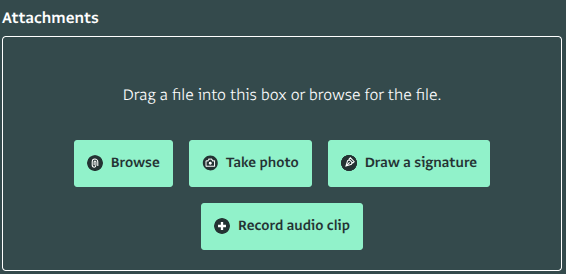
On a mobile device, each enabled upload type appears as shown below.
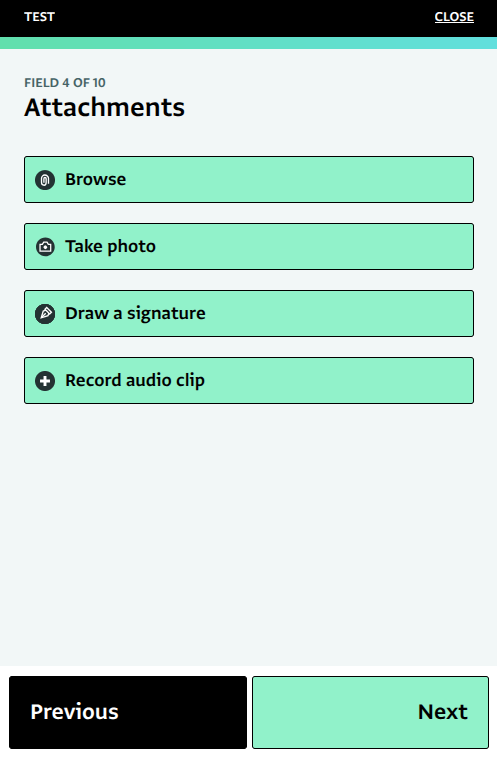
File
When File upload is enabled, you can “Browse” for a file from your local device. You can upload any file type if the "Any file type" is checked.
The interface is similar on a mobile device:
Camera image
If you select “Camera Image”, you will be prompted to “Take photo” with your device’s camera. On a laptop, this opens a file chooser and limits your selection to images.
On a mobile device, this opens your device’s camera, and prompts you to take a photo to attach to the field.
Signature
The signature upload type lets you draw your signature on the device during data collection.
The signature is saved as Portable Network Graphic (PNG) image and attached to the field.
Record audio clip
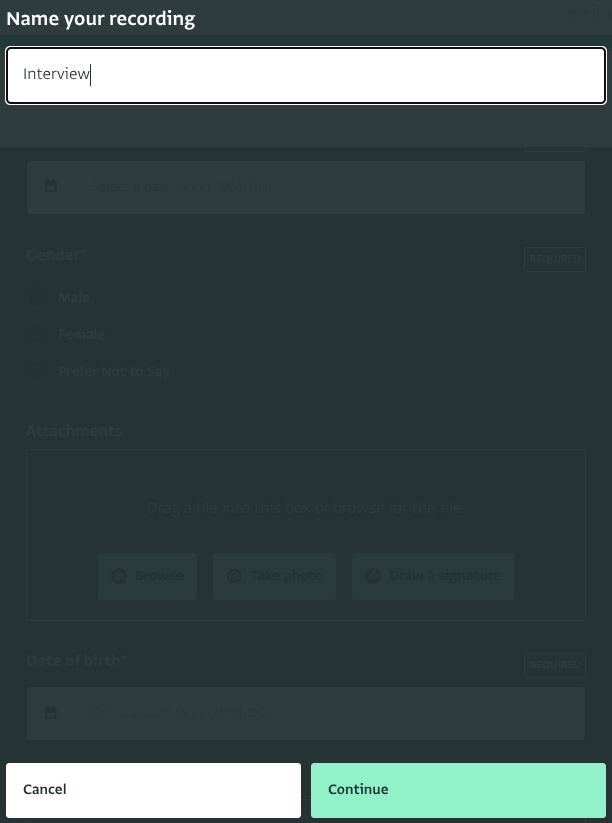
If you select “Record audio clip”, you can record audio using your device’s microphone.
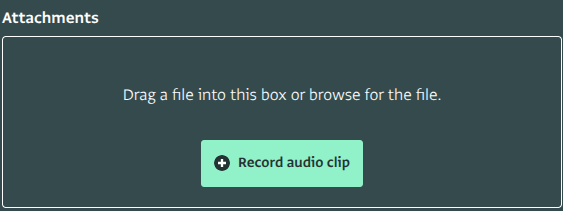
First, name the recording.
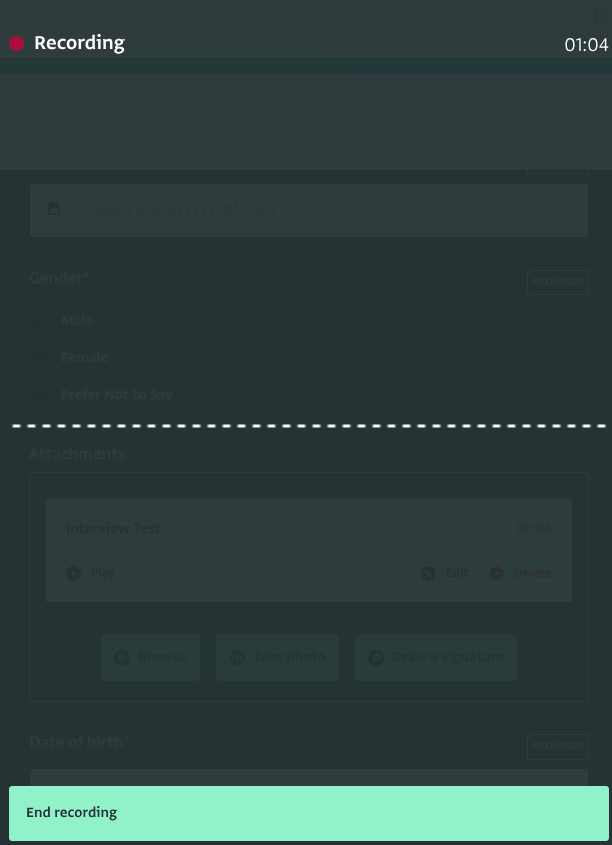
ActivityInfo then starts recording audio. When you finish, end the recording.
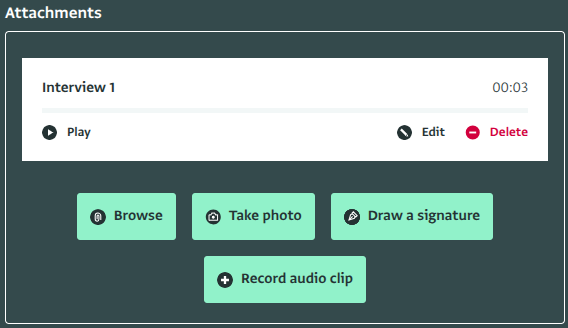
After ending the recording, you can play it back, edit it by continuing to record in the same file, or delete it.
Viewing attachments
Attachments can be found in the Record Details pane in the form page. You can download the attachment by clicking on the file name.
Limits
ActivityInfo imposes a few limits on attachments.
- The maximum size of a single attachment is 10 MB.
- Users can add a maximum of 20 attachments per attachment field
There are no overall limits on the total storage of attachments across a form, database, or account.