Language: English
Validation rules restrict what value a user can enter in a field. If a value violates the rule, the user cannot save the record until the value is corrected.
Enabling
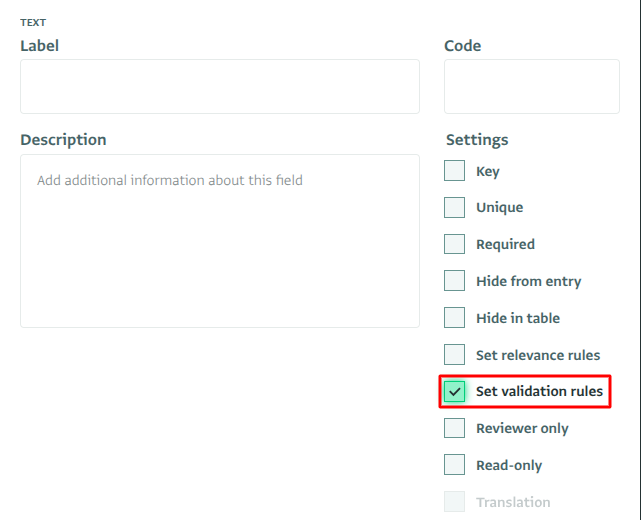
Select "Set validation rules" in the Form Designer to define a validation rule for a field. Validation rules are supported on all field types except calculated fields, serial number fields, note fields, section headers, and reverse reference fields.
Build the rule using the Rule builder or the Formula editor.
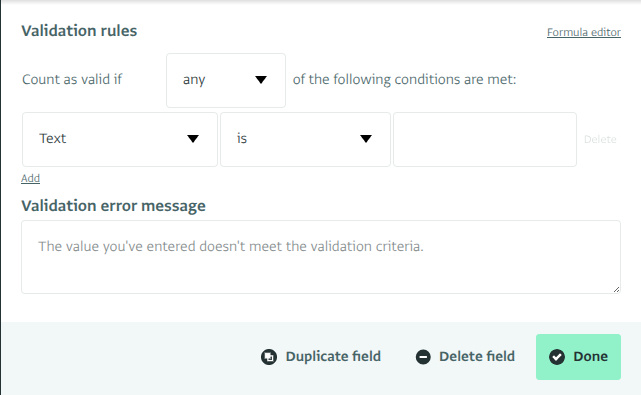
Optionally, enter a message in the "Validation error message" text box below the rule editor. The message is limited to 1,024 characters. If you leave it blank, ActivityInfo shows a default message derived from the rule you defined.
Validation rules do not apply when the field is blank. A rule only checks a value once one is entered; leaving the field empty does not trigger the rule, even if the field is required.
Behavior
Data entry
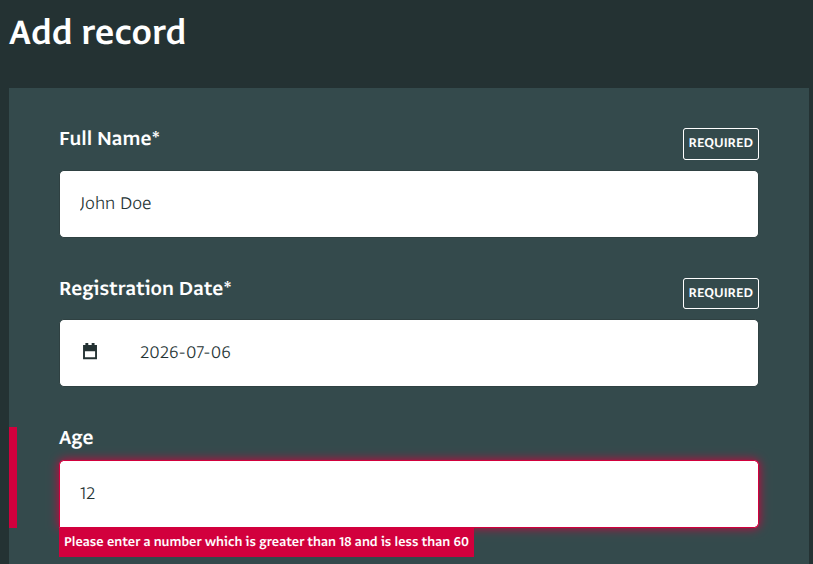
When a user enters a value that violates the validation rule, the error message appears below the field. The record cannot be saved until a valid value is entered.
Interactive table
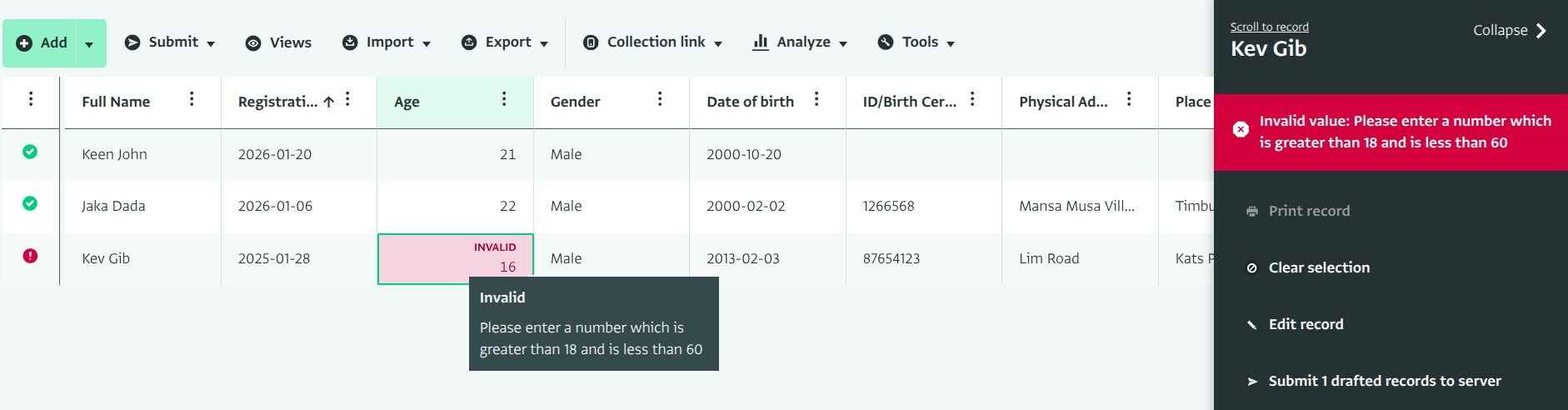
When a cell value violates a validation rule, the cell is marked as invalid, and an error message appears when you hover over the cell. The validation error message is also shown on the record panel.
Importing records
When importing Records into a form with validation rules, the importer validates each value against the validation rules. A value that violates the rule is flagged as invalid.
Translating the validation error message
A validation error message is translated in the same way as a field's label and description.