Language: English
A required rule makes a required field mandatory only when a specific condition based on other field values in the record is met. When the condition is met and the field is empty, the record cannot be saved. When the condition is not met, the field is optional.
Behavior
Required rules vs relevance rules
Relevance rules and required rules serve different purposes:
- A relevance rule controls whether a field is shown to the user.
- A required rule controls whether a visible field must be filled in.
Relevance takes priority since a field hidden because it is not relevant is never required.
Required rules vs validation rules
A validation rule checks that a provided value meets specific criteria. A required rule checks that a value has been provided. Both can be set on the same field.
Example
A performance monitoring form has the following fields:
| Name | Field type | Required? |
|---|---|---|
| Year | Text | Yes |
| Reporting Period | Single Select | Yes |
| Indicator Type | Single Select | Yes |
| Target | Quantity | Yes |
| Actual | Quantity | Yes |
| Explanation | Text | Required rule applied |
Explanation should only be required when performance falls below 60% as per reporting requirements.
ACTUAL/TARGET*100 < 60
Nevertheless, the reporting officer may still provide an explanation, even if performance exceeded 60%.
Enabling required rules
- In the Form Designer, first mark the field as "Required". Once "Required" is checked, a "Set required rules" toggle appears below it.
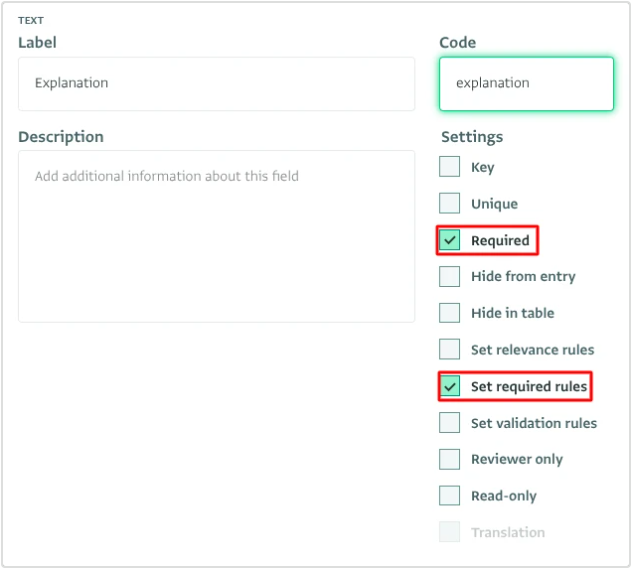
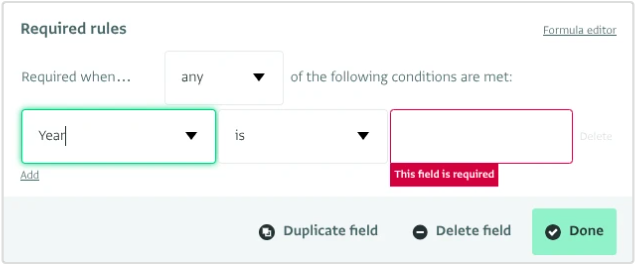
- Check "Set required rules" to reveal the rule builder or formula editor and define the condition under which the field must be filled in.
Data entry
Desktop data entry
- As you enter a record, the conditionality of the "Explanation" field takes effect if the performance is below 60%. The record cannot be saved until a value is entered in the "Explanation" field.
- If the performance is 60% or more, the conditionality of the "Explanation" field switches to optional and the record can be saved without filling it in.
Mobile data entry
The same required condition applies during mobile data entry. When the condition is met, you cannot proceed to the next question without filling in the field.
Interactive table
- Required rules are enforced when adding or editing records in the interactive table. Each row is evaluated against its own values, so the same field can be required on some rows and optional on others within the same form.
- A row where the condition is met but the field is blank is flagged as invalid and cannot be saved until the field is filled in.
Importing records
The importer enforces required rules. A record where the condition is met but the field is blank is treated as invalid.