Language: English
ActivityInfo supports editing directly from the table view. You can clean, update and prepare data without switching back and forth to the data entry form.
The interactive table works with validation rules, permissions and drafts, so data stays consistent while you edit or add records.
The interactive table is useful for:
- Editing field values directly in table cells
- Adding multiple new records at the same time
- Copying and pasting data from Excel or Google Sheets
- Filling down repeated values
- Reviewing the status of records and correcting field values
- Preparing datasets for reporting or export
- Submitting or discarding drafts in bulk
All changes you make in the table are saved as drafts. You can review them before you submit them to the server.
Turn the interactive table on or off
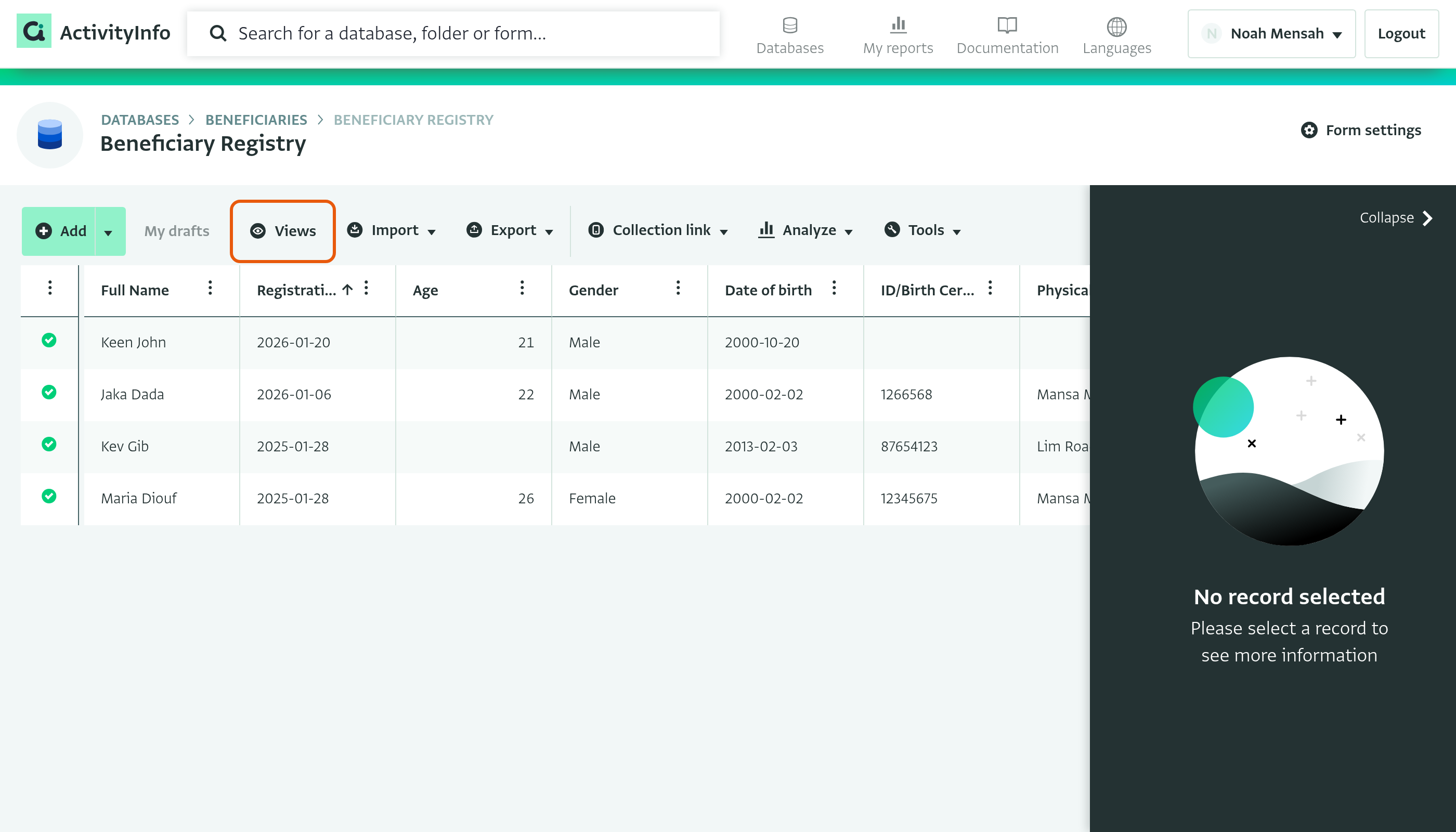
- Click on “Views”.
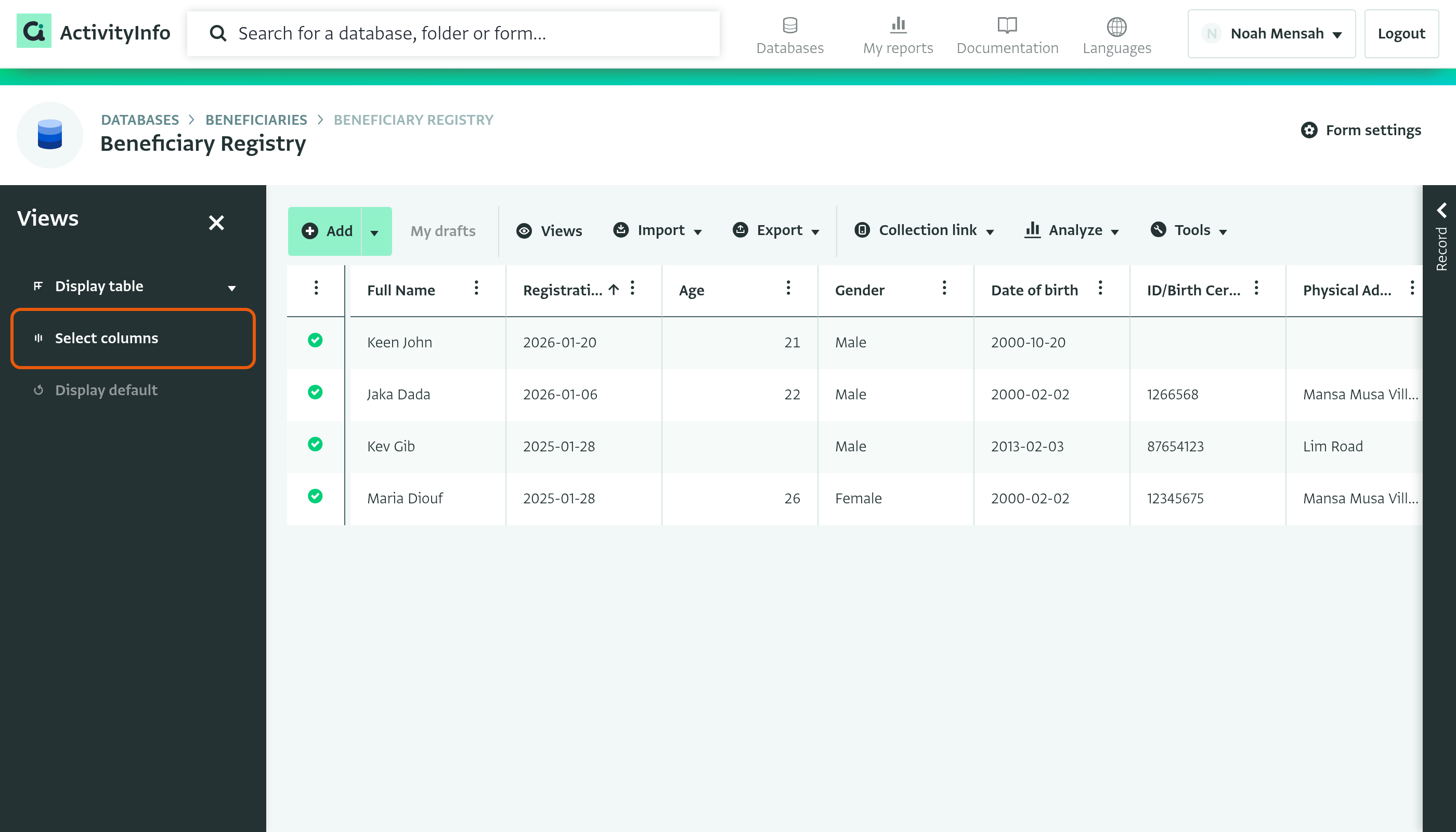
- Click on “Select columns” in the views panel.
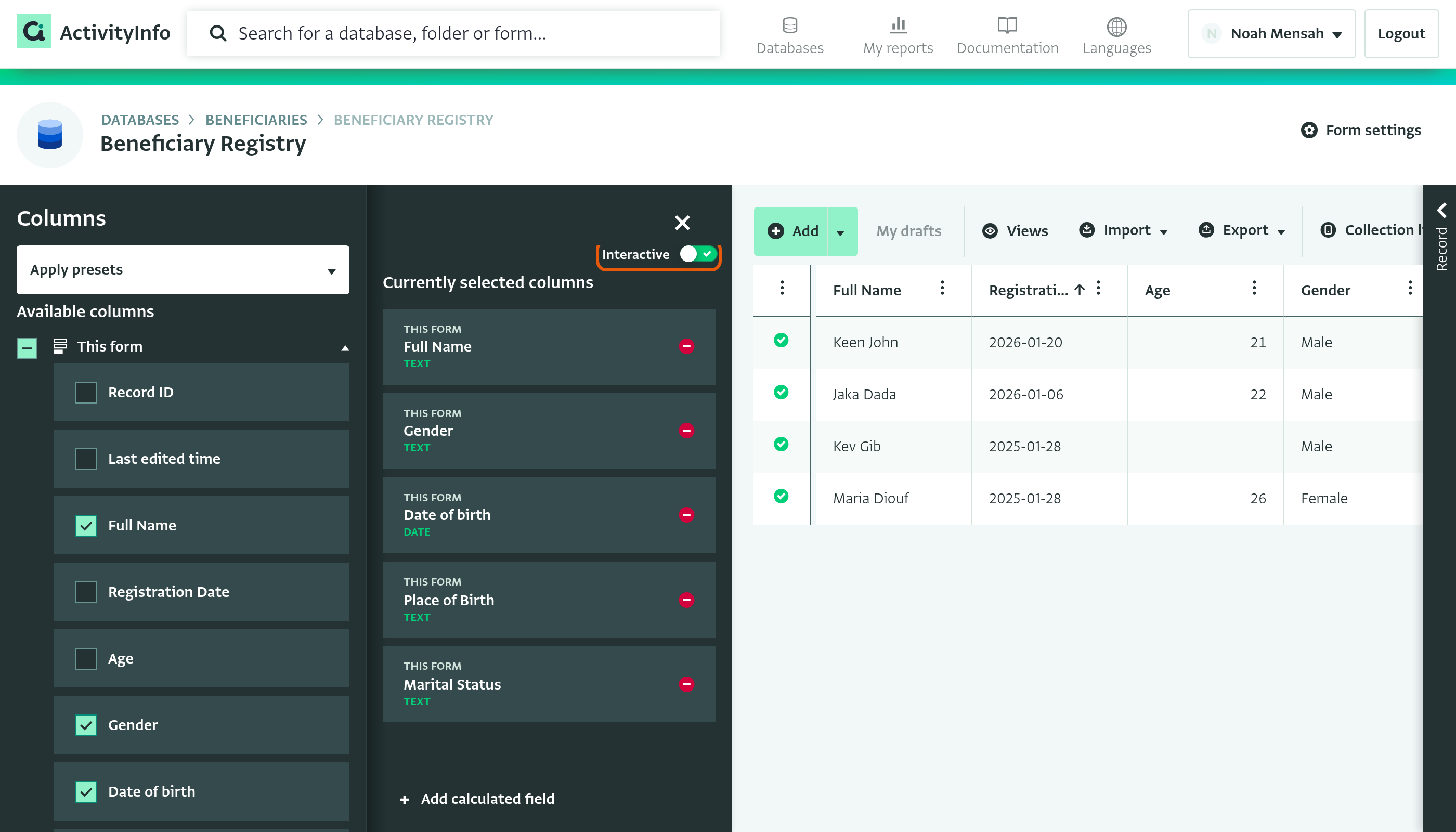
- Use the “Interactive” toggle to turn the interactive table on or off.
Edit values in table cells
To edit a cell, select it and then do one of the following:
- Start typing. The value you type replaces the current value.
- Press Enter, or click on the selected cell again. The editor opens with the current value, so you can change part of it.
ActivityInfo shows the input that matches the field type. For example, a Text field opens a text box, and a Single select field opens a list of its options.
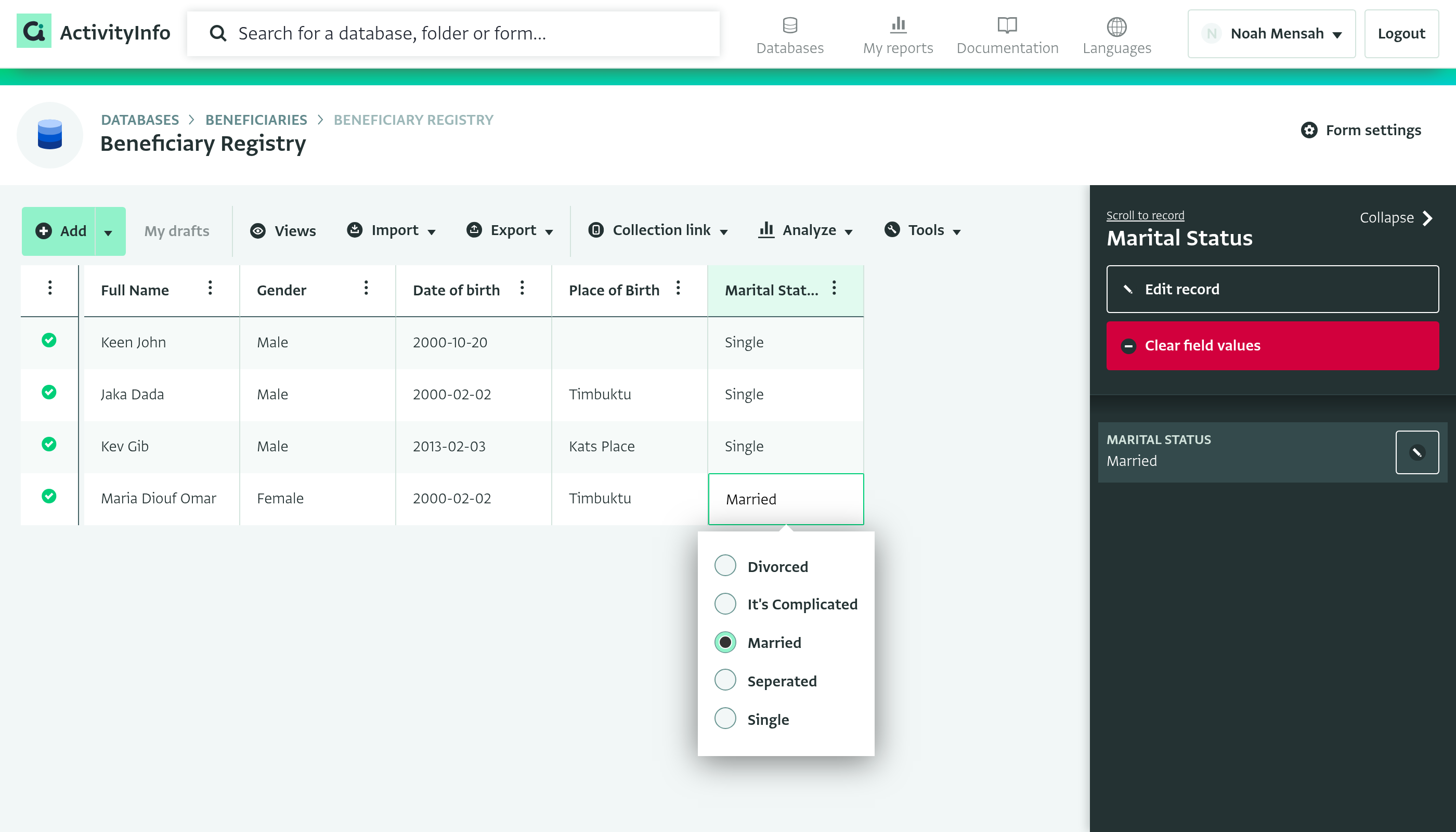
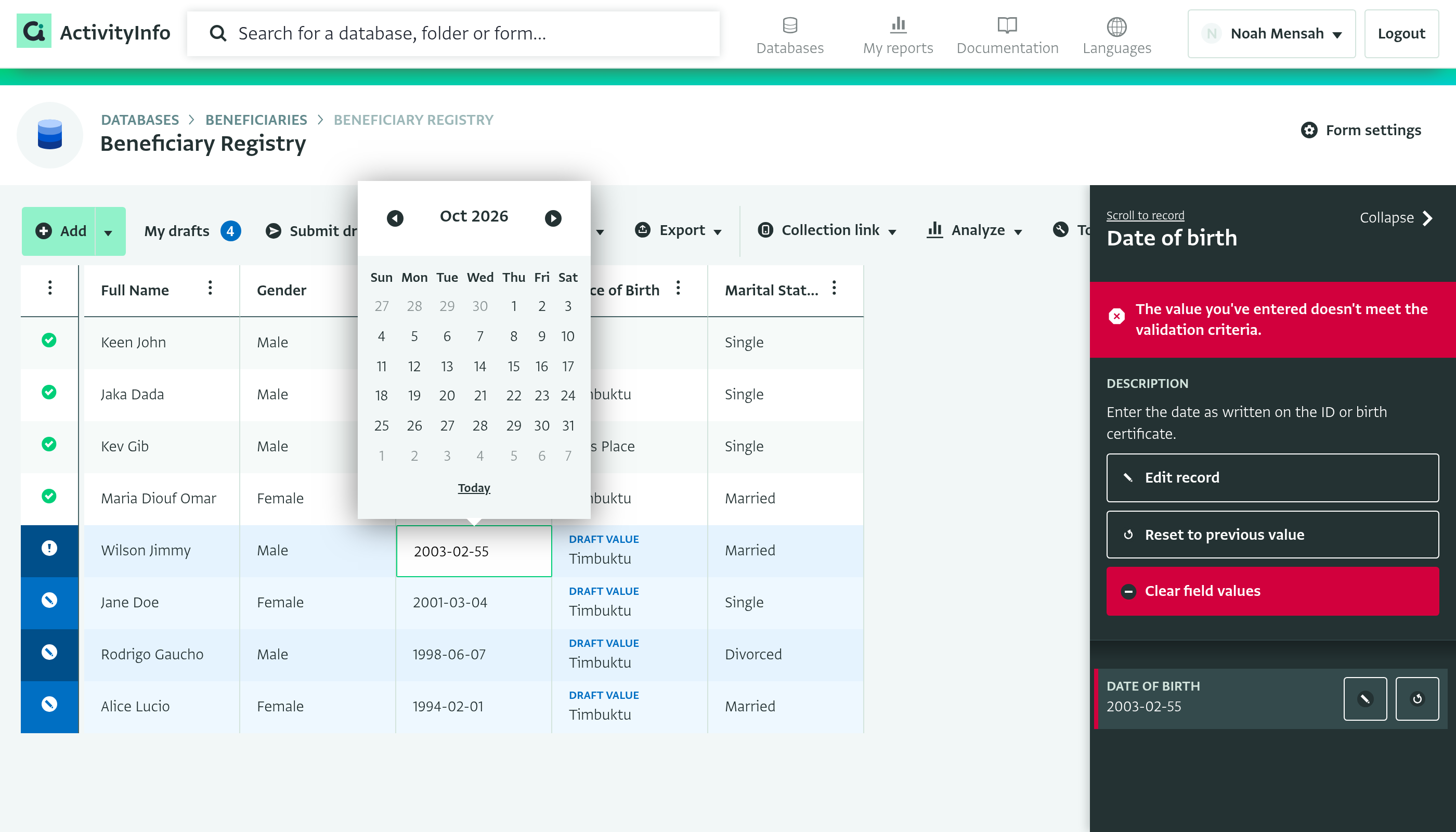
When you open the editor of a cell, for example by double-clicking on the cell, the record panel shows details of that field:
- The field's Description, if the field has one
- An error message, if the value in the cell is invalid. The message explains which rule the value breaks.
- A “Reset to previous value” button, if you have changed the value
You cannot edit these cells:
- Calculated fields, which get their value from other fields
- Read-only fields
- Blank cells of fields that are not relevant for the record, because of a relevance condition. These cells are grayed out.
- Records covered by a lock
The following example changes the full name from “Maria Diouf” to “Maria Diouf Omar”.
- Open a form in the table view.
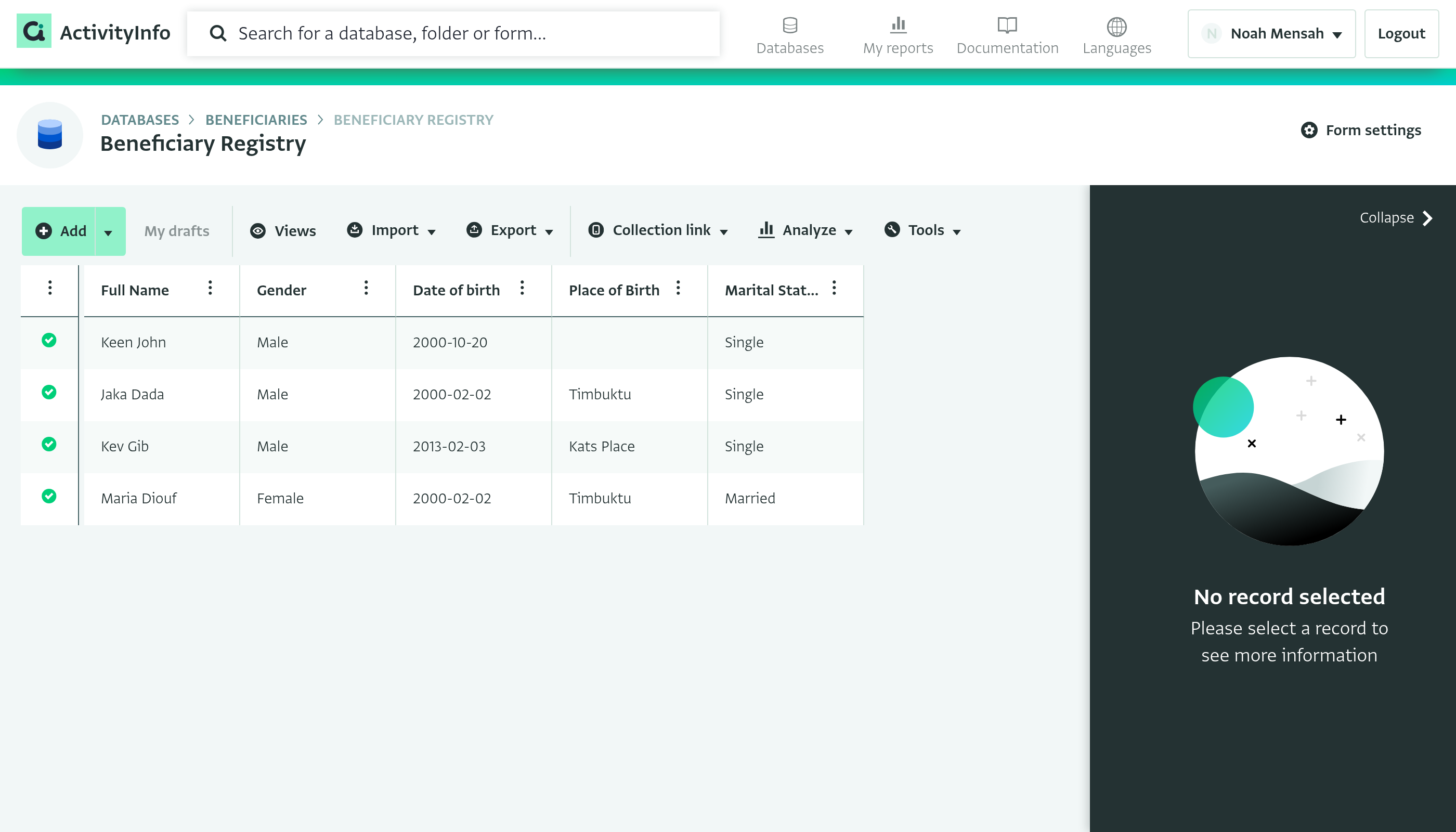
- Click on the cell you want to edit, then click on it again to open the editor.
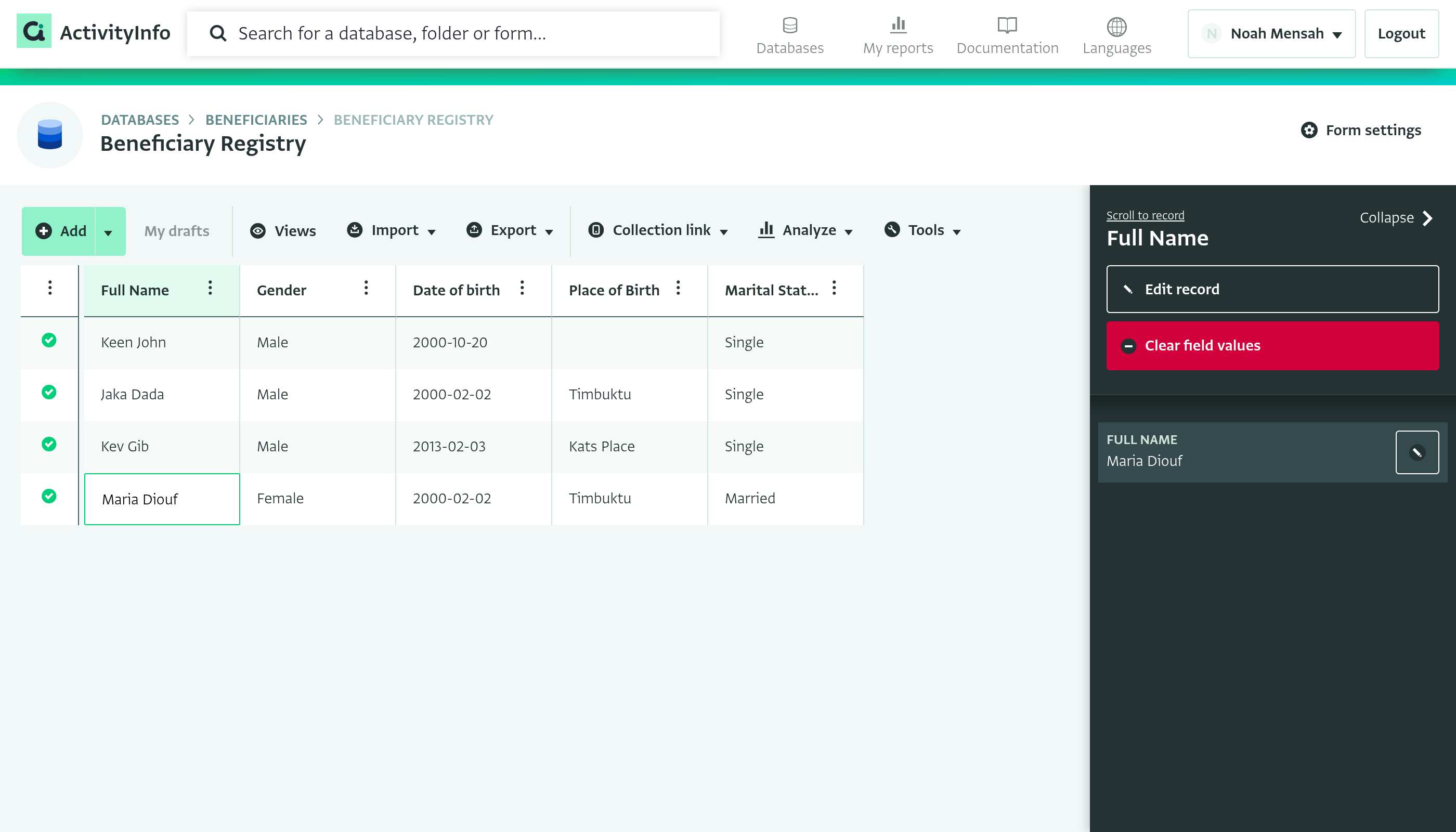
- Type the new value and press Enter. The cell shows “Draft value”, and the “My drafts” button shows how many drafts you have. The first time you create a draft, a tip explains that drafts are saved on your device until you submit them. Click on “Dismiss” to close the tip.
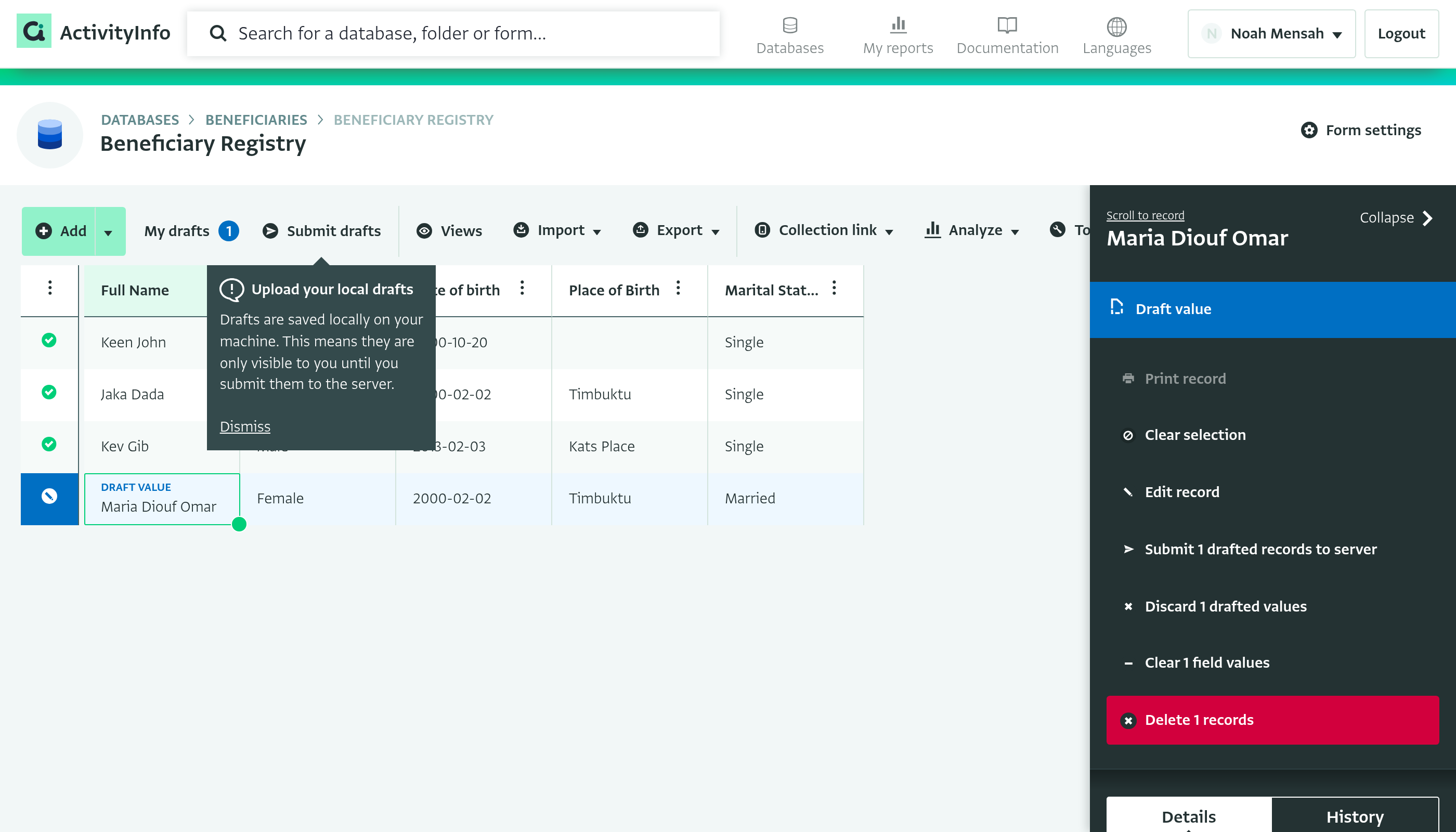
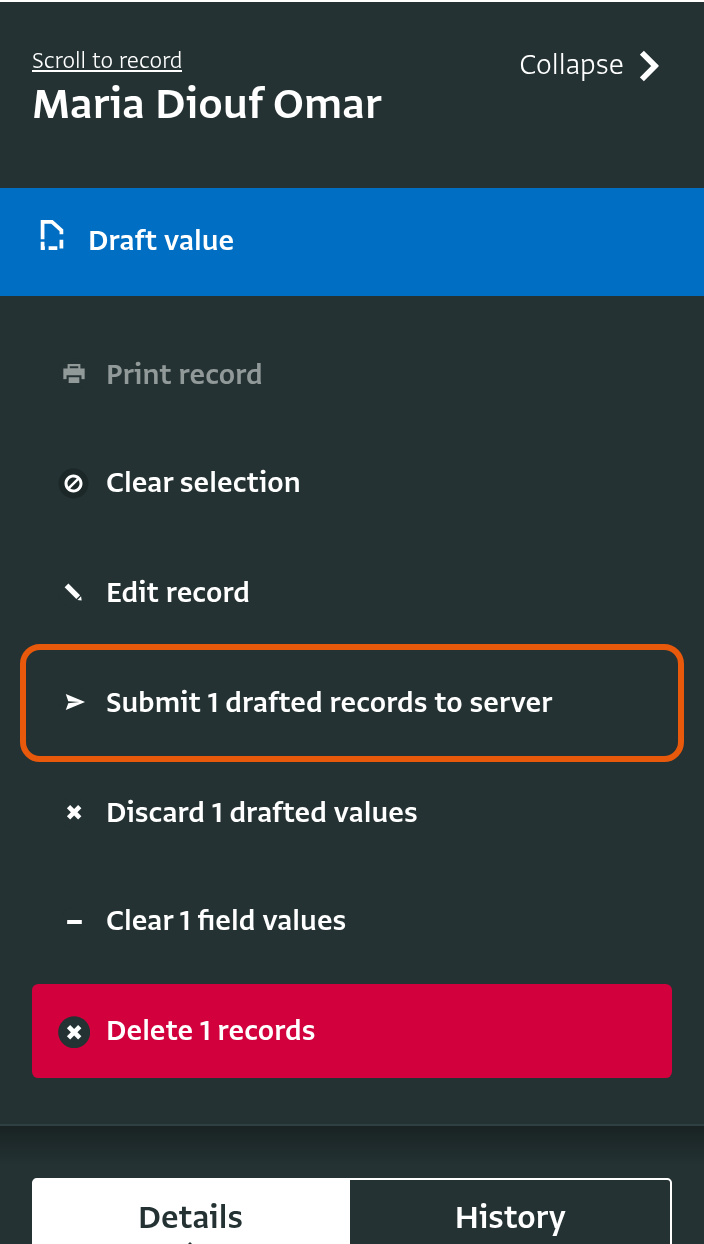
- The record becomes a draft. You can discard the draft to go back to the previous value, or submit it to the server to save the change. The record panel also shows the previous values, which you can restore. Click on “Submit 1 drafted records to server” to save the change.
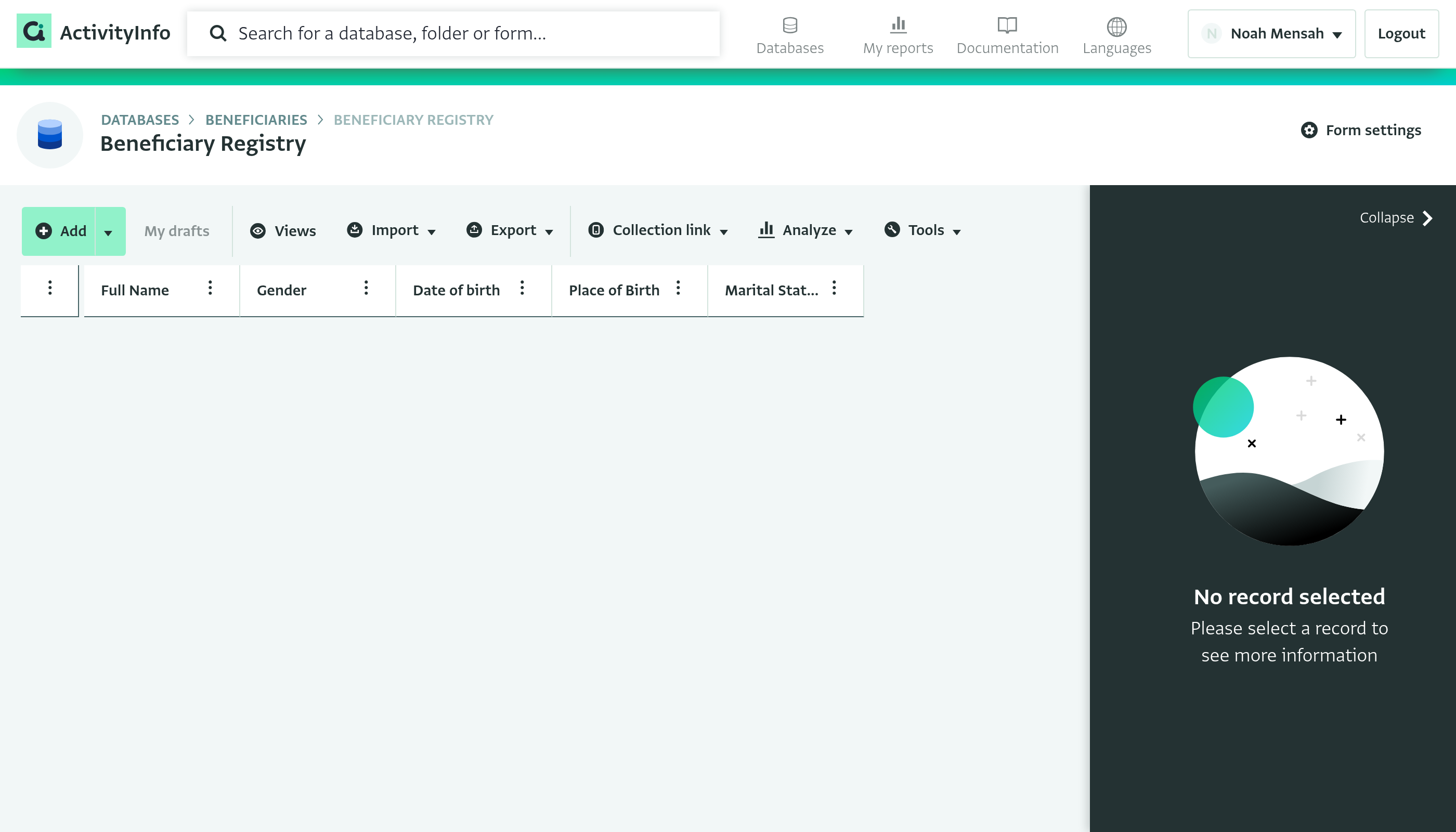
Add multiple new records at once
You can add several new records directly from the table view. This is useful when you enter new records in bulk.
- Open a form in the table view.
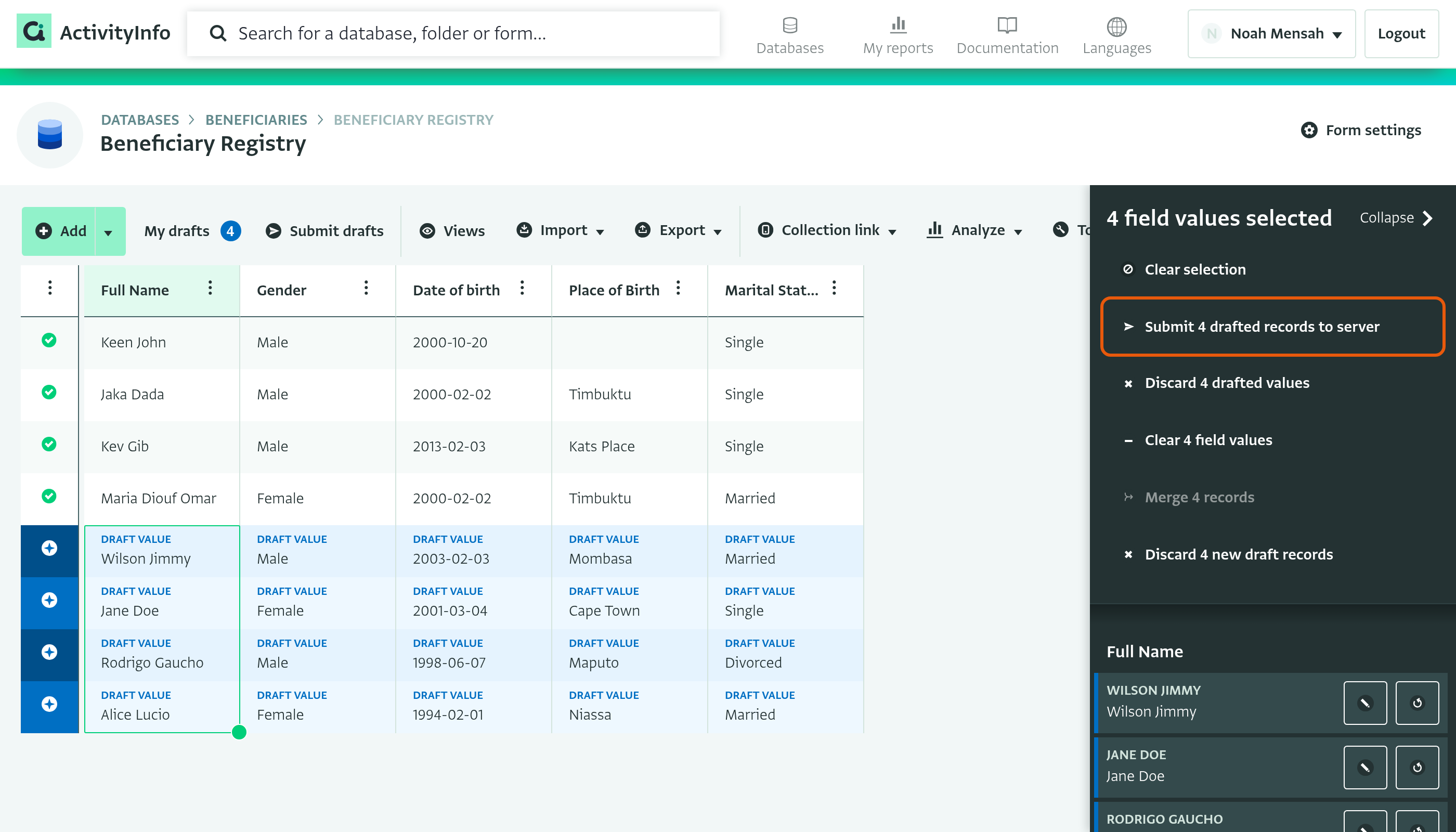
- Click on the arrow next to the “Add” button. Enter the number of records you want to add, and choose where the new rows should appear in the table.
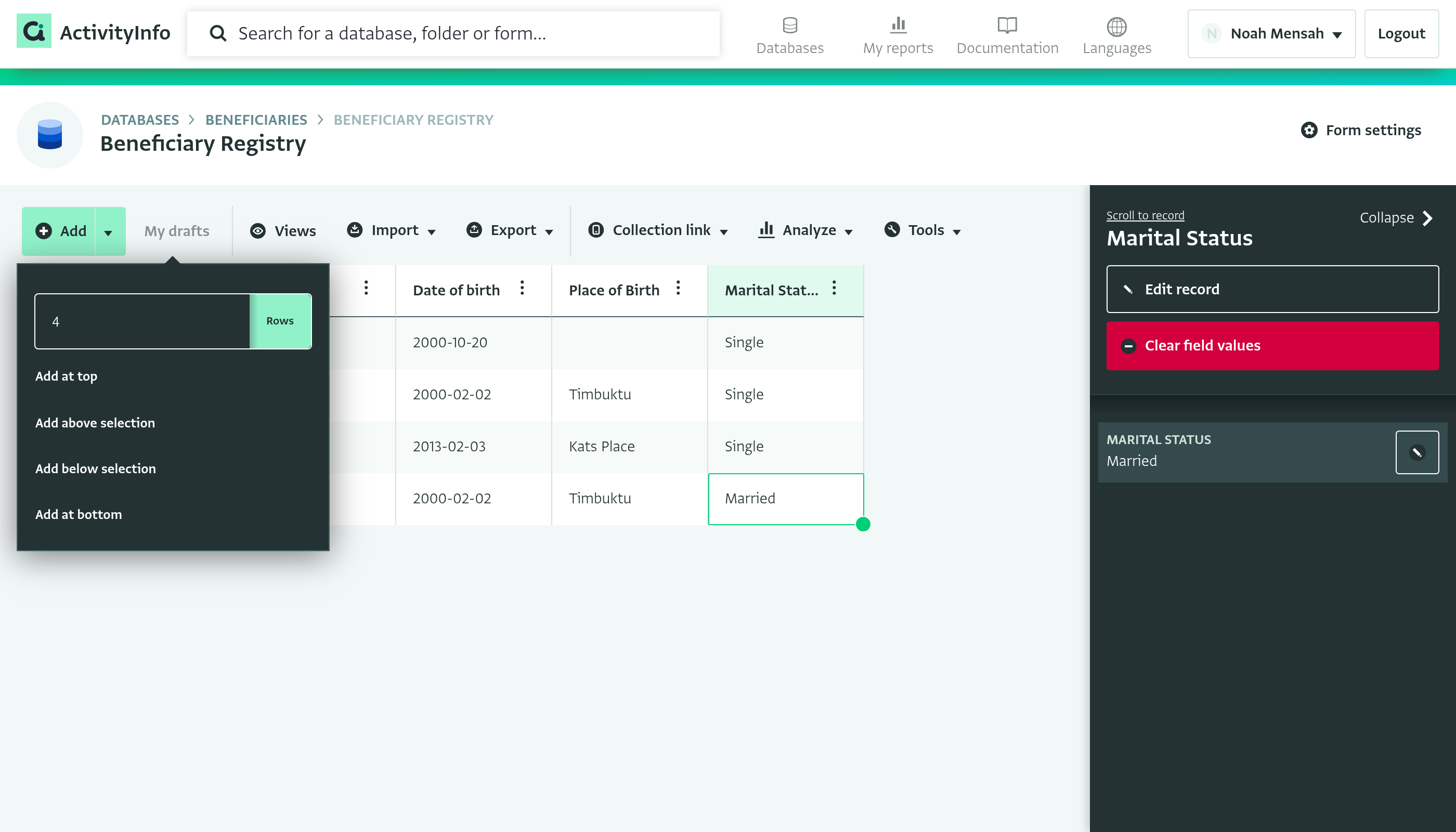
Empty rows appear in the table.
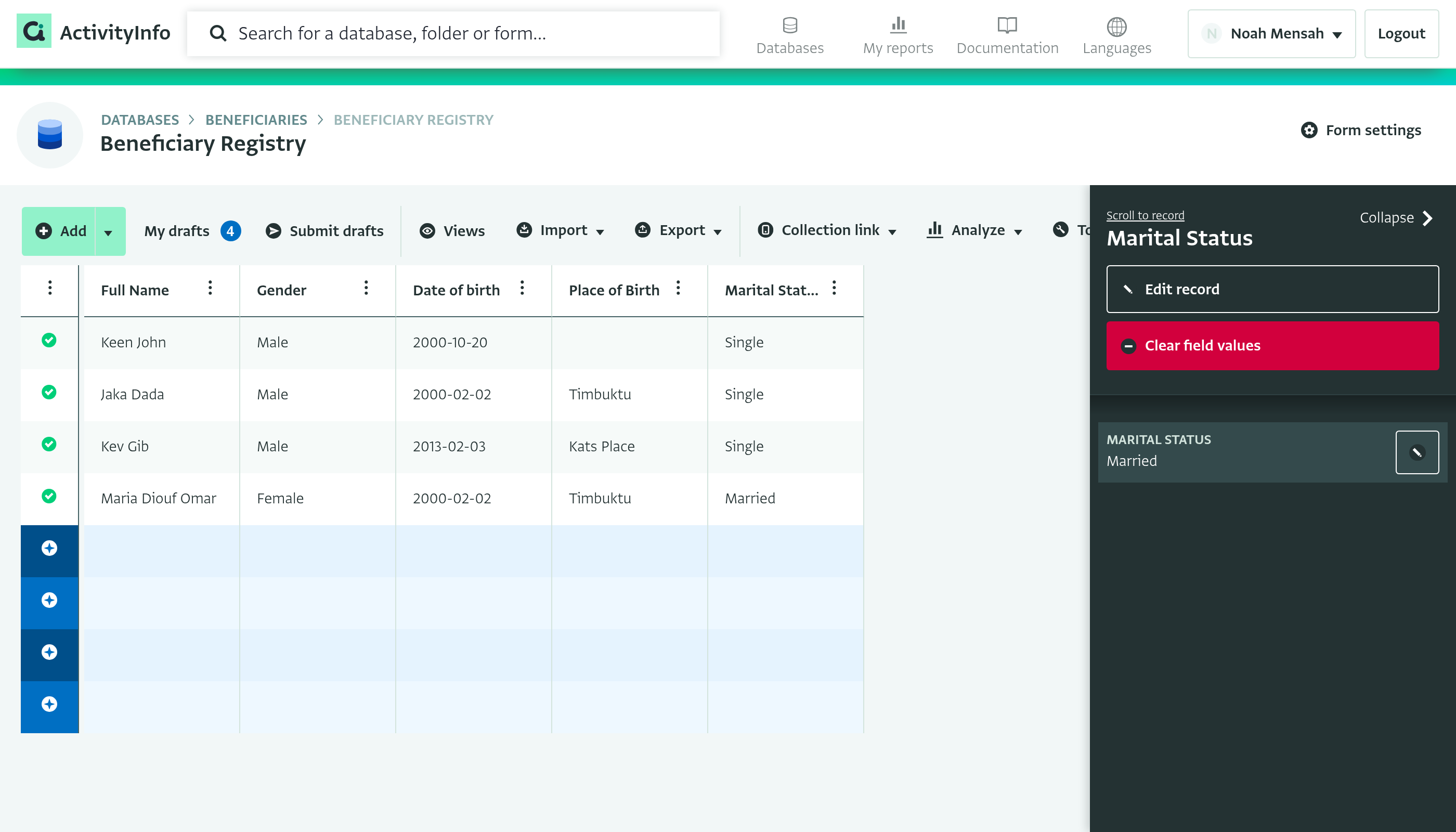
- Prepare the records you want to add in Excel or Google Sheets. Use the same columns, in the same order, as the table view, and make sure the values follow any validation rules in your form. Copy the records.
- Click on the first cell of the first new row.
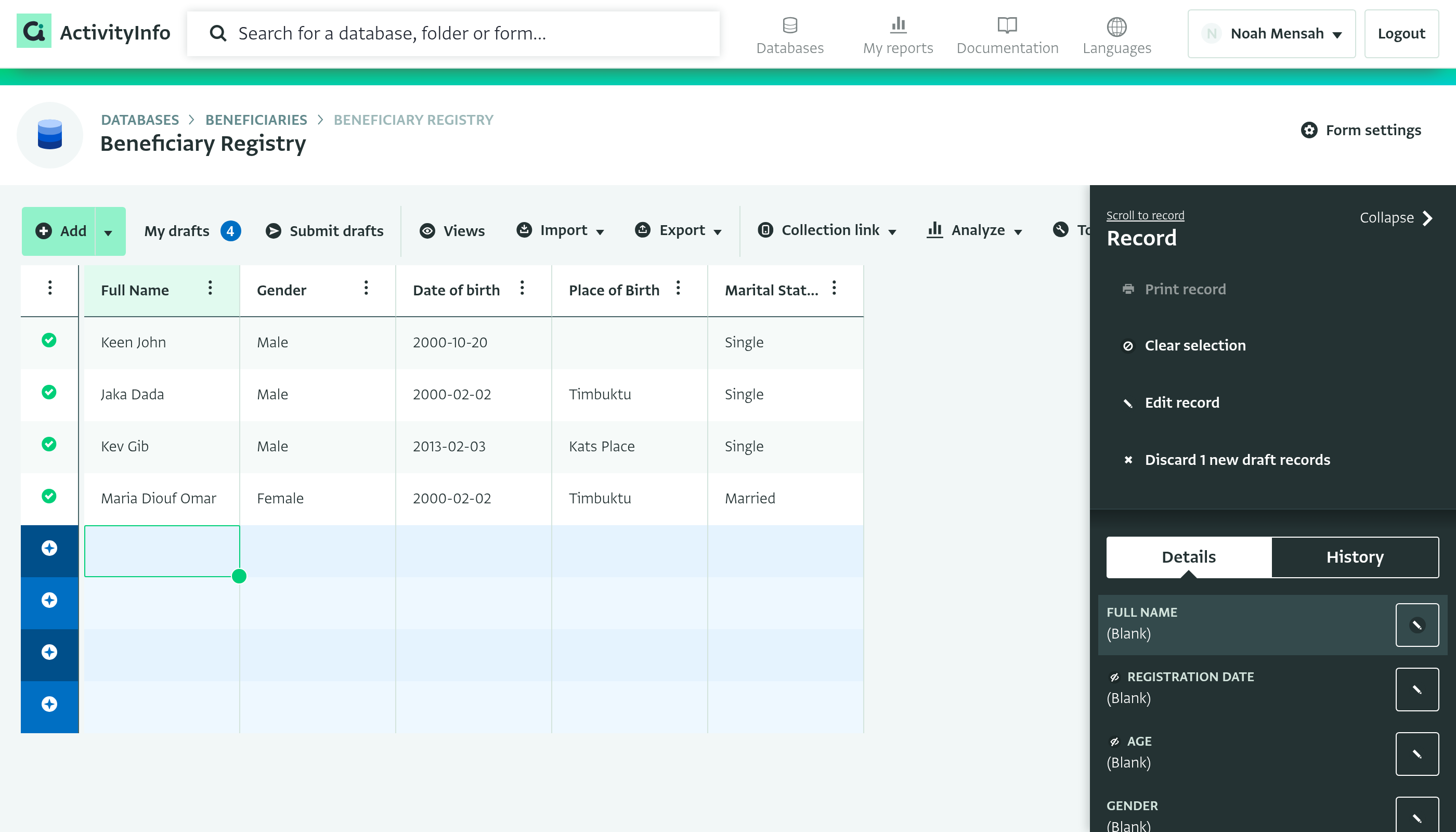
- Press Ctrl + V (Cmd + V on a Mac) to paste the records. The new records appear in the table as drafts. You can edit the values before you submit the records to the server. If you paste into a Reference field, ActivityInfo looks up the pasted values in the referenced form and links each value to the matching record.
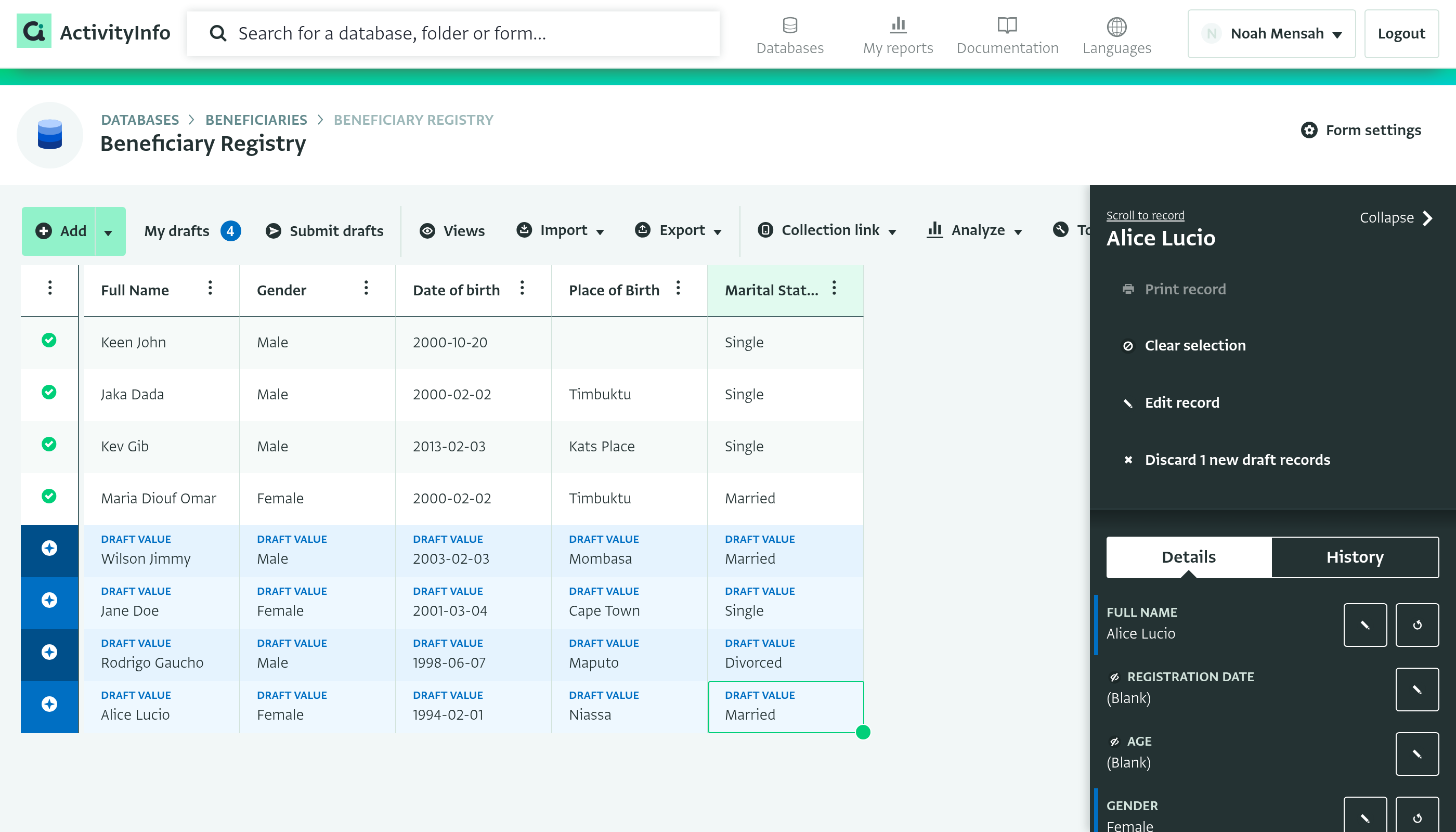
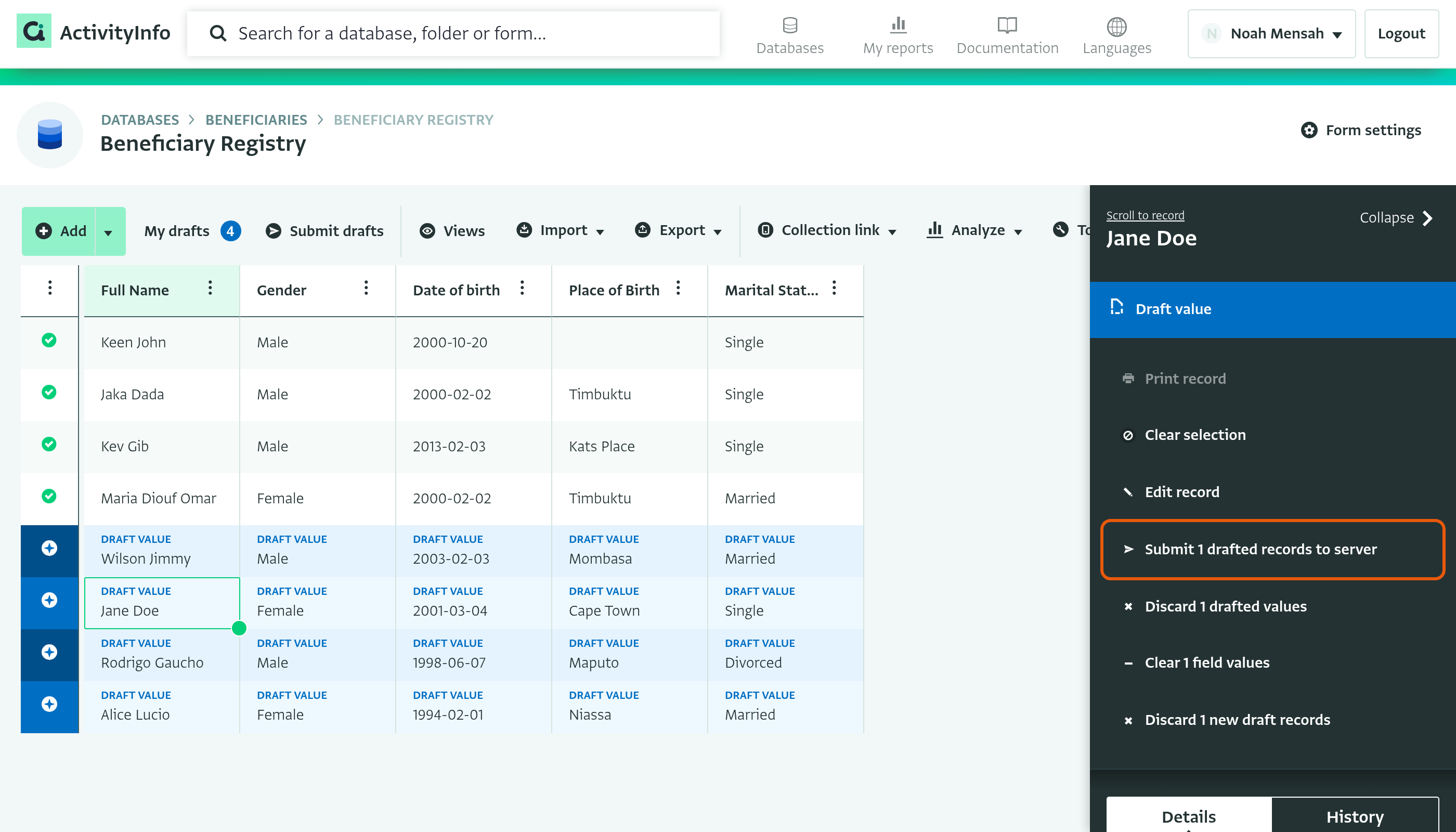
- Submit the records to the server, one at a time or several at once:
- One at a time: click on any cell of the draft record. The record panel shows an option to submit the selected record.
- Several at once: click on a cell, then drag down to select all the draft records you want to submit.
Fill down values
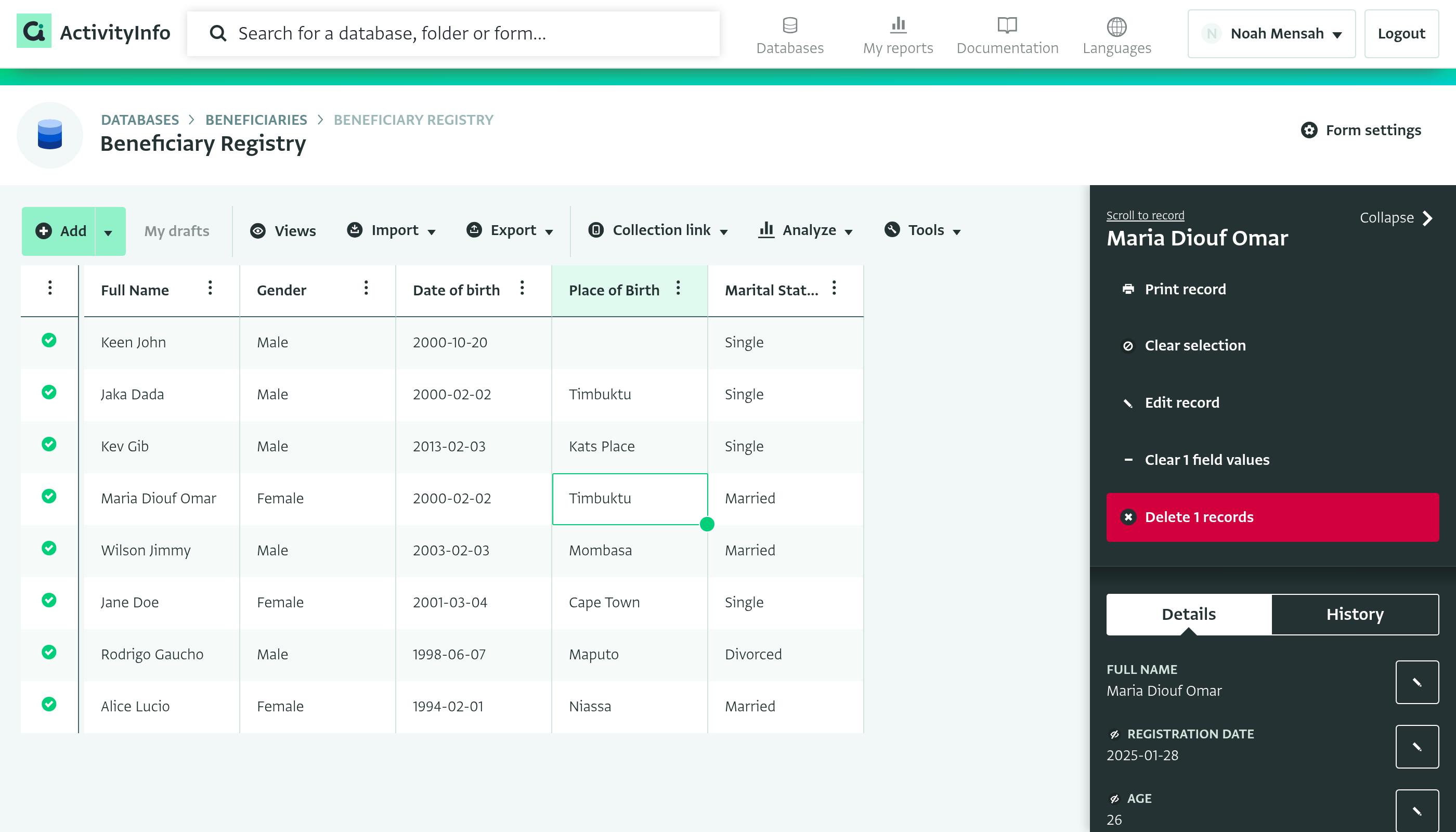
Use the fill handle in the bottom right corner of a cell or selection to copy values up or down a column, or across a row, as in a spreadsheet. Filled values follow the form's validation rules. A value that doesn't match the field type is marked as invalid.
- If you select one cell, its value is repeated.
- If you select several cells, the pattern is repeated.
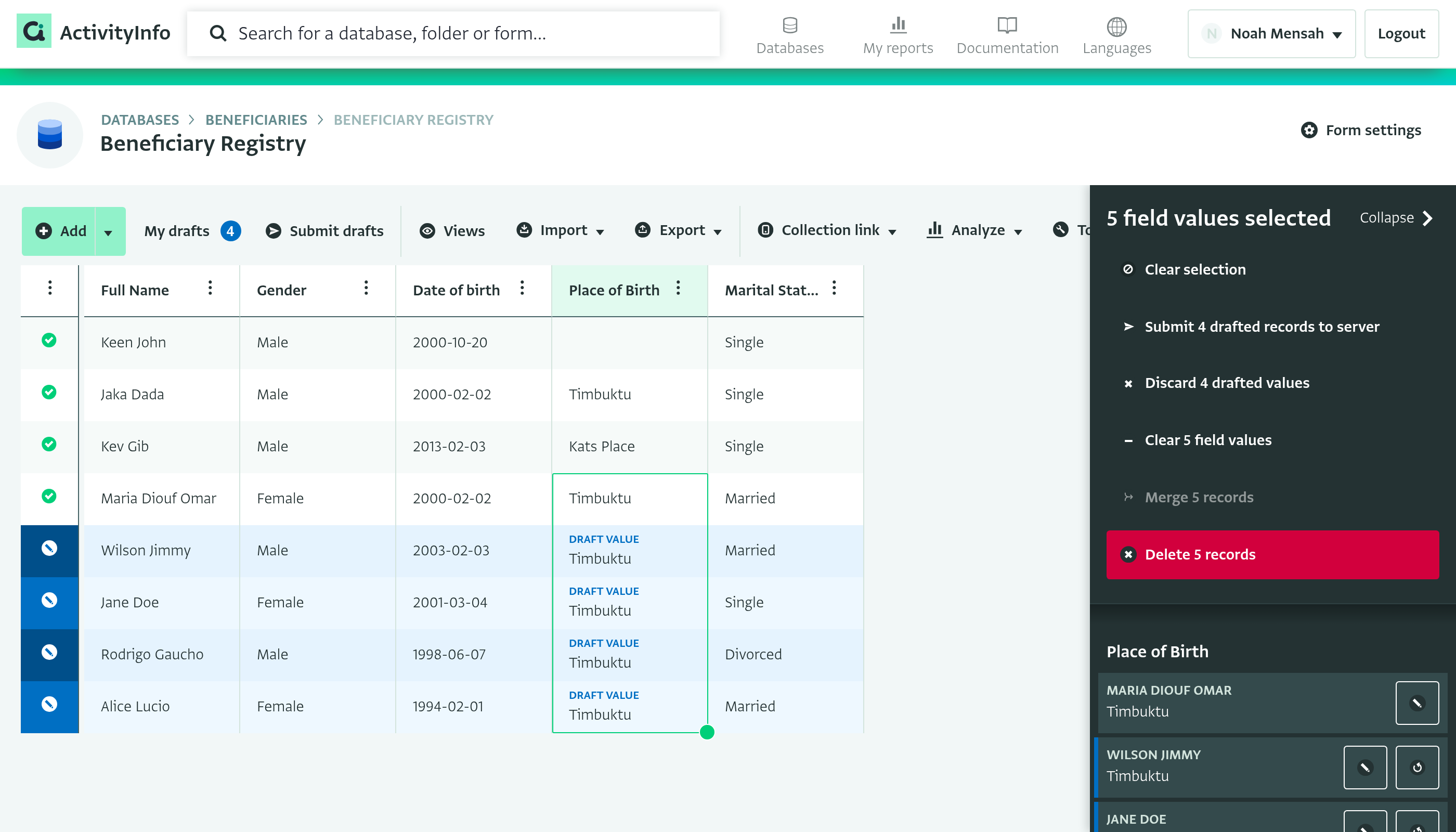
For example, to set the “Place of Birth” field to “Timbuktu” for the records below, select the cell with the value you want to copy. The fill handle appears in the bottom right corner of the cell.
Click on the fill handle and drag down. The records become drafts. Submit them to the server to save the changes.
Review the status of records
The first column is the status column. It shows the status of each record, and stays visible when you scroll horizontally.
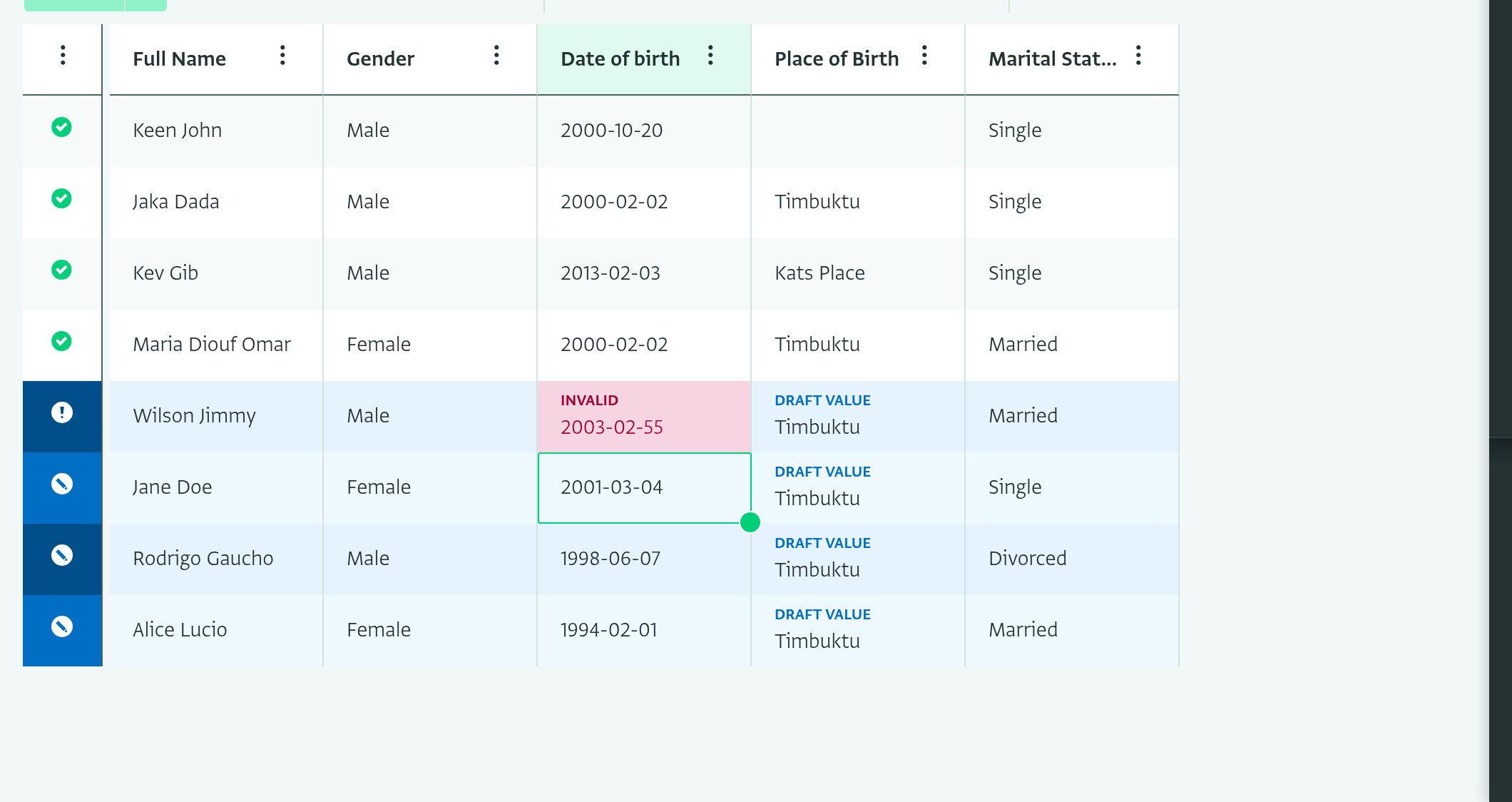
To find records with a certain status, click on the menu button at the top of the status column. You can filter the table to show valid submitted records, invalid submitted records, locked records, valid drafts or invalid drafts. You can also sort the table by status.
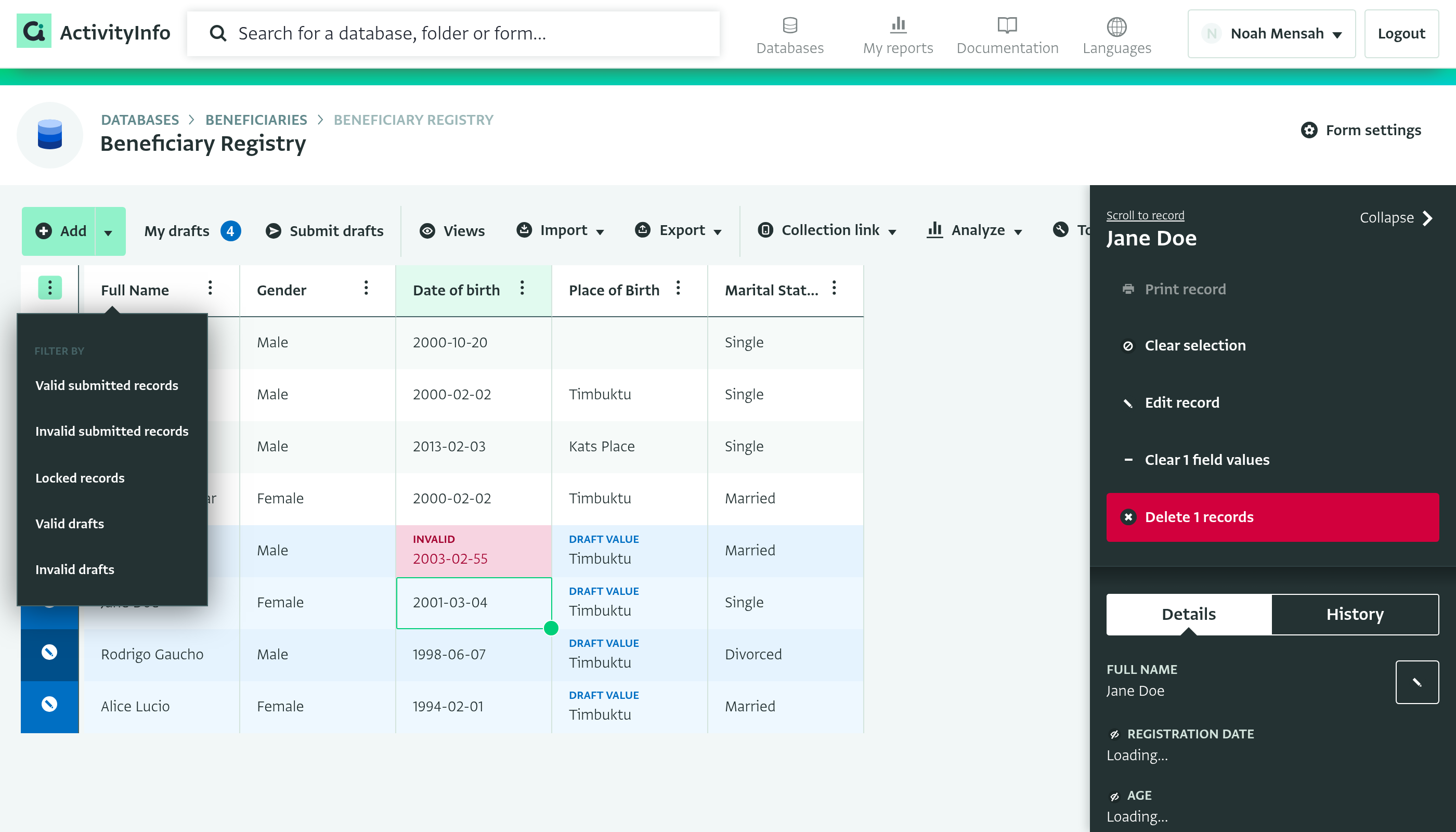
| Icon | Status | Meaning |
|---|---|---|
 |
Valid saved record | The record has been submitted to the server and is available to other users. |
 |
Invalid saved record, invalid draft or invalid edit draft | One or more values break a field rule, such as the field type or a validation rule, or a required field is blank. You cannot submit an invalid draft to the server. |
 |
Valid draft | A new record that is valid but has not been submitted to the server yet. |
 |
Valid edit draft | A saved record that you have changed. The changes are valid but have not been submitted to the server yet, and are only stored on your device. |
| Drafted dependencies | The draft refers to other drafts. You can submit it to the server when those drafts are also valid. | |
 |
Locked saved record | The record is covered by a lock and cannot be edited. The database owner, or any user with a role that includes the “Manage record locks” permission, can change or remove the lock. |
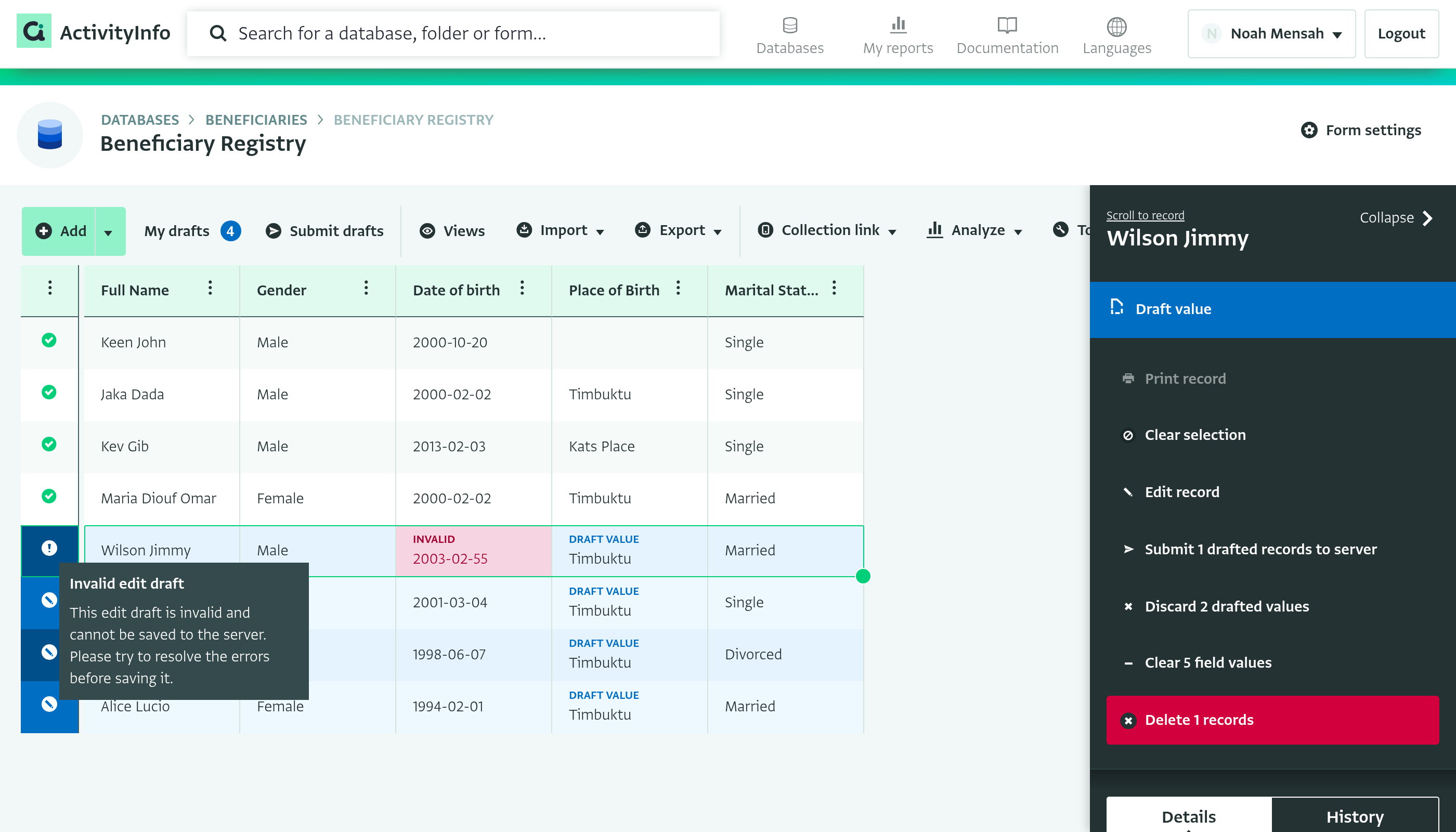
Hover over a cell to see a tooltip with validation messages, warnings or permission notes.
Validation, permissions and locks
The interactive table applies all ActivityInfo rules, including:
- Required fields
- Relevance conditions
- Field types and formats
- Record locks
- User permissions
- Rules for Reference fields
Invalid values are highlighted, and a tooltip explains the problem.
You can only submit valid changes to the server.
Drafts
Every change you make in the interactive table is stored as a draft on your device until you:
- Submit the draft to the server, or
- Discard the draft.
This lets you review your changes before you update data that others use.
Other users cannot see your drafts until you submit them to the server.
Draft highlighting
The table highlights drafts so you can find them:
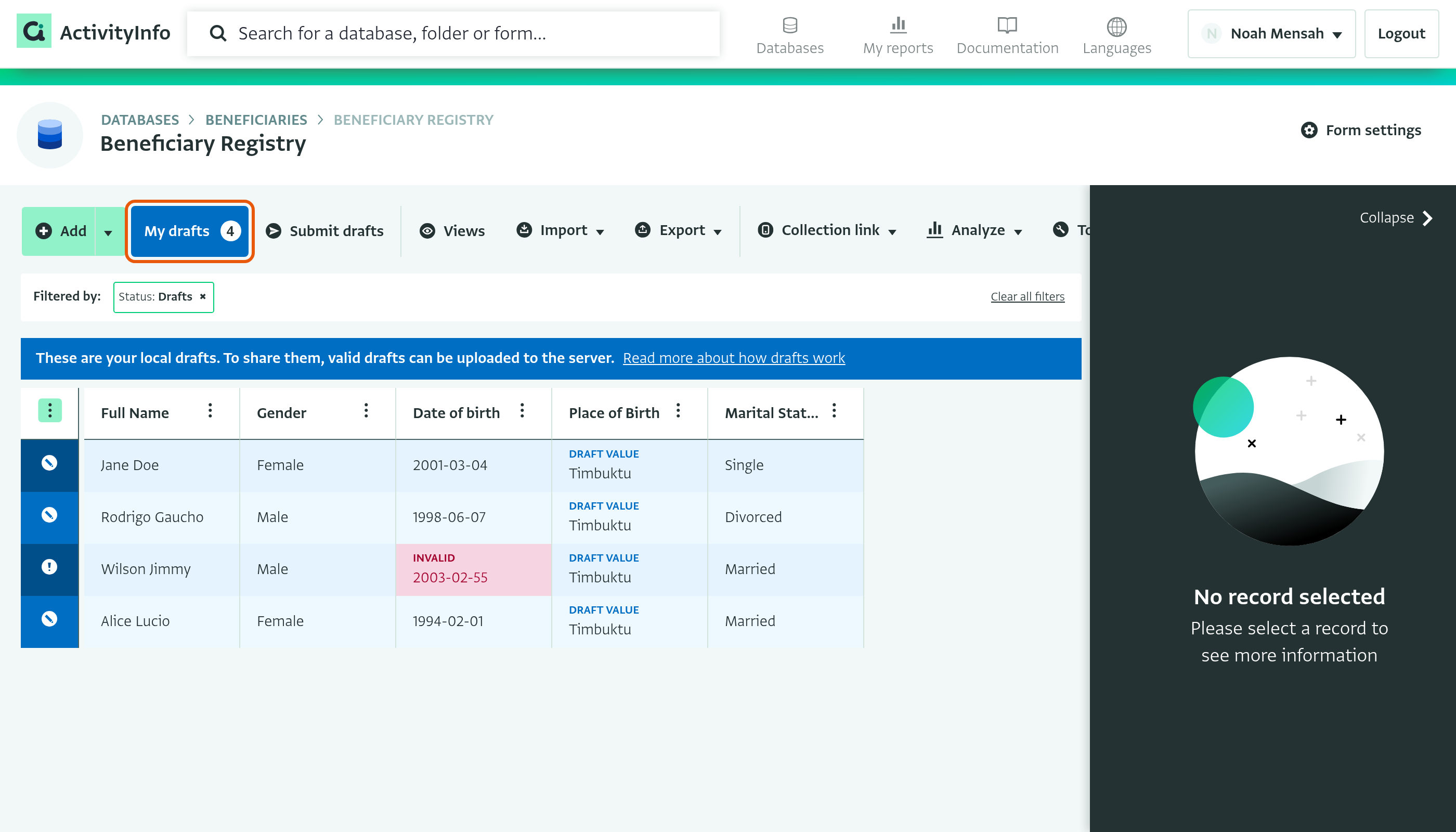
- Rows of drafts have a blue background.
- Changed values that are valid are labeled “Draft value”.
- Invalid values have a pink background and are labeled “Invalid”.
Review your drafts
The “My drafts” button in the toolbar shows how many drafts you have. Click on “My drafts” to filter the table so that it only shows your drafts. To show all records again, click on “Clear all filters”.
Submit your drafts
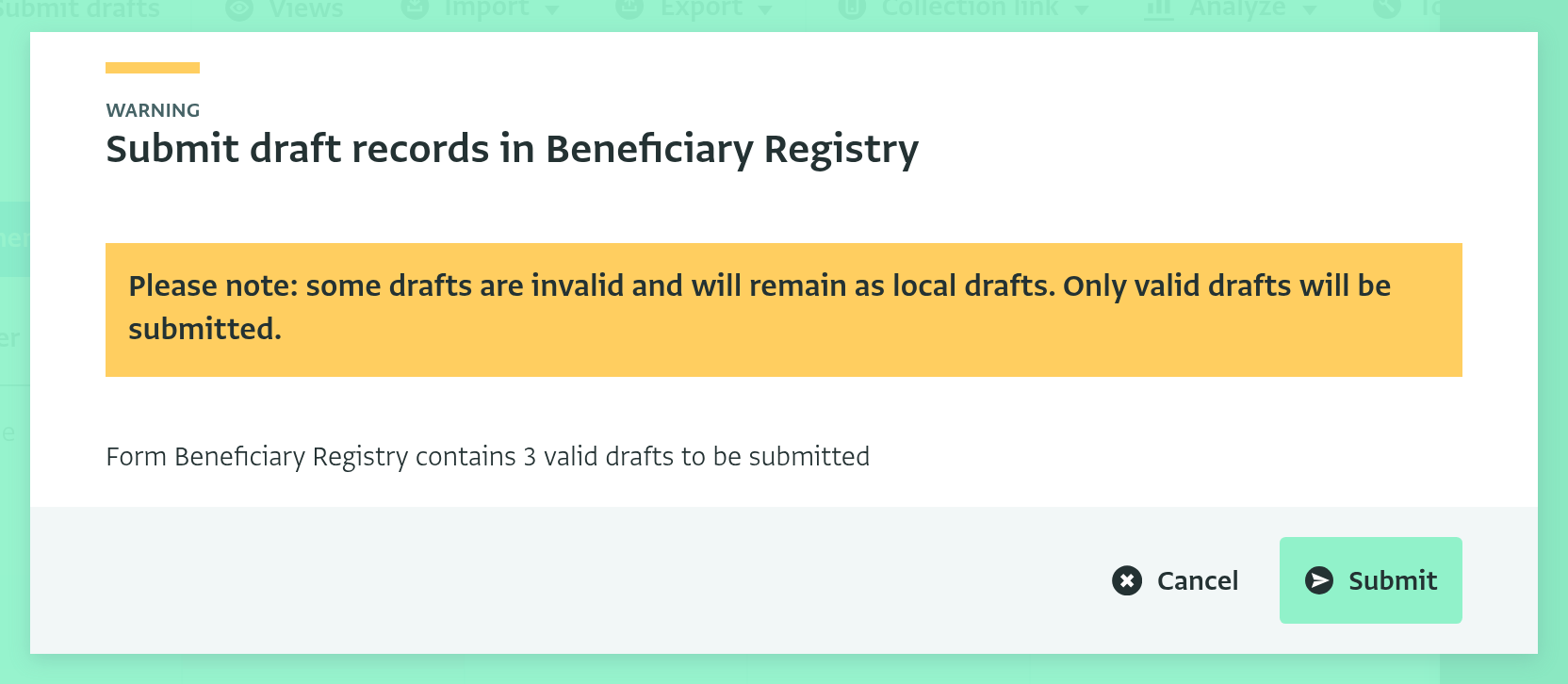
Click on “Submit drafts” in the toolbar to submit all your valid drafts to the server. A dialog shows how many valid drafts each form contains. Click on “Submit” to confirm.
Only valid drafts are submitted. If some of your drafts are invalid, the dialog warns you that they stay on your device as drafts. You can correct them and submit them later. If all your drafts are invalid, the “Submit drafts” button is grayed out.