Language: English
A Note field displays a label and description on a Form during data collection, but captures no data value.
Form designers can use this field to add instructions, definitions, reminders, or warnings to guide users during data entry.
Design
In the Form designer, a Note field is added from the fields palette.
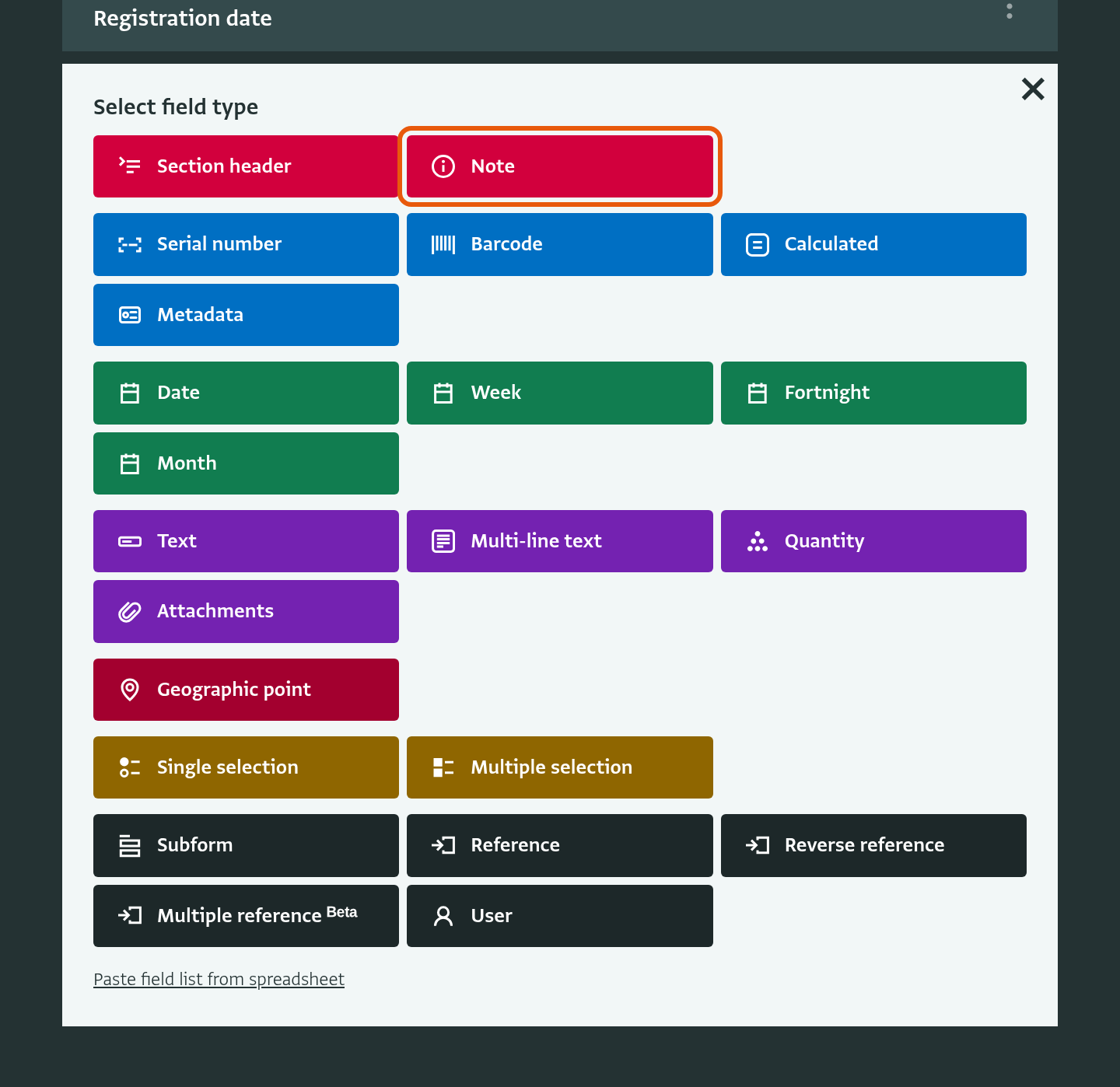
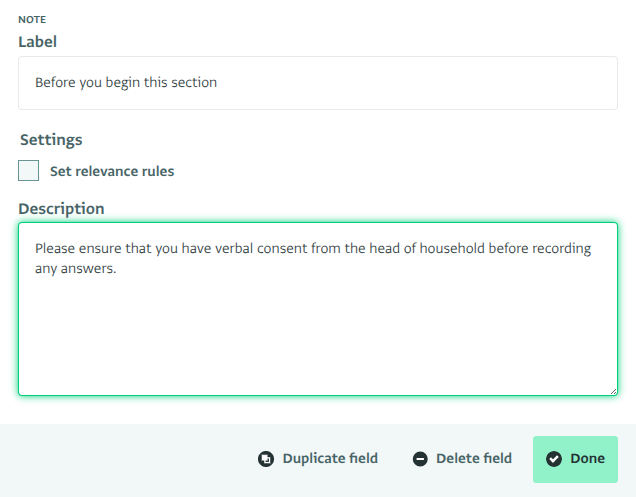
You can set the following properties for a Note field:
- Label: A descriptive title for the field.
- Description: Optional longer text displayed beneath the label.
- Relevance rules: You can also optionally set relevance rules to show the Note only when a condition is met. When the relevance rule is not satisfied, the Note is hidden entirely; when satisfied, the label and description appear.
Data entry
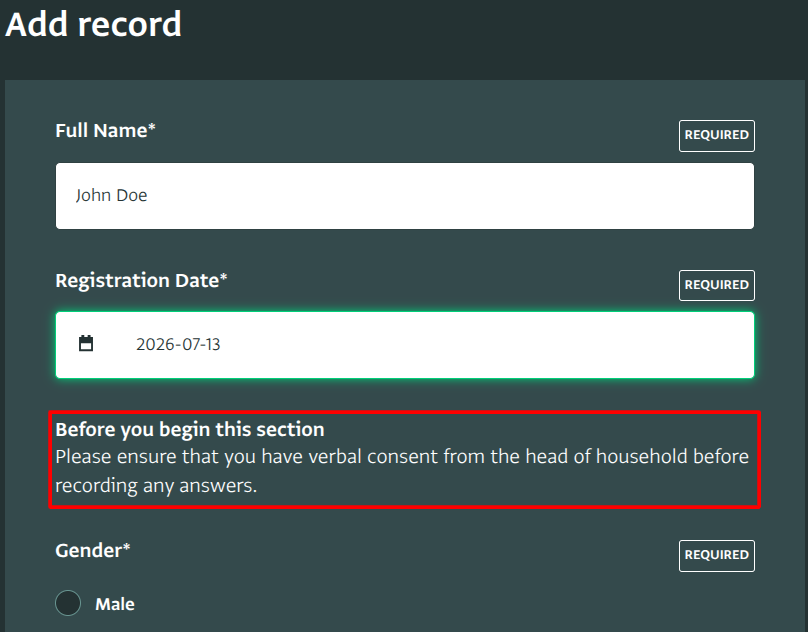
A Note field is displayed to users during data entry as a label and, optionally, a description. It does not accept any input and no value is stored for it. If a relevance rule has been set, the Note is only shown when the rule is satisfied.
Limitations
- Label - 1024 characters
- Description - 2048 characters
Translation
A Note's Label and Description are translatable. Multi-language Forms will automatically present guidance in the data-entry user's selected language.
Note field vs. Section header field
While both a Note and a Section header field display a label and a description, they serve different purposes in a form. The table below shows a few similarities and differences.
| Aspect | Section header | Note |
|---|---|---|
| Stores no value | Yes | Yes |
| Starts a new section / groups following fields | Yes | No |
| Has indentation levels and validity bar | Yes | No |
| Can be shown/hidden using relevance rules | Yes | Yes |
| Intended use | Structure long Forms into sections | Insert instructions or reminders anywhere on the Form |
Related articles: