Language: English
In this tutorial we set up an automation that emails a reminder three days before each scheduled follow-up visit. It uses the On a date trigger, which starts an automation on a schedule set by a date field, together with the built-in email step.
We assume the role of a database administrator for a case management program. Case workers record each beneficiary in a Beneficiaries form, including the date of the next home visit. Visits are easy to lose track of, so the program wants a reminder in everyone's inbox a few days ahead.
What you need
- A database with a Beneficiaries form (any form with a date field will do; adjust the field references to yours). Ours has a text field Full name, a text field Case worker, a date field Next visit, and a date field Visit completed, where the case worker records the date the visit took place.
- Permission to design the database.
- The people to remind must be users of the database, since email steps address database users and roles.
Step 1: Add the automation
Open the database, select Database settings and select the Beneficiaries form.
Select Automations in the form's detail pane and select Add automation.
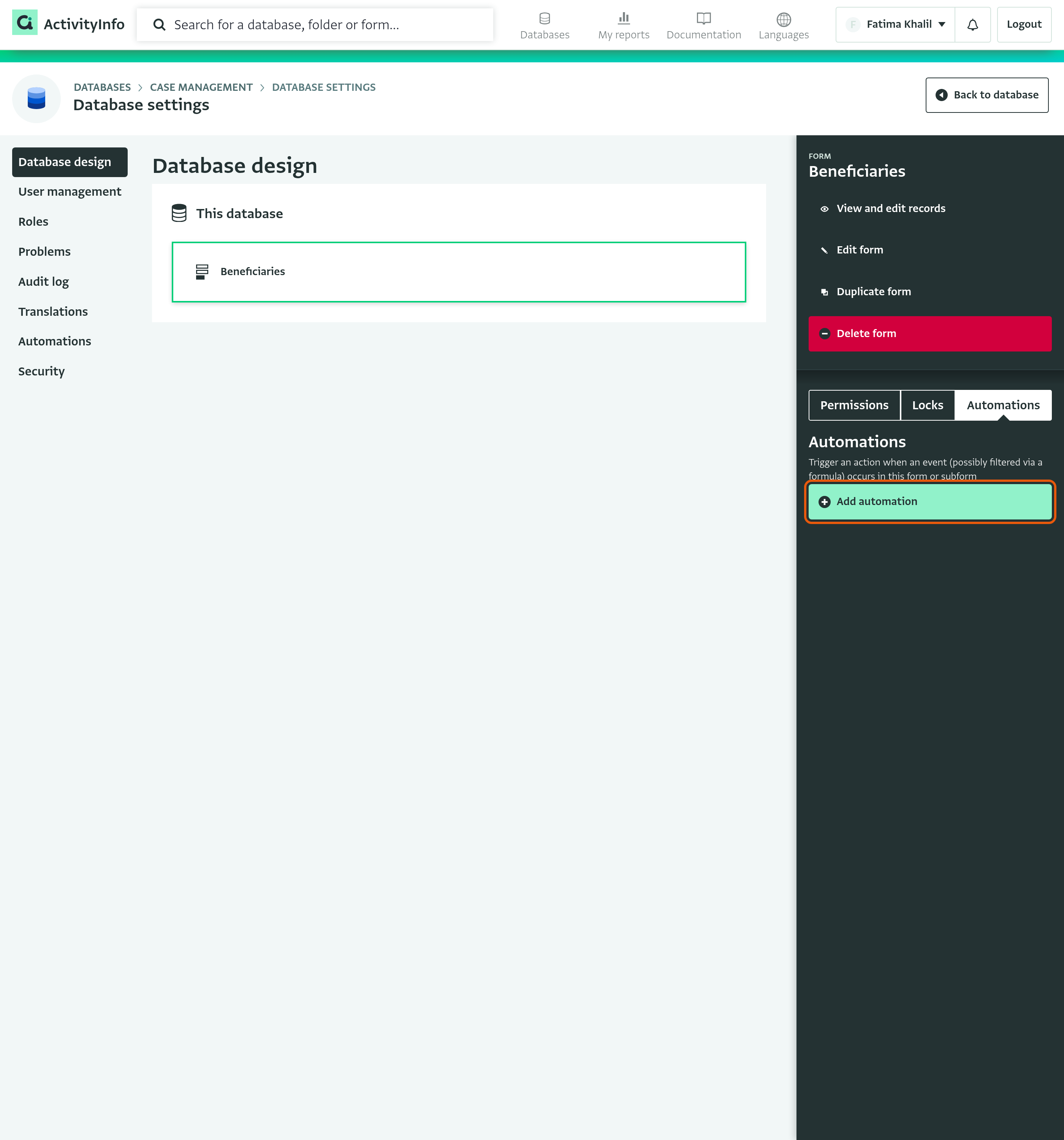
Add automation Name the automation "Visit reminder".
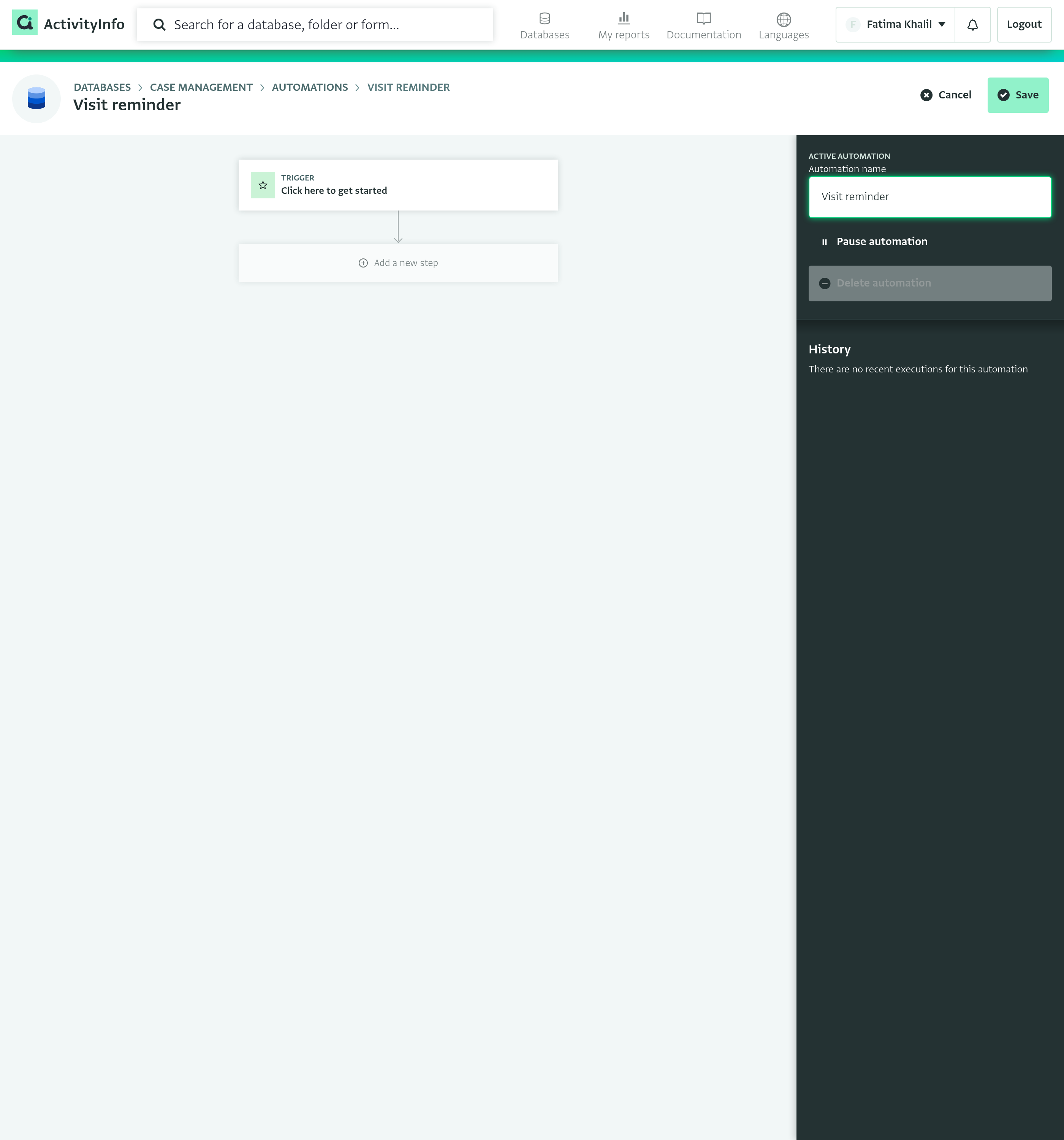
New automation
Step 2: Choose the trigger
Select Click here to get started.
From the list of trigger types, choose On a date.
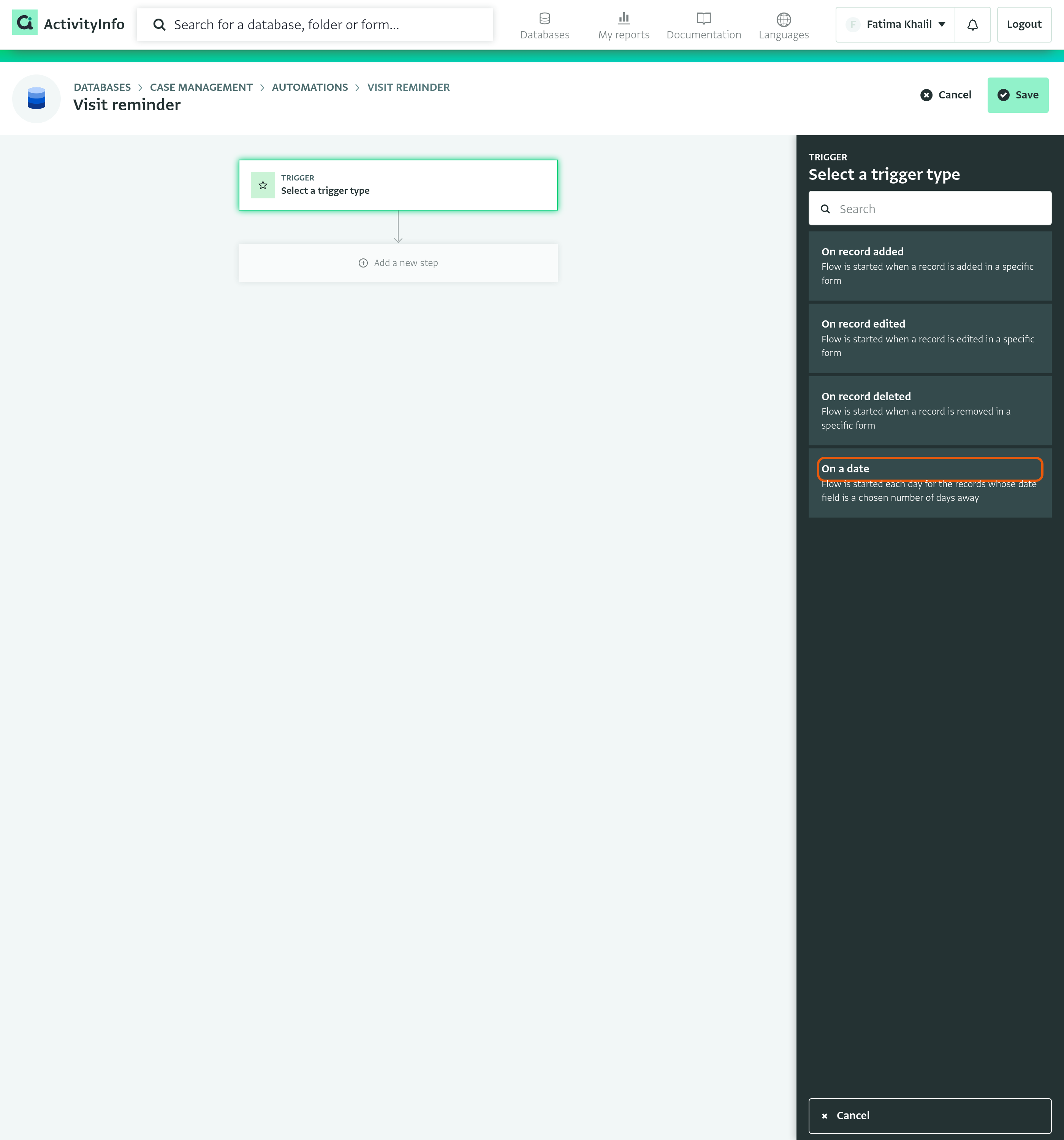
Select a trigger type Give the trigger a label, for example "Three days before the visit". The Beneficiaries form is already selected, because we started from the form's detail pane. To schedule from another form, select Select form and choose it.
Fill in the schedule:
- Date field: Next visit.
- Time zone: the time zone of your team. It defaults to your browser's time zone.
- Time of day: 09:00, so that the reminder arrives at the start of the working day.
- When to start: Days before the field's date, and enter 3 as the Number of days.
- How long to repeat: Once.
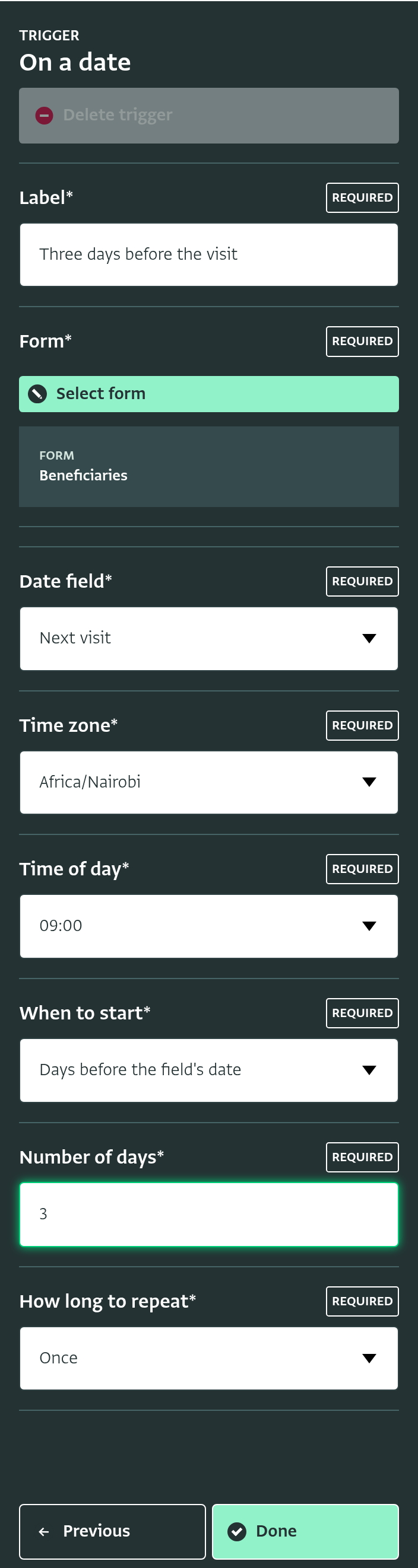
The trigger's settings Choose Every day until the field's date instead to send the reminder on each of the three days up to the visit, or For a number of days to set the number of days yourself.
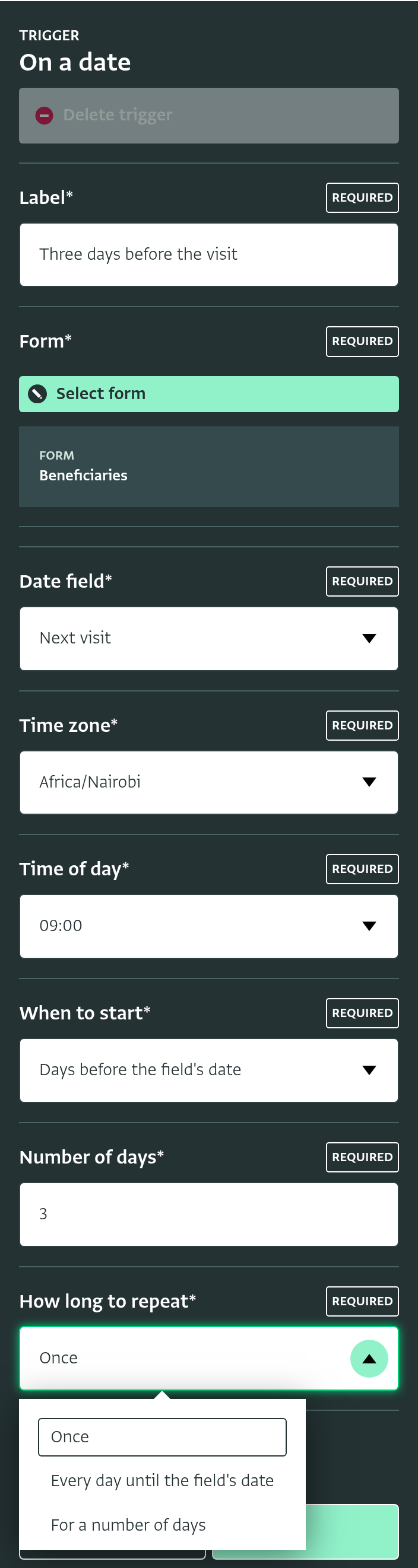
How long to repeat Select Done. The trigger card summarizes the schedule.
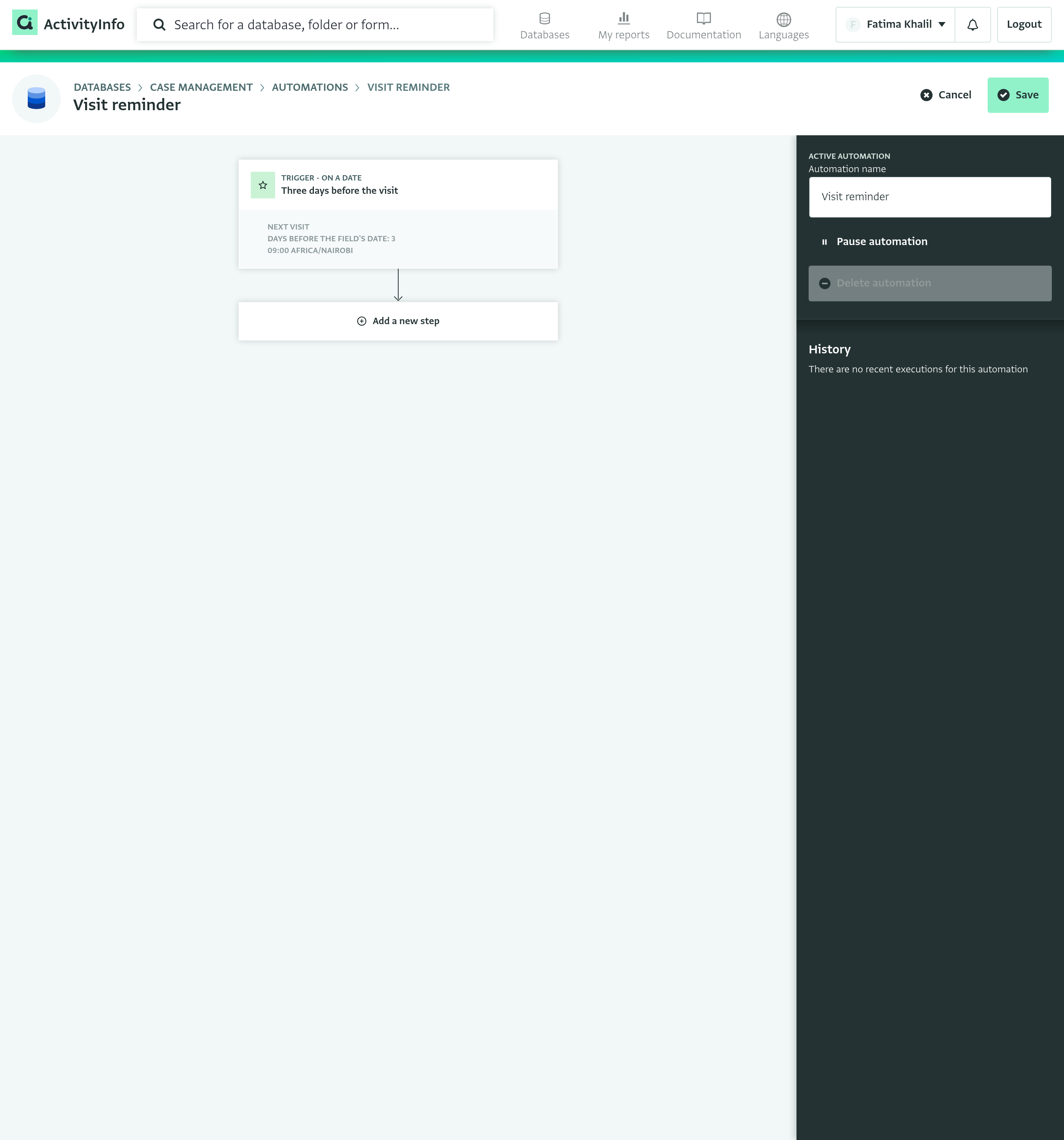
The trigger card
Step 3: Add the email step
Select Add a new step, then Action, then Send email.
Give the step a label, for example "Email the case worker".
Select Manage recipients and choose who receives the reminder. You can add individual users, or a role. A role reaches everyone who holds it, including people added to the role later. We choose the Case Worker role, which our case workers hold. Confirm with Save.
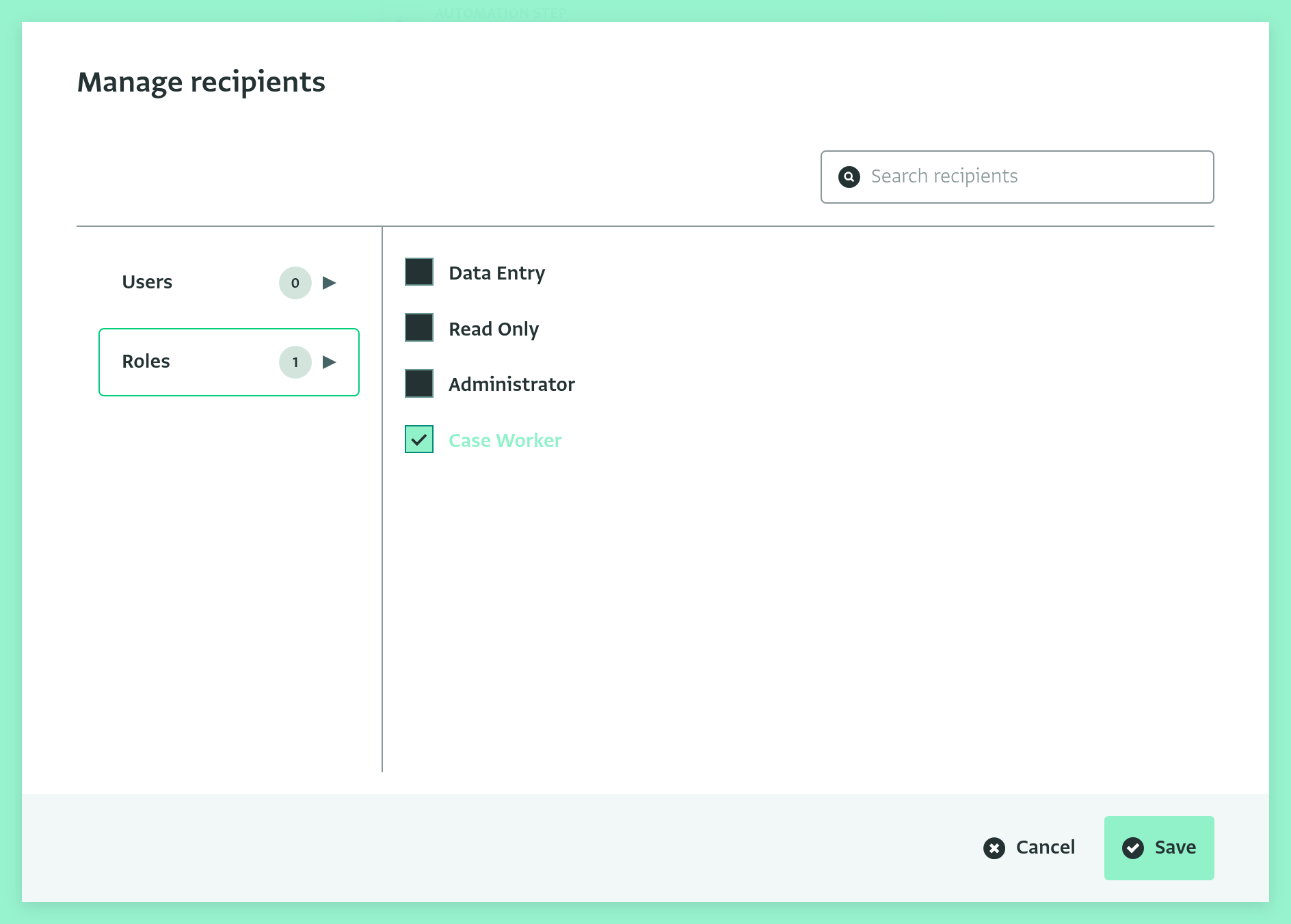
Manage recipients Select Edit content and enter the subject:
Follow-up visit for ${[Full name]} in three days${...}references are replaced with the record's field values when the email is sent. Rather than typing a reference, place your cursor where you want it and click the field in the list on the right to insert it there. Besides the record's fields, the list offers_trigger.date, the date that fired the trigger, and_trigger.field, the name of the date field.Enter the body. The body accepts markdown:
Hello ${[Case worker]},

   The next visit for **${[Full name]}** is planned for ${[Next visit]}.

   Please confirm the appointment with the household.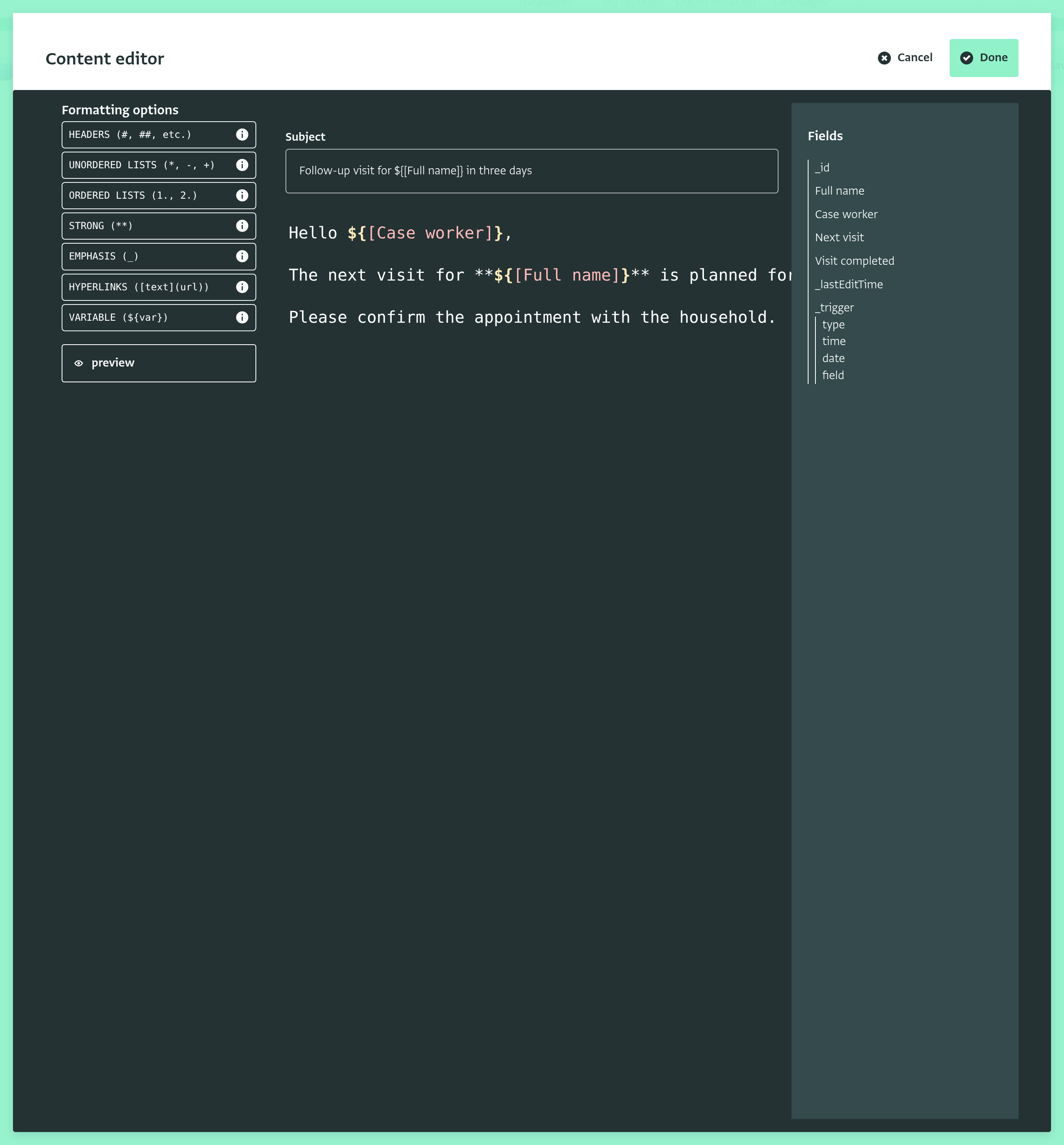
The email content Select Done to close the content editor and Done again to close the step.
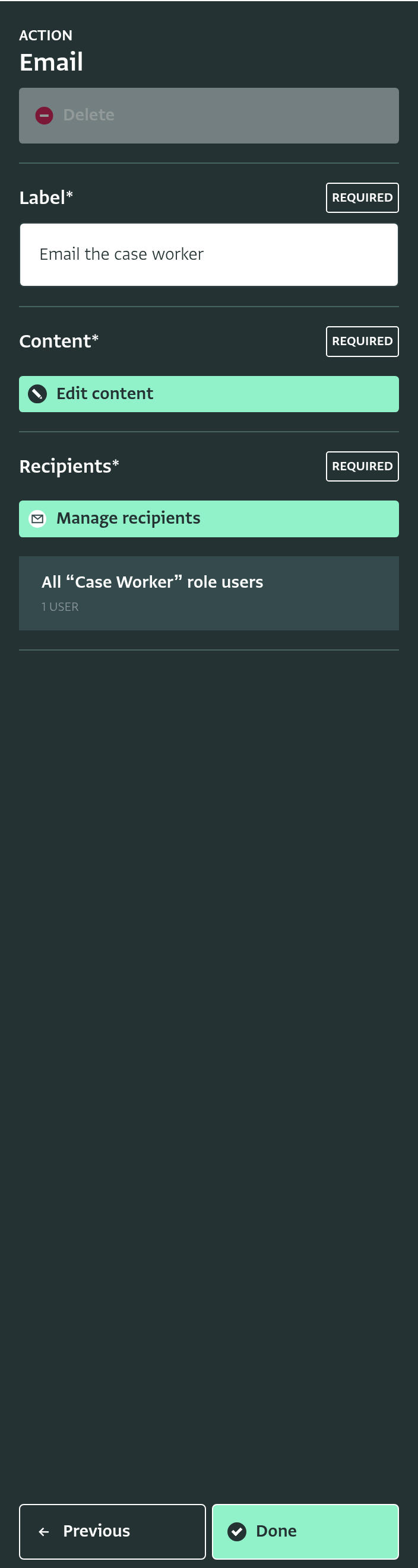
The email step
Step 4: Save
Select Save. The automation is now active.
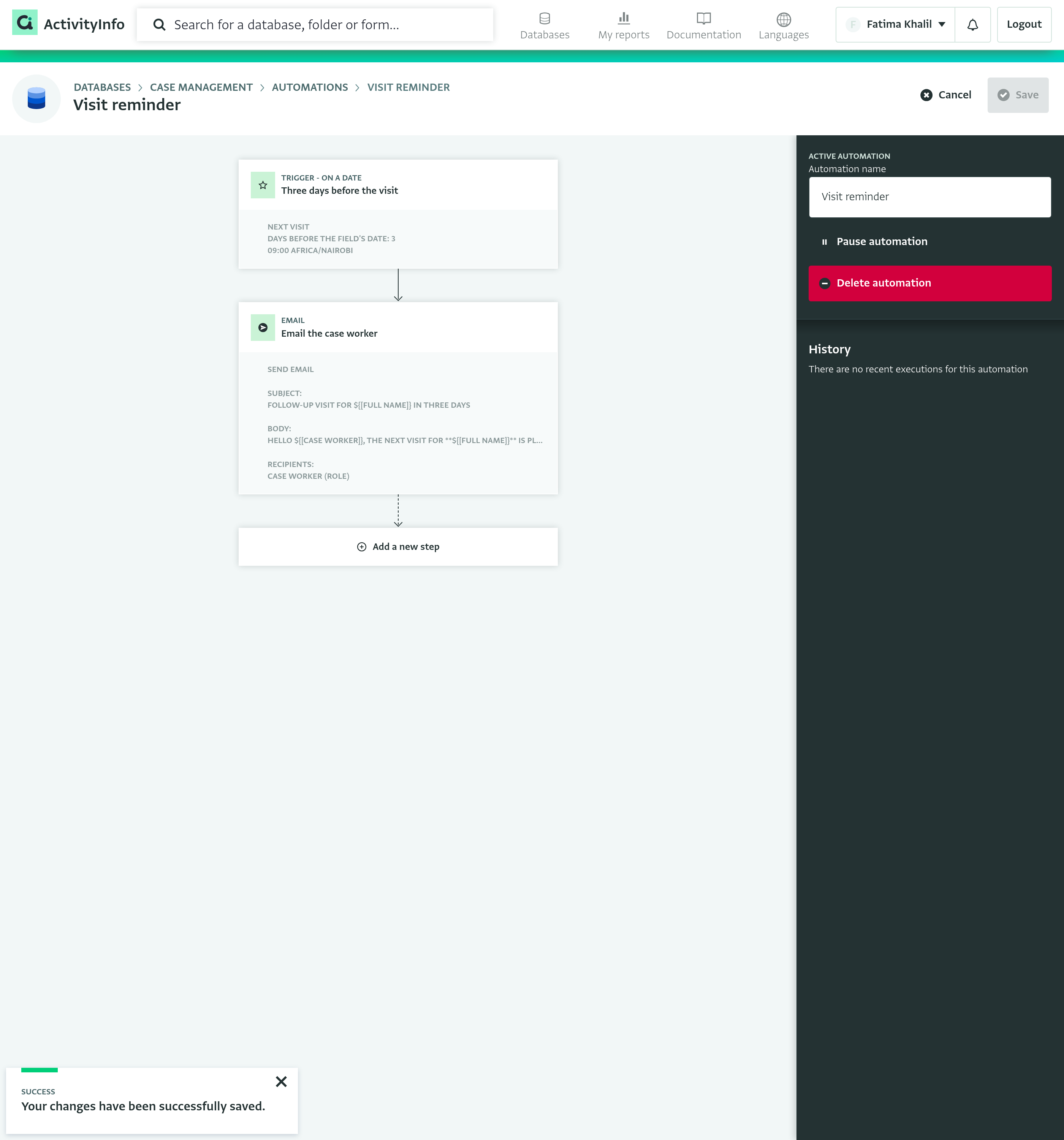
From now on, every day at 09:00, ActivityInfo looks for the beneficiaries whose Next visit is three days away and sends one email for each of them. The emails include a View record button that opens the beneficiary's record directly in ActivityInfo. Each run is listed in the automation's History.
For example, Amira Haddad's next visit is on 12 November. On 9 November at 09:00, everyone with the Case Worker role, including Samuel Okoro, receives this email:
Subject: Follow-up visit for Amira Haddad in three days

Hello Samuel Okoro,

The next visit for Amira Haddad is planned for 2026-11-12.

Please confirm the appointment with the household.
The name Amira Haddad in the body appears in bold.
Going further
- Remind only some case workers: add a filter step between the trigger and the email, for example
[Case worker] == "Samuel Okoro". A filter placed right after the trigger is applied while looking for records, so the records it rejects do not even appear in the history. - Escalate overdue visits: a second automation with When to start set to Days after the field's date, and a filter such as
ISBLANK([Visit completed]), can email a supervisor when a visit has not been recorded a week later. - Send the reminder to another system instead of (or in addition to) email: add a webhook step.