Language: English
This article describes how to set up an automation that creates a new record in one form whenever a record is added to another, including when the two forms belong to different databases.
We assume the role of an administrator supporting two teams that share a referral process. The Health team registers referrals in a Referral form. When a referral is marked for the Nutrition program, the Nutrition team should see a matching record appear in their own Nutrition Intake form, without anyone retyping the details.
ActivityInfo's built-in webhook step can send the referral's details to another system, but it cannot itself authenticate the request it sends, and creating a record through ActivityInfo's API requires authentication. This tutorial routes the request through Pipedream, a free workflow platform that receives the webhook and then sends an authenticated request back to ActivityInfo.
Before you begin
- A Referral form to watch, with these fields (any form will do, adjust the field references to yours):
| Field | Code | Type |
|---|---|---|
| Full Name | NAME |
Text |
| Program | PROGRAM |
Single selection (options include "Nutrition") |
| Referral date | REFDATE |
Date |
- A Nutrition Intake form to receive the copied records, in the same database or a different one, with these fields:
| Field | Code | Type |
|---|---|---|
| Full Name | NAME |
Text |
| Intake date | INTAKE_DATE |
Date |
- "Add records" permission on the Nutrition Intake form, for whichever account's token you use below.
- The Referral and Nutrition Intake forms' IDs. Open each form and check the browser's address bar, or select Form Settings, then Export fields, which downloads a spreadsheet listing the form ID alongside every field's ID and code.
- A Personal API Token with "Read & Write" scope.
- A free Pipedream account.
Step 1: Create a Pipedream workflow to receive the webhook
Sign in to Pipedream and create a new, blank workflow.
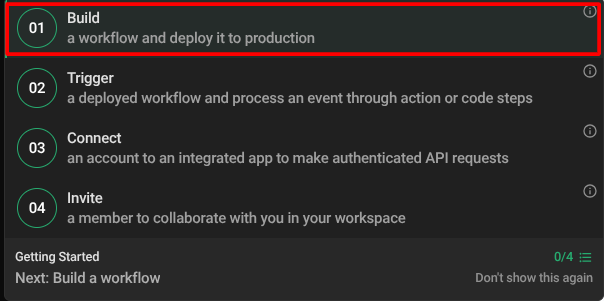
New workflow Give your new project a name, click "Create project and continue", enter a workflow name and click "Create Workflow".
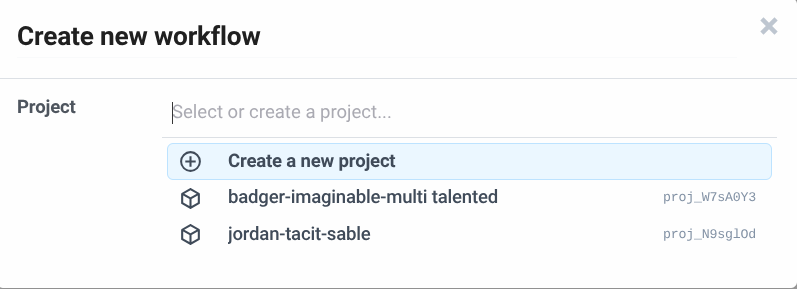
Create a new project 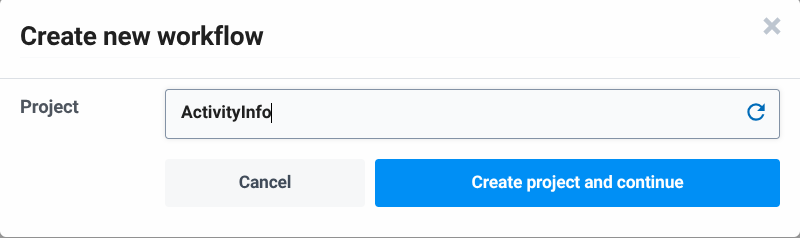
Name project 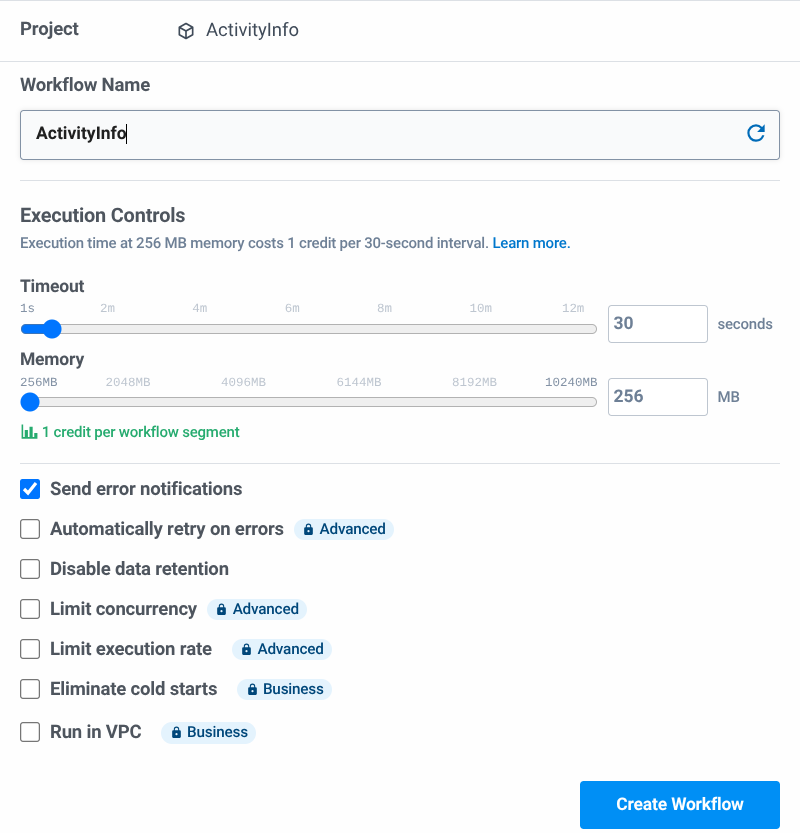
Create workflow Click "Add Trigger" and select New HTTP / Webhook Requests. Set the Authorization to "None". Click "Save and continue". Pipedream generates a unique URL for the workflow.
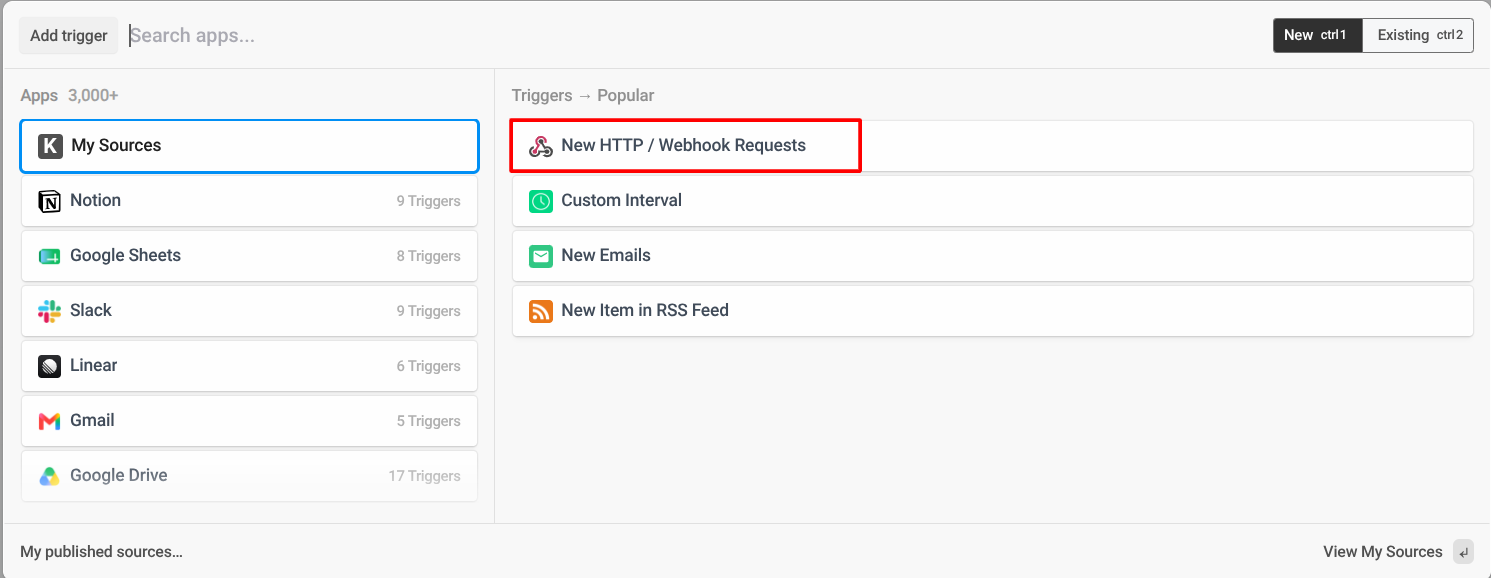
Trigger 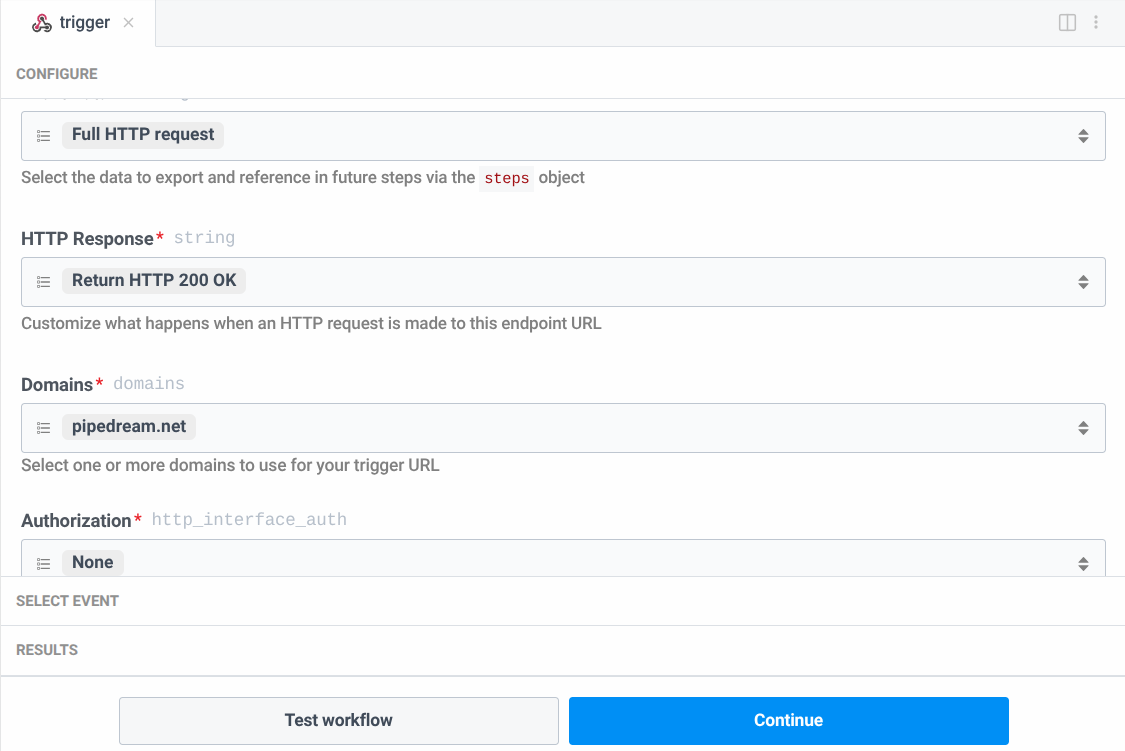
Authorization to None 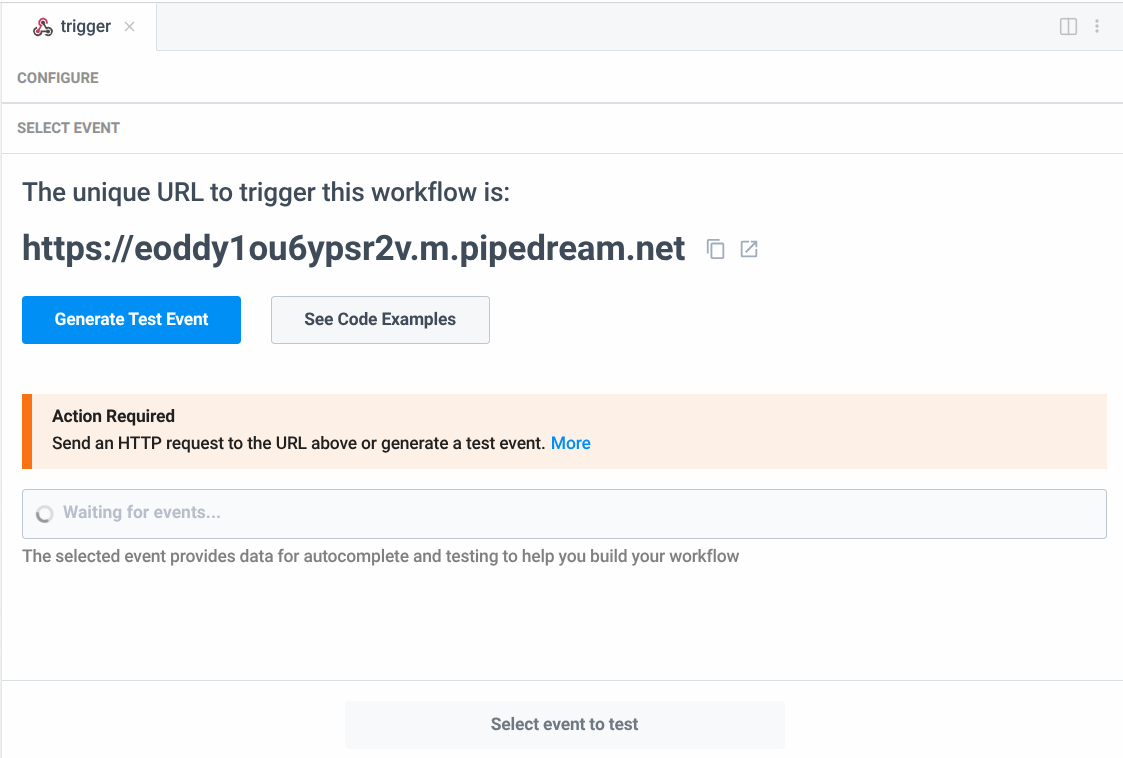
Custom workflow URL Copy this URL. You will paste it into ActivityInfo in Step 5.
Step 2: Add the automation in ActivityInfo
Open the database that contains the Referral form and select "Database Settings".
Select the "Referral" form.
Select Automations in the form's detail pane and select Add automation. Name the automation "Create nutrition intake record".
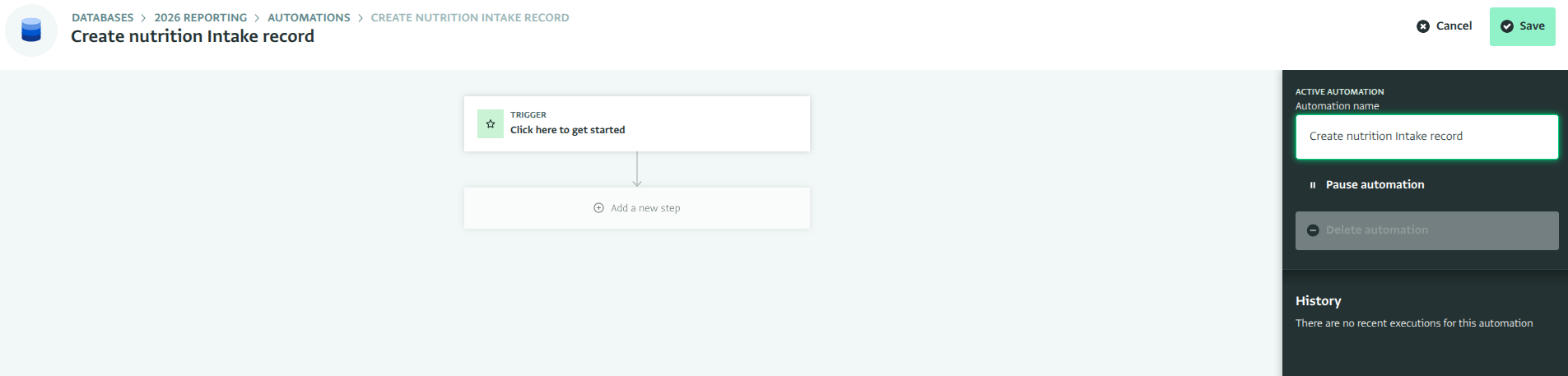
Add automation
Step 3: Choose the trigger
Select Click here to get started.
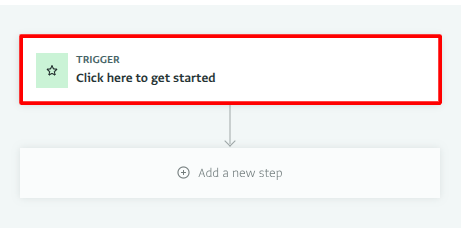
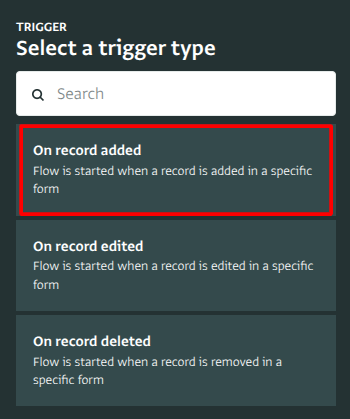
Click here to get started From the list of trigger types, choose On record added.
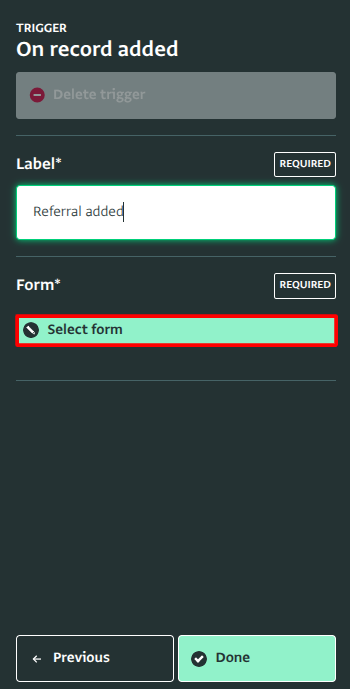
On record added trigger Give the trigger a label, for example "Referral added", then select Select form.
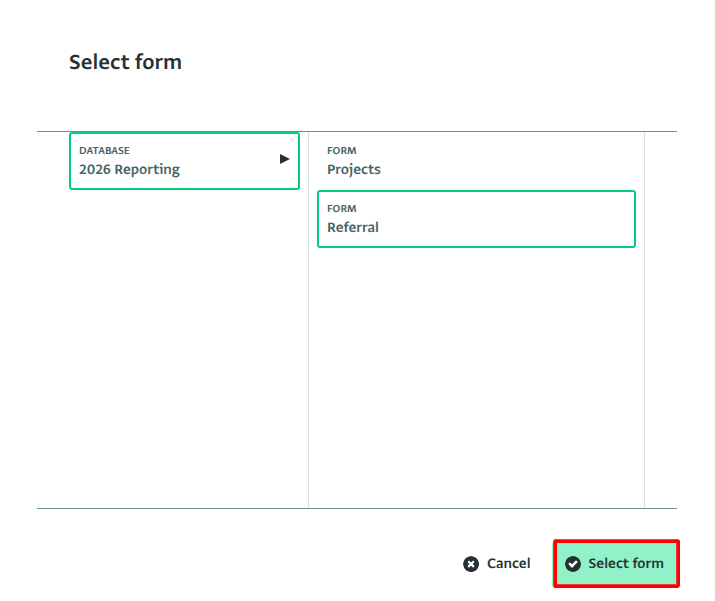
Label trigger Choose the Referral form, and confirm with Select form.
Select form Select Done.
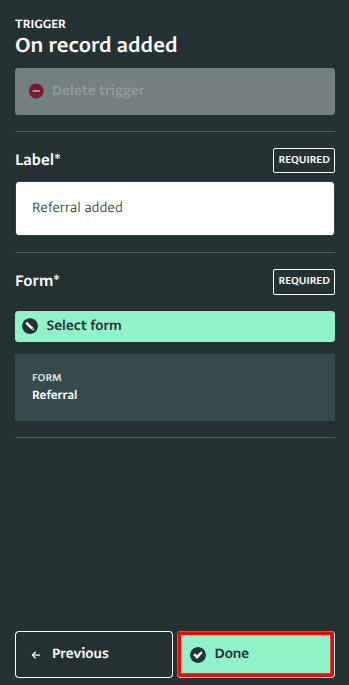
On record added trigger
Step 4: New step to Filter "Nutrition" program records
Select Add a new step, then Filter.
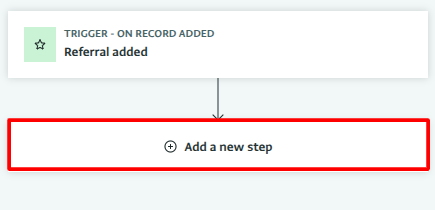
Add a new step 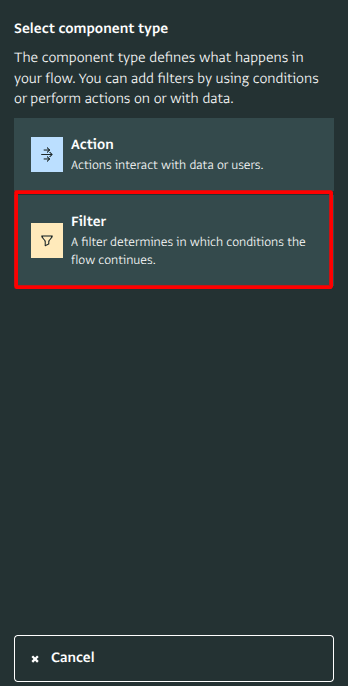
Filter step Give the step a label, for example "Nutrition referrals only".
Enter the condition:
PROGRAM == "Nutrition"
Select Done.
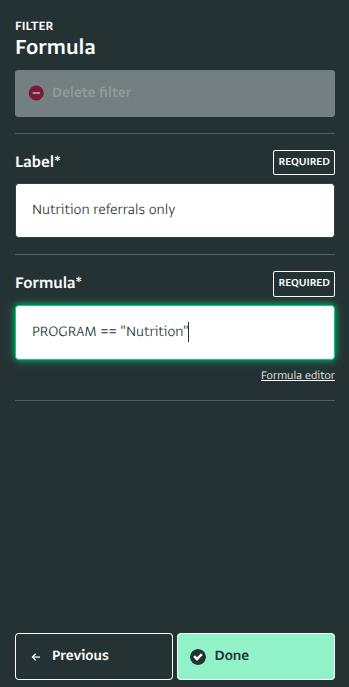
Nutrition referrals only
Only referrals that pass this condition continue to the next step. See the filter step reference.
Step 5: Send the referral to Pipedream
Select Add a new step.
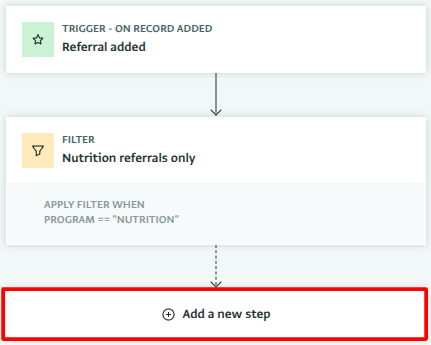
Add a new step Select Action.
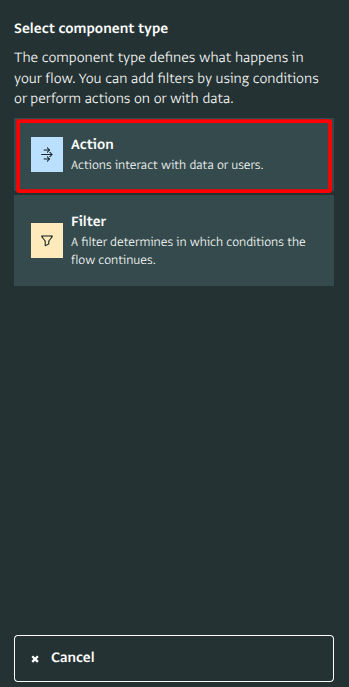
Action Select Fire webhook.
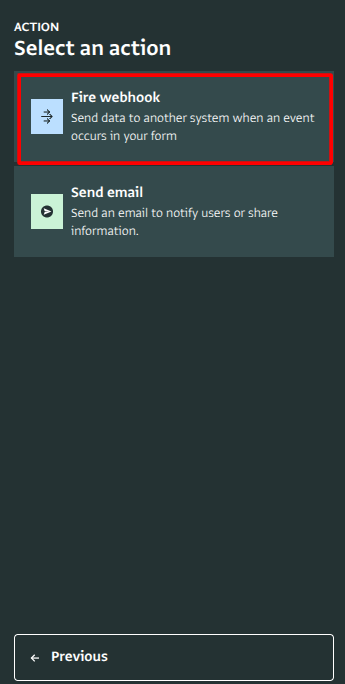
Fire webhook Give the step a label, for example "Send to Pipedream".
Paste the Pipedream workflow URL from Step 1 into the Webhook URL field.
Leave the Payload format set to "Standard". The request carries every field of the referral, keyed by code. See the webhook step reference for the other formats.
Select Done.
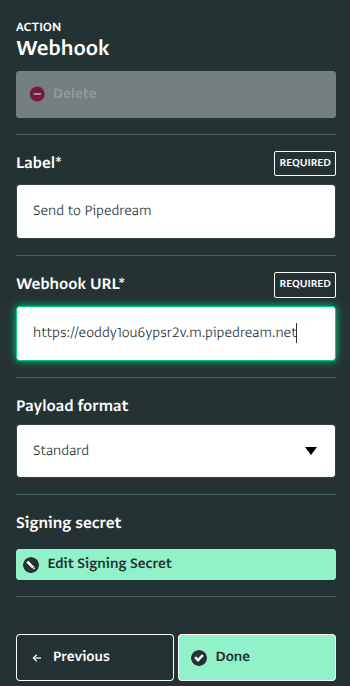
Send to Pipedream Select Save. The automation is now active.
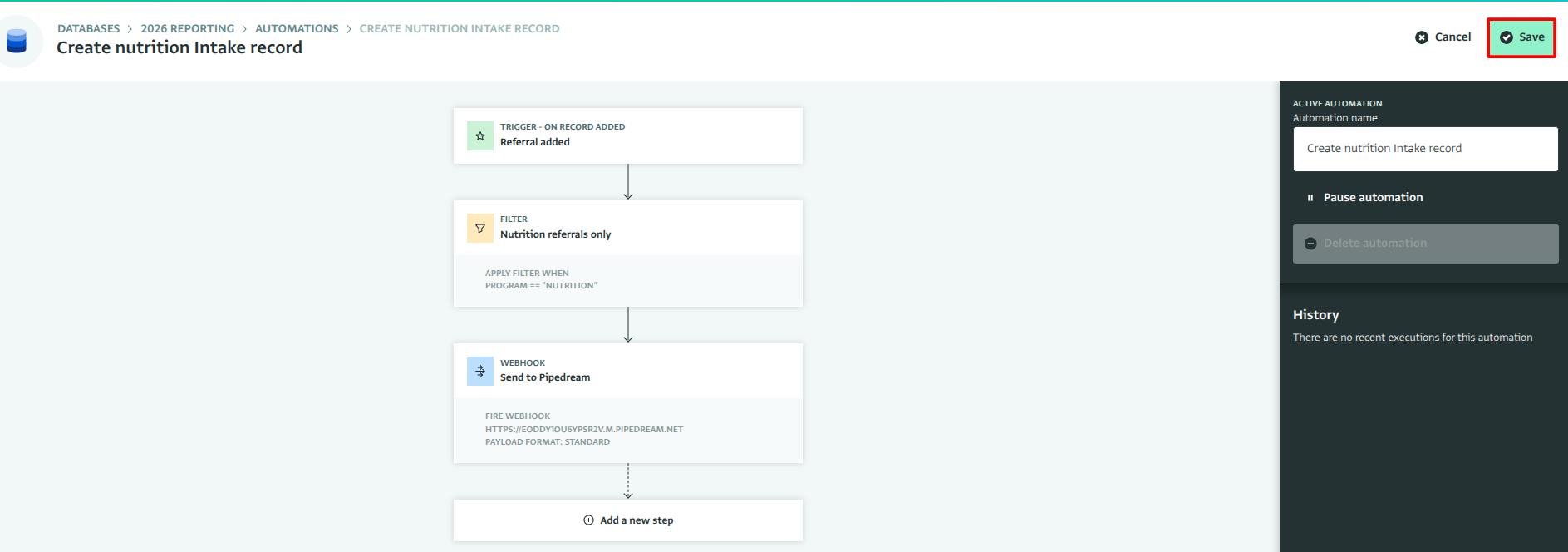
Save automation
Step 6: Create the intake record in Pipedream
Pipedream's built-in HTTP Request action can call ActivityInfo's API directly, with the record's fields filled in from the trigger.
In the Pipedream workflow, select + to add step, search for "HTTP", and add the Send any HTTP Request action.
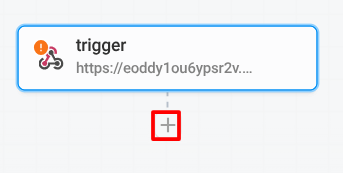
Add step 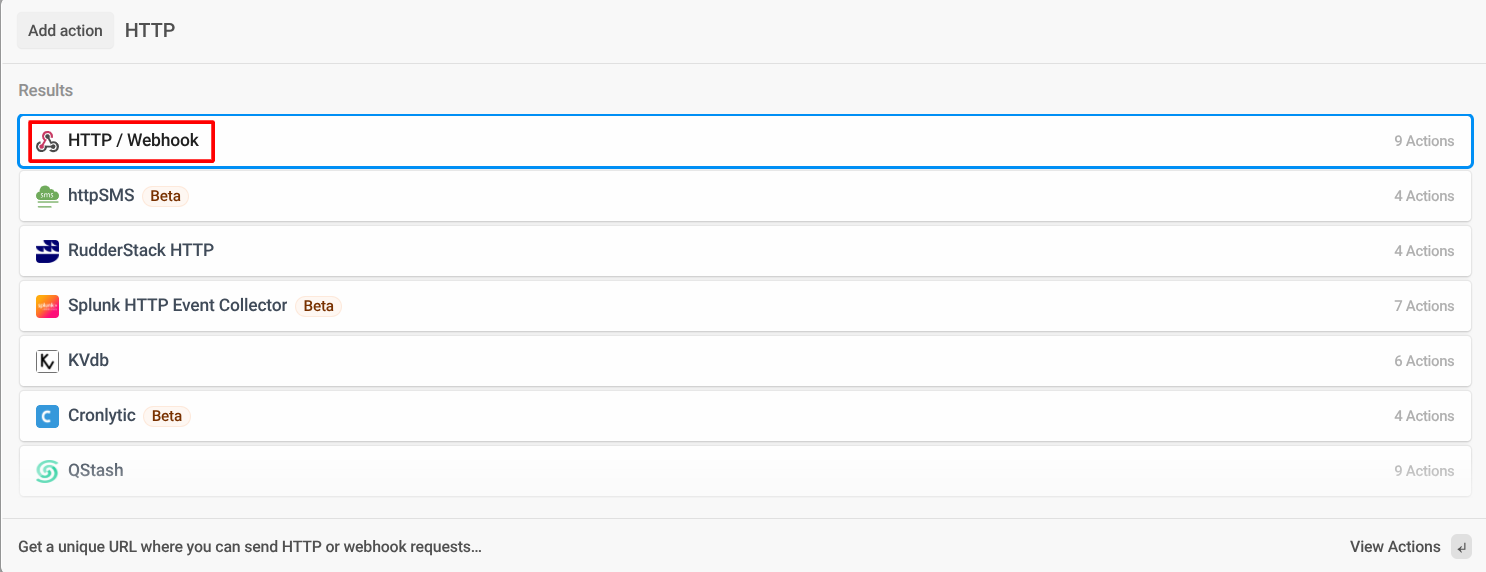
HTTP / Webhook 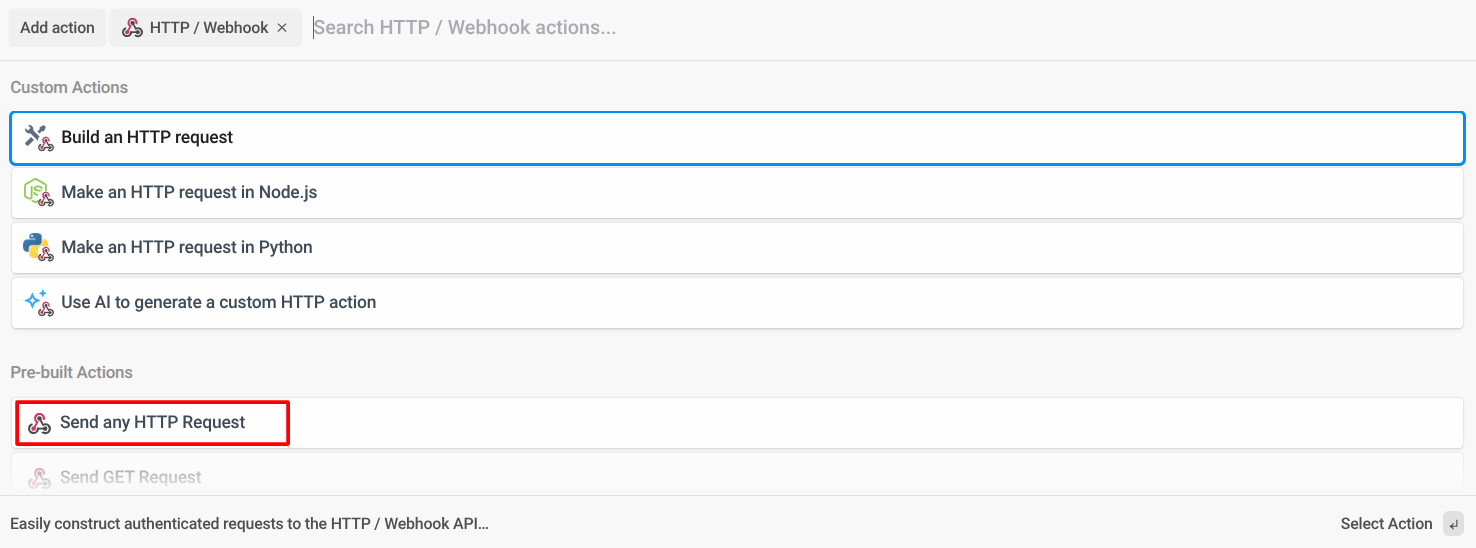
Send any HTTP Request Set Method to
POSTand URL to:
https://www.activityinfo.org/resources/update
Set Authorization Type to "Basic Auth", enter any value as the Username (for example
activityinfo), and your Personal API Token as the Password. Pipedream stores this securely.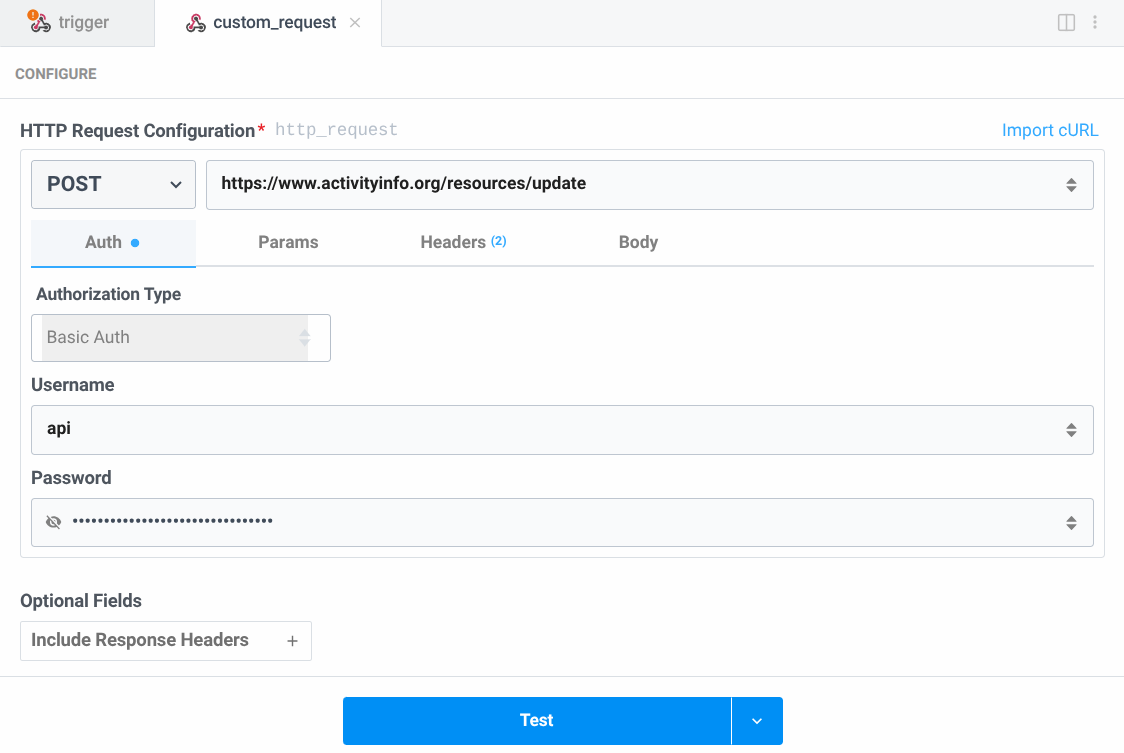
Authorization Under Headers, add
Content-Typewith the valueapplication/json.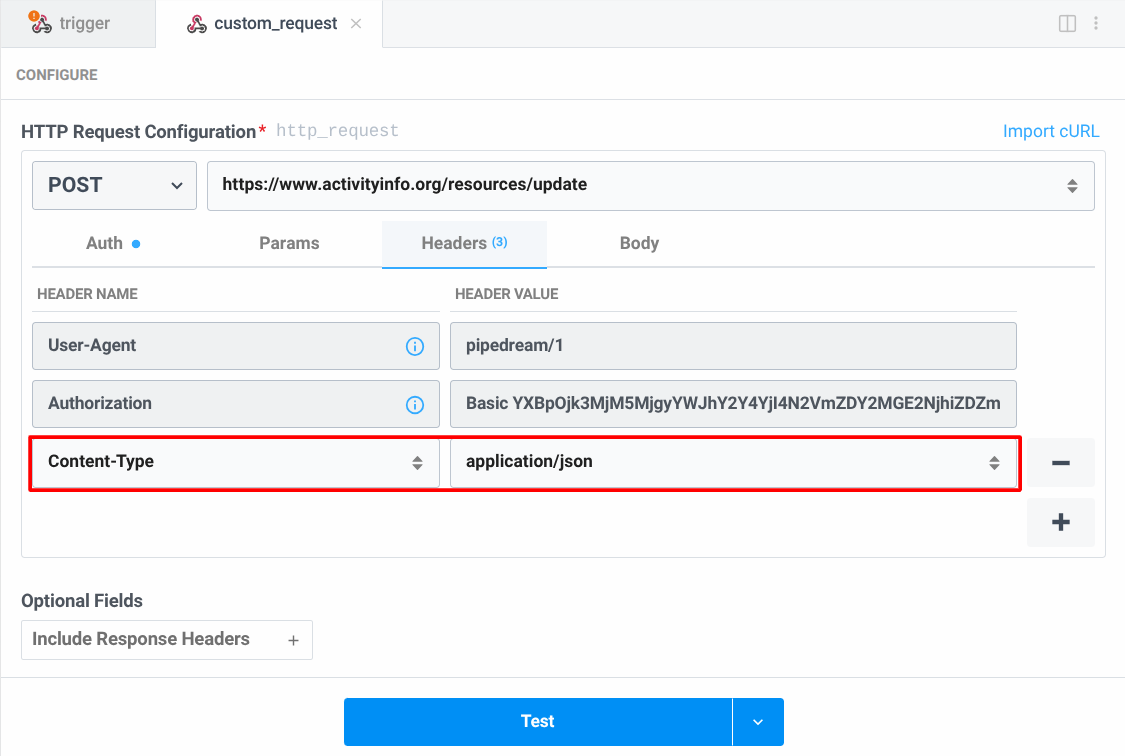
Headers In the Body, enter the request as raw JSON, inserting the referral's fields from the trigger. Find the Nutrition Intake form's ID by opening the form and checking the browser's address bar.

Get your formId 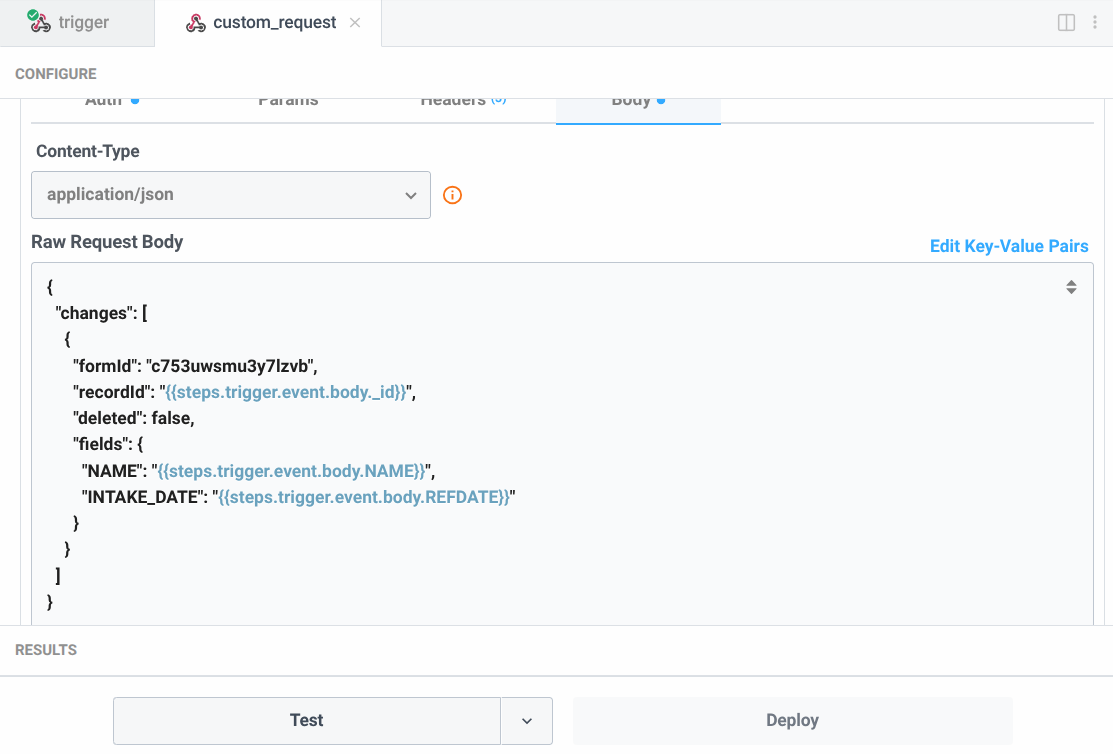
HTTP body
{
  "changes": [
    {
      "formId": "c753uwsmu3y7lzvb",
      "recordId": "{{steps.trigger.event.body._id}}",
      "deleted": false,
      "fields": {
        "NAME": "{{steps.trigger.event.body.NAME}}",
        "INTAKE_DATE": "{{steps.trigger.event.body.REFDATE}}"
      }
    }
  ]
}
Click "Test" to confirm the request works.
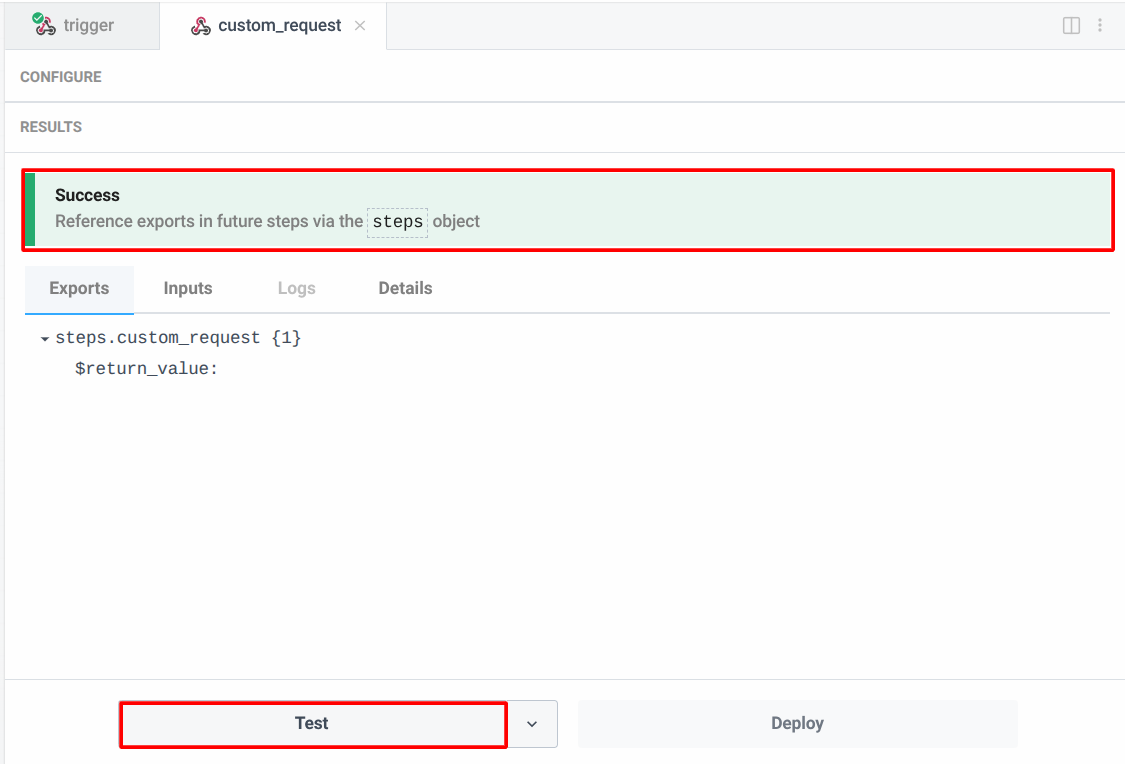
Test HTTP request After a successful test, deploy the workflow.
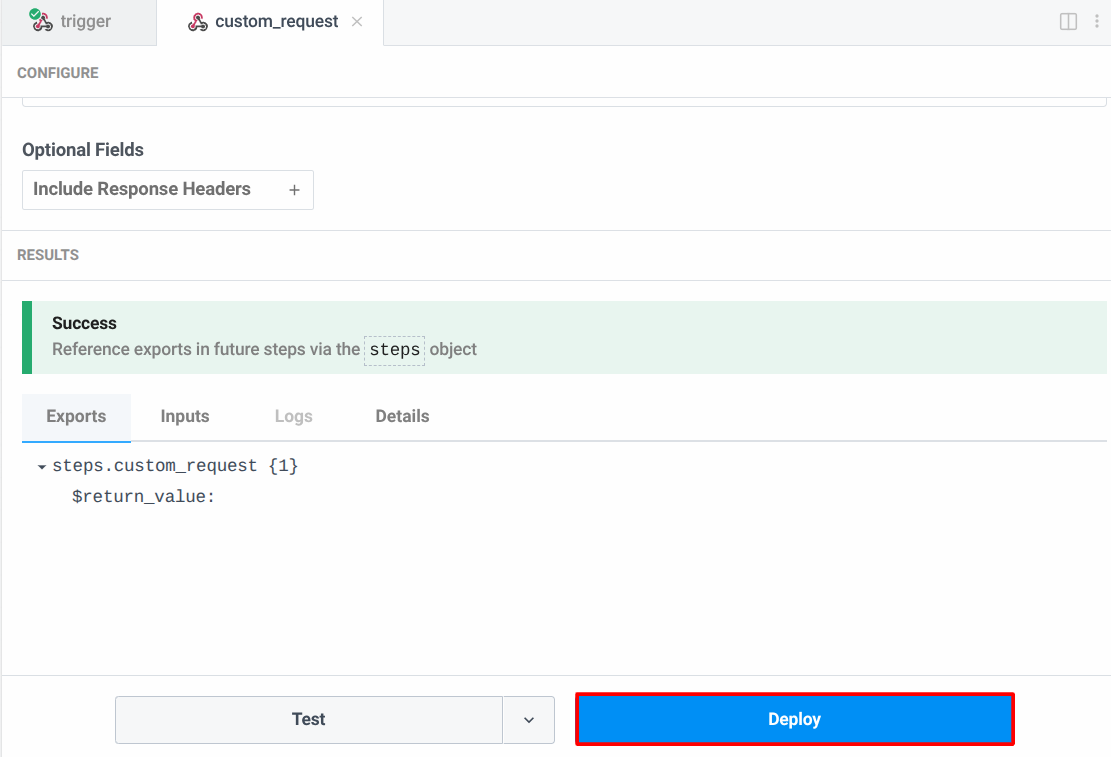
Deploy workflow
The recordId above reuses the referral's own _id as the intake record's ID. Since record IDs are unique across the whole platform, not just within one form, this is a safe value to reuse in the Nutrition Intake form, and it means the same referral always maps to the same intake record instead of creating a new one on every retry.
The update records endpoint authenticates the same way as any other ActivityInfo API request: HTTP Basic Authentication, with any value as the username and the Personal API Token as the password. A single-selection field like PROGRAM accepts the option's label or its ID; a multiple-selection field accepts an array of labels or IDs.
Step 7: Test
Add a test record to the Referral form with Program set to "Nutrition".
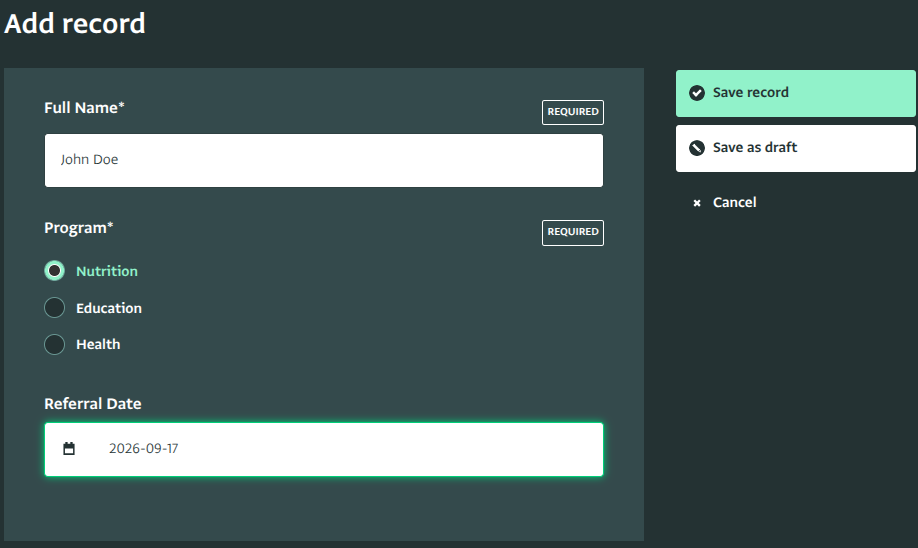
Add test record Open the Nutrition Intake form and check that a new record was created, with the name and date carried over from the referral.
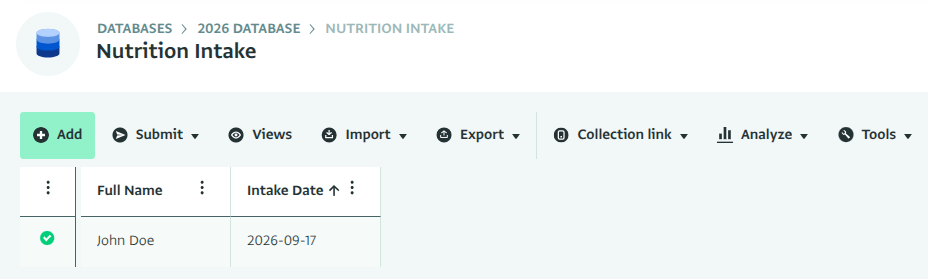
Test record added In Pipedream, check the workflow's run history by clicking on the live events. A new event should appear with the exact time the workflow ran, and the HTTP request step should complete successfully.
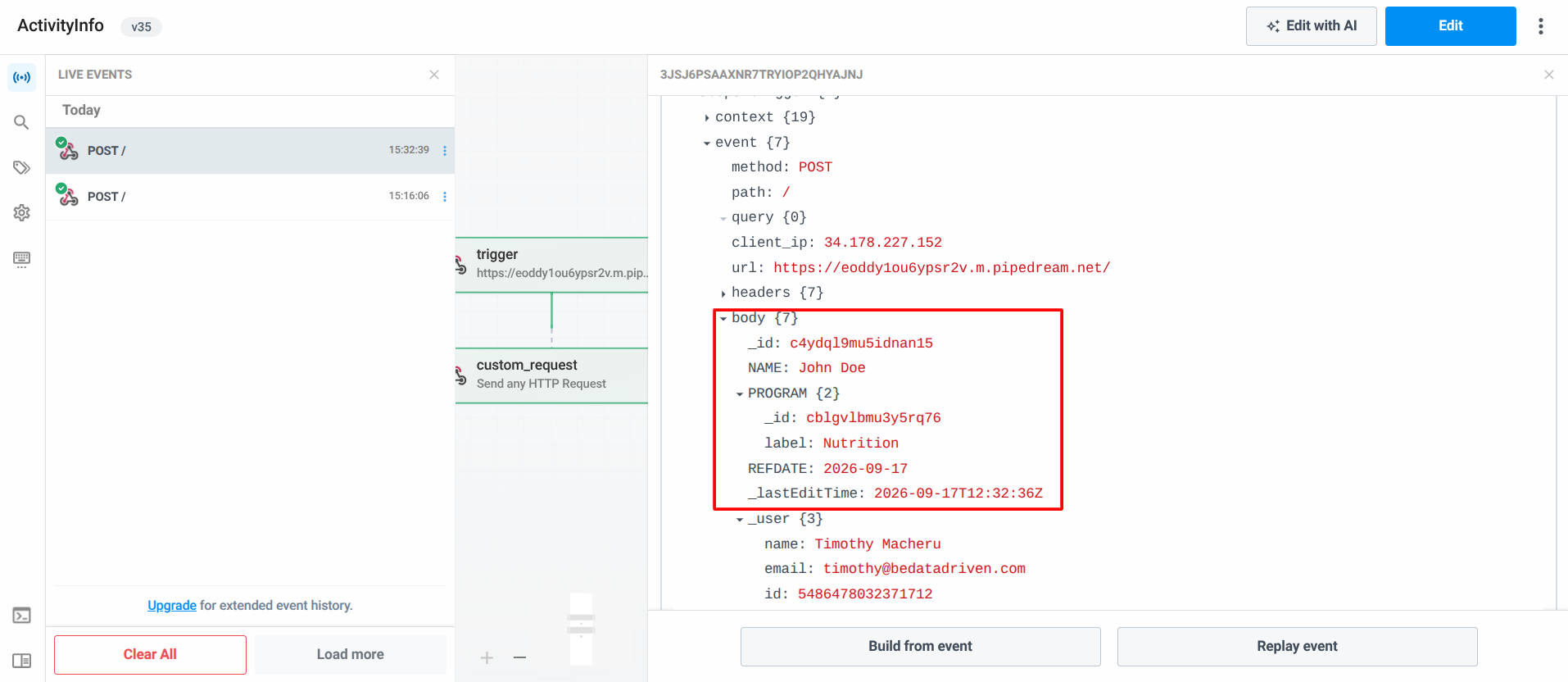
Run history Add a second test record with a different Program. No event should reach Pipedream, and no intake record should be created. The filter step stops the run before the webhook fires.
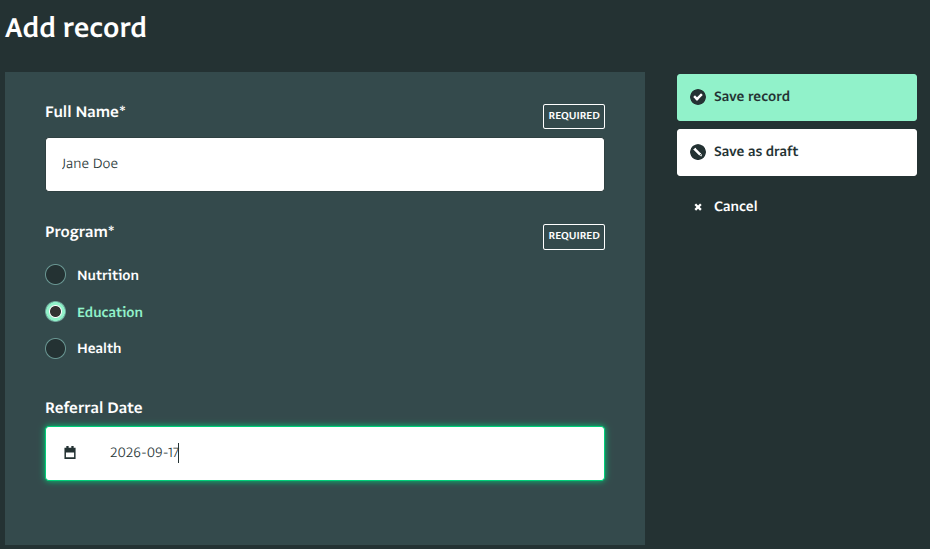
Test record to filter Go to your database settings, select your automation, and view its history.
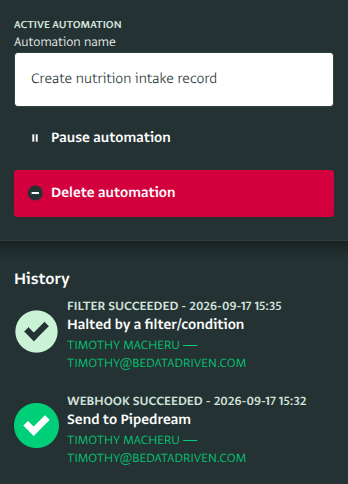
Automation history
Troubleshooting
- ActivityInfo responds with
401 Unauthorized. Confirm the HTTP Request step's Authorization Type is "Basic Auth", with any value as the Username and your Personal API Token as the Password, and that the token has "Read & Write" scope. - No event reaches Pipedream. Confirm the workflow is deployed (Step 6), and that the Webhook URL pasted into the Fire webhook step (Step 5) matches Pipedream's trigger URL exactly. Also check the automation history to see the status.
- The webhook never fires, even for a "Nutrition" referral. Check the filter condition for an exact match:
PROGRAM == "Nutrition"compares against the option's label (or code, if the field has one) exactly as it appears in the form, including capitalization and spacing.
Going further
- Keep the two records in sync on edits, not just on creation: add a second automation using the On record edited trigger, pointing at the same Pipedream workflow. Since the intake record's ID is always derived from the referral's ID, the same HTTP Request action updates the existing intake record instead of creating a new one.