Language: English
In this tutorial we set up an automation that posts a message to a Google Chat space each time a new record is added to a form — directly from ActivityInfo, with no intermediary workflow tool. It uses ActivityInfo's built-in webhook step to post the message.
We assume the role of a coordinator whose team works in a Google Chat space. The team tracks projects in a Projects form, and wants each newly submitted project announced in the space as it arrives.
What you need
- A form to watch. Ours is a Projects form with a text field Project Name with the code
NAMEand a reference field Partner with the codePARTNER, but any form will do — adjust the field references to yours. - Permission to design the database in ActivityInfo.
- A Google Chat space in which you can add webhooks. Incoming webhooks are a Google Workspace feature; a space administrator may need to allow them.
Step 1: Create an incoming webhook in Google Chat
In Google Chat, open the space that should receive the messages, or create a new one.
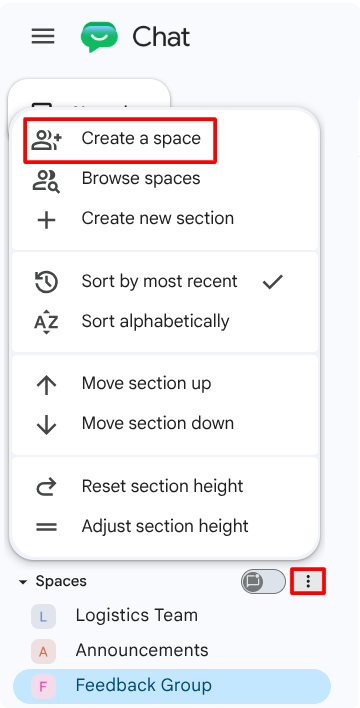
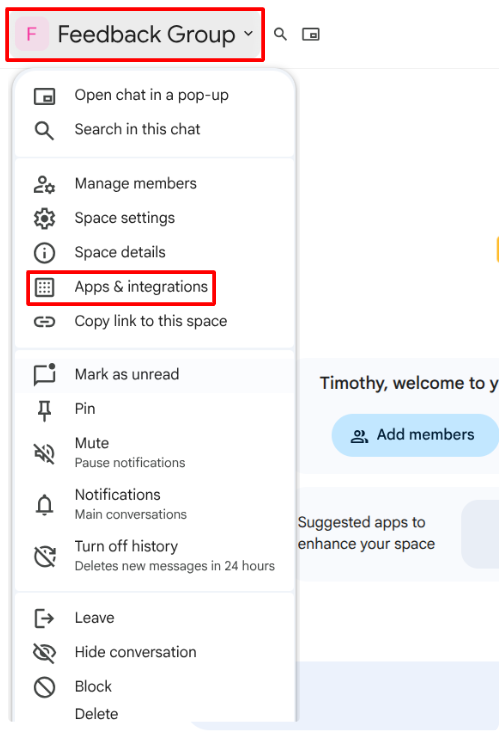
Create a Google Chat Space Click the space name, then Apps & integrations.
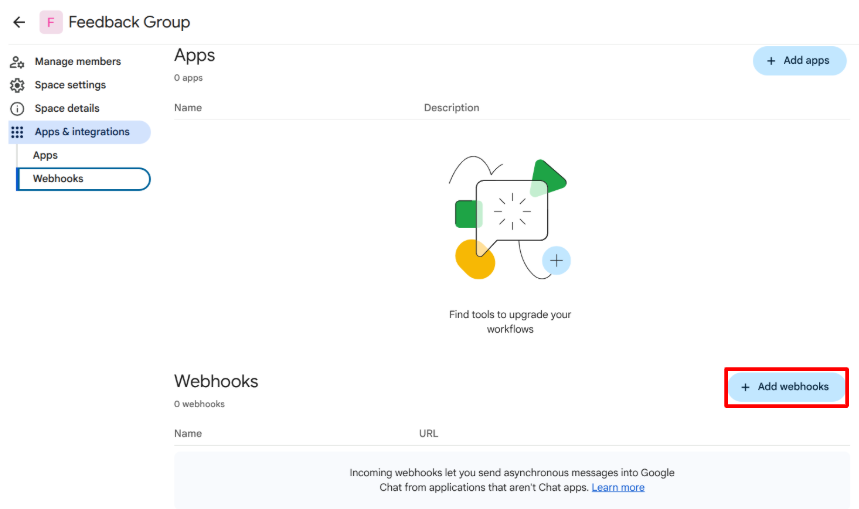
Apps & integrations Under Webhooks, select Add webhooks.
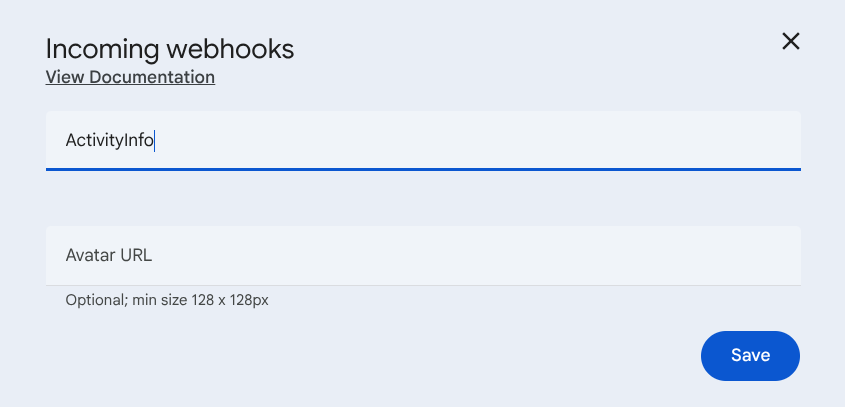
Add webhooks Name the webhook, for example "ActivityInfo", and save.
Webhook Copy the webhook URL — it begins with
https://chat.googleapis.com/v1/spaces/....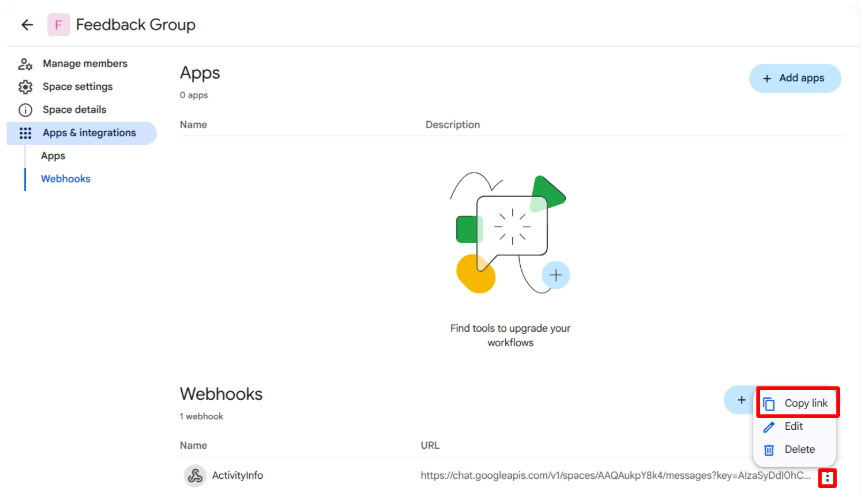
Copy webhook URL
Step 2: Add the automation
In ActivityInfo, open the database, select the Database Settings.
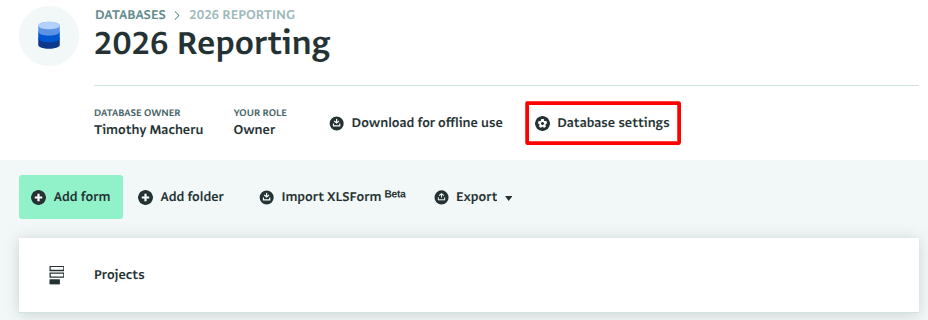
Database settings Select Projects form, and then select Automations in the form's detail pane.
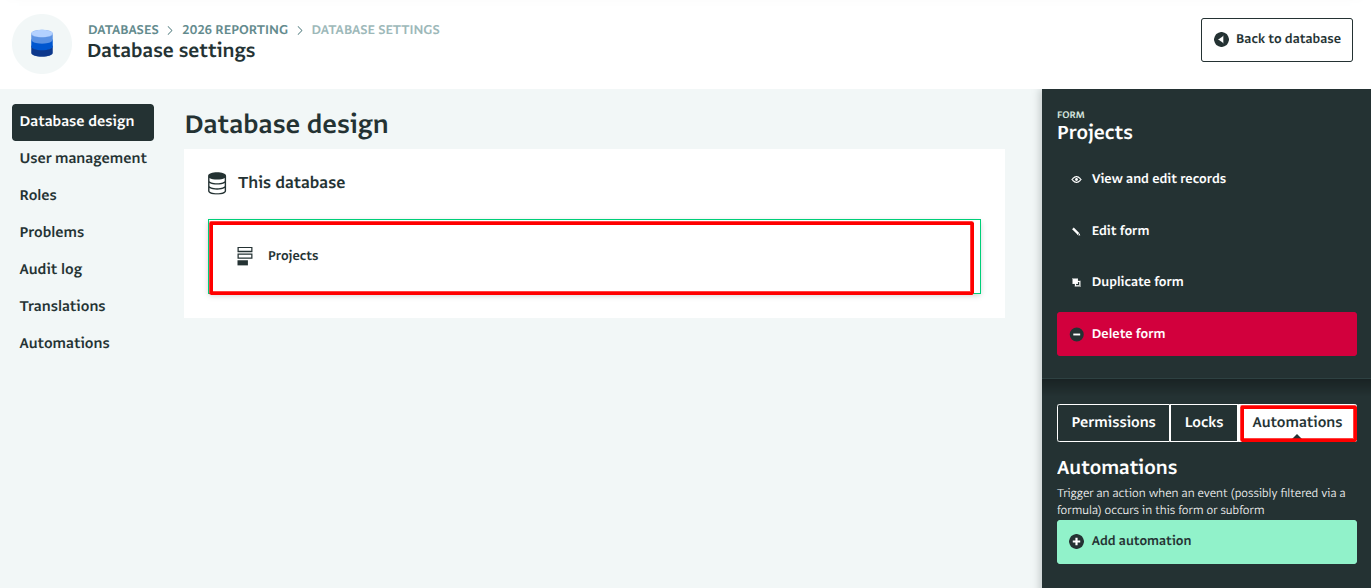
Automations Select Add automation and name it "Announce new projects in Chat".
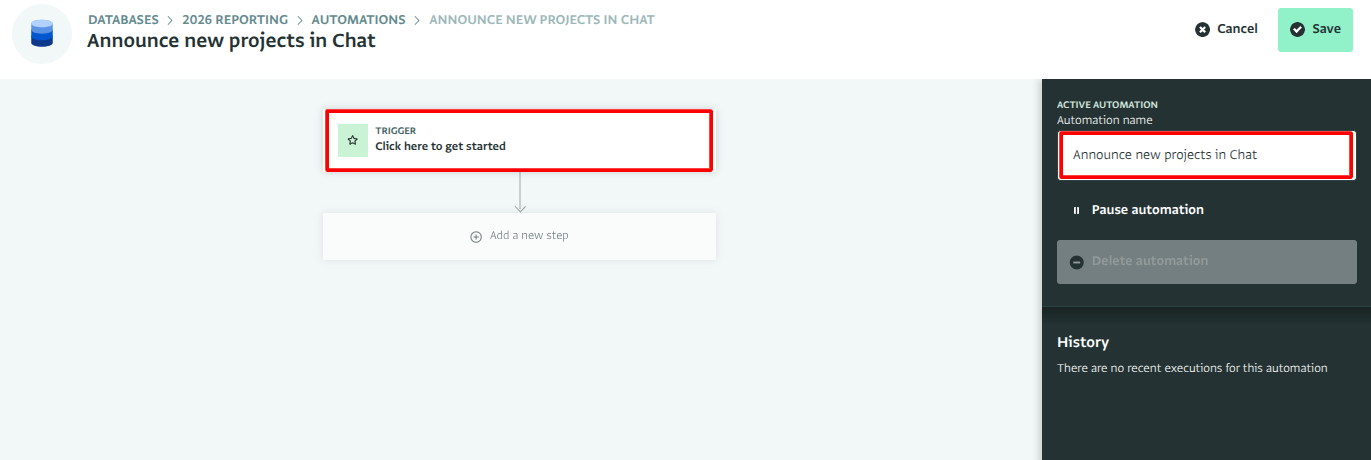
Add automation Select Click here to get started and choose the On record added trigger.
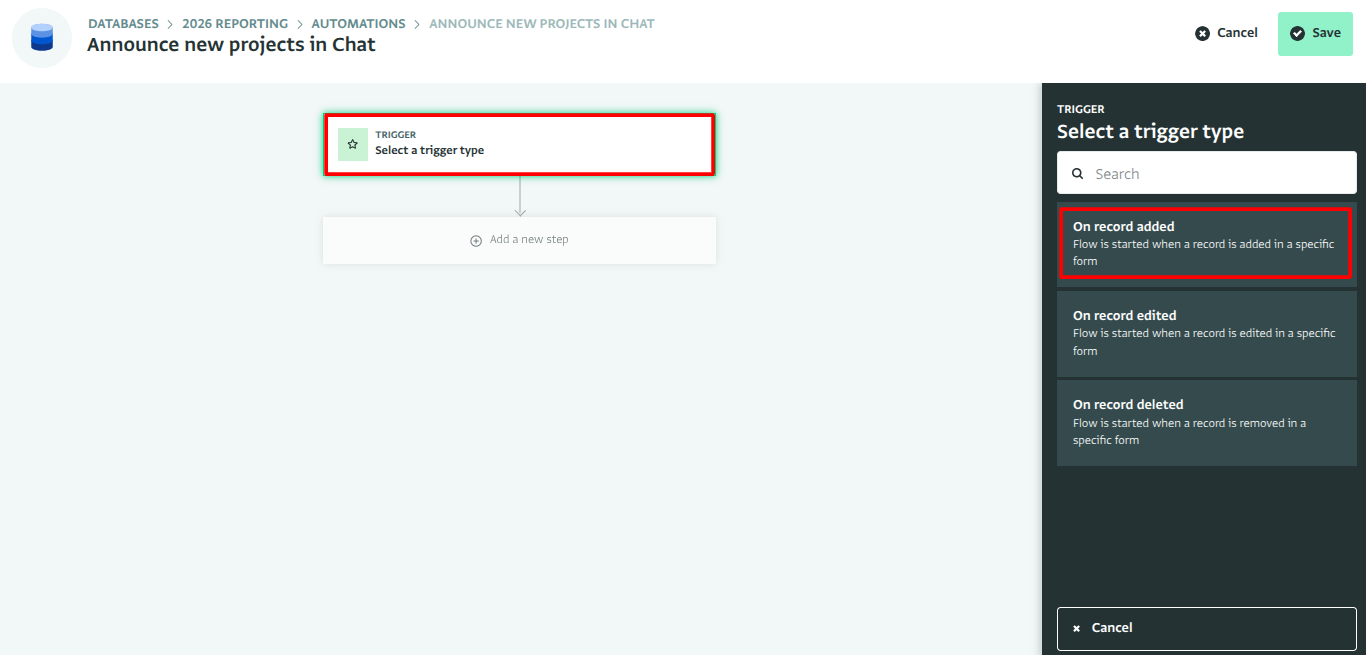
On record added trigger Label the trigger and Select form.
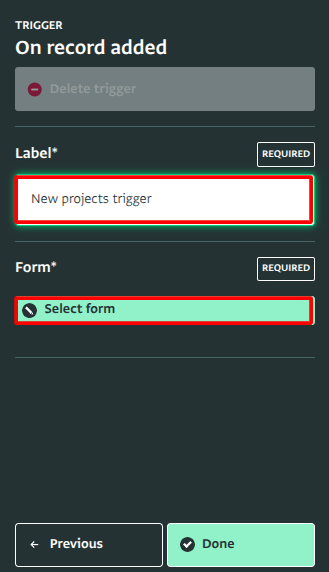
Label the trigger Choose the Projects form and Select form.
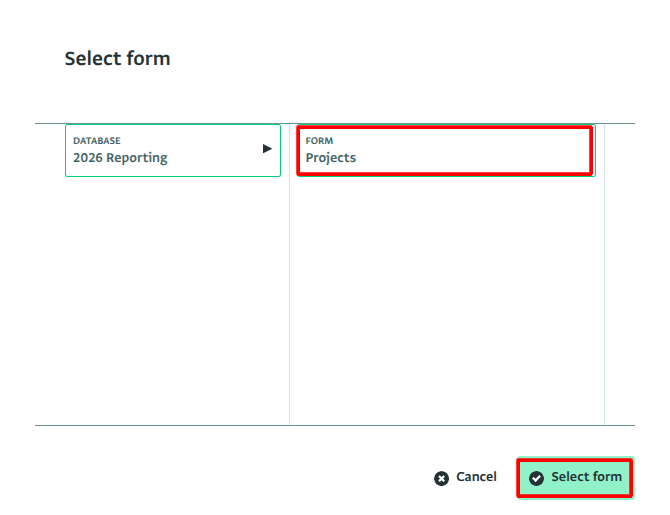
Select Projects form Select Done.
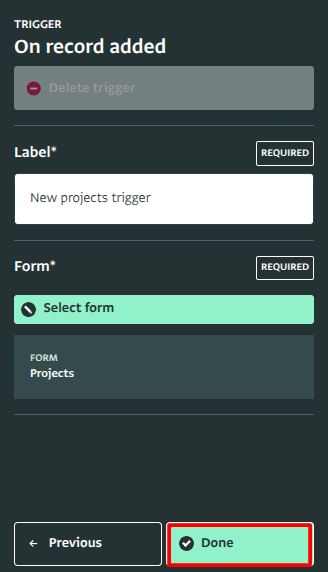
Done
Step 3: Add the webhook step
Select Add a new step.
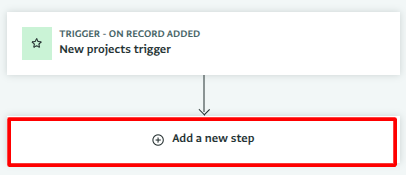
Add new step Select Action.
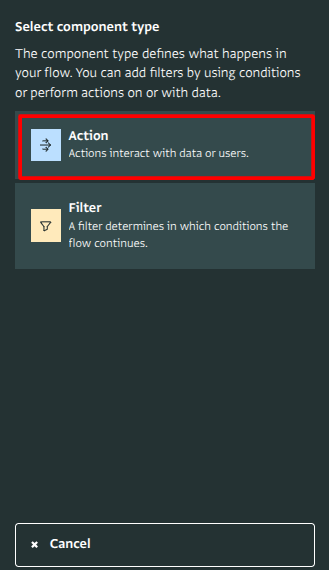
Action Select Fire webhook.
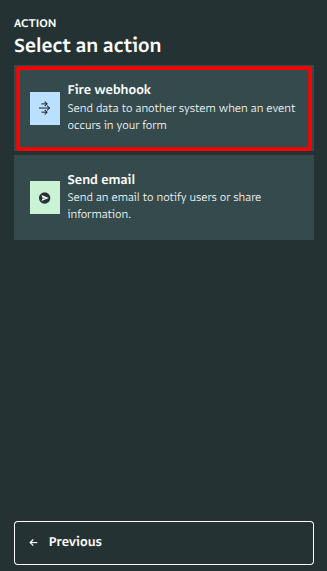
Fire webhook Give the step a label, for example "Post to Chat space".
Paste the Google Chat webhook URL into the Webhook URL field.
Set the Payload format to Custom.
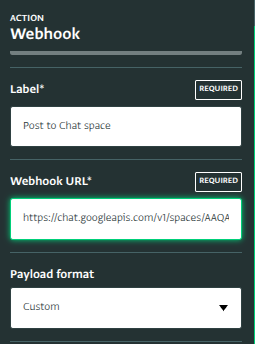
Label, webhook and payload format
Step 4: Write the message
Select Edit payload.
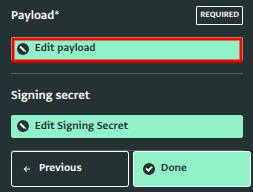
Edit payload Enter the message body Google Chat expects — a JSON object with a single
textproperty. The${...}references are filled in from the record that fired the automation; the field list on the right inserts them for you:{"text": "📋 New project submitted: *${NAME}* by ${PARTNER.NAME}, added by ${_user.name}"}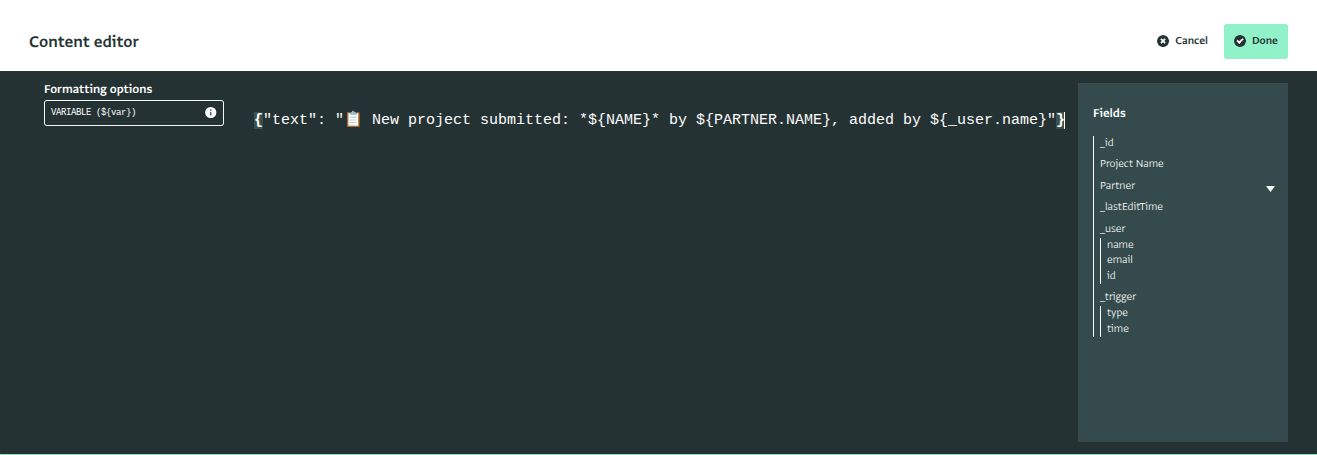
Custom payload edidor
Select Done to close the payload editor, and Done again to close the step.
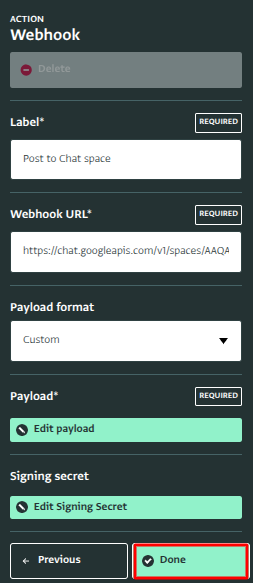
Complete configuration Select Save. The automation is now active.
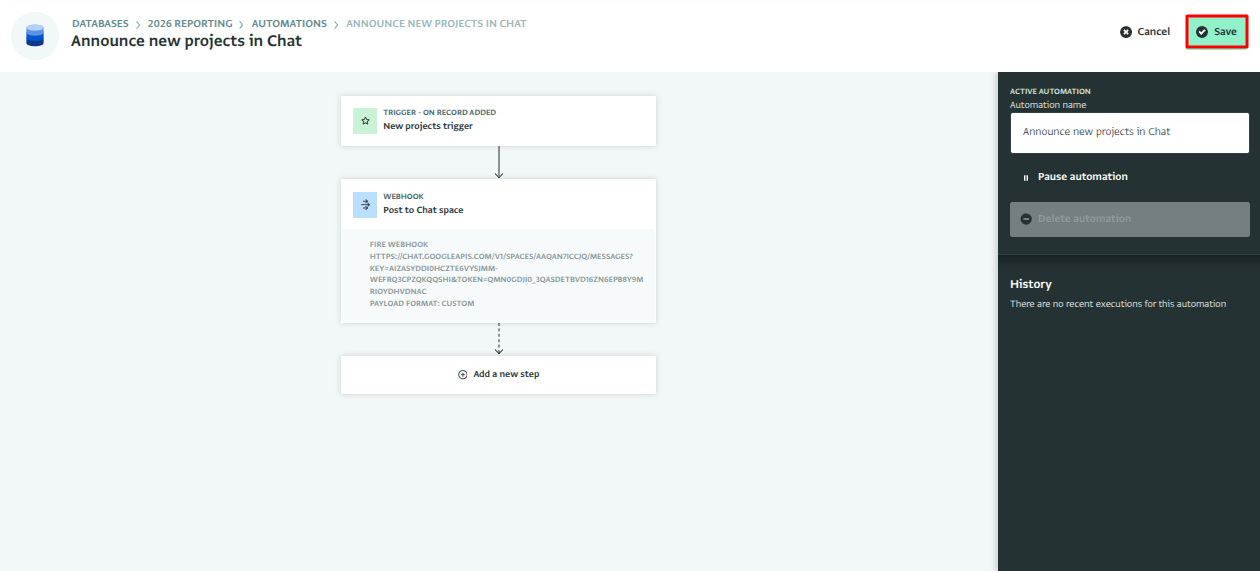
Save automation
Step 5: Test
Add a test record to the Projects form.
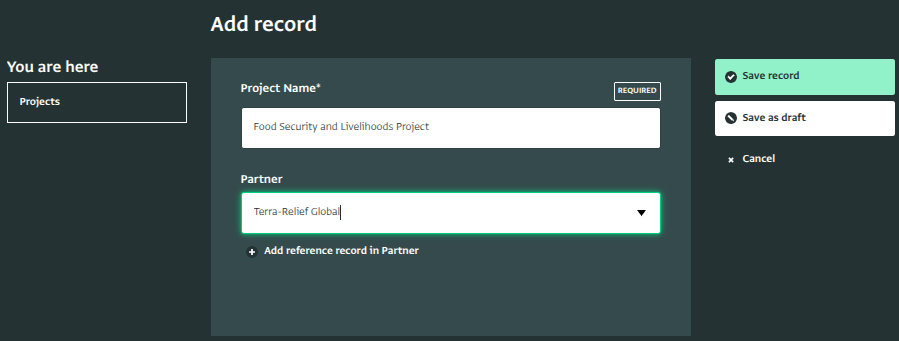
Add record Within moments, the message appears in the Google Chat space with the project's details filled in.
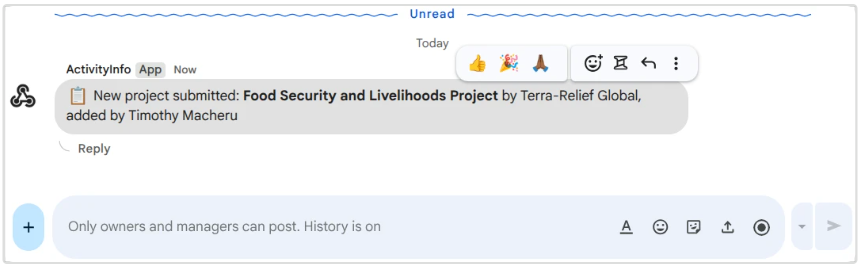
ActivityInfo notification received
Going further
- Announce only some projects: add a filter step between the trigger and the webhook — for example
CONTAINS(SECTORS, "Health")to announce only health-sector projects. - Announce status changes instead: use the On record edited trigger with the filter
STATUS != _previous.STATUS, and include both values in the message:${_previous.STATUS} → ${STATUS}. - Any formula works inside
${...}:${IF(BUDGET >= 100000, '🔴 large', 'standard')}.
Related articles
- Webhook step — all payload formats in detail
- Send a message to Microsoft Teams when a record is added
- Incoming webhooks in Google Chat (external link)