Language: English
The On a date trigger starts an automation on a schedule set by a date field of a form. Once a day, at a time of day you choose, ActivityInfo looks for the records whose date field falls a chosen number of days before or after that day, and starts one run for each of them.
Where the record triggers react to something a user does, this trigger reacts to the calendar: a follow-up visit that is due in three days, a grant that expires at the end of the month, a registration that is a year old today. It is the trigger to use for reminders, deadlines and anniversaries.
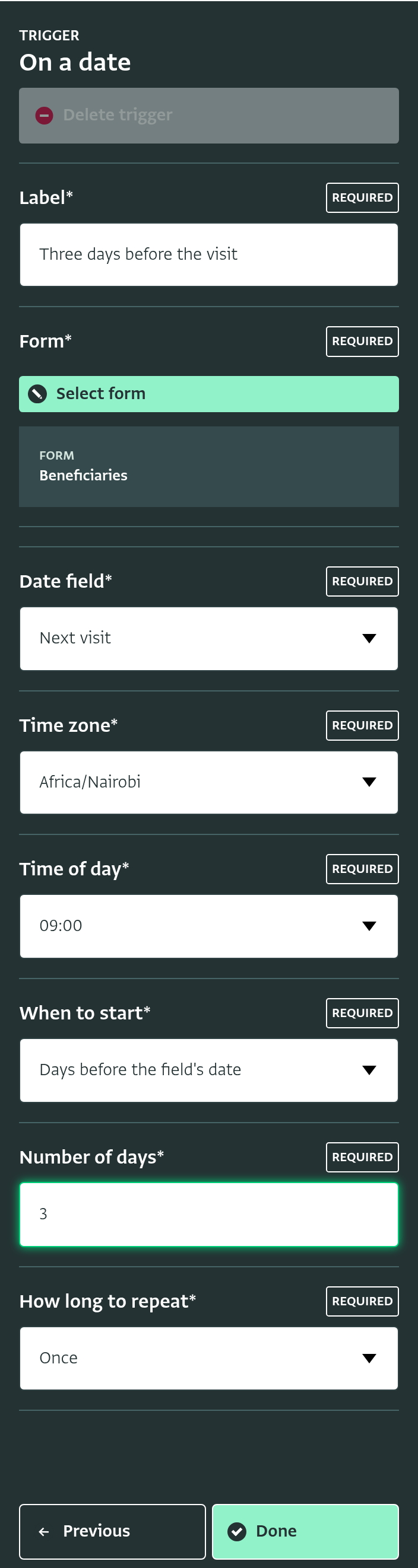
Settings
| Setting | Description |
|---|---|
| Form | The form whose records are checked. As with the other triggers, records of sub-forms are not included; select the sub-form itself to schedule from one of its fields. |
| Date field | The date field of the form that sets the schedule. Only date fields are offered: week, month and calculated fields cannot be used. A record whose date field is blank never fires the trigger. |
| Time zone | The time zone in which the time of day, and the calendar day itself, are interpreted. It defaults to your browser's time zone. |
| Time of day | The hour, from 00:00 to 23:00, at which the trigger fires. |
| When to start | The first day on which the trigger fires for a record, relative to the date in the field: On the field's date, a number of days before the field's date, or a number of days after the field's date. The number of days can be up to 3650. |
| How long to repeat | For how many consecutive days, counted from the first day, the trigger keeps firing for the same record. See below. |
How long to repeat
| Choice | Effect |
|---|---|
| Once | The trigger fires for a record on its first day only. |
| Every day until the field's date | The trigger fires on the first day and on every following day up to and including the field's date. This choice is only available when the trigger starts a number of days before the field's date. |
| For a number of days | The trigger fires on the first day and on the following days, for the number of days you enter, up to 366. |
A few examples, for a record whose date field holds 20 November:
| When to start | Number of days | How long to repeat | Fires on |
|---|---|---|---|
| On the field's date | Once | 20 November | |
| Days before the field's date | 3 | Once | 17 November |
| Days before the field's date | 3 | Every day until the field's date | 17, 18, 19 and 20 November |
| Days after the field's date | 1 | For a number of days: 7 | 21 to 27 November |
How the trigger fires
ActivityInfo checks each On a date automation once an hour. When the hour in the trigger's time zone is the trigger's time of day, it looks for the records of the form whose date field makes that day a firing day, and starts one run per record. Runs appear in the automation's History like runs of any other trigger.
A few consequences of this schedule are worth knowing:
- A record fires at most once per day. If the automation's steps fail and are retried, or if the check runs twice, the record does not get a second run on the same day.
- A record is checked once a day, at the chosen time. A record that is added, or whose date is changed, later in the day is not picked up that day. It fires on its next firing day, if the repeat settings give it one.
- Changing the record in between does not matter. The trigger looks only at the date field's value on the day of the check. Deleting a record stops it from firing.
- Paused automations do not fire. Resuming an automation does not catch up the days it was paused.
- Only the chosen time of day counts. On the day when daylight saving time starts, the skipped hour does not occur; a trigger set to fire at that hour does not fire that day.
- An automation starts at most 10,000 runs per day. If more records than that qualify on the same day, the remaining records are skipped for that day.
Filter steps
When a filter step comes immediately after the trigger, ActivityInfo applies its condition while looking for records, rather than starting a run for every record and stopping most of them at the filter. A record the filter rejects therefore does not appear in the automation's history at all. Filters that come after an action step behave as usual.
The condition may use the trigger's step data, including _trigger.date and _trigger.field. While looking for records, ActivityInfo checks the condition against the form's own data: it reads _trigger.date from each record's date field, and _trigger.field is the field's label. _trigger.time has no counterpart in the form's data, so a condition that uses it cannot be checked while looking for records. That filter runs as a normal step instead, after the run has started, and the records it rejects appear in the history.
Deleted fields and forms
When the date field, or the form itself, has been deleted, the automation can no longer be checked. Each day, the automation's history records a single failed run that names the missing field or form, and the automation shows the error until the trigger is edited to use another field, or the automation is paused or deleted.
Step data
Every trigger produces a single row of step data: the values that the later steps of the automation (the filter, email, and webhook steps) can reference in formulas and templates.
For this trigger, the row describes the record whose date fired the trigger:
| Column | Type | Description |
|---|---|---|
| one column per form field | the field's type | The value of each field of the record. See Referencing fields. |
_id |
Text | The record ID. |
_lastEditTime |
Date and time | The time the record was last changed. |
_trigger.type |
Text | Always DATE_FIELD for this trigger. |
_trigger.time |
Date and time | The scheduled firing time: the trigger's time of day on the firing day, for example 09:00 on 17 November. |
_trigger.date |
Date | The value of the date field that fired the trigger, for example 2026-11-20. |
_trigger.field |
Text | The label of the date field that fired the trigger. |
If the form is a sub-form, the row also includes a Parent column referencing the parent record.
There is no _user column: nobody did anything to start the run. Formulas and templates referencing _user are rejected by the editor when the trigger is On a date. Likewise there is no _previous column.
Webhooks
The webhook step sends the record in the Standard or Custom payload format as usual. The ActivityInfo 4.0 compatible format cannot describe a scheduled event, so a webhook step configured with that format sends the Standard payload when its automation uses this trigger.
See also
- Remind a case worker before a follow-up visit, a tutorial that sets up this trigger with an email step
- Trigger: On record added
- Trigger: On record edited
- Filter step