Language: English
Mistral AI is established in France and hosts data in the European Union by default, which makes it worth considering for an organization that has to keep personal data within the European Union. Its assistant connects to ActivityInfo as a custom MCP connector.
Before you begin
- The MCP server has to be enabled for each database you want to work with. See Enabling the MCP server for a database.
- Read Using AI assistants with sensitive data first. Hosting in the European Union removes the question of international data transfer, but not the need for a Data Processing Agreement, a confirmation that your data is not used for training, or an account on a plan your organization has bought rather than a personal one.
- Adding a connector is an administrator action. On a plan without separate administrators, the account owner is the administrator.
The server URL is:
https://www.activityinfo.org/mcp
Add the connector
Login to Vibe. This requires admin privileges on your Mistral account. Free, Pro or Student accounts are Admin by default.
In the left sidebar, click "Context" and then "Connectors".
Click “+ Add Connector”.
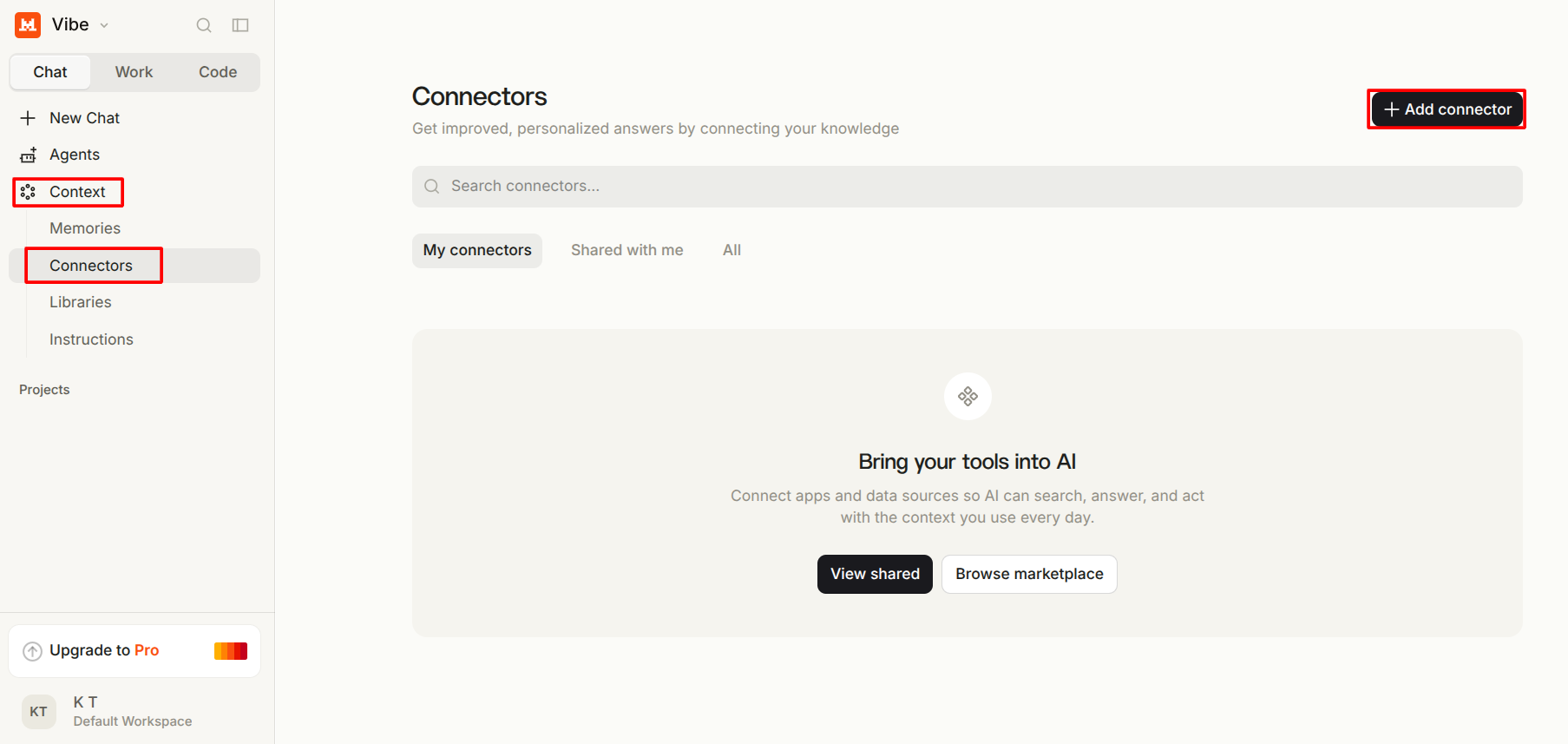
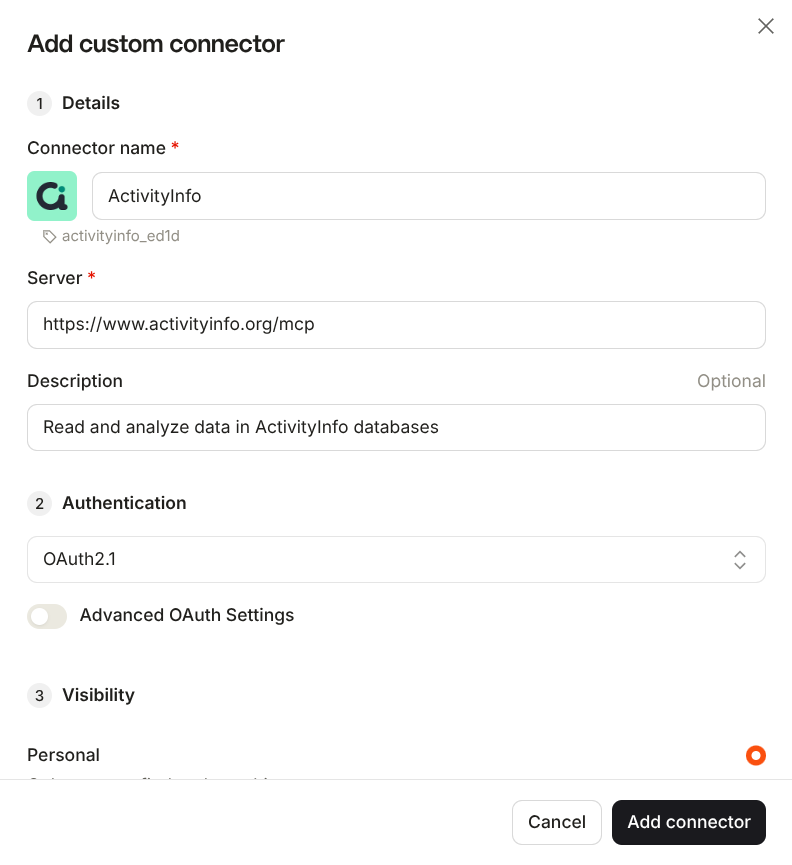
- Click "Add a custom connector".
- Fill in the fields:
| Field | Value |
|---|---|
| Connector name | ActivityInfo. Use no spaces or special characters |
| Server URL | https://www.activityinfo.org/mcp |
| Description | Read and analyze data in ActivityInfo databases |
Set the Authentication to "OAuth2.1" and click "Add connector".
- Authorize Mistral to view the databases, forms and records you have access to in ActivityInfo by clicking "Allow Access".
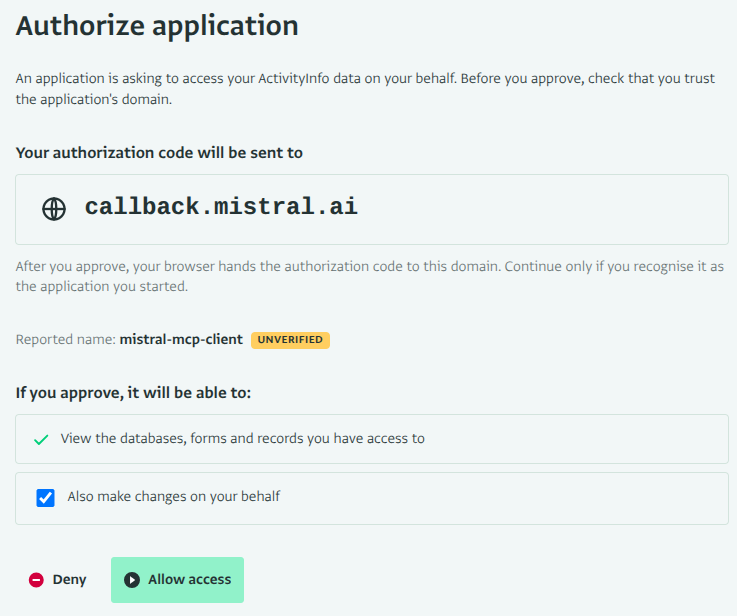
Mistral detects the authentication method automatically. ActivityInfo uses OAuth 2.1 with dynamic client registration, so Mistral registers itself and starts the sign-in. You do not need to enter a bearer token or any credentials.
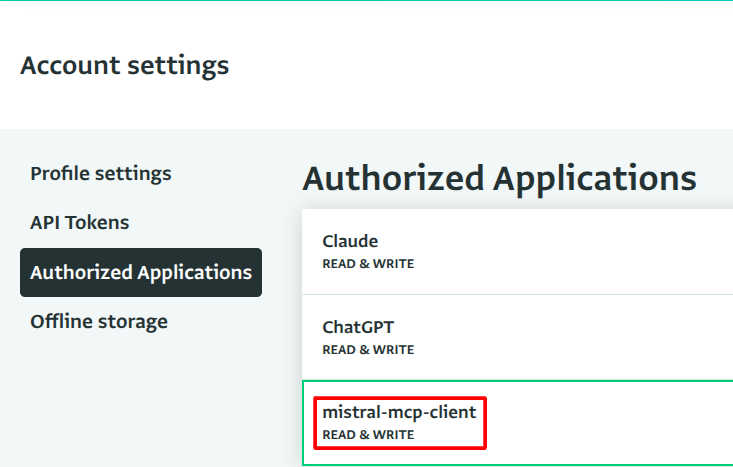
- The authorization now appears on the "Authorized Applications" section of your ActivityInfo account settings.
Confirm the connection
Proceed to try out the connector by clicking "Try now"
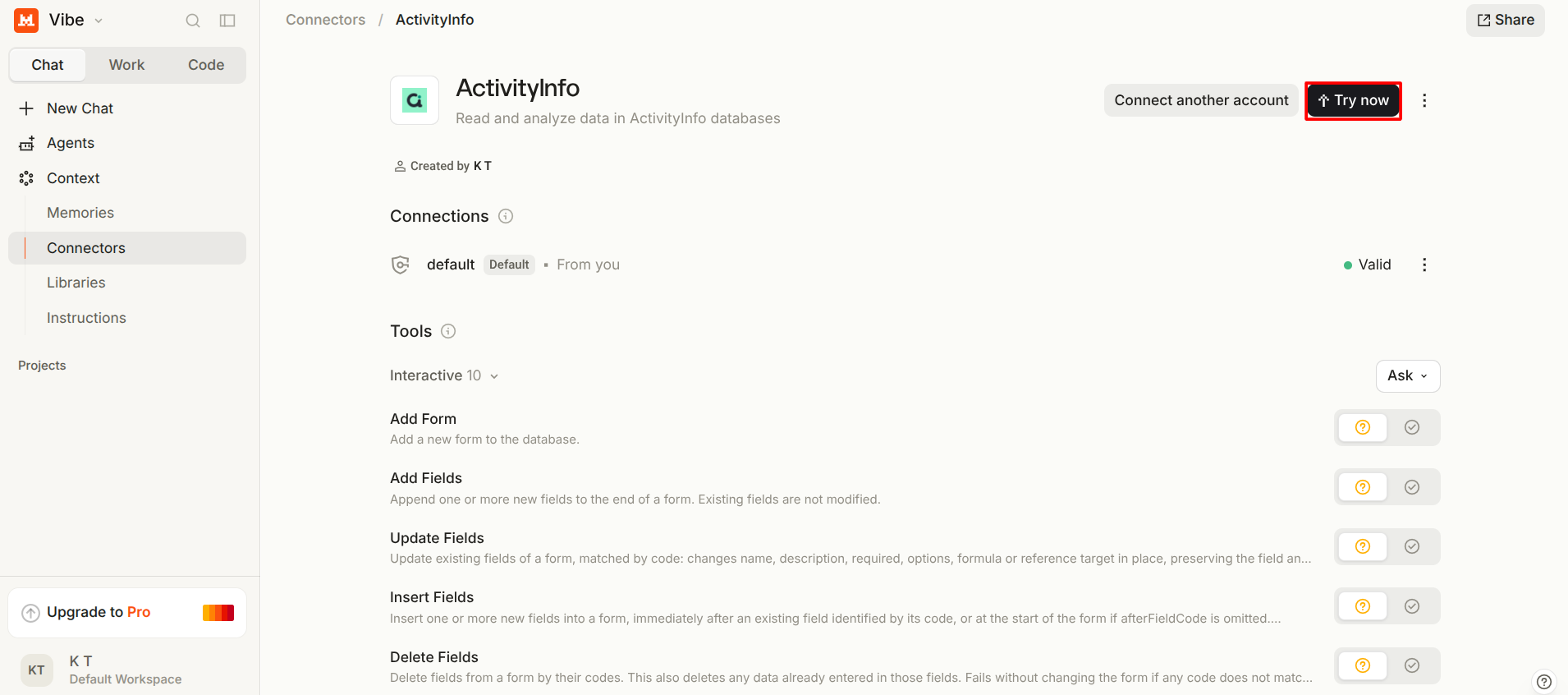
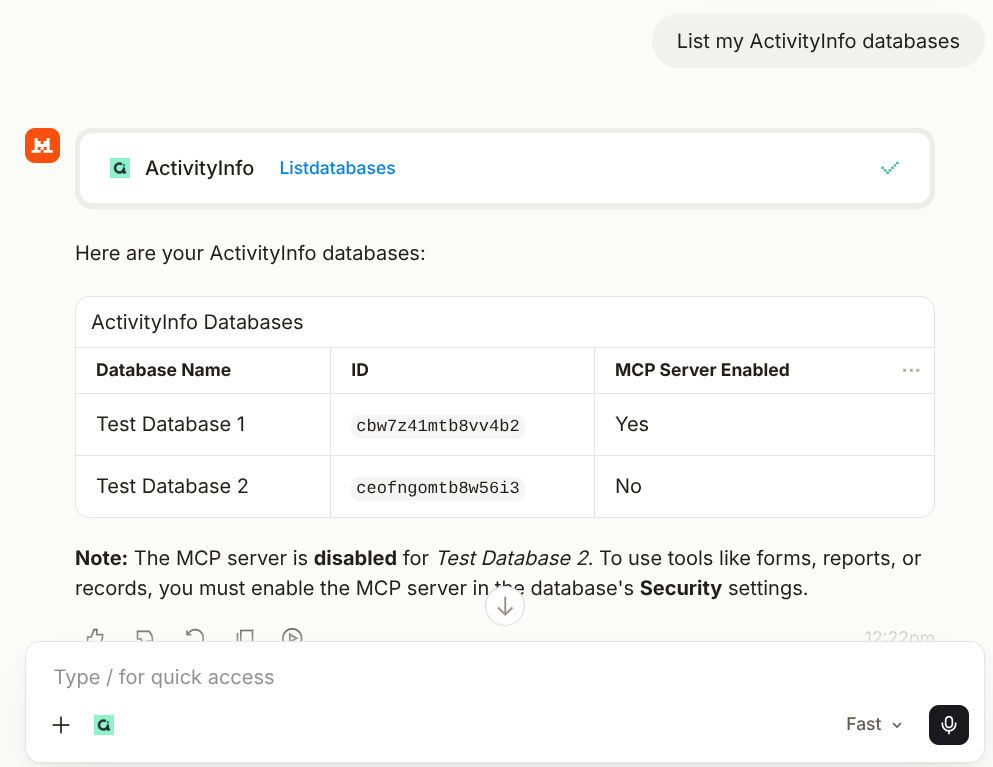
Start a new conversation, make sure the ActivityInfo connector is available to it, and ask:
List my ActivityInfo databases.
Vibe answers with the databases you can reach. Each one shows whether the MCP server is enabled for it.
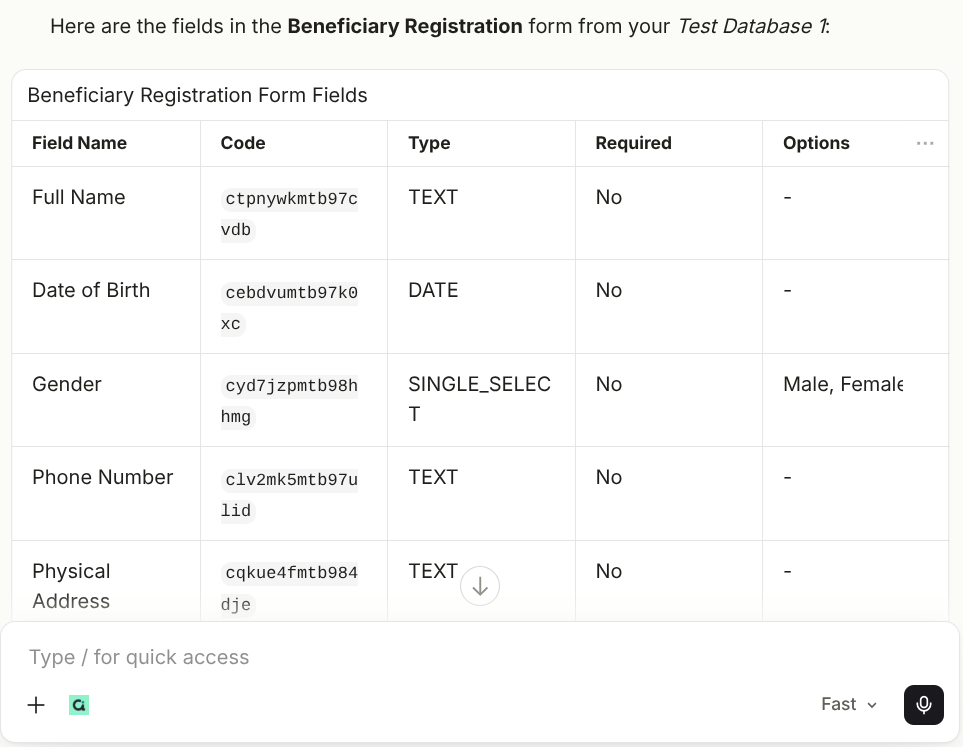
Ask a follow-up question to check that reading works:
Show me the fields of the <name> form.
Troubleshooting
| What you see | Cause |
|---|---|
| There is no “Custom MCP Connector” tab | You are not an administrator of the account. Ask the account owner to add the connector |
| The connector is added but the assistant does not use it | The connector is not available to this conversation. Check that it is switched on |
| “The MCP server is not enabled for database …” | Nobody has enabled the setting for that database. See Enabling the MCP server for a database |
| “Forbidden: this tool modifies data, but the authorization is read-only” | You granted read access only. Remove the connector and add it again, this time allowing changes |
| A database you expect is missing from the list | Your ActivityInfo user has no access to it |