Language: English
The MCP server is off for every database until someone turns it on: the database owner, or any user with a role that can edit the database settings. Until then, an AI assistant that a user has connected to their ActivityInfo account refuses to work with the database, even where that user has full access to it.
Turn it on once per database. You need permission to change the database's settings.
Before you begin
Enabling the MCP server means that the users of this database may send its data to the AI provider they have connected. Settle that question first, particularly where the database holds personal data. See Using AI assistants with sensitive data.
The setting applies to the whole database. It cannot be limited to some of the forms.
Enable the MCP server
On the Database List page, click on the database you want to enable.
Click “Database settings”.
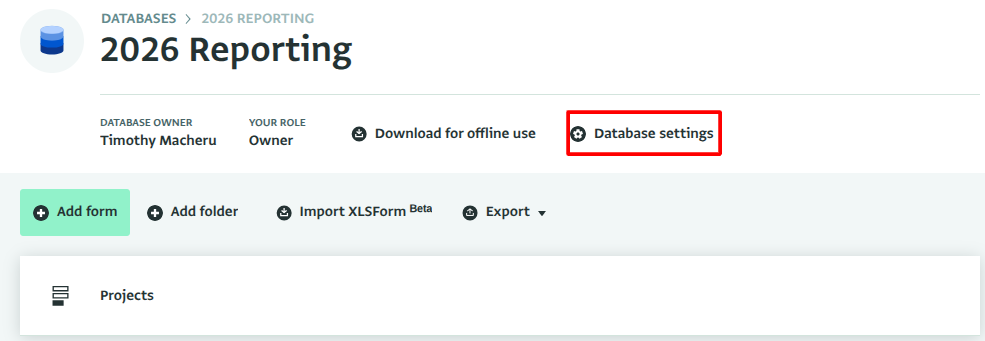
Database settings Click “Security”.
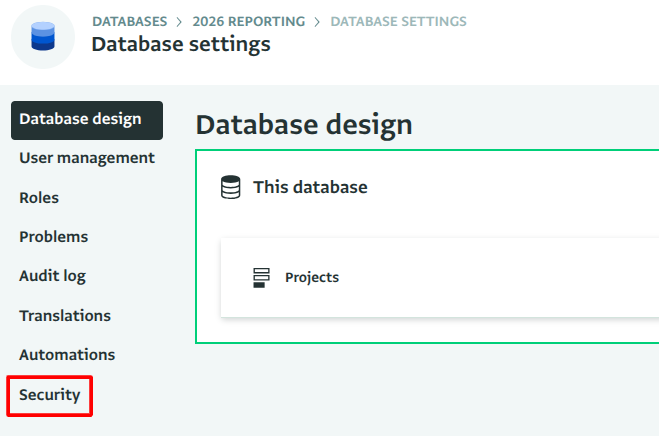
Security Select “Enable the MCP server for this database”.
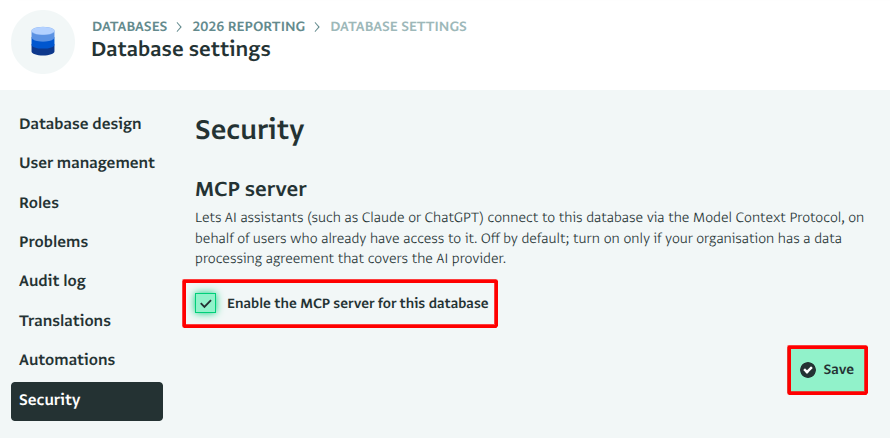
Enable the MCP Server for this database ActivityInfo saves the change and confirms with “Security settings saved”.
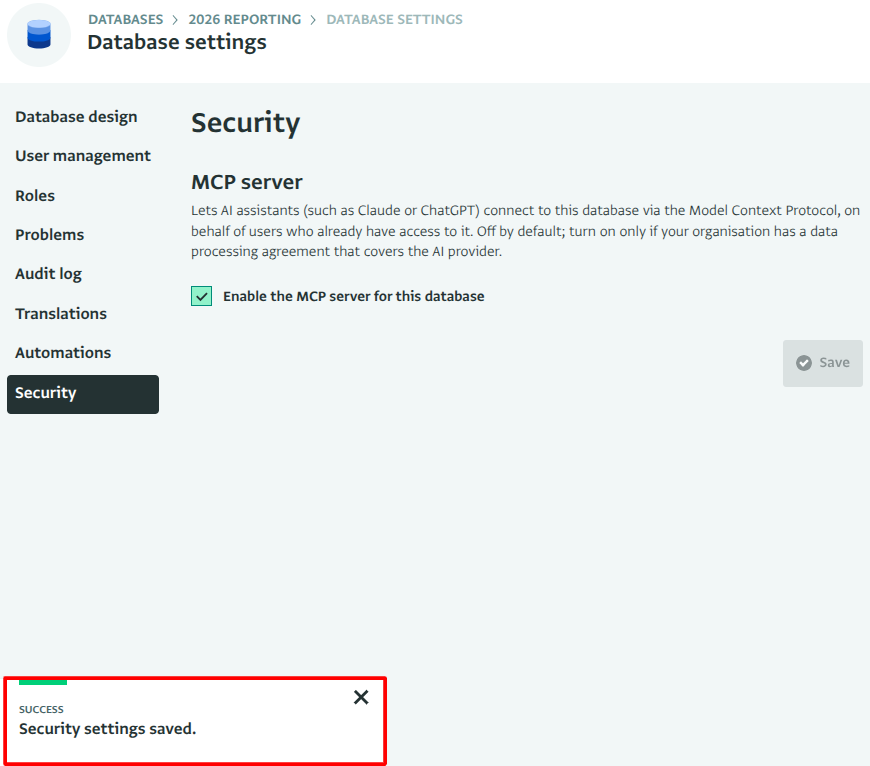
Security settings changed The change is recorded in the database's audit trail as “Enabled the MCP server”, with your name and the time.
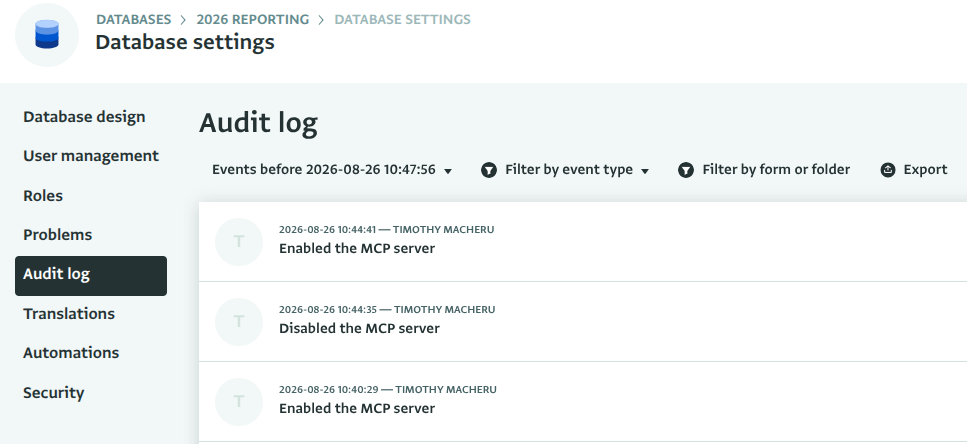
Audit trail
Users of the database can now reach it from an assistant they have connected, within the limits of their own role. Nobody's permissions change, and no user gains access to anything they could not already open in the browser.
Check that it worked
Connect an assistant as described in the article for your assistant, then ask it:
List my ActivityInfo databases.
The database appears in the answer, and the assistant can go on to list its forms. If it reports that the MCP server is not enabled, the setting has not been saved for the database you are asking about. Check that you changed the setting on the right database.
Turn the MCP server off again
Clear the same checkbox. Every connected assistant loses access to this database immediately, for every user. The audit trail records “Disabled the MCP server”.
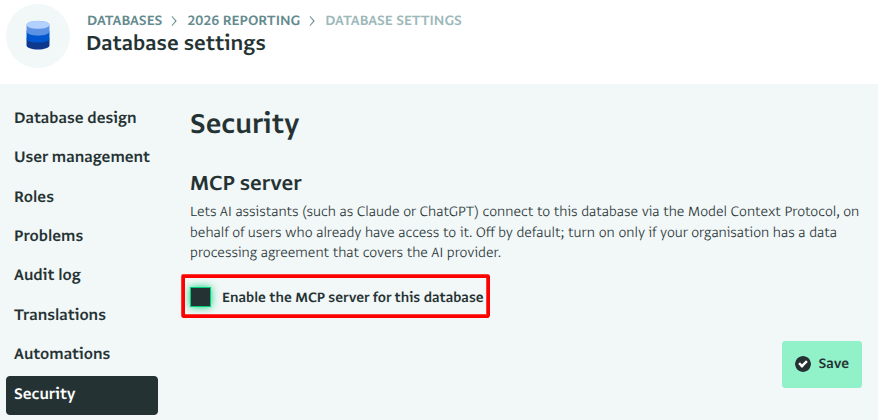
Turning the setting off is the control to use when you want to stop all assistant access to a database. To stop one assistant for one user instead, that user revokes the authorization in their own account settings, as described in Reviewing and revoking connected assistants.
Troubleshooting
| What you see | Cause |
|---|---|
| The “Security” section is not shown | Your role in this database does not allow you to change its settings. Ask the database owner, or a user with a role that includes “Edit database settings, forms, folders and reports” for the entire database |
| The assistant reports that the MCP server is not enabled for the database | The setting is off for the database the assistant is asking about. A user with several databases may be looking at a different one |
| The assistant does not list the database at all | The user who connected the assistant has no access to the database. Check the user's role, not the MCP setting |
| The assistant lists the database but refuses to change anything in it | The user granted read access only when they authorised the assistant, or their role does not allow the change |