Language: English
This article describes how to export user permission details from a Database.
Do you need an overview of the user permissions in a specific Database? You can export information about all the users added in the Database in the form of an export list. You can also use this list to analyze which users have taken which license types.
The export list includes the following information for each user:
- User ID
- Email address
- Name
- Time of invitation sent to user
- Activation status
- Email delivery status: Whether ActivityInfo’s mail server can reach the user. For the possible values and what they mean, see Email delivery status.
- Last login time: Users may be invited to Databases owned by different billing accounts. The last login time is the time of their last login to their ActivityInfo account, not necessarily the last time they accessed this specific Database on your billing account.
- Assigned Role: Shows the role of the user. The Database owner, or any user with a role that includes the “Manage users” permission, assigns roles to users. For more information, see Understanding Roles.
- Assigned Resources
- Parameters
- License type: The value of this Field can be “BASIC”, “FULL” or “NONE”. A user with a Database administrator role shows up as a “FULL” user in the exported report. Everyone else is a “BASIC” user. “NONE” refers to members of the ActivityInfo support team or deactivated users without any permissions.
The dates and times are in the same timezone your device is set to.
How to export user permissions
To export users details from a Database, follow these steps:
- Navigate to the Database from which you wish to export the information.
- Click “Database settings.”
- Select “User management” on the left Navigation panel.
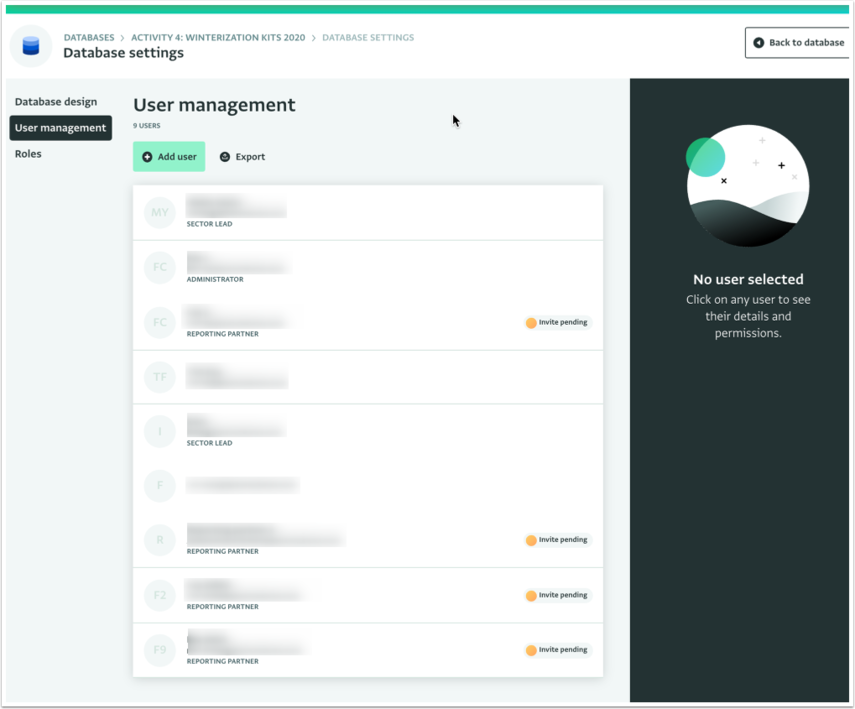
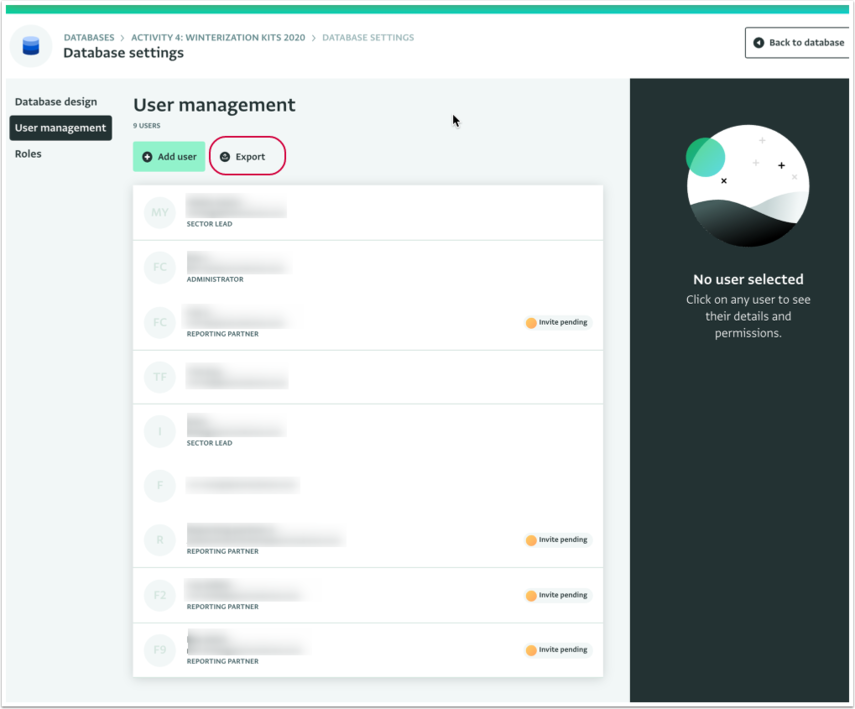
- Click "Export all" under “User management” to download the user information file.
- After the download is completed, click on the file in the Download Bar of your browser to open it.
Success, you exported the user permissions.