Language: English
The following section describes how to change the Role that has been given to a user. By changing a user's Role you change the Permissions for that users.
Users with the "Manage users" permission can invite users to one or more Databases, Forms and Folders. Users can have different Permissions based on their Roles.
After inviting a user to a Database, you might want to change the Role you assigned to that user.
Instead of changing a user's Role you might want to grant permissions to the user for a specific resource.
You can only change a user's Role to a Role that your own Role allows you to assign. The list of Roles shows only these Roles. You do not need to be allowed to assign the user's current Role. For more information, see Understanding the Manage users permission.
User fields and users who leave: If a user leaves the team, revoke their access to the Database instead of changing their Role. User fields in existing Records continue to show the name of a user whose access has been revoked.
To change a user’s role, follow these steps:
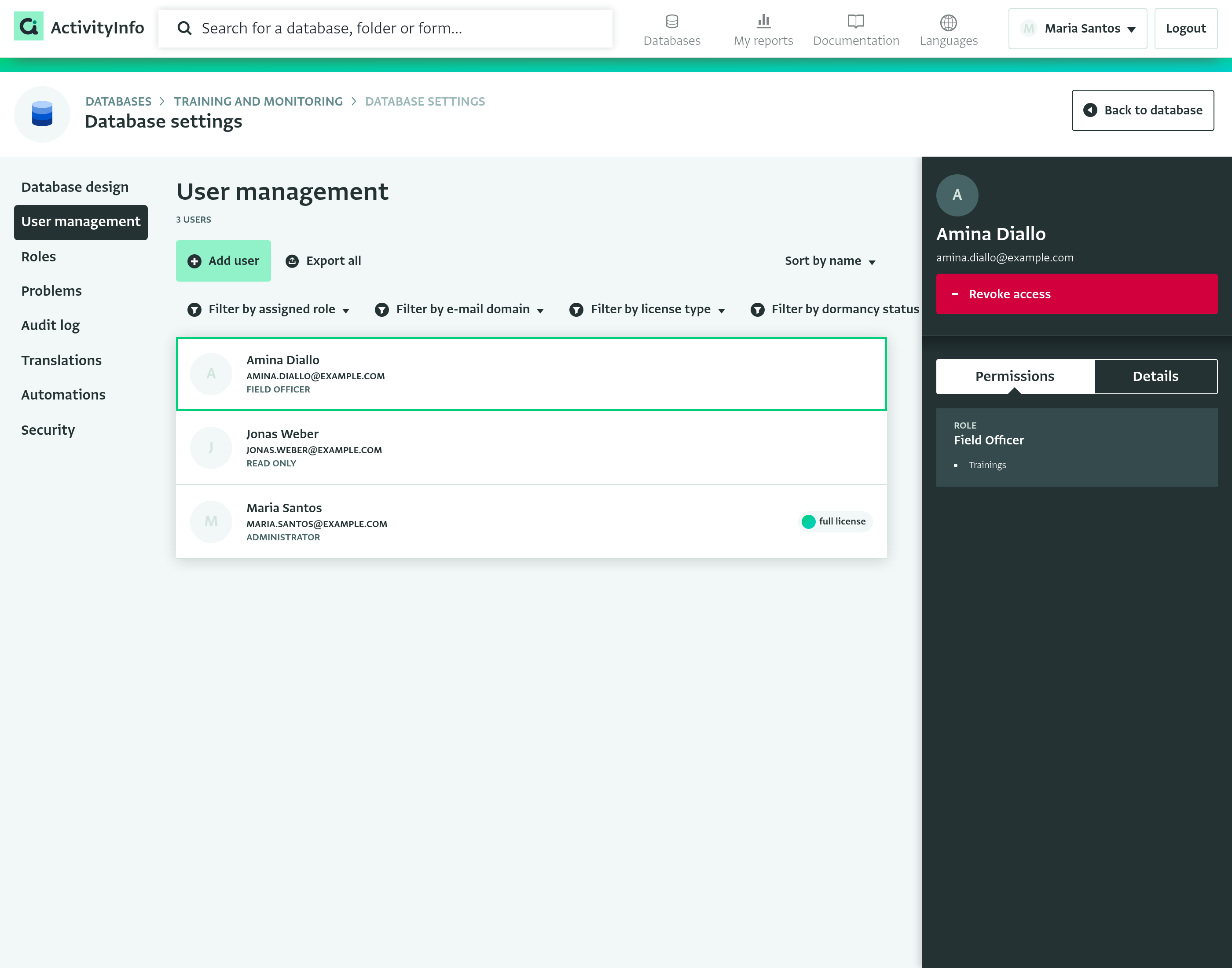
- Navigate to the User management section of the Database in which the user has been invited.
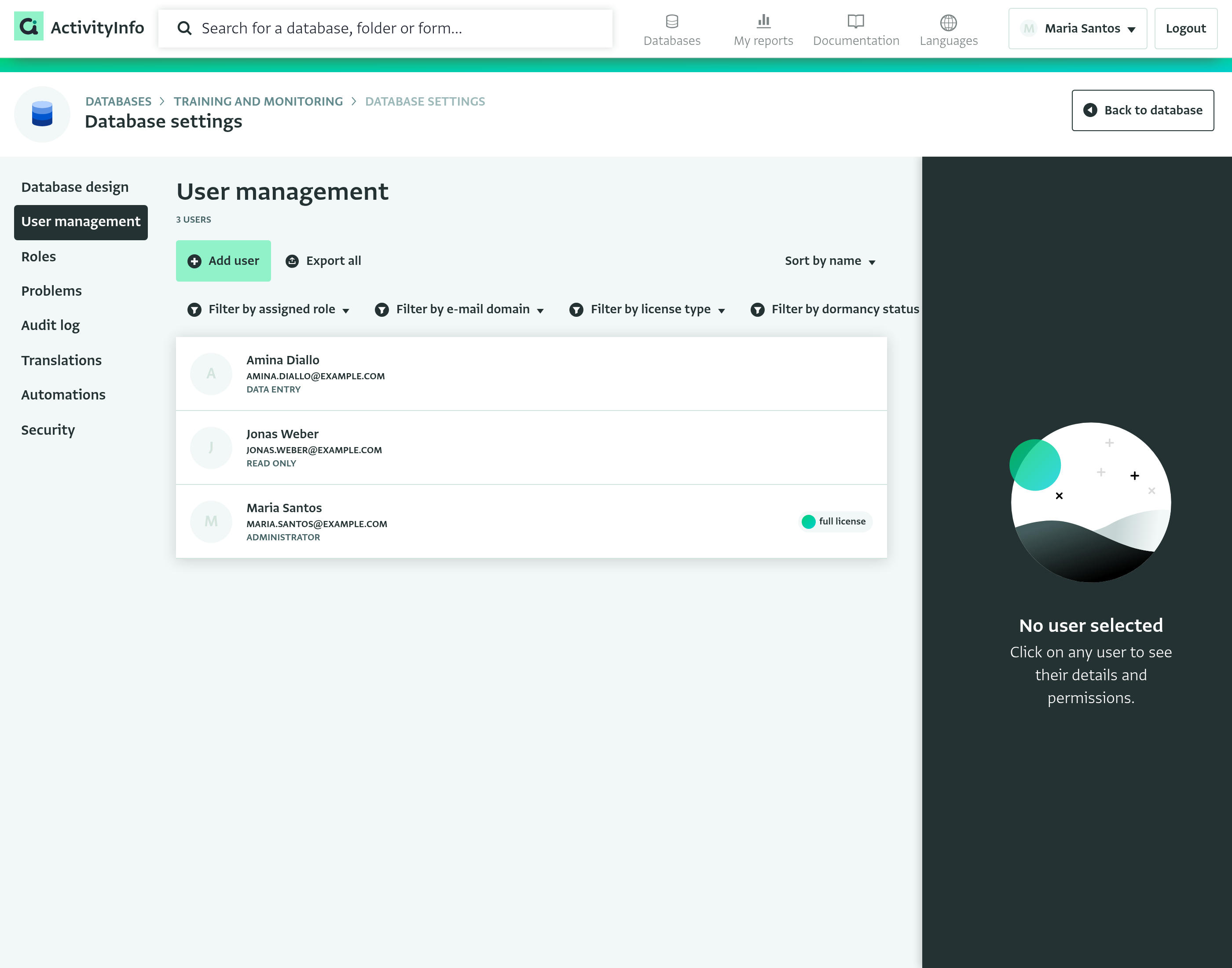
- Click on the user to select them and on the User side panel click on the Card to change the Role.
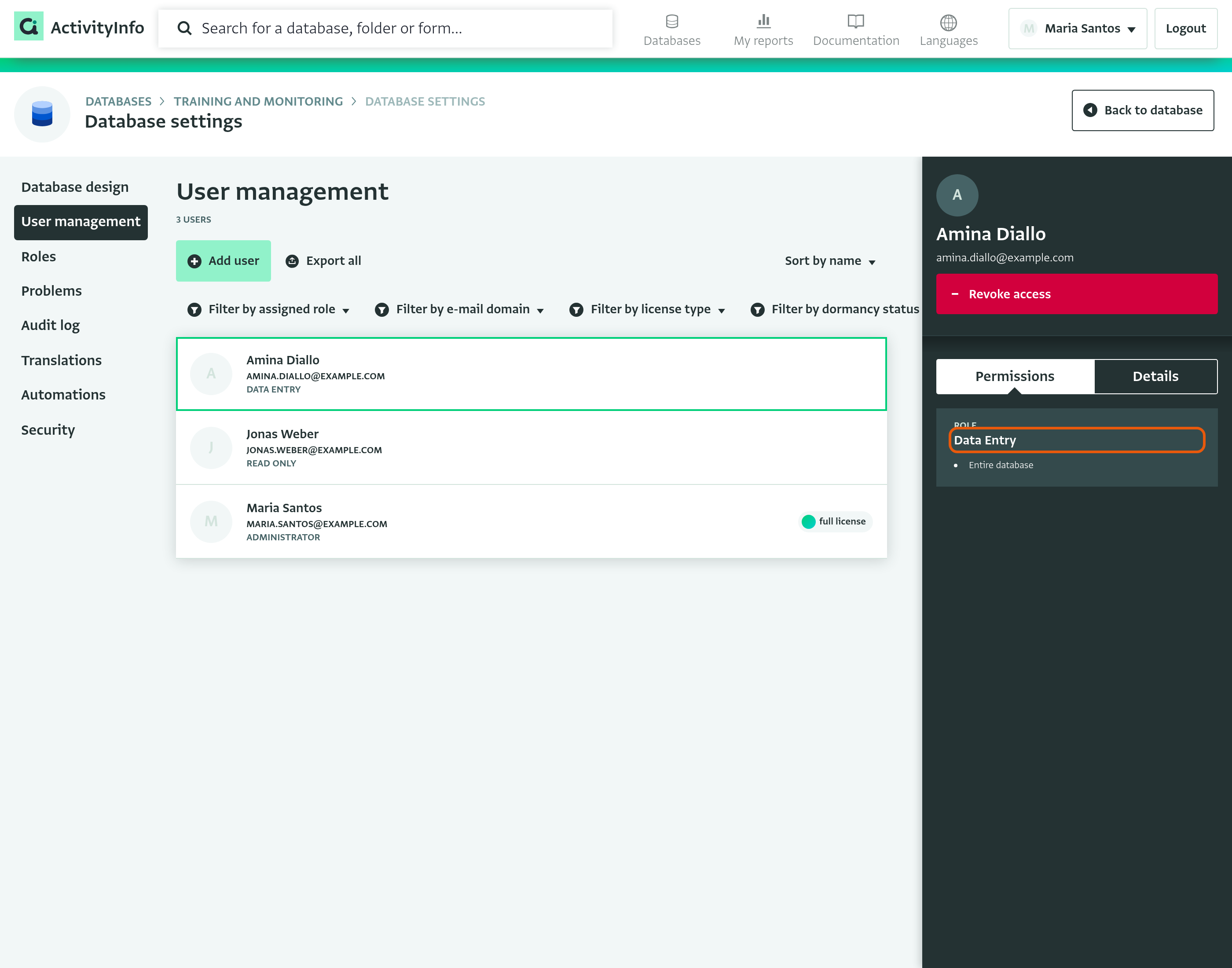
- Select the new Role that you want to assign to this user.
- If the Role has optional resources, select or change the Forms and Folders for which the permissions of this Role will apply, under "Optional resources".
- Click on 'Save' to save the changes.
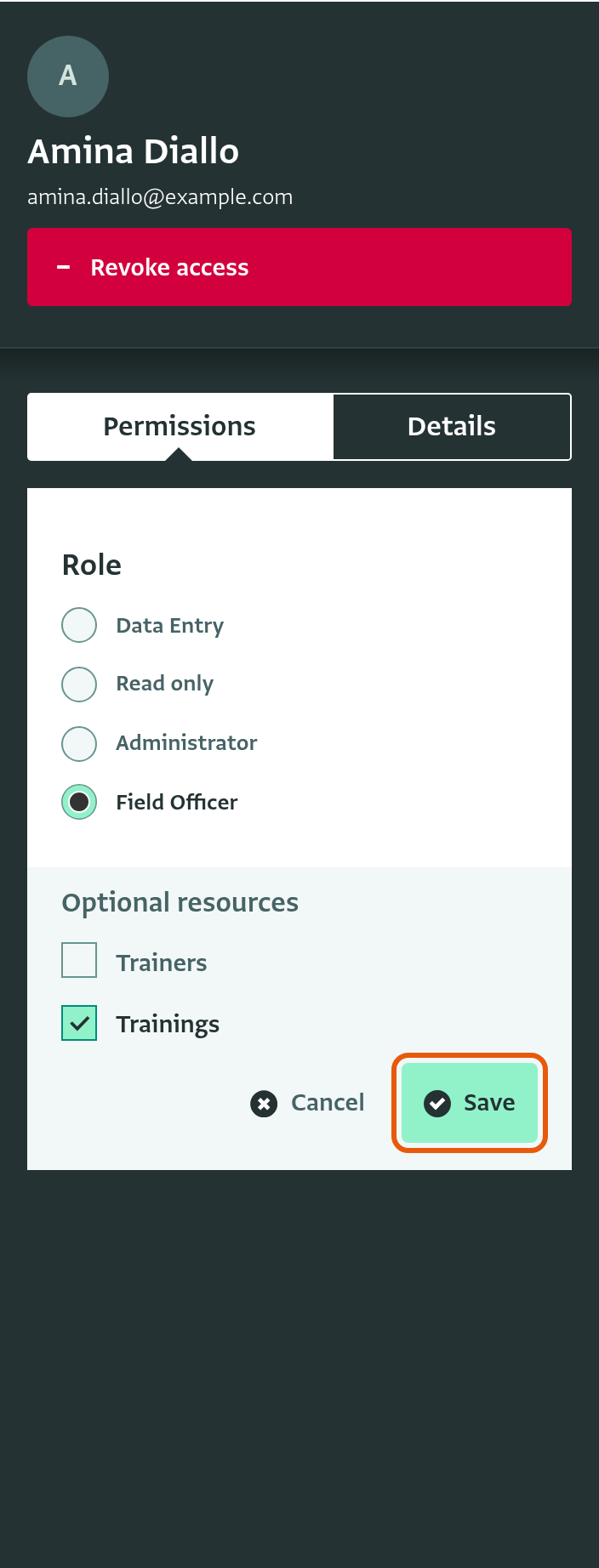
The Role of the selected user has been changed and you can view the new Role assigned to the user in the User list of the User management section.