Language: English
This reference article describes billing accounts in ActivityInfo: what they contain, the sections of the billing account page, and how users count against your subscription.
A billing account holds your organization's ActivityInfo subscription. Each Database belongs to one billing account, and the users of those Databases count against the billing account's user limits.
What a billing account contains
- A subscription: the plan, the user limits, the expiration or renewal date and any add-ons.
- Databases: every Database that belongs to the billing account.
- Billing account users: the users who hold a billing account role and help manage the billing account.
- Organization settings: email domains, identity providers for single sign-on, SCIM tokens and the branding of your custom domain.
Billing account users are different from Database users. Database users are the users you add to a Database and give a Database Role. Database users count against the billing account's user limits. Billing account users do not, unless they are also Database users.
Opening the billing account page
-
Click on your name in the top right navigation menu.
-
Select "Billing account". The billing account page opens on the "Subscription" section.
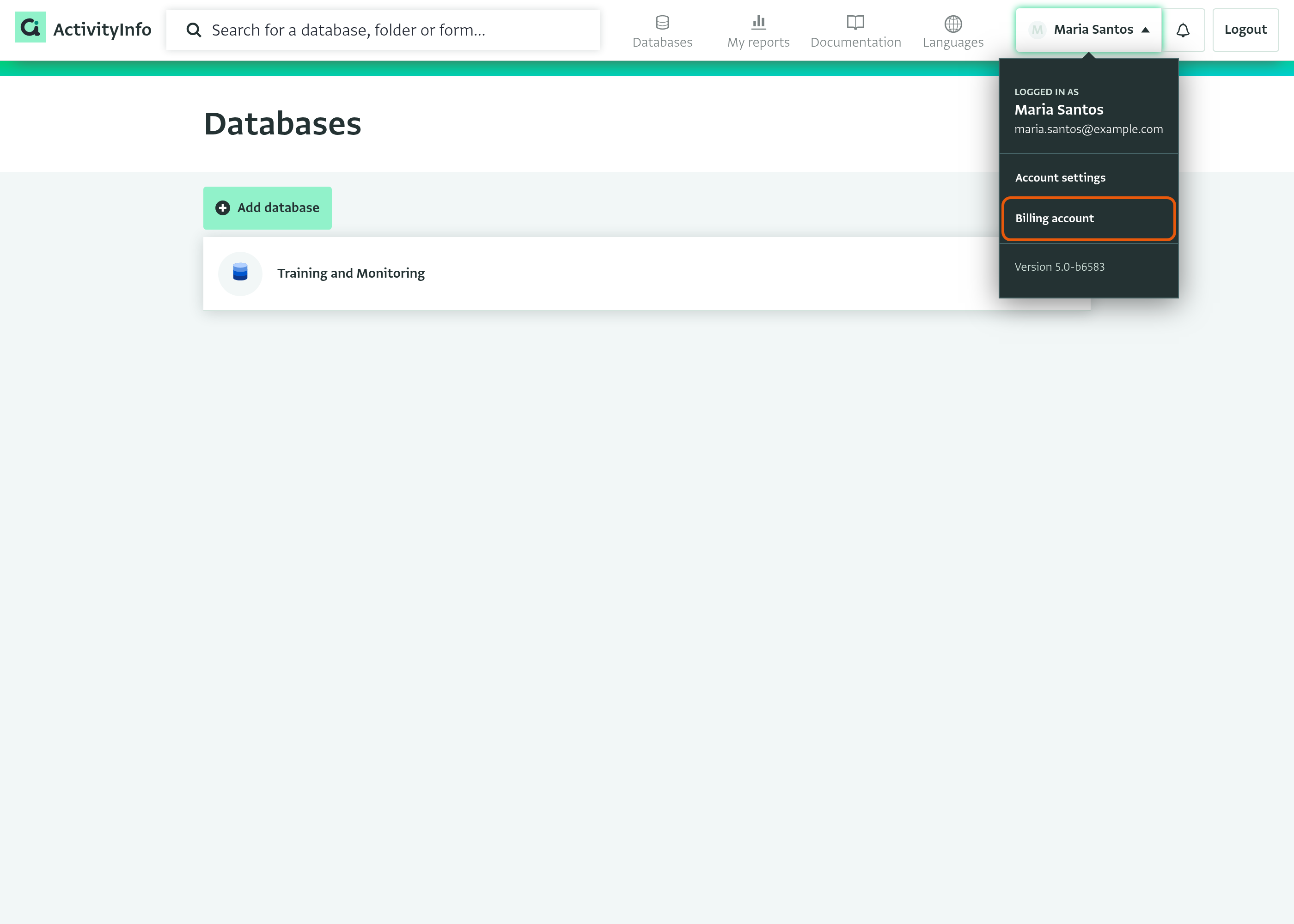
If you hold a role in more than one billing account, the menu shows "Billing accounts" instead. Select it to see the list of your billing accounts, then click on the billing account you want to open.
The billing account page only shows the sections that your billing account role allows.
Sections of the billing account page
| Section | What it shows | Permission needed |
|---|---|---|
| Subscription | Your plan, user limits, account credits, renewal date, quotations and billing history | View the billing account |
| Users | The billing account users and their roles | View users |
| Roles | The billing account roles and the permissions each role grants | View users |
| Sub-accounts | The billing accounts that belong to this billing account | View the billing account |
| Databases | The Databases that belong to the billing account, and Databases that were deleted | View the list of databases; View deleted databases to see deleted Databases |
| Branding | The logo and login page text of your custom domain | Manage the custom domain and branding |
| Email domains | The email domains of your organization and their single sign-on policy | Manage email domains, single sign-on and SCIM |
| Identity providers | The identity providers your organization uses for single sign-on | Manage email domains, single sign-on and SCIM |
| SCIM | The SCIM tokens used to provision and de-provision users | Manage email domains, single sign-on and SCIM |
The Owner role grants every permission. To learn how to give other users access to these sections, see Using billing account roles in ActivityInfo.
Subscription
The "Subscription" section shows the following information:
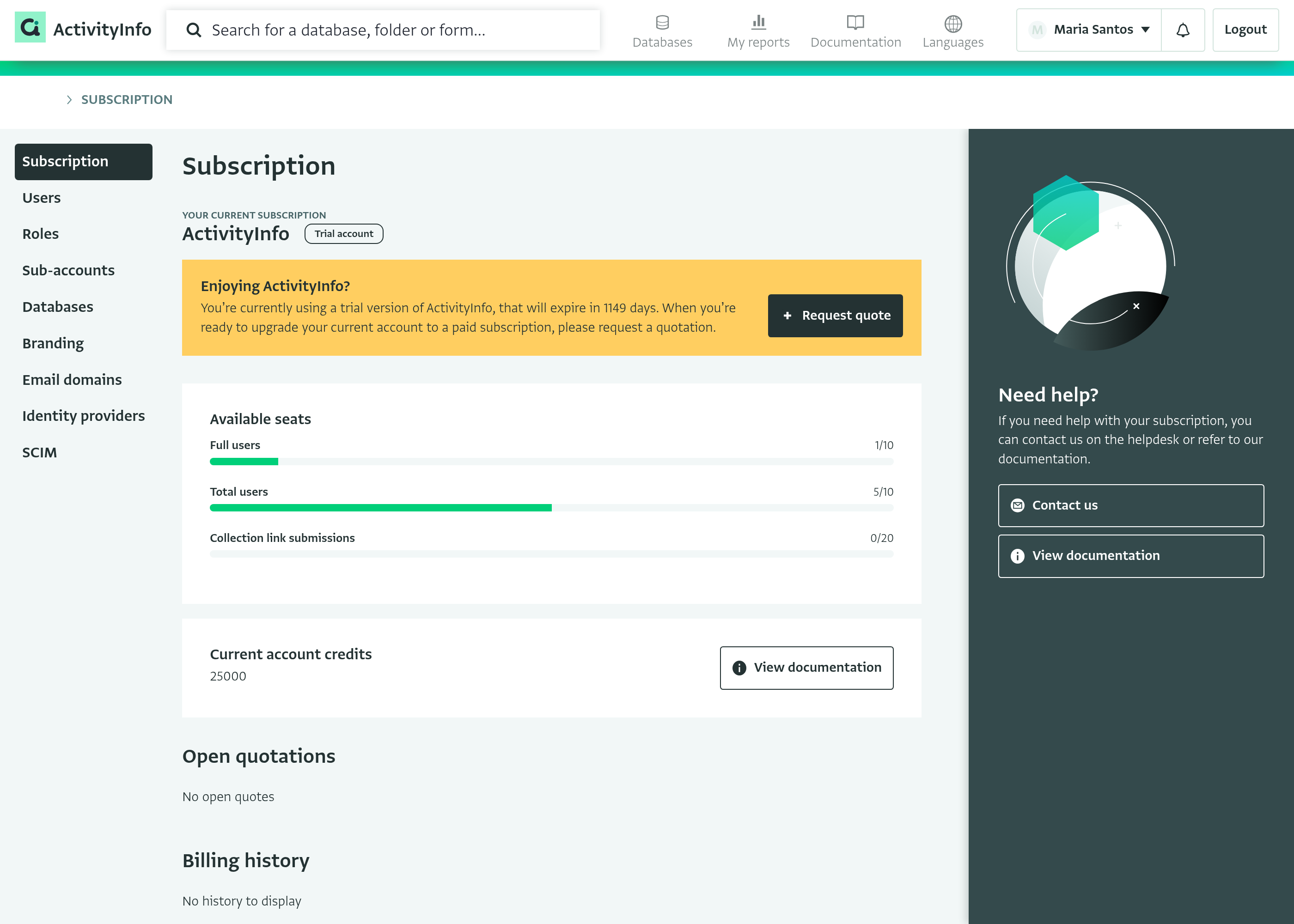
- Your current subscription: the name of your plan. A trial account is marked "Trial account".
- Available seats: the number of "Full users" and "Total users" compared with your limits. For a trial account, the section also shows "Collection link submissions": the number of records submitted through collection links, compared with the trial limit. See Starting a free trial. A limit that is exceeded is marked "Exceeded".
- Current account credits: the credits left for features such as automatic translation. See Account credits.
- Add-ons: any add-ons included in your subscription.
- Renewal & time remaining: the date your subscription renews or expires.
- Open quotations: quotations waiting for your approval, with a link to the quotation portal.
- Billing history: past invoices and payments.
From the "Subscription" section, you can also:
- Click on "Add resources" to request a quotation for more users.
- Click on "Renew now" to renew your subscription.
- Click on "Request quote" (or "Subscribe now") to change a trial account into a paid subscription.
- Click on "Export account statistics" to export billing account statistics.
- Click on "Close trial account" to close a trial account. Only the Owner of the trial account sees this button.
User licenses
Each Database user counts as a Full user or a Basic user, depending on the operations their Database Role allows:
- A Full user can manage the Database, for example add Forms, manage users, roles, automations or collection links, or lock Records.
- A Basic user can work with Records, for example view, add, edit, delete or export Records, and view or share reports.
ActivityInfo counts each user once per billing account, at the highest license type they need in any of the billing account's Databases. The total number of users is the number of Full users plus the number of Basic users. After you change a user's access, the counts can take a few minutes to update.
When the billing account reaches its limits, the "Subscription" section asks you to request an upgrade. Depending on your subscription, you may not be able to add new users until you add resources.
To learn how to reduce the number of Full users, see Managing user license requirements and Cleaning up user access.
Databases
The "Databases" section lists the Databases that belong to the billing account. For each Database, it shows the number of Records, Full users and Basic users, and when a Form was last updated.
Click on a Database to see its details in the side panel: its owner, its number of users, Basic users, Full users, Forms and Records, and the date of the last Record update. Click on "View database" to open the Database.
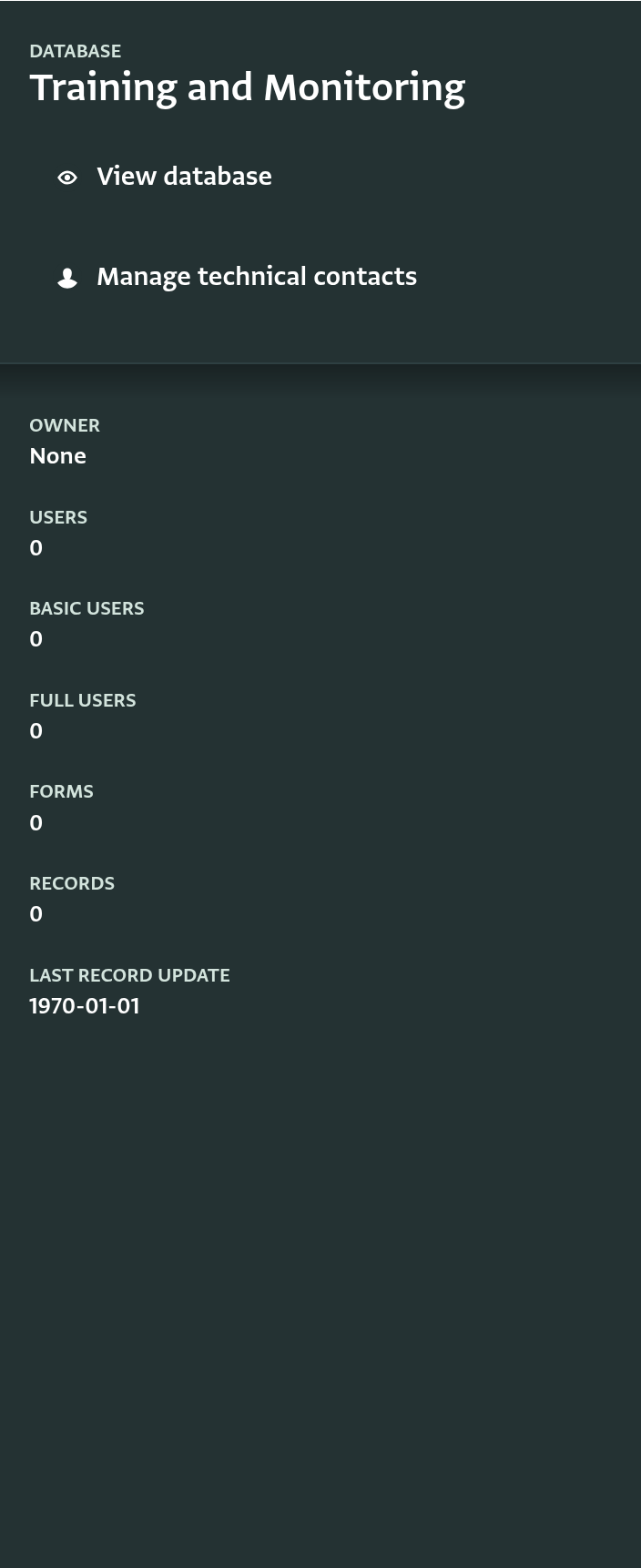
To see Databases that were deleted from the billing account, click on "Display deleted databases". You can recover a deleted Database until it is purged. See Recovering deleted Databases.
Sub-accounts
A billing account can have sub-accounts, for example one for each country office of an organization. Sub-accounts suit an organization whose offices or member entities buy and manage their own user licenses. In an organization where the head office buys all the licenses for every office, one billing account is usually enough.
The "Sub-accounts" section lists the sub-accounts. Click on a sub-account to open its billing account page.
A role in a billing account also applies to its sub-accounts. For example, a user who holds the Owner role in the billing account of the head office can manage the billing accounts of the country offices.
To set up sub-accounts, contact support@activityinfo.org.
Organization settings
| Section | Related articles |
|---|---|
| Branding | Setting up a custom domain for your organization |
| Email domains | Setting up Single Sign On (SSO), Migrating existing users to SSO, Setting up user automatic de-provisioning |
| Identity providers | Setting up Single Sign On (SSO) |
| SCIM | Configuring SCIM and Microsoft Entra ID |
To add an email domain or a custom domain to your billing account, contact support@activityinfo.org.
Billing account status
| Status | What it means |
|---|---|
| Active | The billing account is in good standing. |
| Suspended | The subscription has not been paid. The Databases are unchanged, but no one can access them. |
| Closed | The billing account is closed and all its Databases have been deleted. |
Only a user with the Owner role can close a billing account, because closing it deletes every Database in it.