Language: English
This article presents how to add a user, who has already been added to a Database, to a new resource (Folder or Form).
Sometimes, a user is added to a Database but is not added to all the Forms or Folders needed. This could happen because the resource was not there at the time the user was invited or because the user's permissions need to be changed due to a change in your program for example.
There are two ways to add an existing user to a resource:
- In the User management section, add the resource to the user from the optional resources of the user's Role.
- In the Database design section, select the resource and grant permissions for it to the user.
Changes to granted permissions made in User Management section will be reflected in Database Design section and vice-versa.
You cannot grant Permissions to other users that you yourself do not have. For example, if your Role does not include the permission to "Add forms, folders, and reports", you cannot grant that permission to a user.
How to add an existing user to a new resource from User management
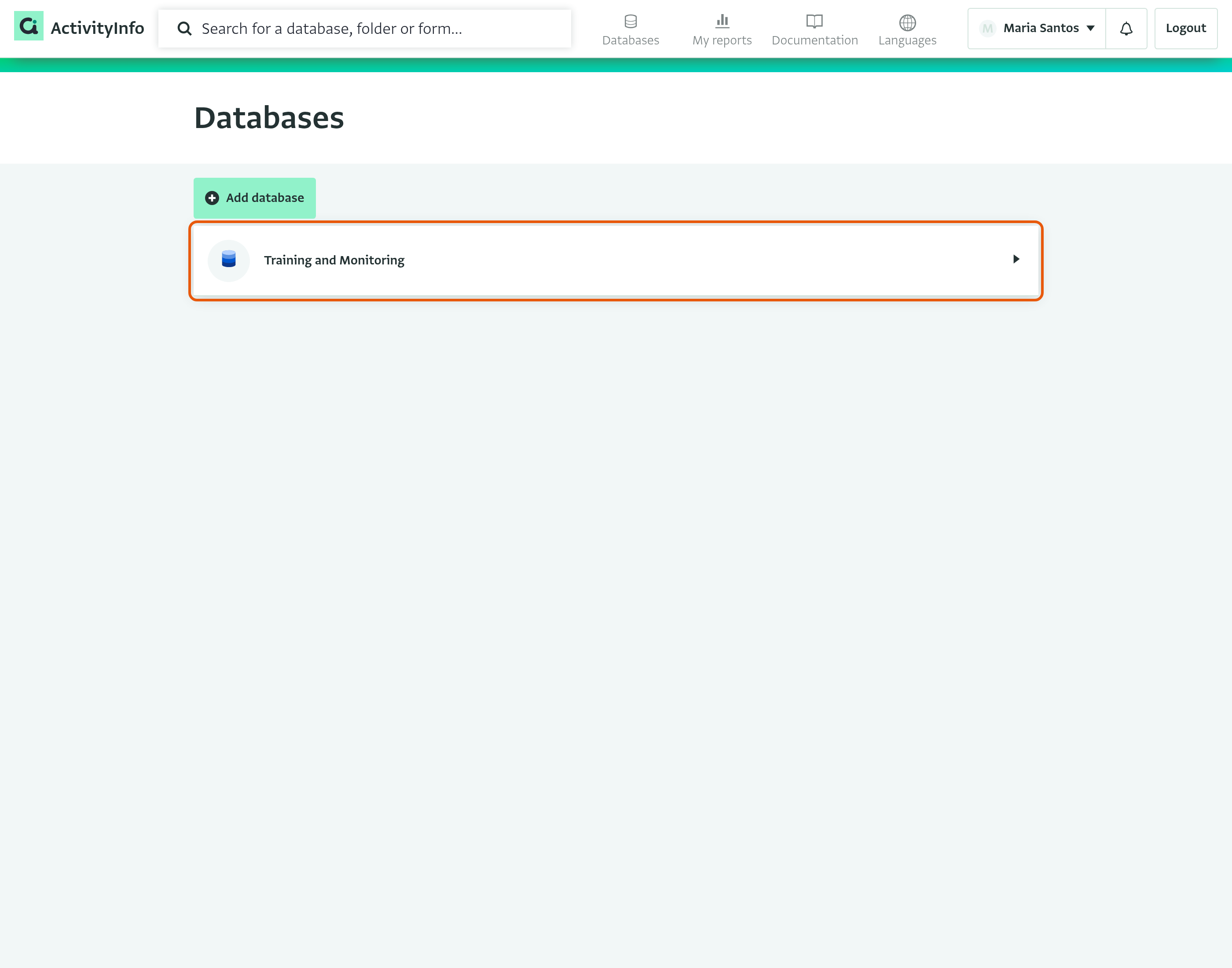
- On the Database List page, click on the Database that you want to apply the change to.
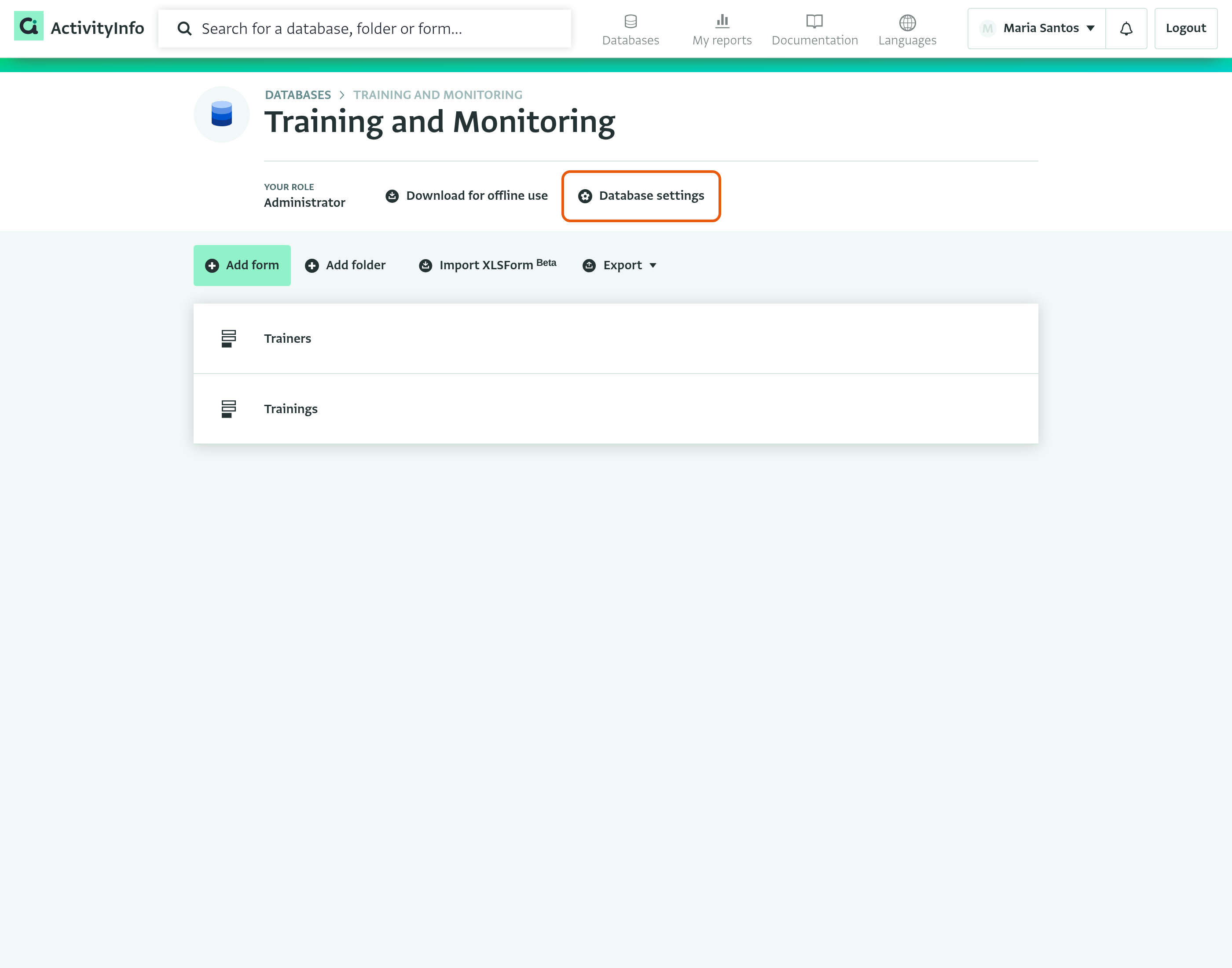
- Click on "Database settings" to open the Database Setting page.
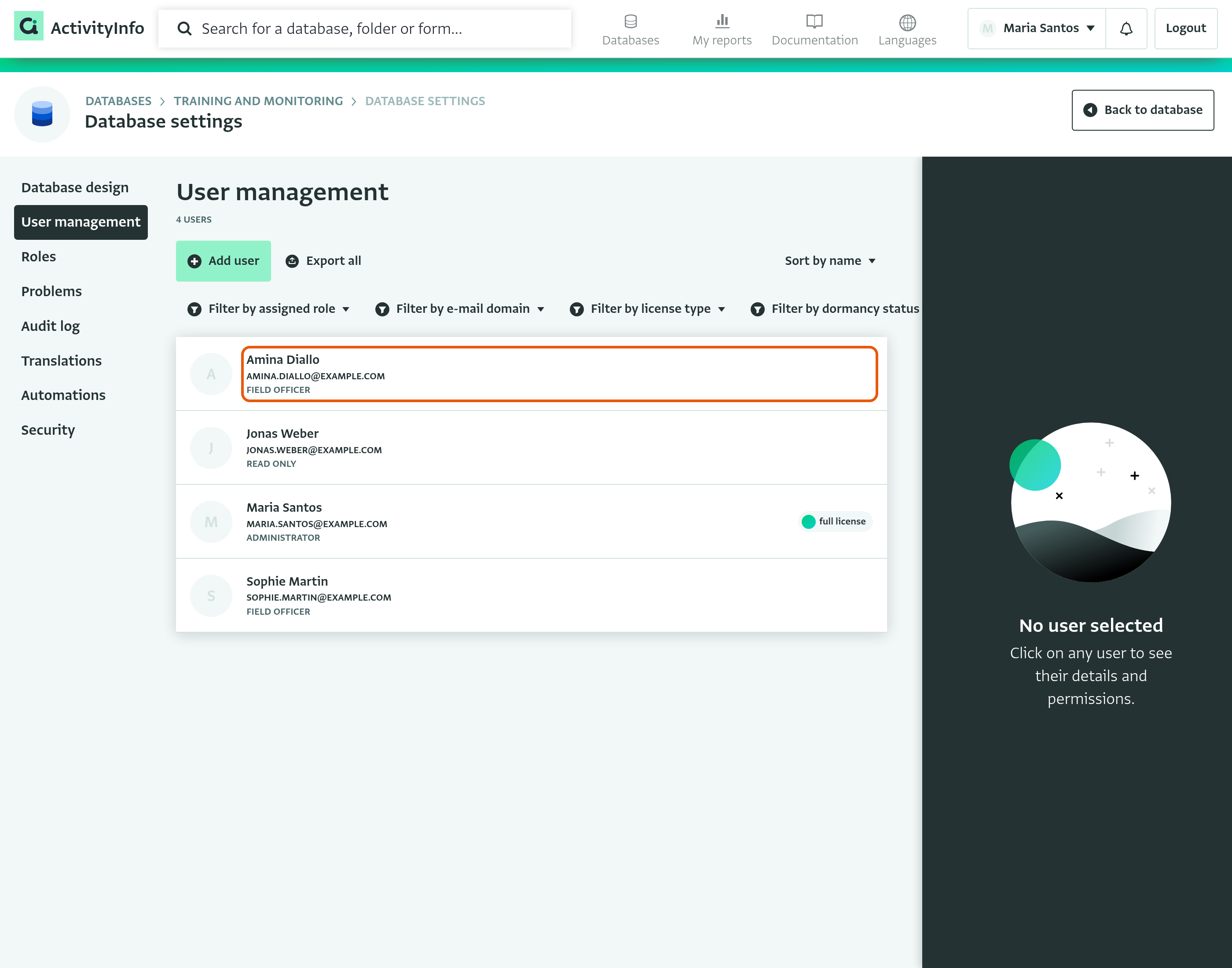
- Click on "User management" to see the list of users.
- Click on the user you want to add to a new Folder or Form.
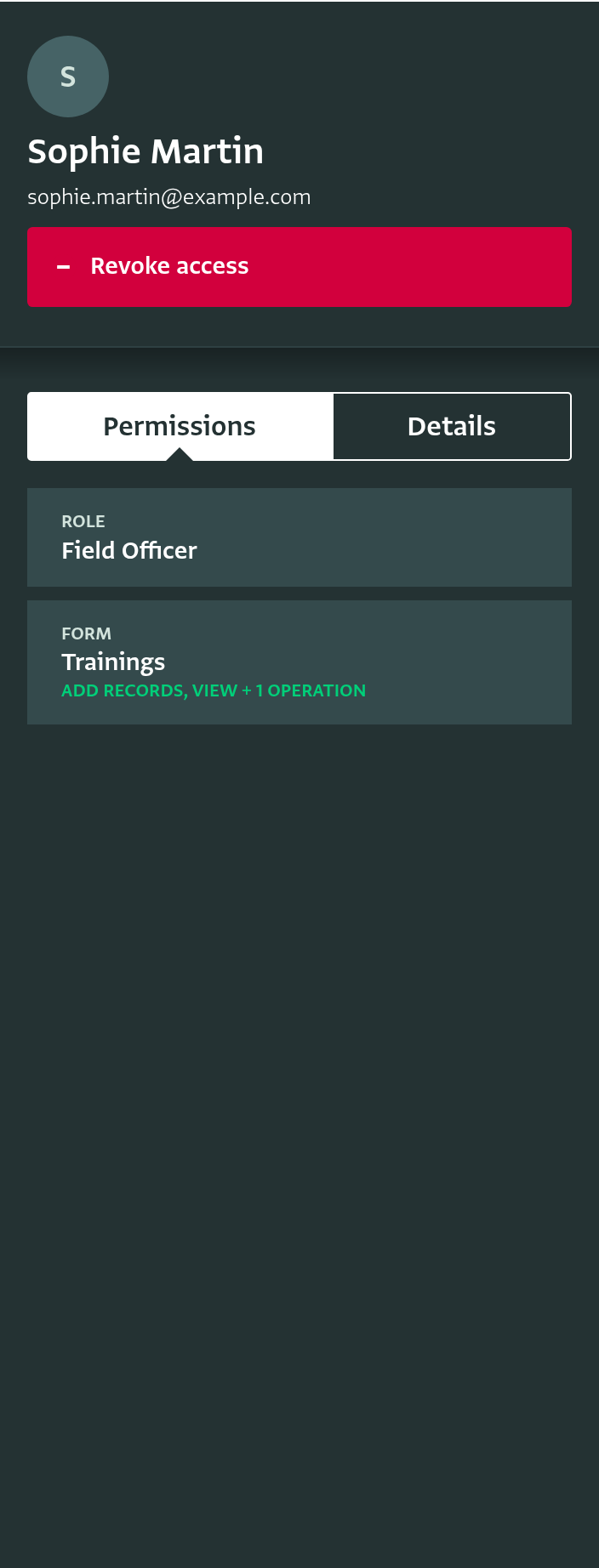
- In the User side panel you can view a summary of the permissions a user has.
- You can view the Role of the user, any additional grants as well as the resources which the user can access.
- Click on the Card.
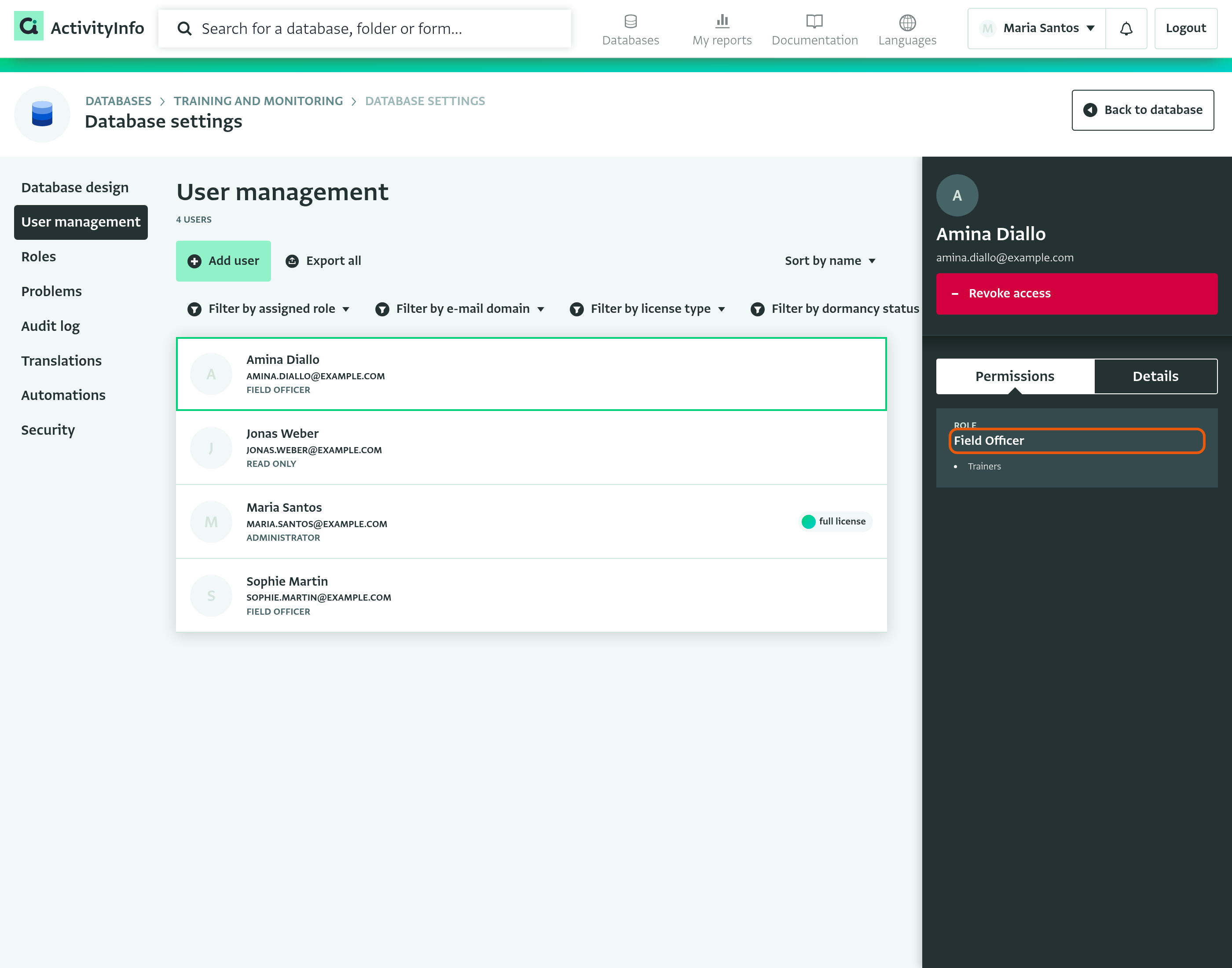
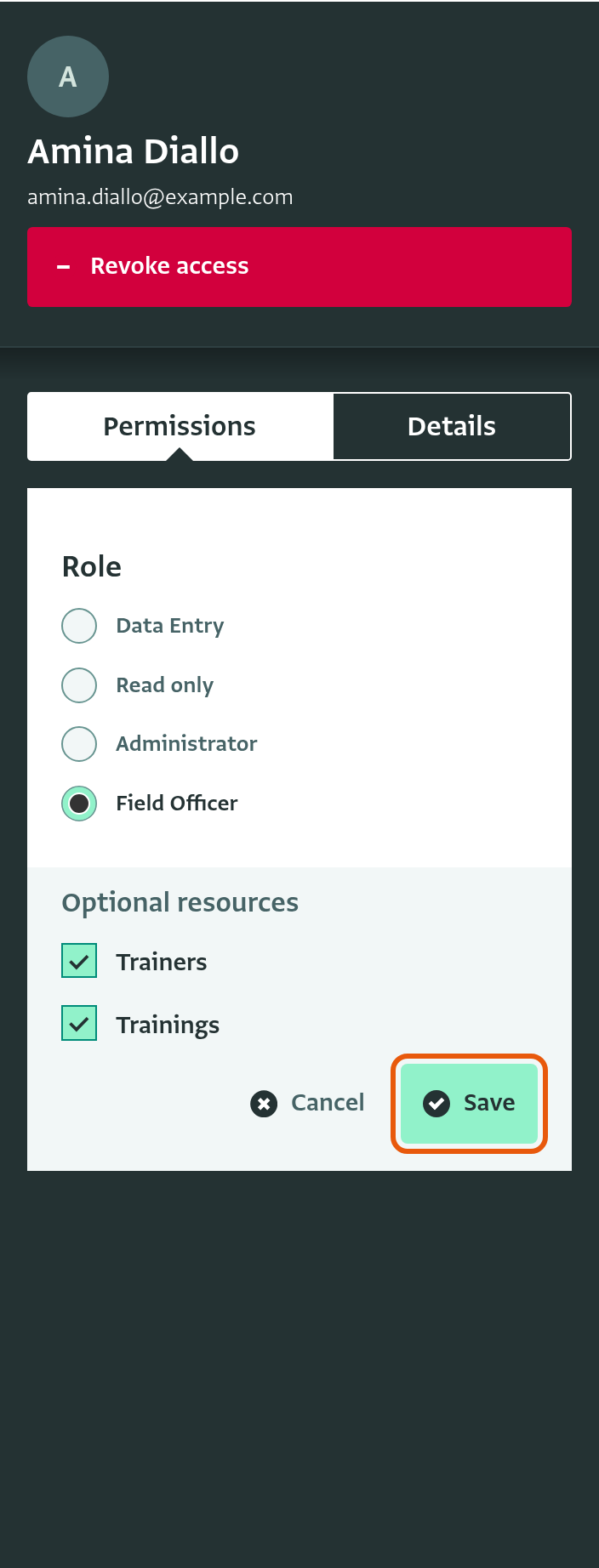
- Under "Optional resources", check the Forms and Folders to which you want to add the user and click on "Save". Only the Forms and Folders that the user's Role grants as optional resources are listed.
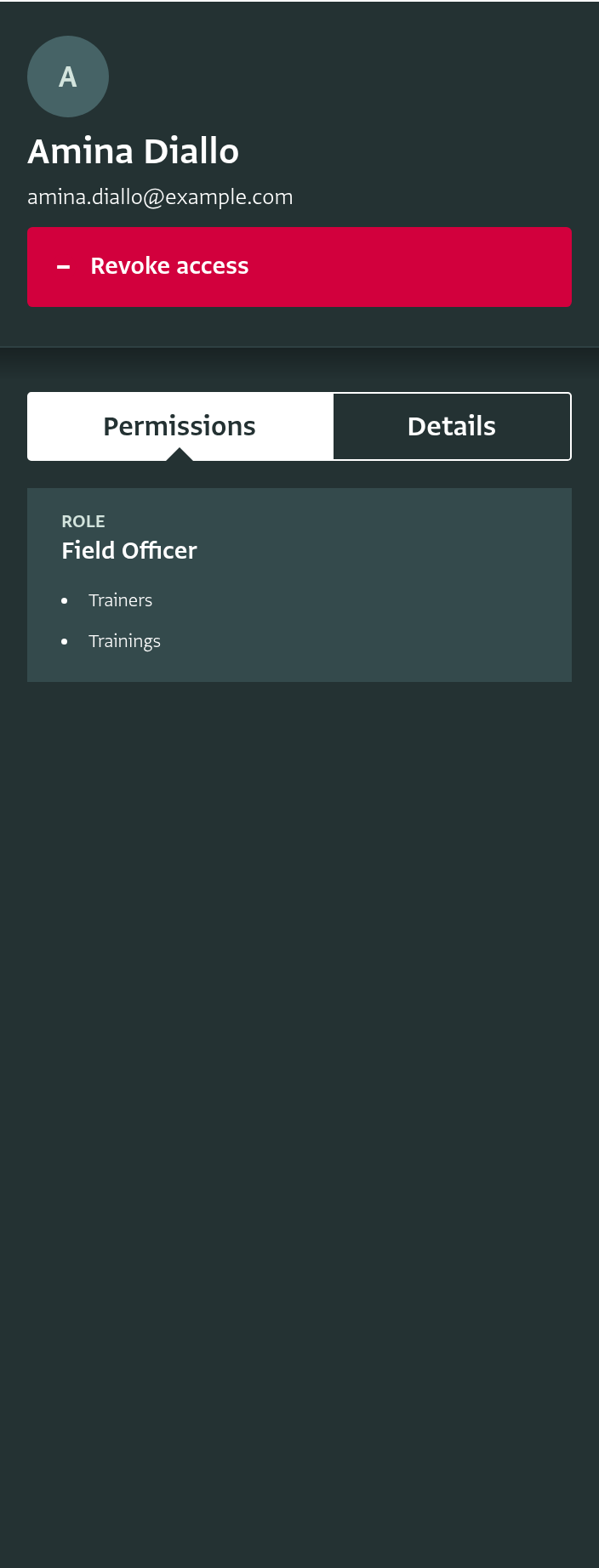
- The user has been added to the selected resources, which are now listed on the card.
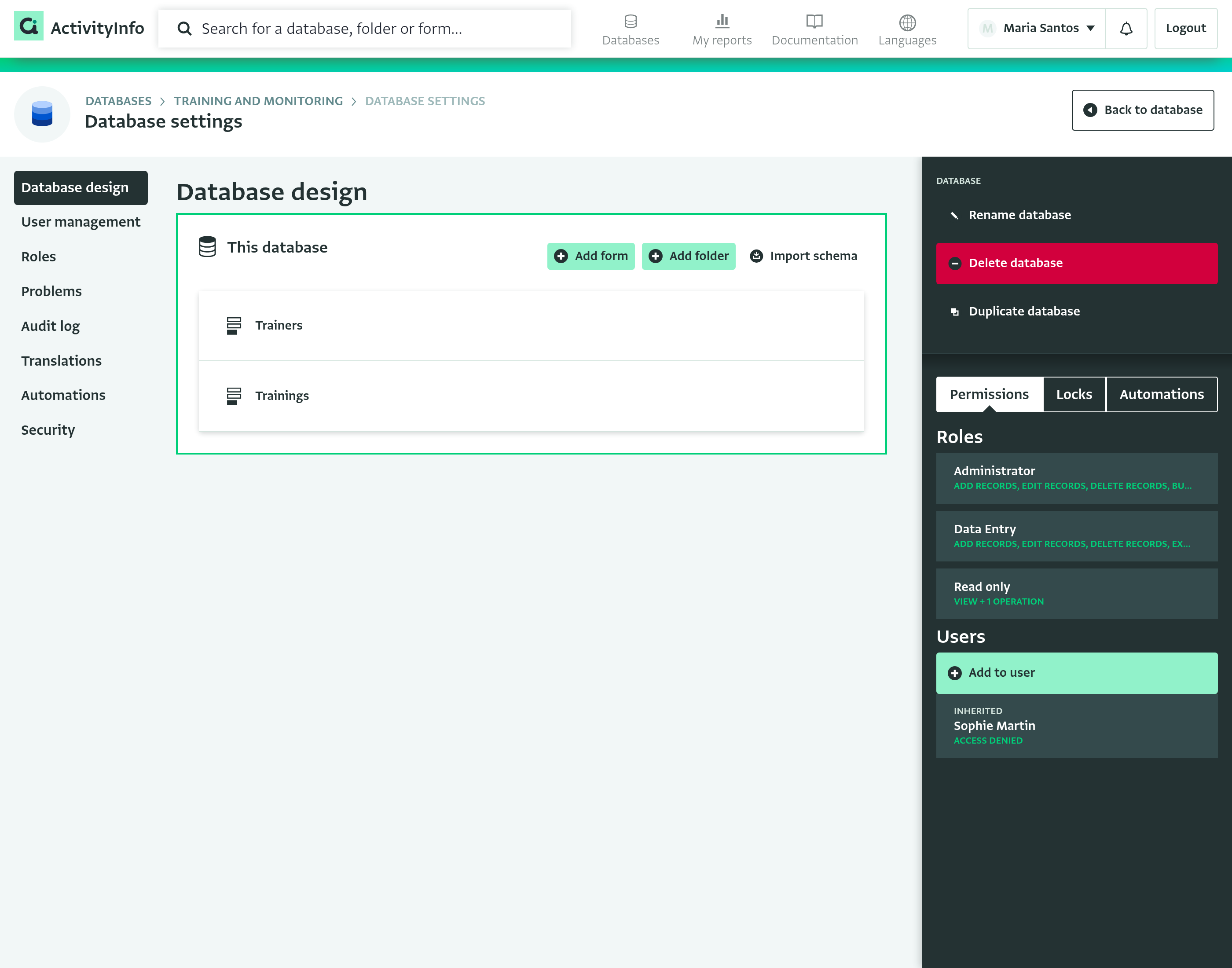
- Navigate to the Database design page and select a Form or Folder to view which Roles give access to it. Roles that grant it as an optional resource are marked "Optional".
How to grant permissions to a user for a new Folder or Form from Database design
Use this method to give a user access to a Form or Folder that their Role does not include, or to grant them additional permissions for it.
- On the Database List page, click on the Database that you want to apply the change to.
- Click on "Database settings" to open the Database Setting page.
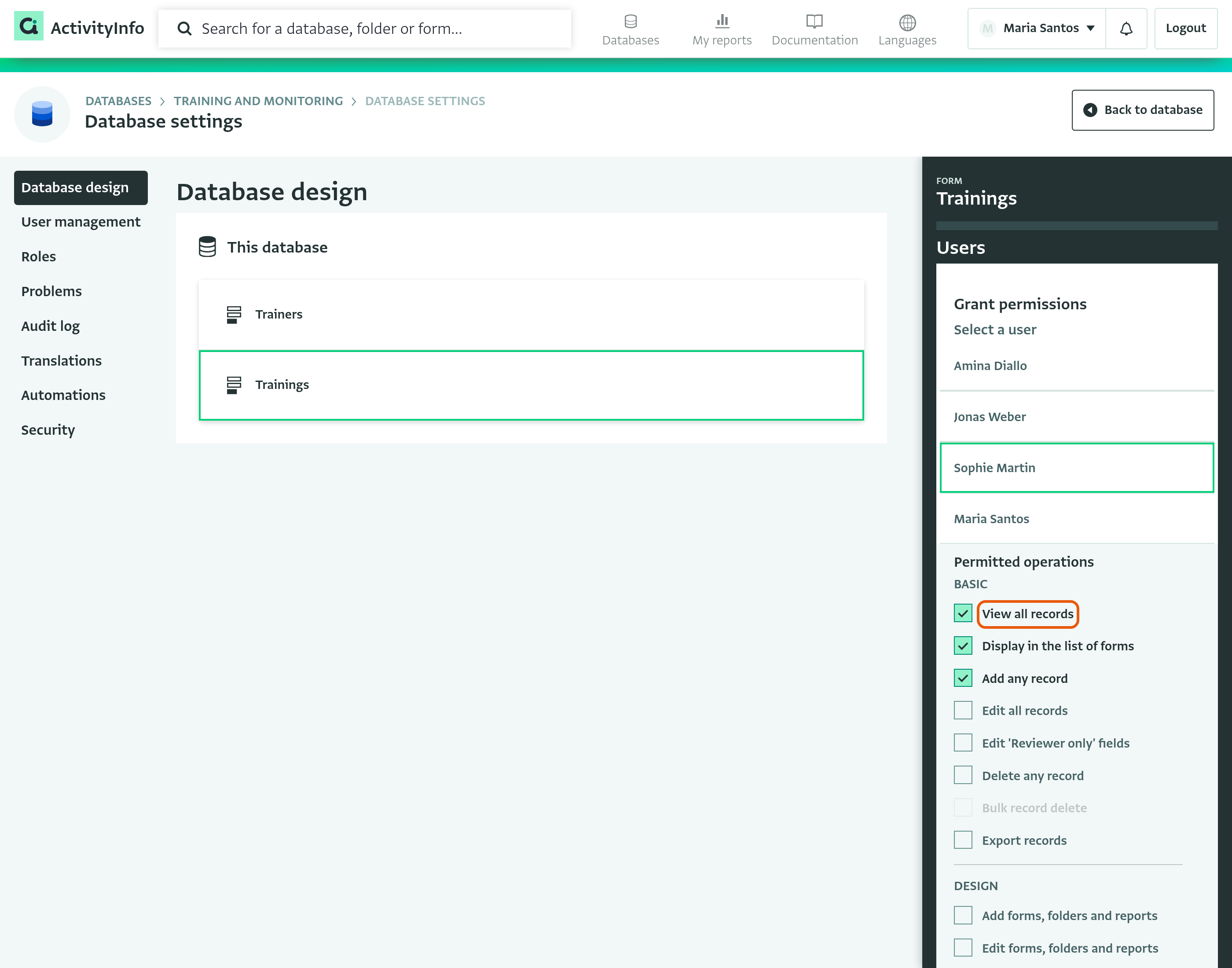
- Click on "Database design" and select the Form or Folder for which you want to apply changes.
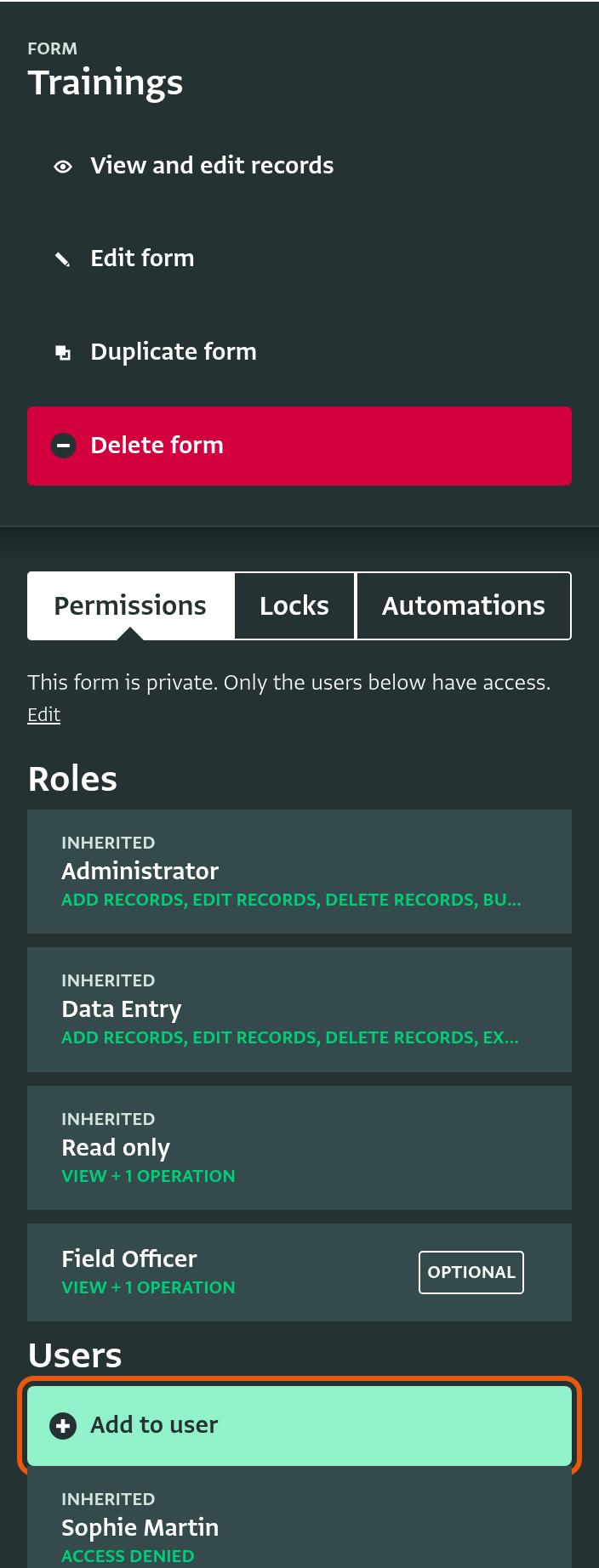
- In the Resource side panel, you can see the Roles and users that have access to this resource. Users whose Role does not give them access to the resource are marked "Access denied".
- Click on "Add to user".
- Under "Select a user", click on the user you want to grant permissions to. The list shows all the users of the Database.
- Under "Permitted operations", check the permissions you want to grant to the user for this resource.
- Click on "Done" to save the changes.
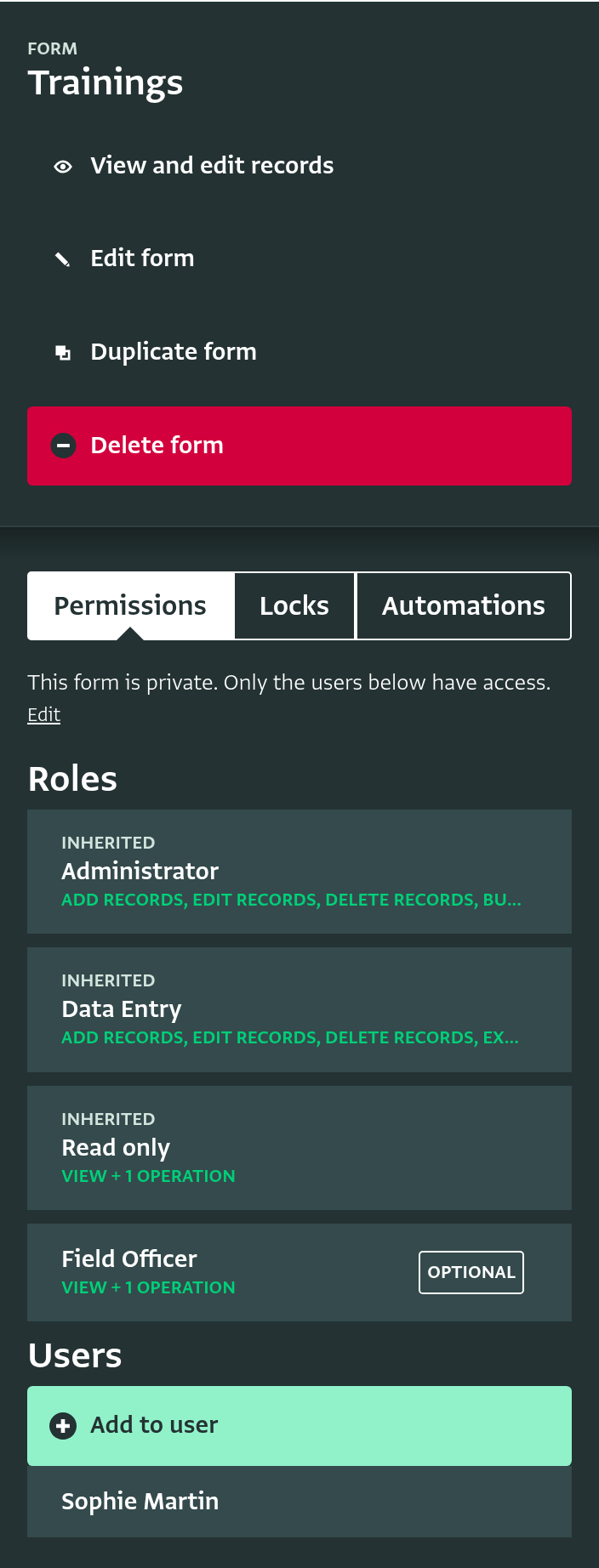
- The user has been added to the list of users for that resource.
- You can view the granted permissions of the user in User management.
- Click on "User management" and click on the user in the user list.
- In the User side panel, the grant is listed as a separate card below the user's Role. From the User side panel, you can view, edit or delete the granted permissions.