In this tutorial, we add Calculated fields to a form that find the fiscal year and the fiscal quarter of each record. We also add a validation rule that checks the reporting date. The formulas use the MONTH, YEAR, DAY and IF functions.
We assume the role of a database administrator for a nutrition program. Each site sends a monthly report with the number of children screened. The program's fiscal year runs from 1 July to 30 June, and the donor asks for results by fiscal year and by fiscal quarter.
We name each fiscal year after the year in which it ends. For example, FY2027 runs from 1 July 2026 to 30 June 2027.
What you need
- A database with a Monthly reports form. Ours has three fields:
- A Text field with the label "Site".
- A Date field with the label "Reporting month".
- A Quantity field with the label "Children screened".
- A few records in the form, so you can check the results of the formulas.
- Permission to design the database.
Step 1: Check that the reporting month is the first day of a month
Each report covers a whole month, so we record the month as its first day: 1 July 2026 for the July report. A validation rule stops users from entering another day of the month.
-
Open the database, select Database settings, then Database design, and select the Monthly reports form.
-
Select Edit form.
-
Select the Reporting month field and enter the code
REPORT_MONTH. -
Select Set validation rules, then Formula editor.
-
Enter this formula and select Done:
DAY(REPORT_MONTH) == 1 -
In Validation error message, enter "Enter the first day of the month, for example 1 July 2026."
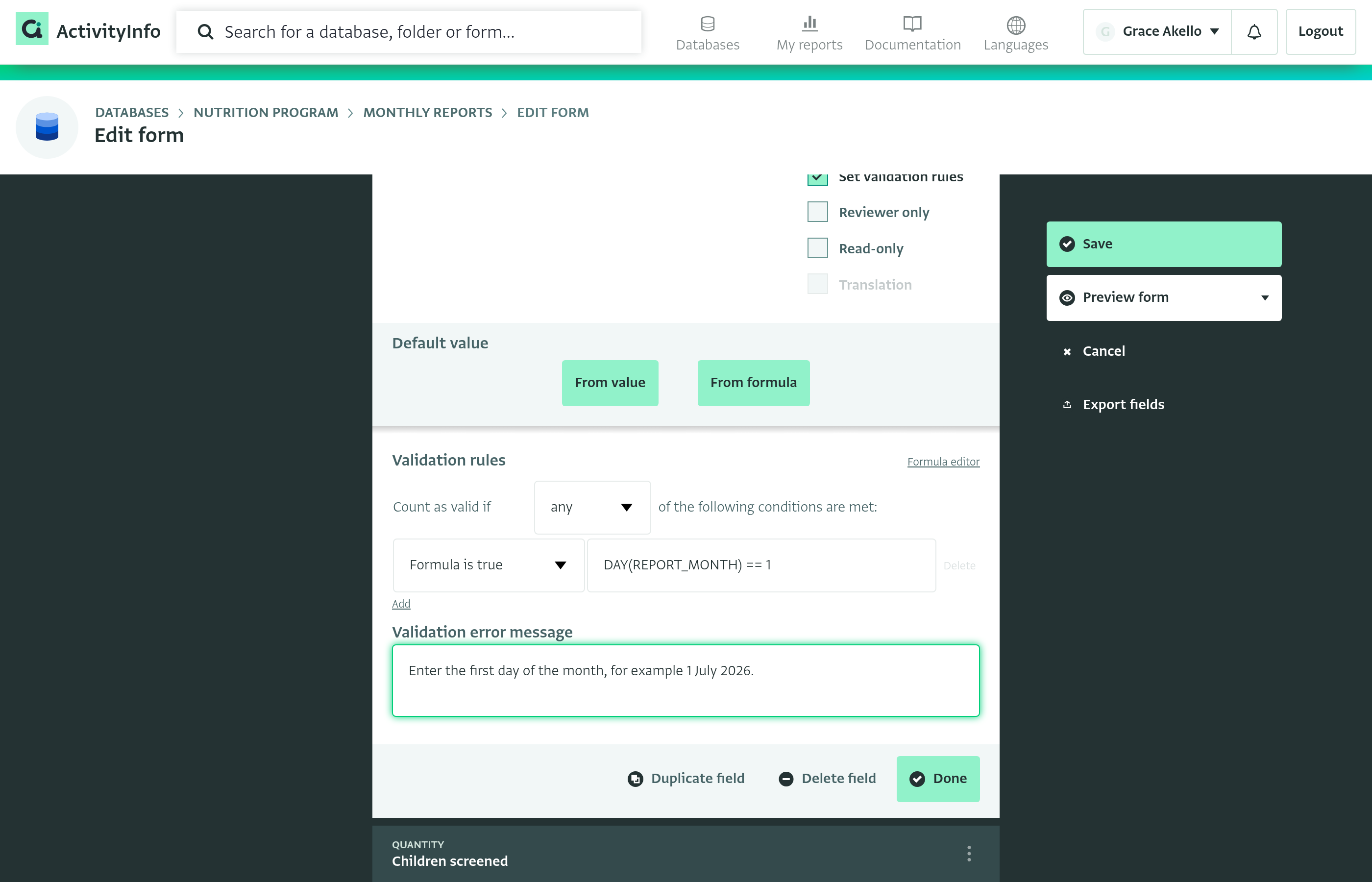
The validation rule of the Reporting month field -
Select Done.
DAY gives the day of the month, from 1 to 31. The rule is TRUE only when the day is 1.
We use the code REPORT_MONTH in the formulas below. If your field has another code, use your code instead.
Step 2: Find the fiscal year
-
Add a Calculated field with the label "Fiscal year" and the code
FISCAL_YEAR. -
Enter this formula:
CONCAT("FY", TEXT(IF(MONTH(REPORT_MONTH) >= 7, YEAR(REPORT_MONTH) + 1, YEAR(REPORT_MONTH)), "0")) -
Select Done.
The formula works in three parts:
MONTH(REPORT_MONTH) >= 7checks whether the month is July or later.IFgives the next year for July to December, and the same year for January to June. For July 2026, the result is- For May 2026, the result is 2026.
TEXT(..., "0")turns the year into text without a thousands separator, andCONCATadds "FY" in front of it. The result is "FY2027".
If your fiscal year starts in another month, change the 7 to the number of that month. For example, use 10 for a fiscal year that starts on 1 October.
Step 3: Find the month of the fiscal year
We number the months of the fiscal year: July is month 1 and June is month 12. We need this number to find the fiscal quarter in Step 4.
-
Add a Calculated field with the label "Fiscal month" and the code
FISCAL_MONTH. -
Enter this formula:
IF(MONTH(REPORT_MONTH) >= 7, MONTH(REPORT_MONTH) - 6, MONTH(REPORT_MONTH) + 6) -
Select Done.
For July, the result is 7 - 6 = 1. For January, the result is 1 + 6 = 7.
If your fiscal year starts in another month, replace the 7 with the number of that month, the 6 with that number minus 1, and the + 6 with 13 minus that number. For a fiscal year that starts in October, the formula is IF(MONTH(REPORT_MONTH) >= 10, MONTH(REPORT_MONTH) - 9, MONTH(REPORT_MONTH) + 3).
Step 4: Find the fiscal quarter
-
Add a Calculated field with the label "Fiscal quarter" and the code
FISCAL_QUARTER. -
Enter this formula:
CONCAT("Q", TEXT(CEIL(FISCAL_MONTH / 3), "0")) -
Select Done, then Save.
The form now has three Calculated fields:
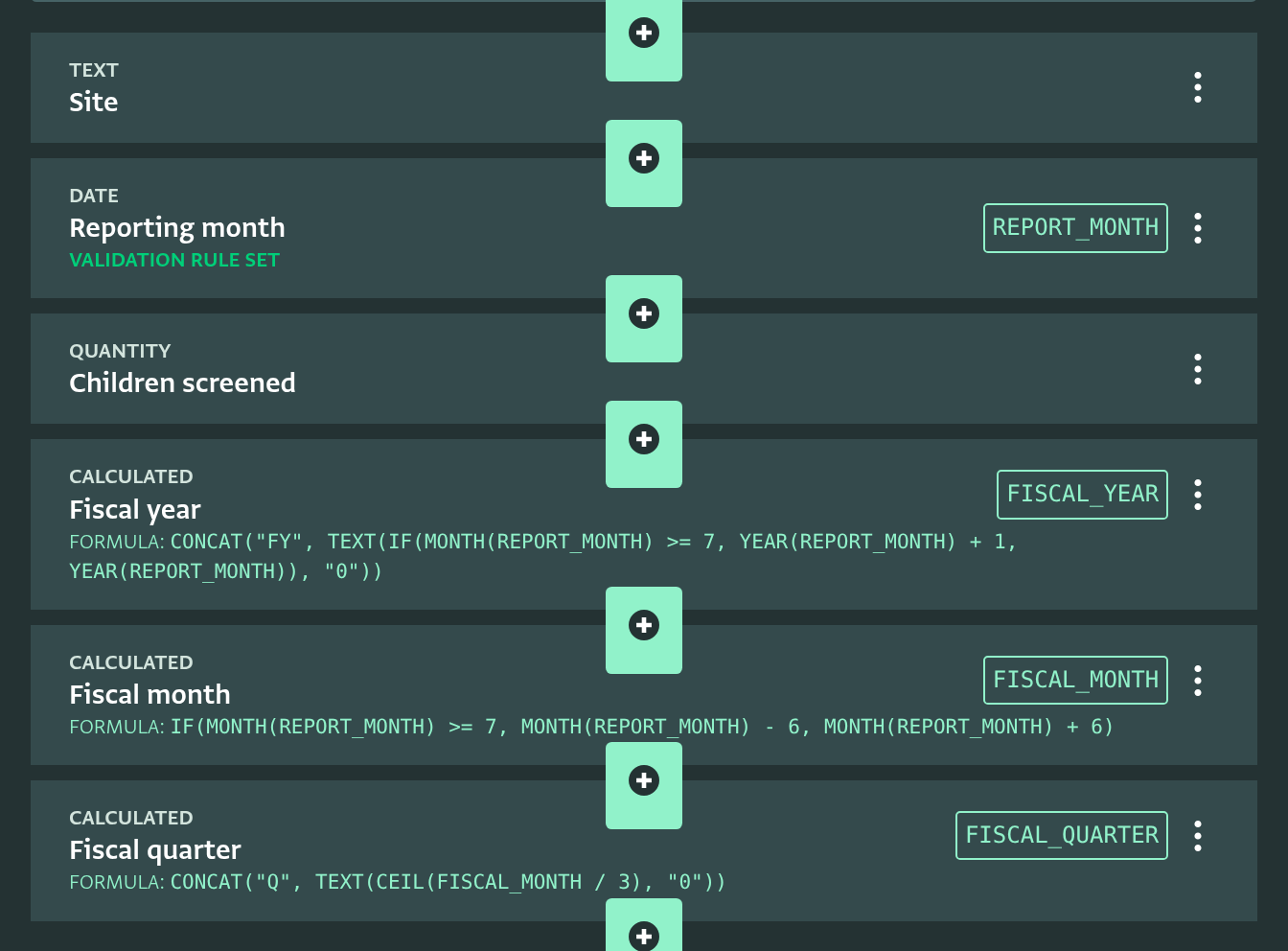
Each quarter has three months, so FISCAL_MONTH / 3 is above 0 and at most 1 for the first quarter, above 1 and at most 2 for the second quarter, and so on. CEIL rounds the result up to a whole number. For October, the fiscal month is 4, and 4 / 3 rounds up to 2, so the result is "Q2".
Step 5: Test the validation rule
- Open the Monthly reports form and select Add.
- Enter a site, and enter 15 August 2026 in Reporting month.
The form shows the validation error message, and you cannot save the record until you enter the first day of the month.
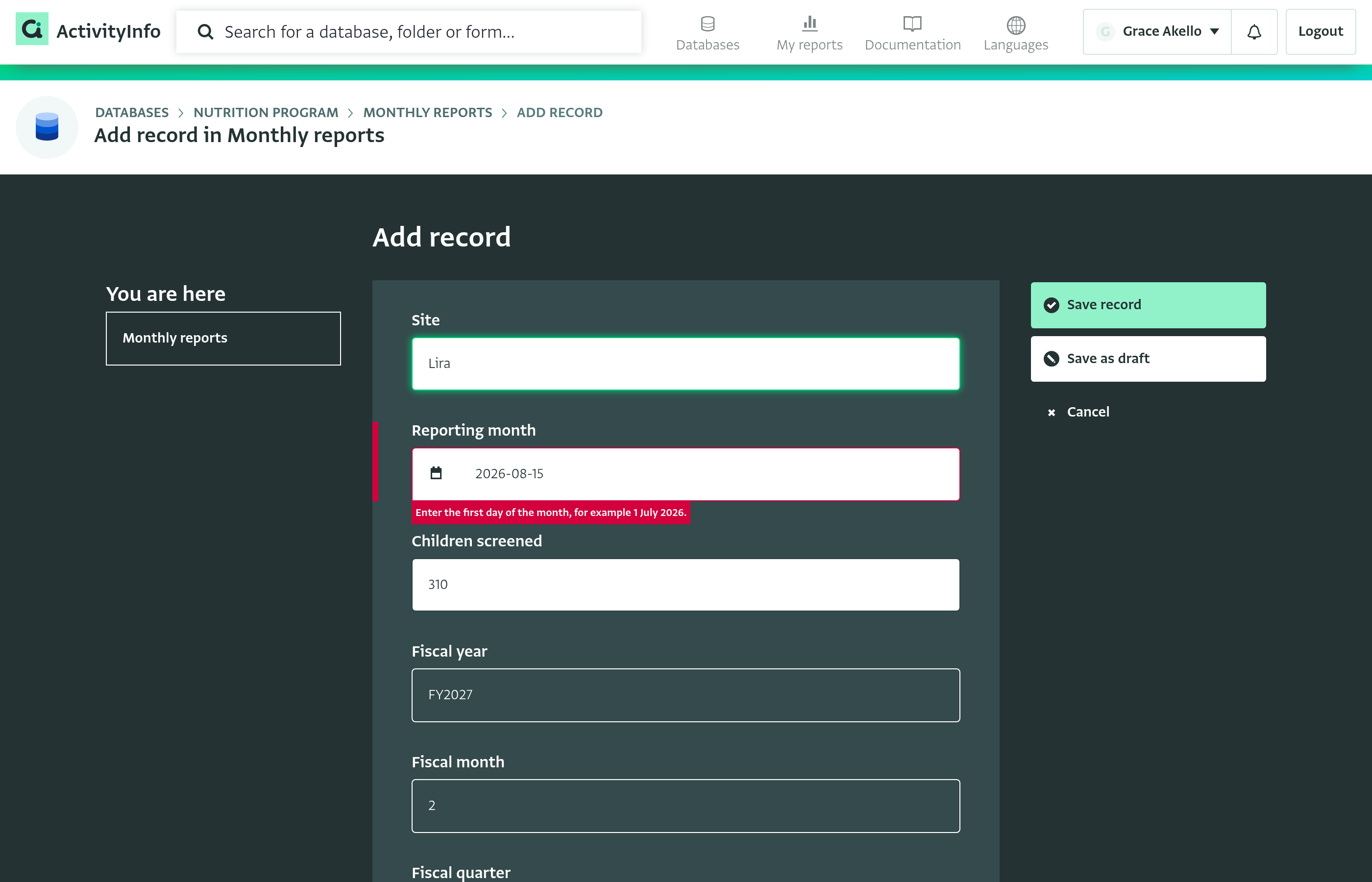
Step 6: Check the results
Close the record form without saving. The table shows the new fields for each report:
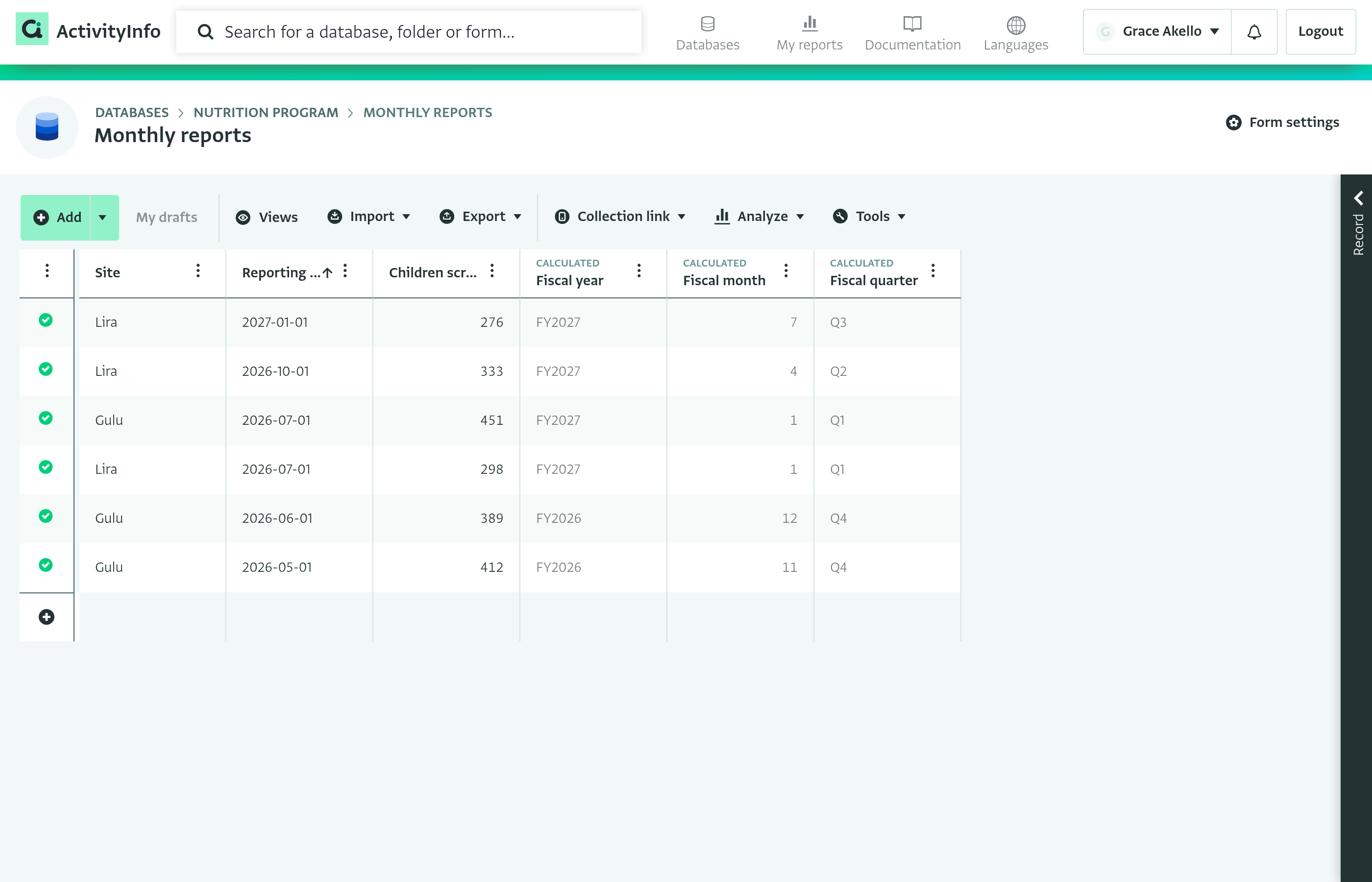
| Reporting month | Fiscal year | Fiscal month | Fiscal quarter |
|---|---|---|---|
| 2026-05-01 | FY2026 | 11 | Q4 |
| 2026-07-01 | FY2027 | 1 | Q1 |
| 2026-10-01 | FY2027 | 4 | Q2 |
| 2027-01-01 | FY2027 | 7 | Q3 |
The Fiscal year and Fiscal quarter fields are Text values, so you can use them as dimensions in a pivot table to show the children screened by fiscal year and quarter.
Next steps
- To learn more about Calculated fields, see Calculated field.
- To learn more about validation rules, see Validation rules.
- To format numbers and dates as text, see TEXT.