In this tutorial, we add Calculated fields to a form that find the age of each person from their date of birth, and place each person in an age group. The formulas use the YEARFRAC, TODAY, FLOOR and IF functions.
We assume the role of a database administrator for a livelihoods program. Staff register every member of the households that the program supports in a Household members form, with their date of birth. The program reports the number of household members in five age groups: Infant (under 2), Child (2 to 9), Preteen (10 to 12), Teenager (13 to 17) and Adult (18 and over).
What you need
- A database with a Household members form. Ours has two fields:
- A Text field with the label "Name".
- A Date field with the label "Date of birth".
- A few records in the form, so you can check the results of the formulas.
- Permission to design the database.
Step 1: Give the Date of birth field a code
- Open the database, select Database settings, then Database design, and select the Household members form.
- Select Edit form.
- Select the Date of birth field and enter the code
DOB. - Select Done.
We use the code DOB in the formulas below. If your field has another code, use your code instead.
Step 2: Calculate the age
-
Add a Calculated field with the label "Age" and the code
AGE. -
Enter this formula:
FLOOR(YEARFRAC(DOB, TODAY()))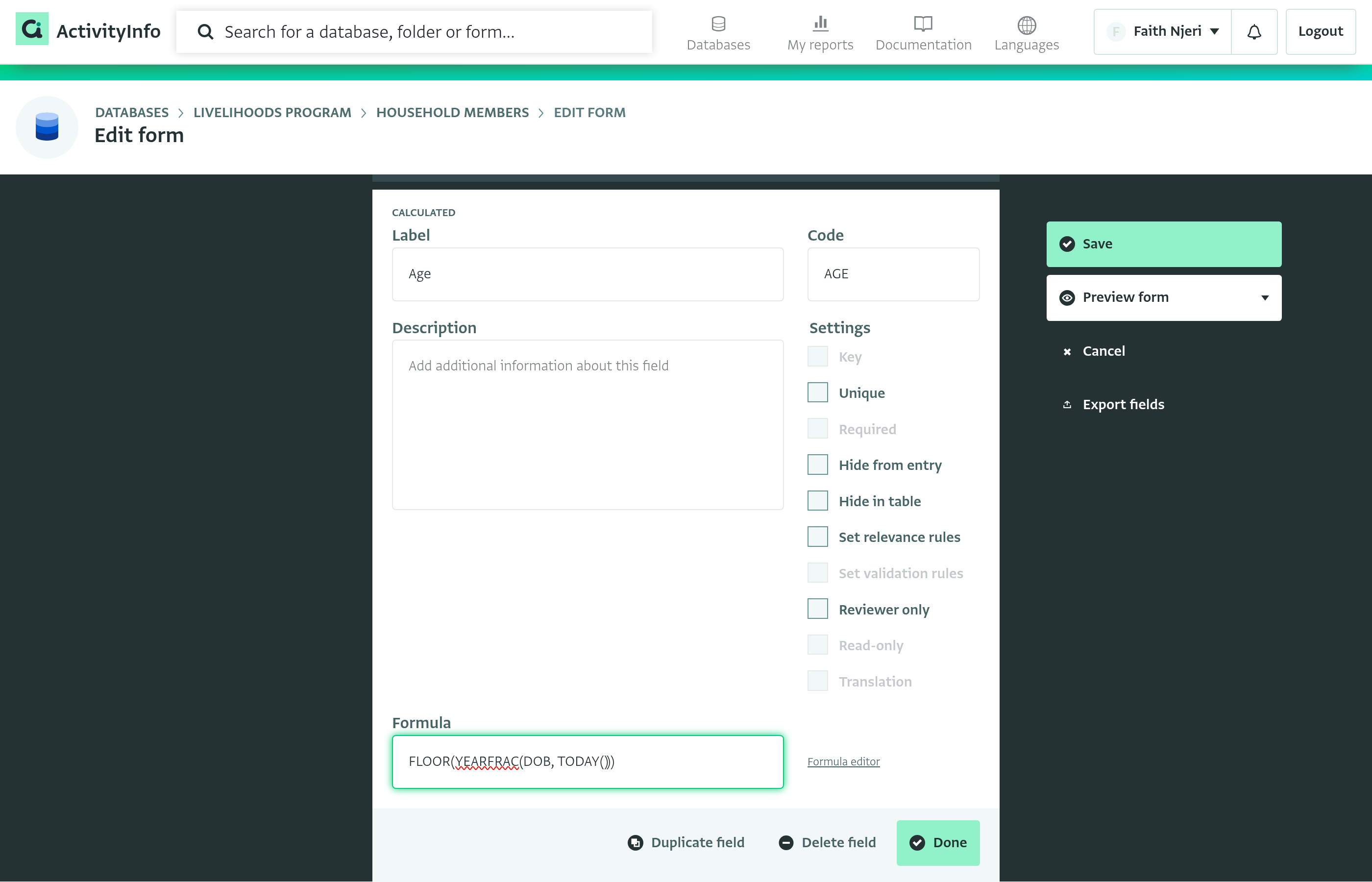
The formula of the Age field -
Select Done.
The formula gives the age in whole years on today's date, so a household member moves to the next age group on their birthday. To learn how the formula works, or to calculate the age on a fixed date such as the start of the program, see Calculating age from birthdate.
Step 3: Find the age group
-
Add a Calculated field with the label "Age group" and the code
AGE_GROUP. -
Enter this formula:
IF(AGE < 2, "Infant", IF(AGE < 10, "Child", IF(AGE < 13, "Preteen", IF(AGE < 18, "Teenager", "Adult")))) -
Select Done, then Save.
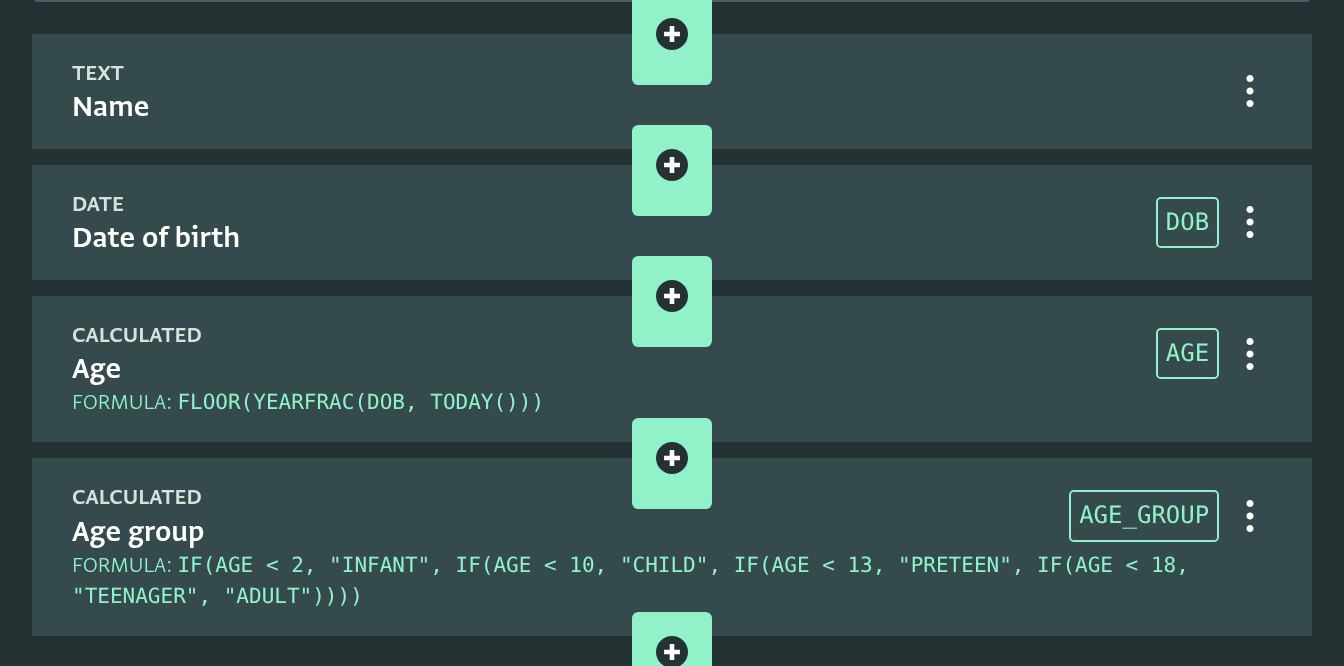
The formula places one IF inside another. ActivityInfo checks the conditions from left to right and stops at the first one that is TRUE:
- If the age is under 2, the result is "Infant".
- Otherwise, if the age is under 10, the result is "Child".
- Otherwise, if the age is under 13, the result is "Preteen".
- Otherwise, if the age is under 18, the result is "Teenager".
- Otherwise, the result is "Adult".
Each condition only needs an upper limit. For example, a household member aged 12 fails the first two conditions, so we already know they are at least 10 when ActivityInfo checks the third condition.
To use other age groups, change the limits and the labels. Add one IF for each extra group, and add one closing parenthesis at the end for each IF.
Step 4: Check the results
Open the Household members form. The table shows the age and the age group of each household member:
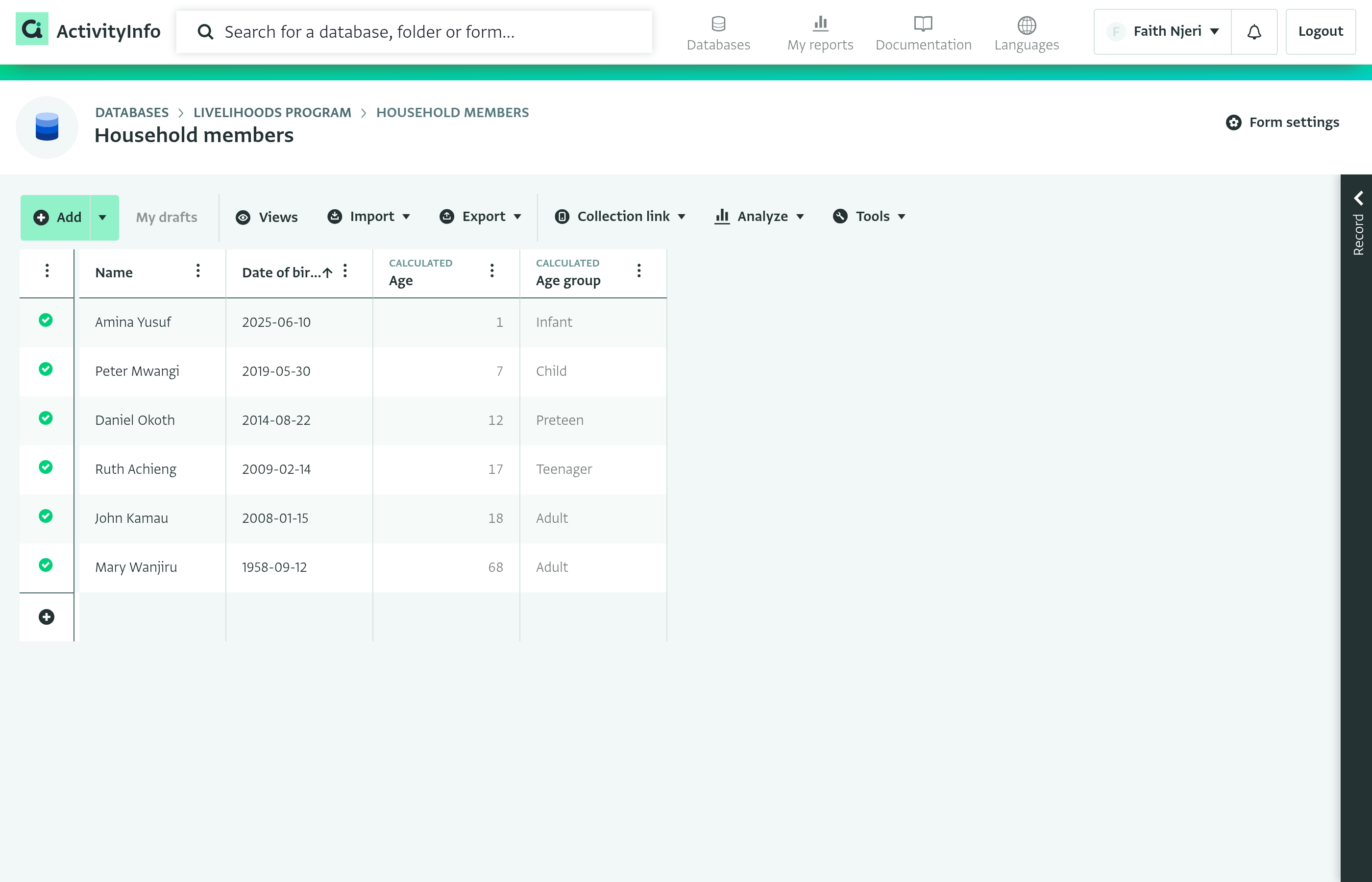
Check the household members whose age is close to a limit. In our example, Ruth Achieng is 17 and is in the "Teenager" group, and John Kamau is 18 and is in the "Adult" group.
The Age group field is a Text value, so you can use it as a dimension in a pivot table to count the household members in each age group.
Next steps
- To learn more about Calculated fields, see Calculated field.