Language: English
Introduction
In ActivityInfo, a draft is a record with changes that you have not submitted to the server yet. A draft can be a new record, or a saved record with changed field values. Drafts let you enter, check and correct data before other users see it.
Drafts are stored on your device, and other users with access to the form cannot see them. You must submit a draft to save it to the server. Before you can submit a draft, it must pass the form's validation checks.
How drafts work
Drafts have three characteristics:
- They contain changes to field values that you have not submitted.
- They are stored only on your device, until you submit them to the server.
- They must be valid before you can submit them. After you submit a draft, the record is part of the dataset: other users can see it, and you can use it in analysis and reports.
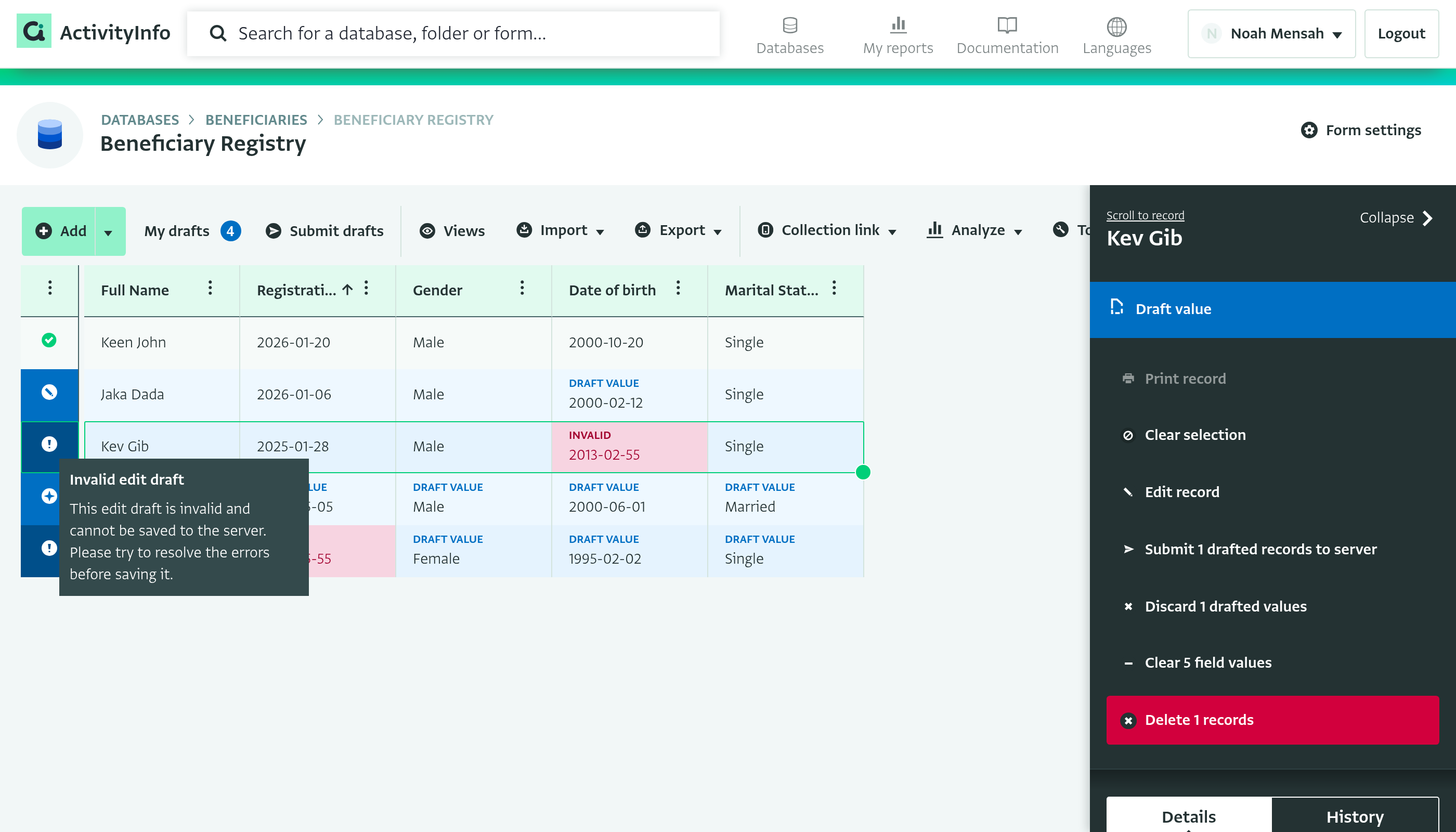
In the interactive table, the icon in the status column shows the status of each record. Hover over the icon to see a tooltip that explains the status.
| Icon | Status | Meaning |
|---|---|---|
 |
Invalid draft, invalid saved record or invalid edit draft | One or more values break a field rule, such as the field type or a validation rule. You cannot submit an invalid draft to the server. |
 |
Valid draft | A new record that is valid but has not been submitted to the server yet. |
 |
Valid edit draft | A saved record that you have changed. The changes are valid but have not been submitted to the server yet, and are only stored on your device. |
 |
Valid saved record | The record has been submitted to the server and is available to other users. |
Changed values that are valid are labeled “Draft value” and have a blue background. Invalid values are labeled “Invalid” and have a pink background.
For example:
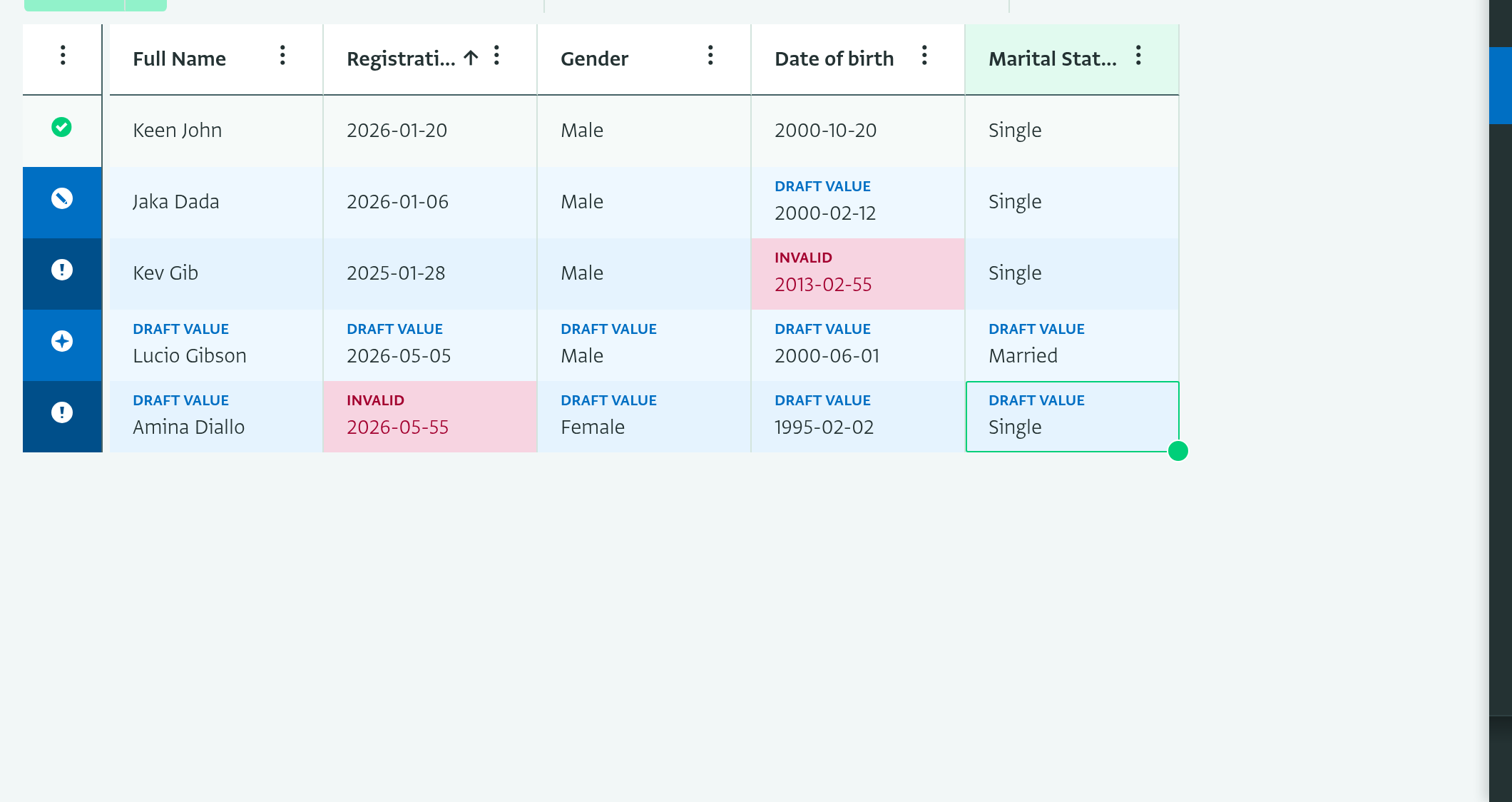
- Keen John is a valid saved record. All users with access to the form can see it.
- Jaka Dada is a valid edit draft. The “Date of birth” value has changed, and the new value is valid. Other users see the old value until you submit the draft.
- Kev Gib is an invalid edit draft. The “Date of birth” value has changed, but the new value is not a valid date. You cannot submit the change until you correct it, and other users see the old value.
- Lucio Gibson is a valid draft. It is a new record and all its values are valid. It exists only on your device.
- Amina Diallo is an invalid draft. It is a new record, but its “Registration Date” is not a valid date. It exists only on your device.
What happens when you edit a record
In the interactive table, a record becomes a draft as soon as you change one of its field values, for example when you:
- Change an existing value
- Clear a field value
From then on:
- The record contains both the original values and your changes.
- ActivityInfo labels the fields that you changed.
- The record stays a draft until you submit it or discard it.
In the interactive table, you can submit several valid drafts to the server at once.
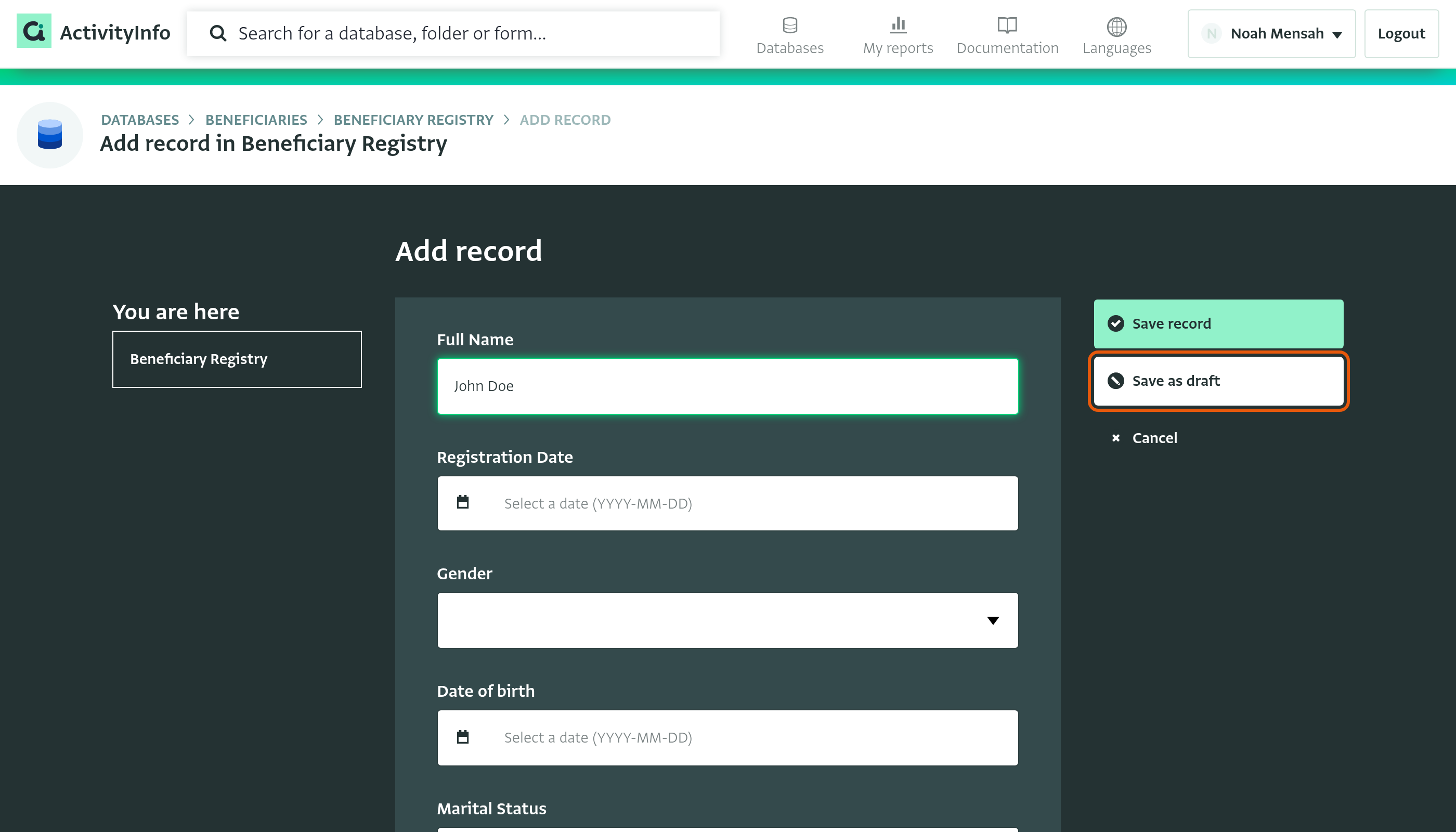
In the data entry form, click on “Save as draft” to keep your changes as a draft, or on “Save record” to check the record and submit it to the server.
Validation before saving
Before you can submit drafts, ActivityInfo checks them against the rules of the form, such as:
- Required fields
- Field types, such as Quantity or Date
- Validation rules and relevance conditions
ActivityInfo checks the values while you edit them, and again when you submit them. If a record is invalid:
- It stays a draft.
- You cannot submit it until you correct it.
This way, only valid data is saved to the server.
Reviewing and submitting drafts
Review your drafts
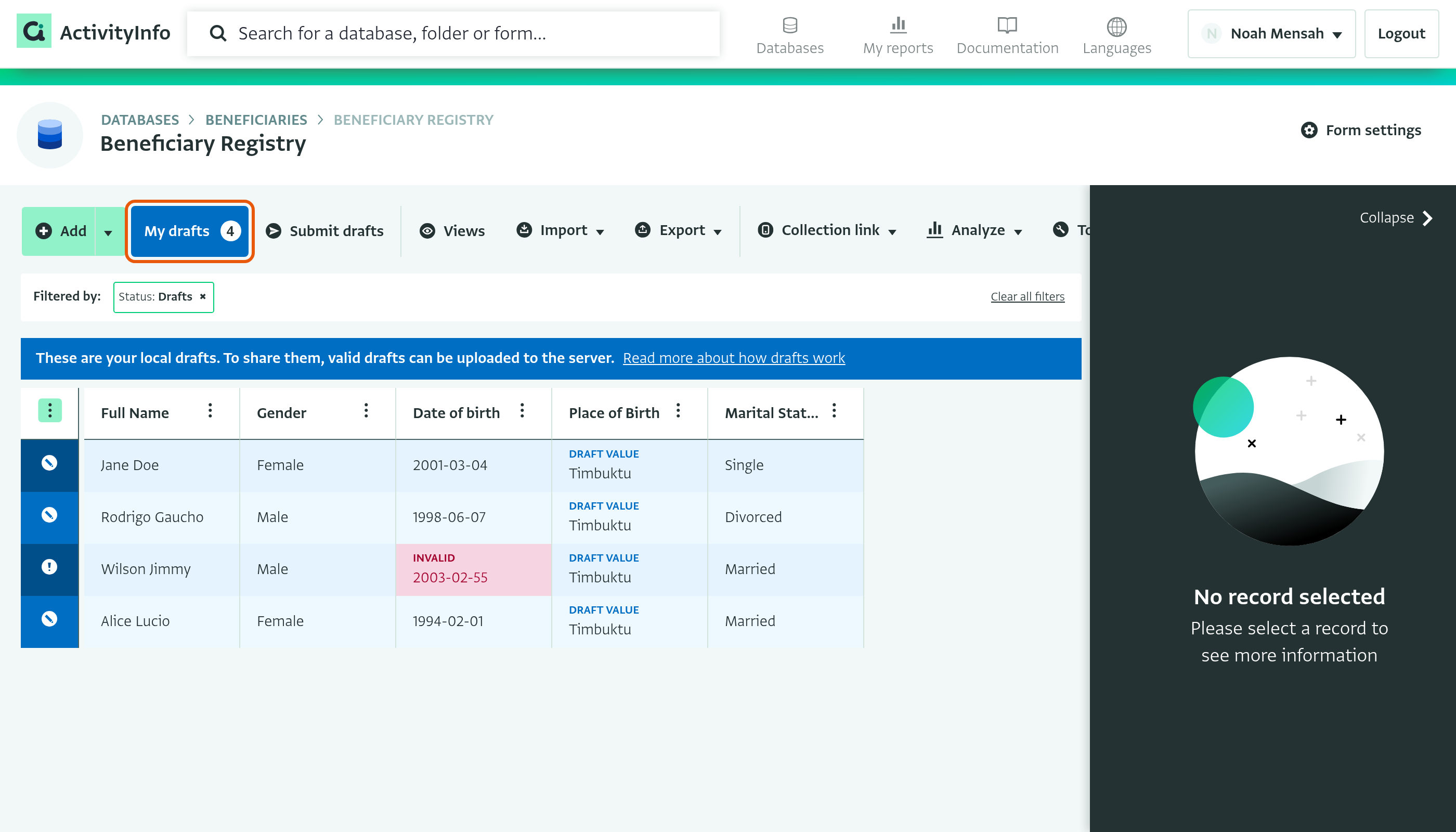
The “My drafts” button in the interactive table toolbar shows how many drafts you have. Click on “My drafts” to filter the table so that it only shows your drafts. To show all records again, click on “Clear all filters”.
Submit your drafts
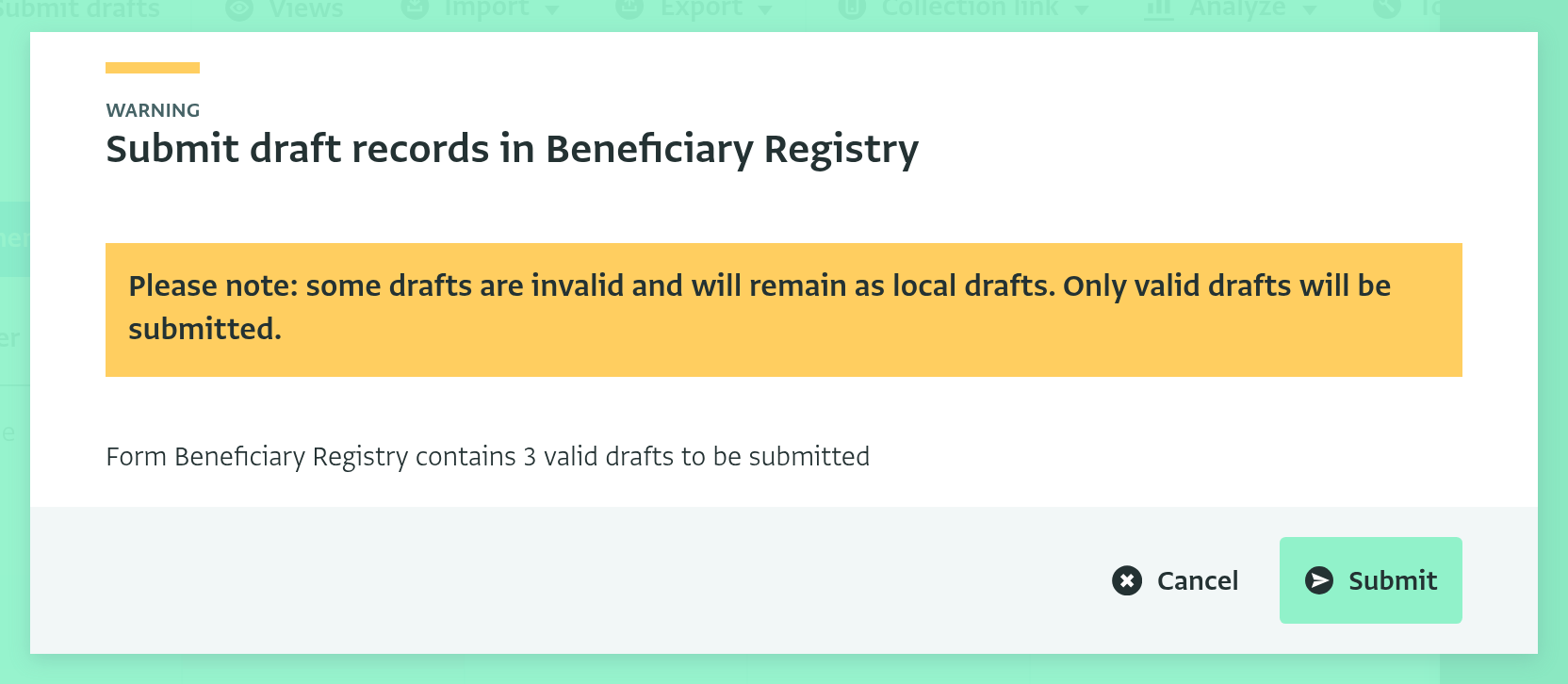
Click on “Submit drafts” in the toolbar to submit all your valid drafts to the server. A dialog shows how many valid drafts each form contains. Click on “Submit” to confirm.
Only valid drafts are submitted. If some of your drafts are invalid, the dialog warns you that they stay on your device as drafts. You can correct them and submit them later. If all your drafts are invalid, the “Submit drafts” button is grayed out.
When you submit drafts:
- Valid drafts and valid edit drafts are saved to the database.
- The new values replace the previous ones.
- The status of the records changes to “Valid saved record”.
- Other users can see the saved records.
ActivityInfo drafts and workflow fields
Some forms have a field that tracks a record through a workflow, with values such as “Draft”, “Approved”, “Cancelled” or “Submitted”.
This means that “draft” can refer to two different things:
- An ActivityInfo draft: changes that you have not submitted to the server.
- A workflow value: a step in your organization's process, stored in a field.
For example:
- A record can be an ActivityInfo draft and also have the workflow value “Draft”.
- A record can be submitted to the server and still have the workflow value “Draft”.
If your forms use a workflow field like this, explain the difference to your users.
Summary
Drafts let you work on new records and changes to field values before you save them. Every change starts as a draft on your device, in the interactive table and in the data entry form. Drafts are saved to the server, and become visible to other users, only when they are valid and you submit them.