Language: English
This article describes the steps for adding a temporary Calculated field from the Table View of a Form.
Calculated fields are used for quick calculations based on the collected Records and viewing the results directly in the Table View.
You can add a Calculated field and make additional calculations using the Table View. Adding a Calculated field creates a temporary new column in the Table View and can be exported when you export the Records.
How to add a Calculated field in Table view
To add a temporary Calculated field to your Form from Table View, follow these steps:
- Navigate to the Table View of your Form.
- Click “Views” and then “Select columns.”
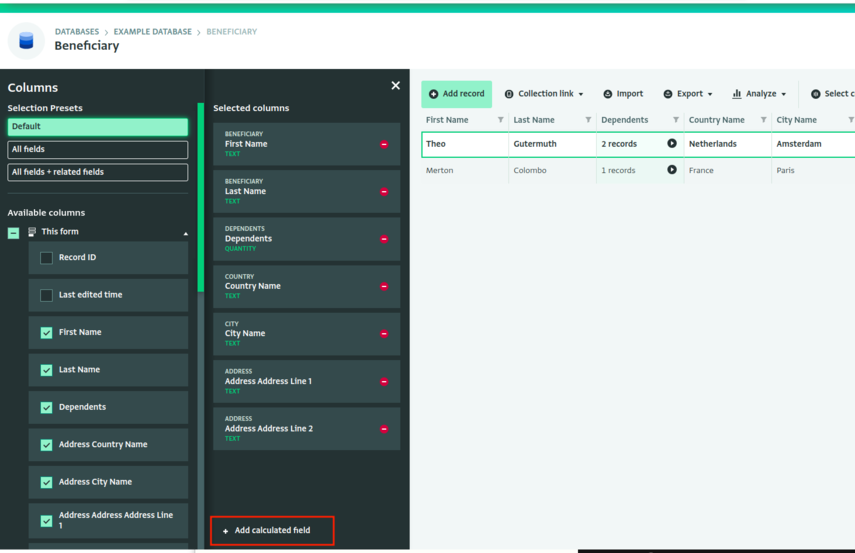
- Under “Currently selected columns”, click “Add calculated field” in the Columns side panel. You may need to scroll down if many columns are selected, as “Add calculated field” appears at the bottom.
- Type your Formula in the Formula editor and click “Done.” In this example, we are adding a calculated field for called “Age” to calculate the age based on the date of birth.
For more information on how to write Formulas, see Record context.
- Select the Calculated field column to rename it.
- Apply the changes by clicking the 'X' on the Columns side panel.
The Calculated field is visible in the Table View of the Form.