Form Design Updates - Record Audio, Note Fields, Conditionally Required Fields, and more
We are excited to share the latest Form design updates in ActivityInfo.
Discover in this article everything that is new in the platform including:
- Recording audio
- Note fields
- Conditionally required fields
- Custom error messages for validation rules
Recording audio
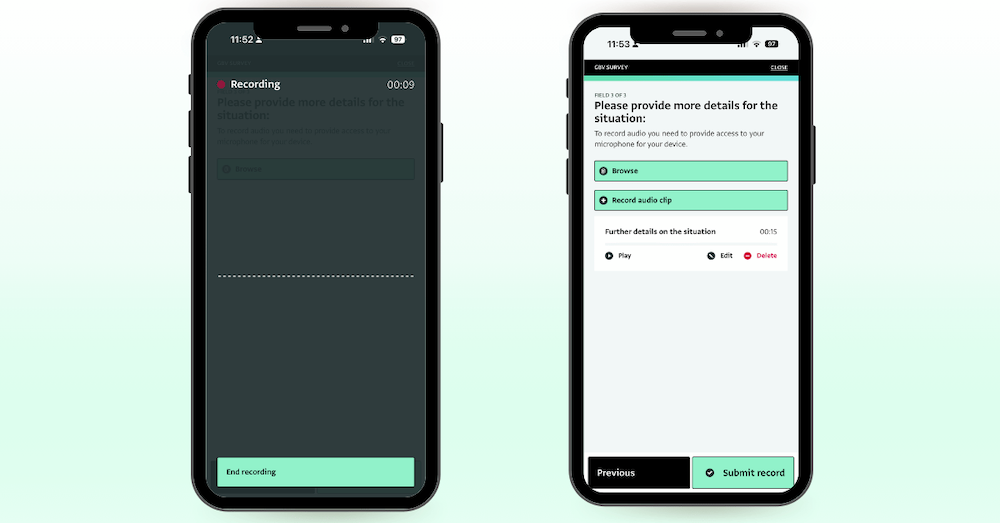
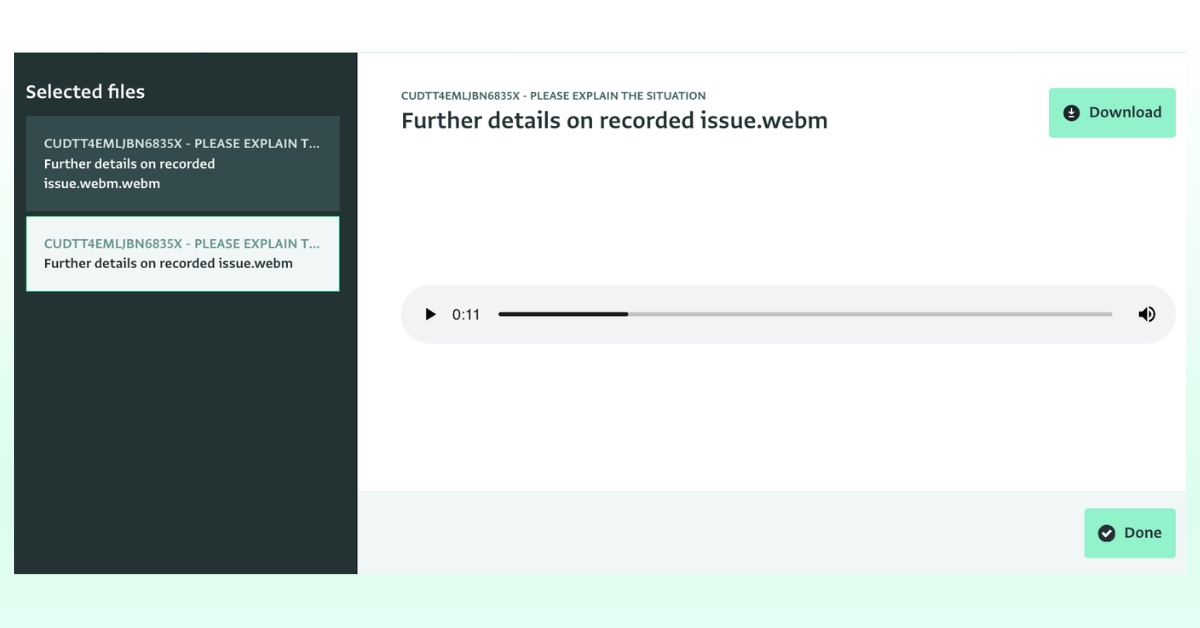
In the past, capturing audio required switching to an external recording app and uploading the file as an attachment. Now, field workers can record audio directly within the form, using an Attachment field, on both mobile and desktop.
This eliminates extra steps, saves critical time during beneficiary interviews, and prevents misplaced media files.
Recording directly within the form ensures the audio file is instantly linked to the correct beneficiary or survey record, avoiding misplaced files. It also saves time as field staff don't have to train users on or manage third-party apps to record audio and the steps of the process are reduced.
Note field
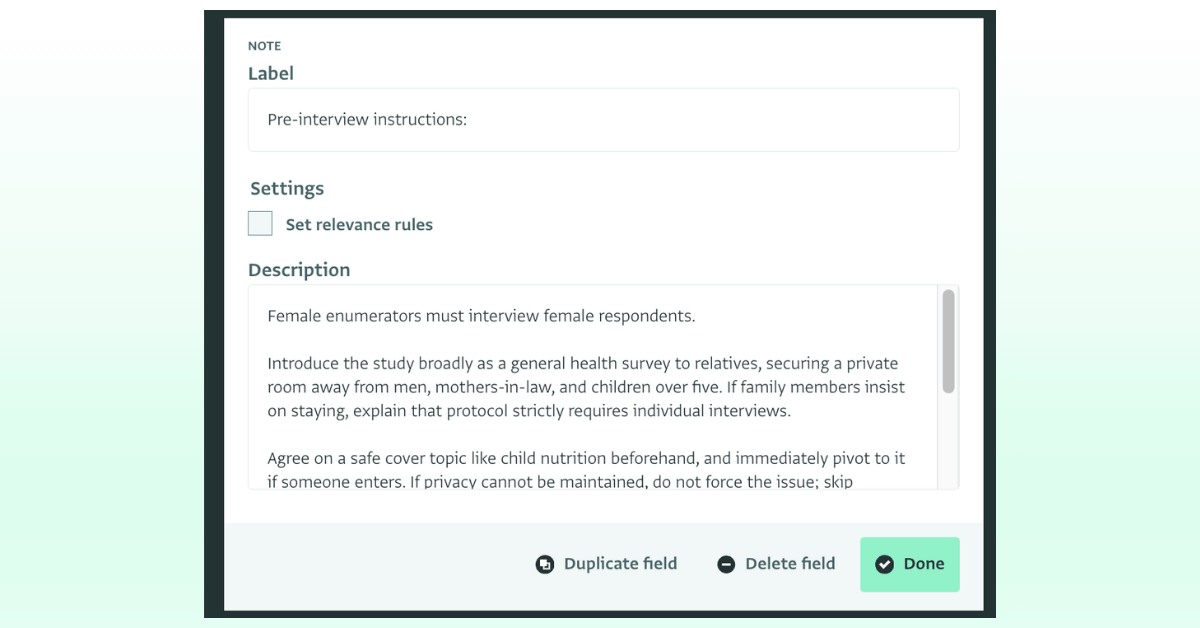
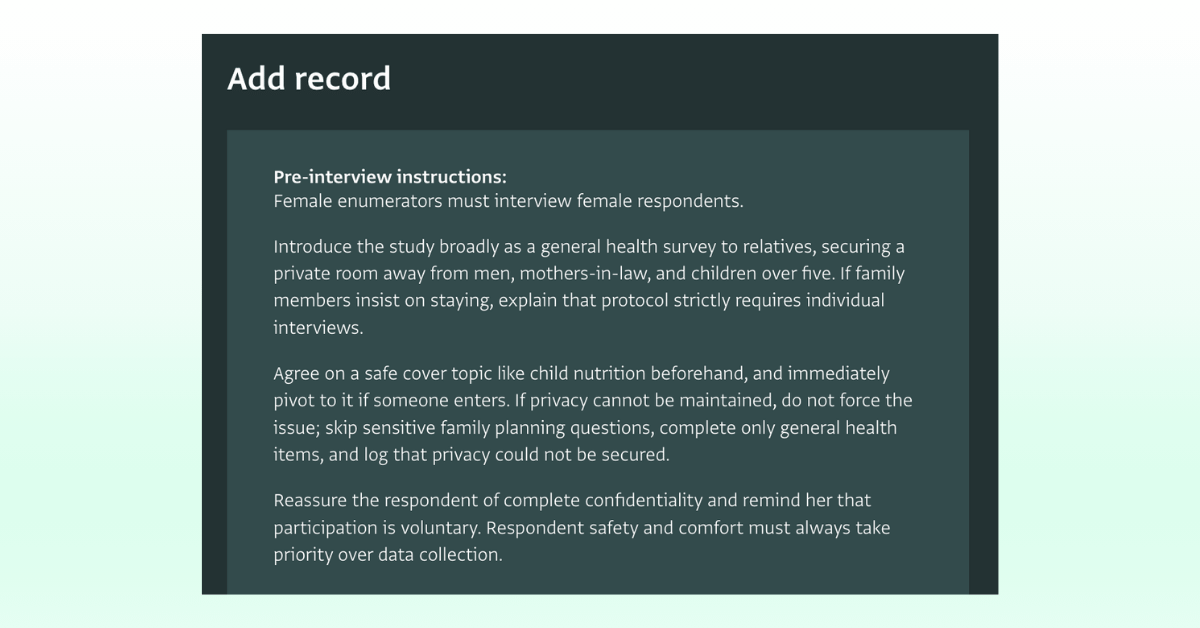
The Note field allows you to add context, reminders, or other guidelines directly into your forms, creating a smoother data entry experience. You can also apply relevance rules to show or hide Note fields, based on previous answers so as to keep forms concise and guide swiftly enumerators who might be operating under stressful conditions.
In field assessments or sensitive intake interviews (e.g., GBV or child protection), notes can remind staff of ethical protocols, consent checks, or referral flows during the data entry process itself. The instructions on the Note field can also support temporary field staff as it can help them remember key information without needing to reference separate paper or digital manuals.
Read more about Note fields in our Documentation.
Conditionally required fields
When required fields don't apply to a respondent, data entry users might type placeholder text or select any option just to bypass form validation.
You can now set rules to make a field required only under specific conditions; for example when a related field has a certain value. If the condition is met, the field must be filled in to save the record; otherwise, it remains optional. This enforces strict data quality rules without forcing enumerators to fill in irrelevant fields and helps keep data clean.
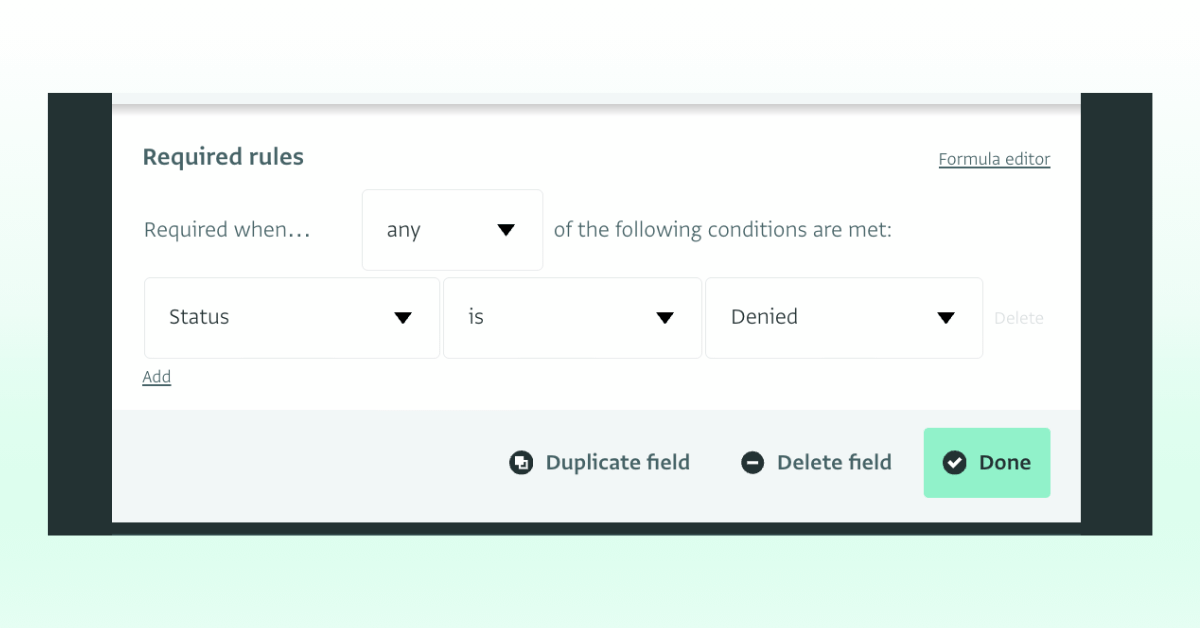
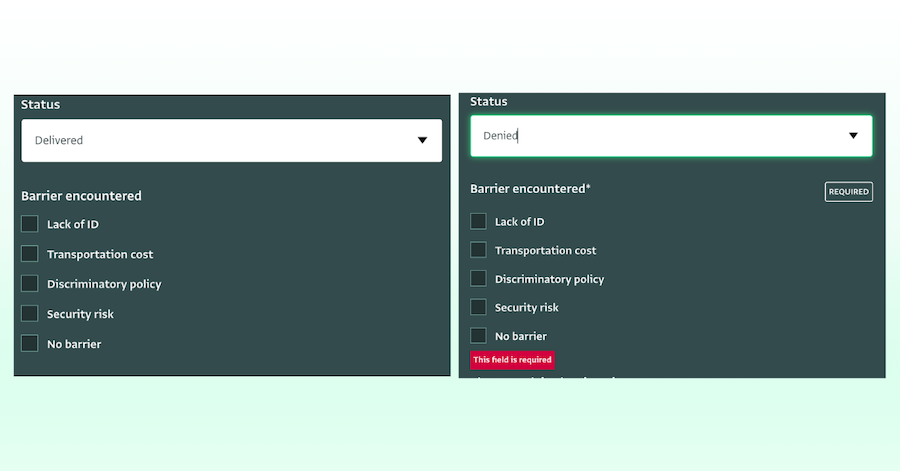
Learn more about Required rules in the Documentation.
Custom error messages for validation rules
You can now add custom validation error messages to guide users during data entry. If a user enters data that fails to satisfy the validation rule, the custom error message you provided will be displayed to explain the issue. This reduces confusion for field enumerators, minimizes data entry errors, and ensures clean, compliant data before records are submitted.
By replacing default errors with user-friendly instructions (e.g., "National ID must be 9 digits" or "Respondent age must be between 0 and 110") errors can be resolved at the point of entry.
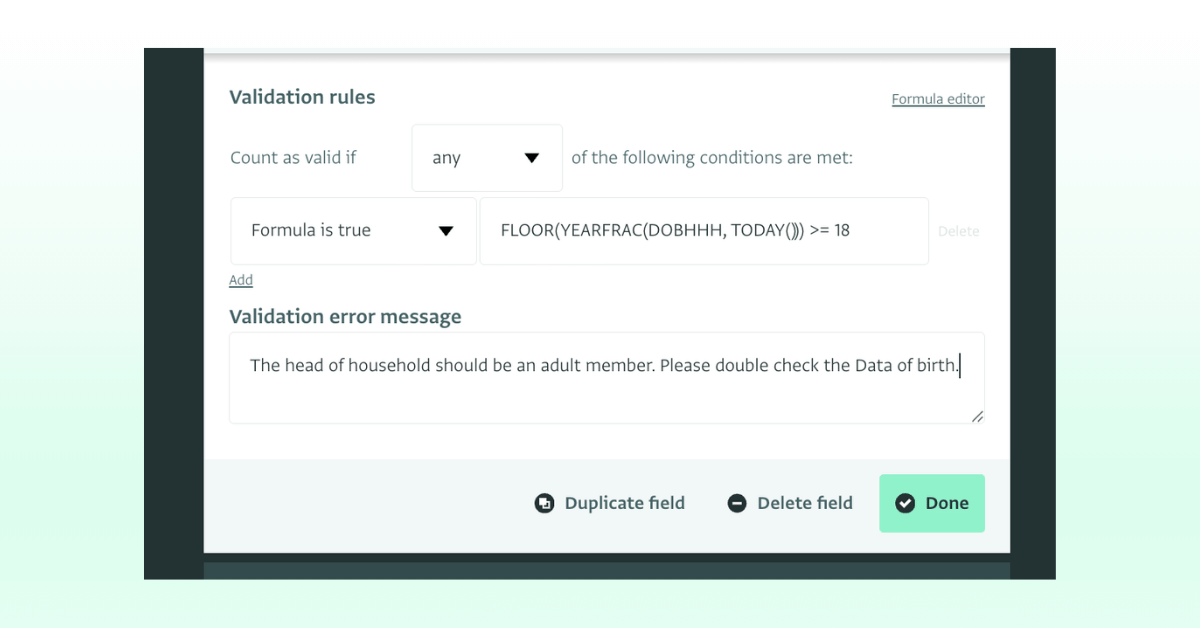
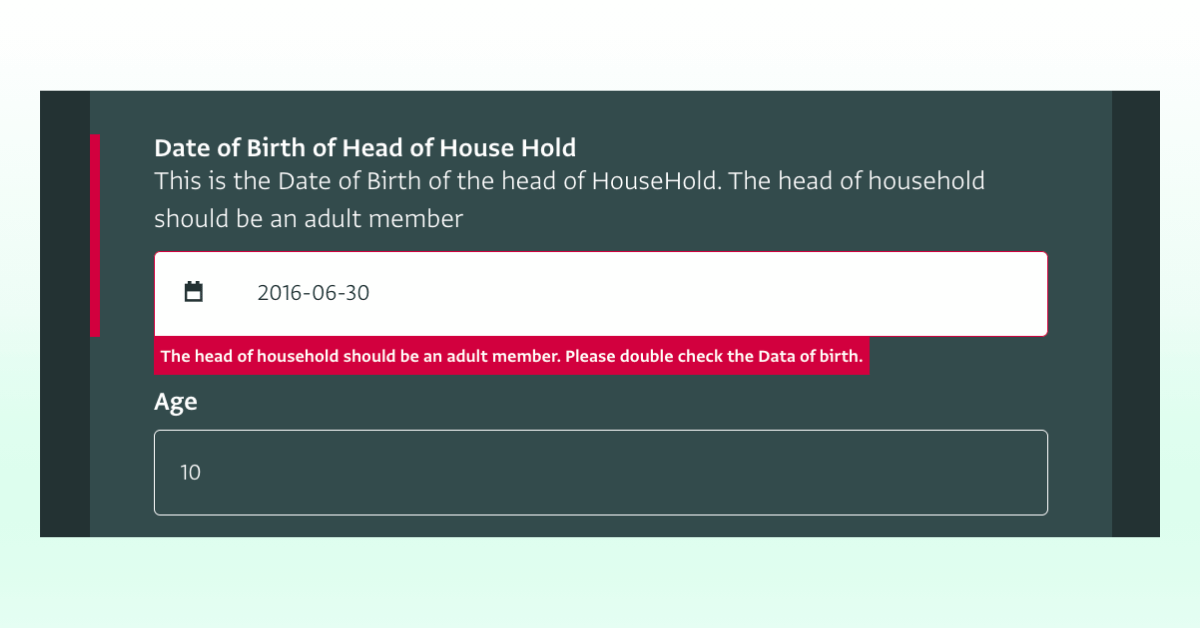
Read our Documentation for more information on Setting a validation rule using the rule builder.
What do you think of the latest additions in form design? Feel free to address your questions in the ActivityInfo Online Community or raise a question to our Helpdesk via your Technical Contact.