Language: English
This article describes how to delete multiple Records from a Form or from a Subform.
You may want to delete Records when the data is incorrect, corrupt or duplicated. If only some values are wrong, you can edit the Records instead.
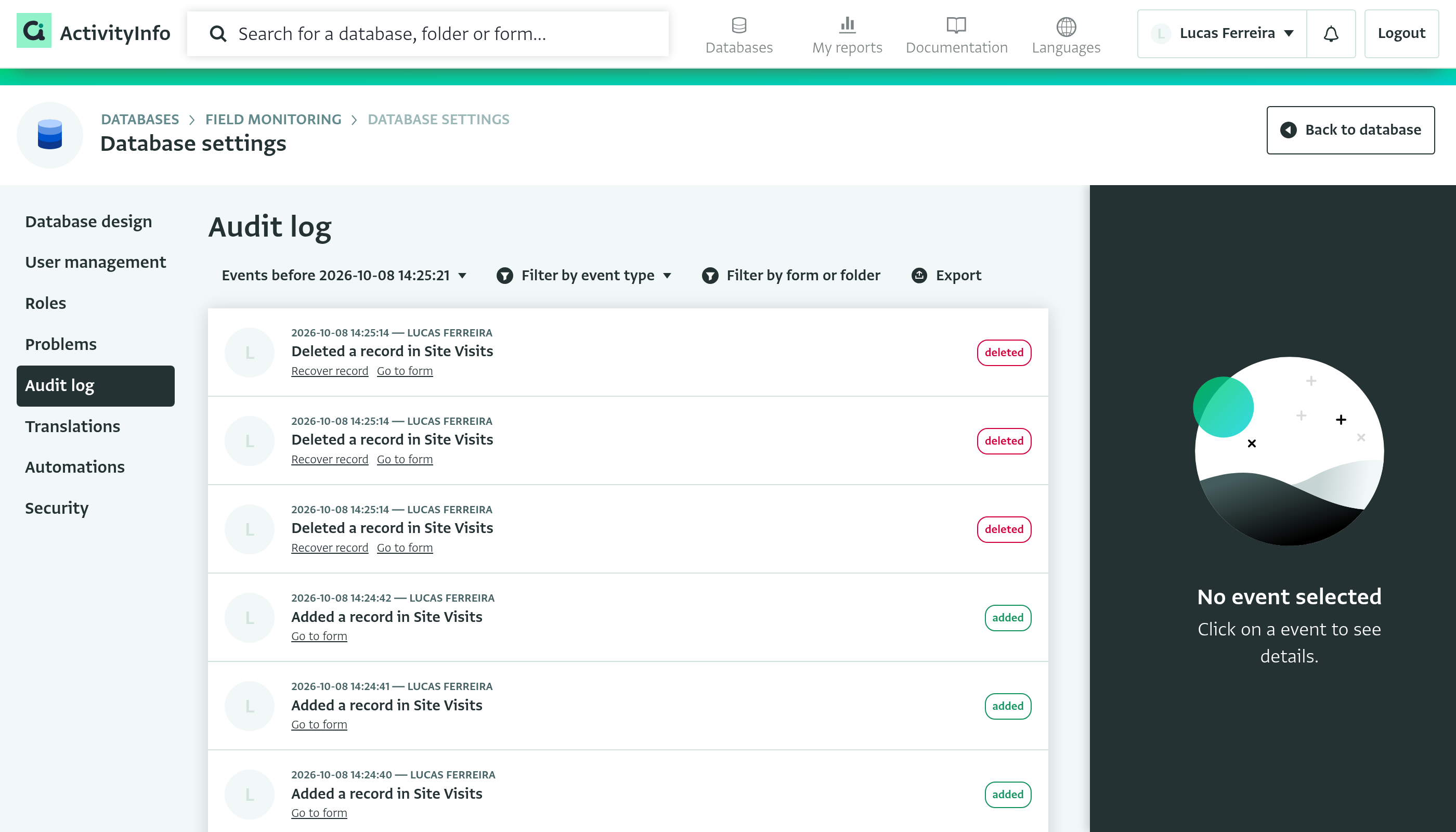
Deleting multiple Records removes all information associated with the selected Records, including Records added to the Subform(s) of a Record. You may recover deleted Records using the Audit log.
To deal with duplicated Records, see Removing Duplicate Records in a Form.
ActivityInfo ensures data integrity by implementing referential integrity constraints. This means that when attempting to delete a Record, the system checks for any references to that Record from other related data. If such references exist, ActivityInfo prevents the deletion to maintain data consistency and prevent orphaned data.
To delete multiple Records from a Form, follow these steps:
- Navigate to the Database that contains the Form from which you wish to delete Records from.
- Select the Form.
- You can sort and filter the Records to narrow down the list of items and find the Records you wish to delete.
- Click on the first Records you wish to remove, then:
- Select a group of Records placed the one below the other, hold down the
SHIFTbutton (Windows and Mac) to select them. - Select various Records shown in the table, hold down the
Ctrlbutton (Windows) or the Command button (Mac) and click on every Record you wish to delete. - Select all Records using the
CTRL + Acombination
- Click “Delete
records” on the right side panel.
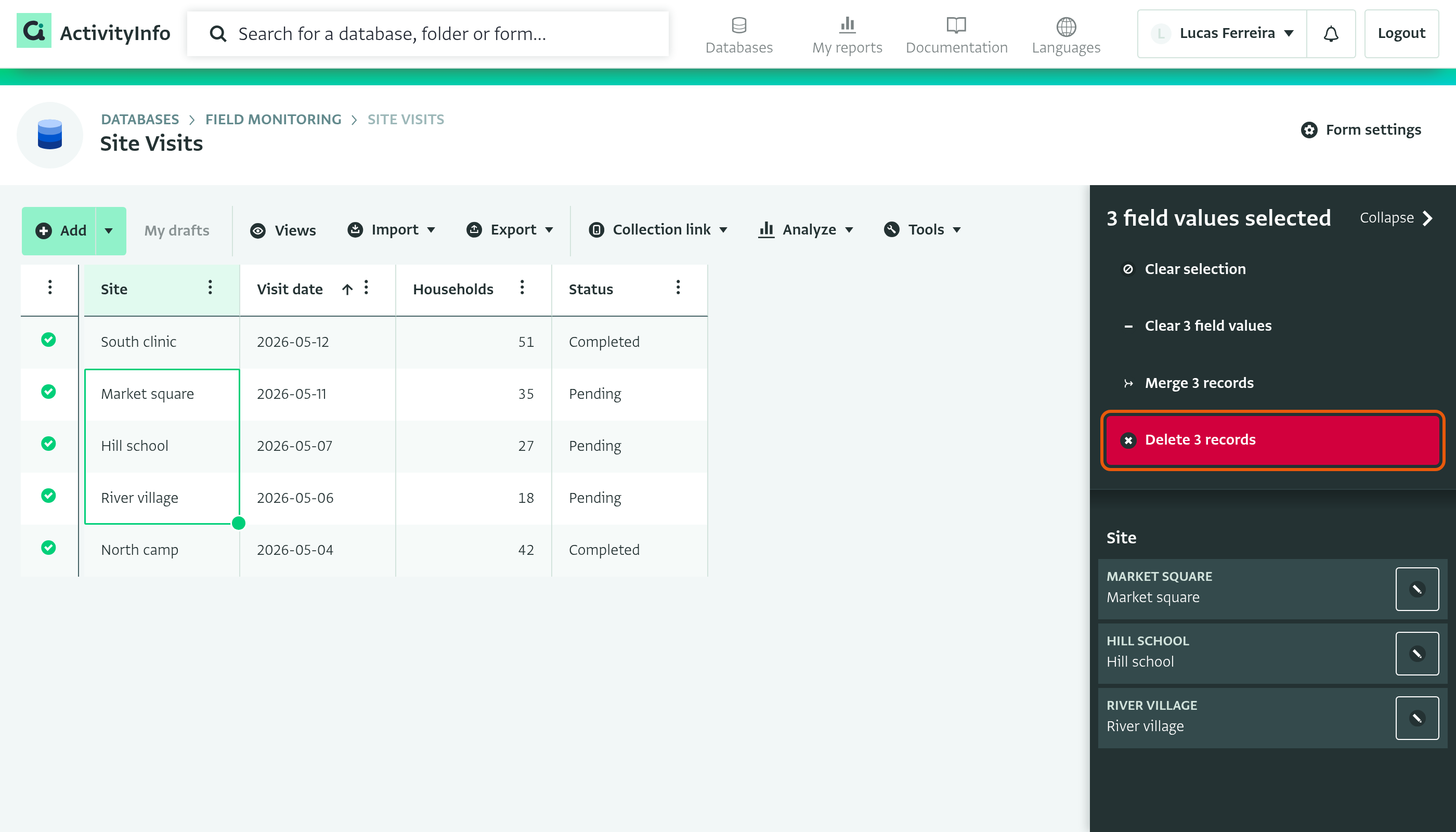
- ActivityInfo automatically checks if there are any related Records linked to it.
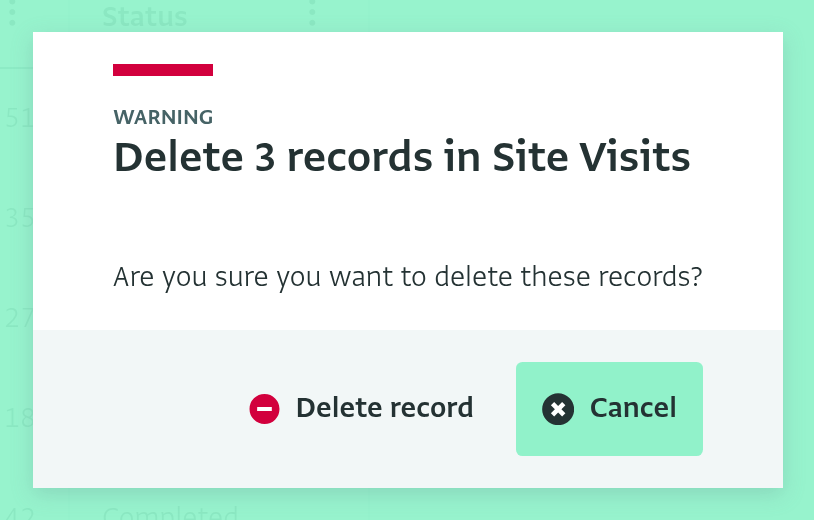
- If no related Records are found, the system prompts you with the “Are you sure you want to delete these records?” question. Click “Delete record” to remove the selected Records.
- If related Records are found, the system prompts you to securely delete the Record without compromising referential integrity.
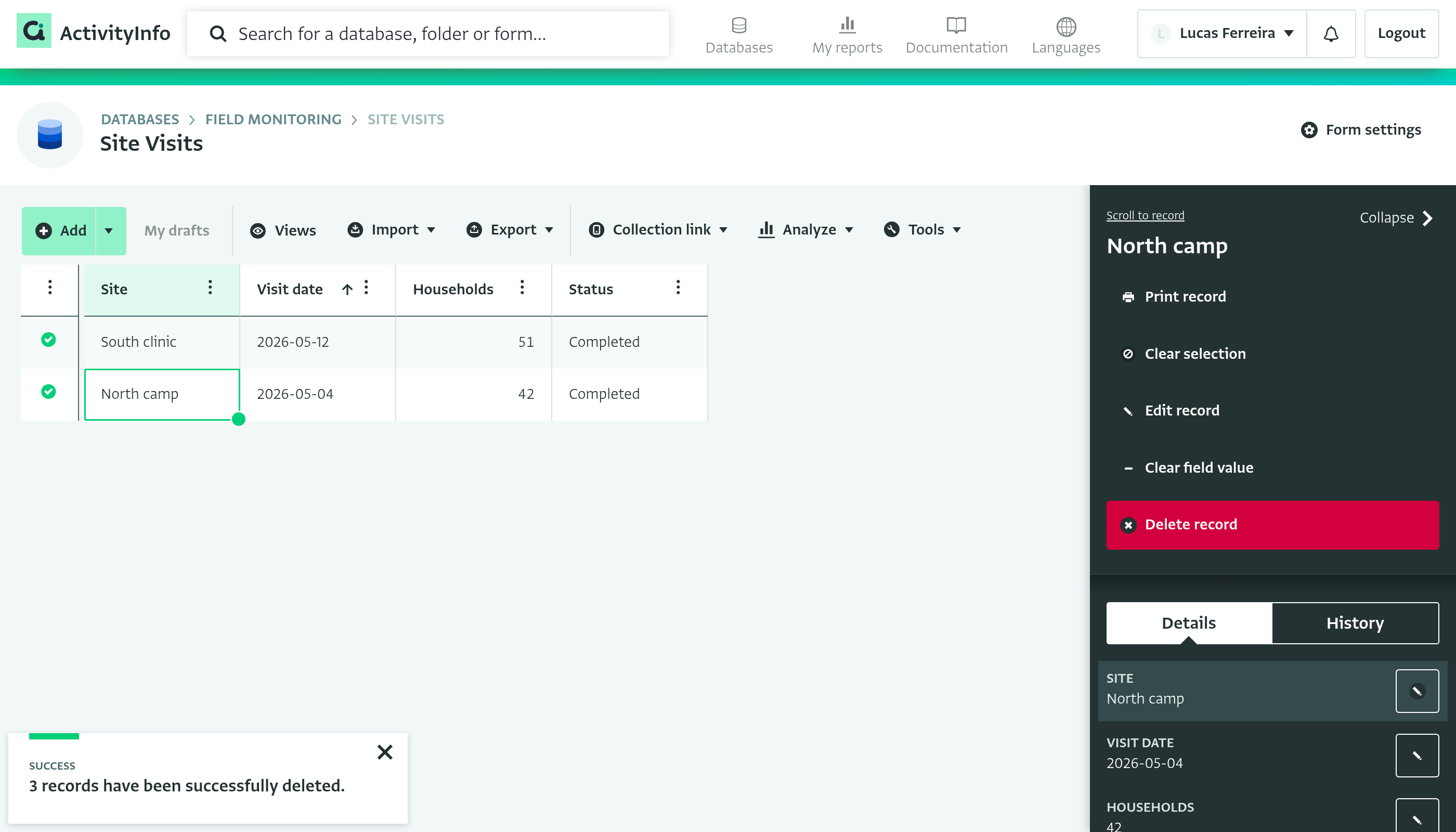
- The Records are removed from the Table and no longer appear in the Form. A message confirms how many Records were deleted.
- If you wish to review the audit trail of the deleted Records, check Audit Log.
Delete multiple Records added to a Subform
To delete multiple Records added to a Subform, open the Table View of the Subform and follow steps 3 to 8 above.
You do not need to delete Subform Records separately when you delete their parent Record. Deleting a Record also deletes the Records added to its Subforms.