Field-Level Permissions - More Options for Role-Based Access Control, Workflow Management and Collaboration at Scale
ActivityInfo offers a wide range of features and functionalities to help you manage data access up to the last detail. With customized roles, granular permissions, grants to specific resources, and record-level conditions, users can define who can access what, in every database, folder and form.
While record-level conditions determine which records a role can see, now, with field-level permissions you can determine which fields are visible or editable. Hiding confidential fields from specific groups of users becomes even simpler than before as you can add conditions on what fields can be viewed or should be redacted instead.
At the same time, field-level permissions allow different groups of users to access and edit different parts of the same form making collaboration much easier and even more controlled.
Viewing conditions: Data masking for more control on data access
Before field-level permissions, you could leverage subforms and form-level permissions to hide confidential data such as Personally Identifiable Information (PII) from specific users, while keeping the datasets linked together. Now, with field-level permissions, you can define which specific fields a group of users under a role can or cannot view. This allows you to keep all data in the parent form making work with calculated fields more straightforward (e.g. getting the age out of a birth date).
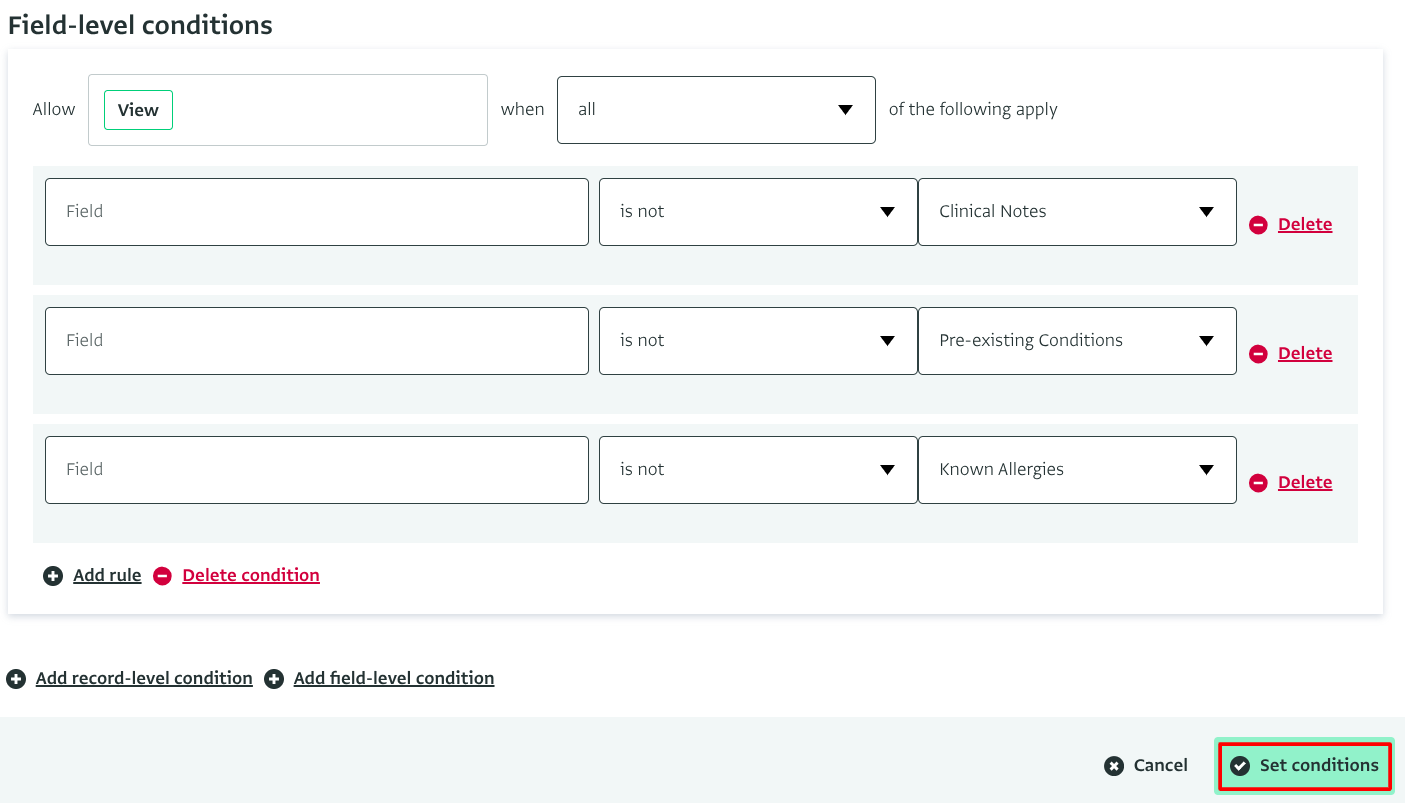
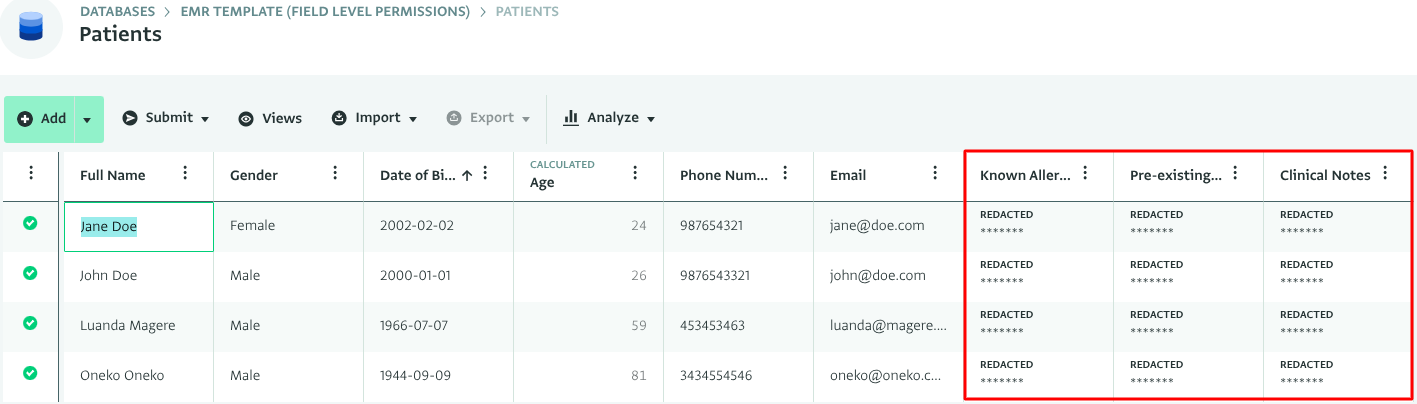
Field-level permissions and the conditions you can set on the view operation specifically, are ideal for workflows and data related to case management, beneficiary tracking, service delivery, and other similar types of processes, where each user type has a distinct data need and should or should not access some parts of the data. For example, case workers and supervisors can work with all the fields of a case (record) but the M&E team will only access fields related to measuring impact, and not fields related to PII data (such as the beneficiary name, date of birth, etc.)
Similarly, in any other case where diverse departments (e.g. financial, grants, advocacy, MEAL, etc.) need access to detailed data that cannot be served by high level reports, with field-level permissions you can ensure they only access the fields relevant to them.
Editing conditions for collaboration at scale: Define who contributes where at the field-level
Every program and situation is different so the complexity and the way people collaborate on a dataset might differ too. Geography, type of incident, gender, and many more aspects can play an important role in defining how data should be accessed, edited or reviewed. Pre-built systems with fixed rules can’t adapt to these kinds of situations. Field-level permissions allow you to adapt to the complexity of the different contexts you have to handle every time.
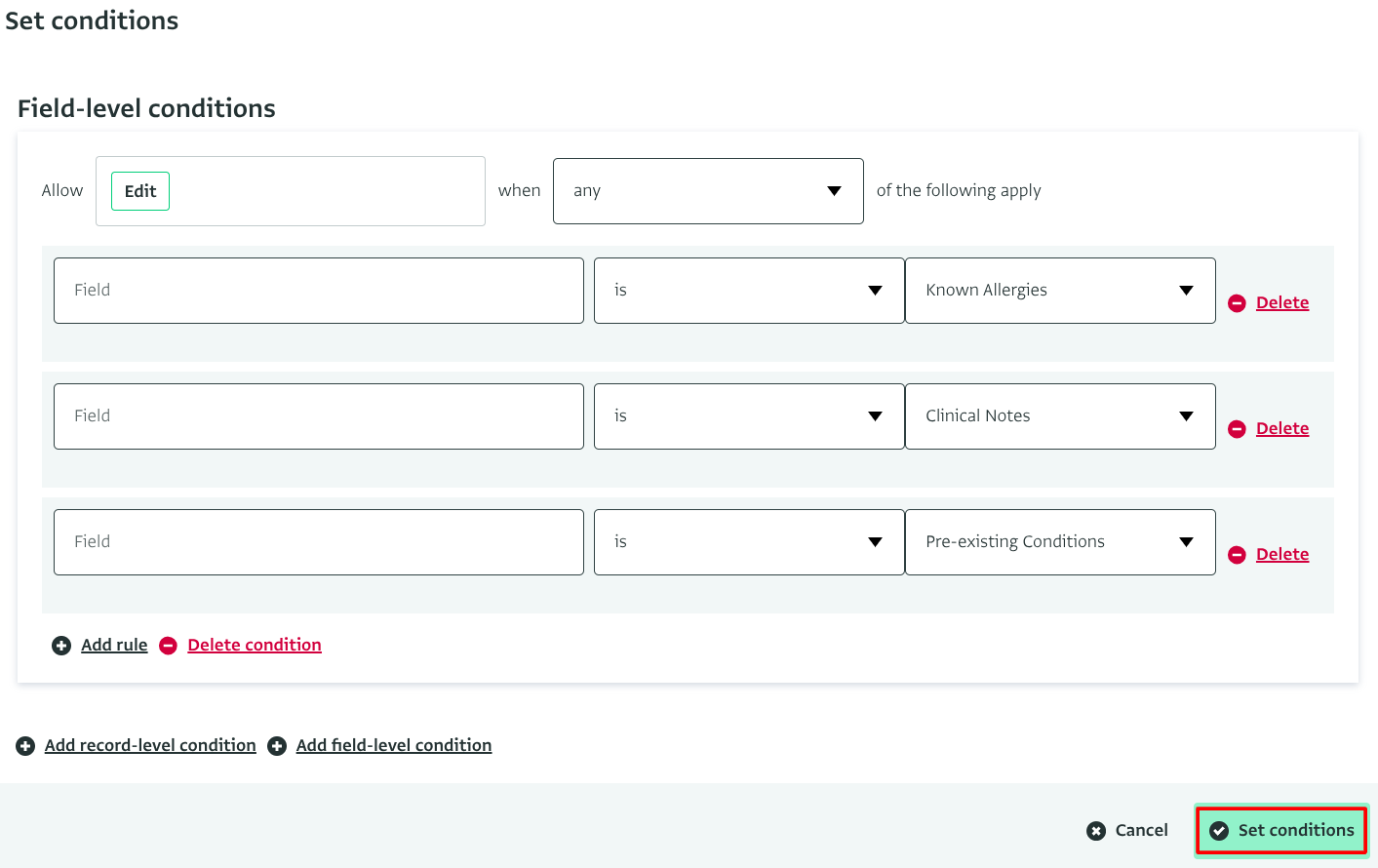
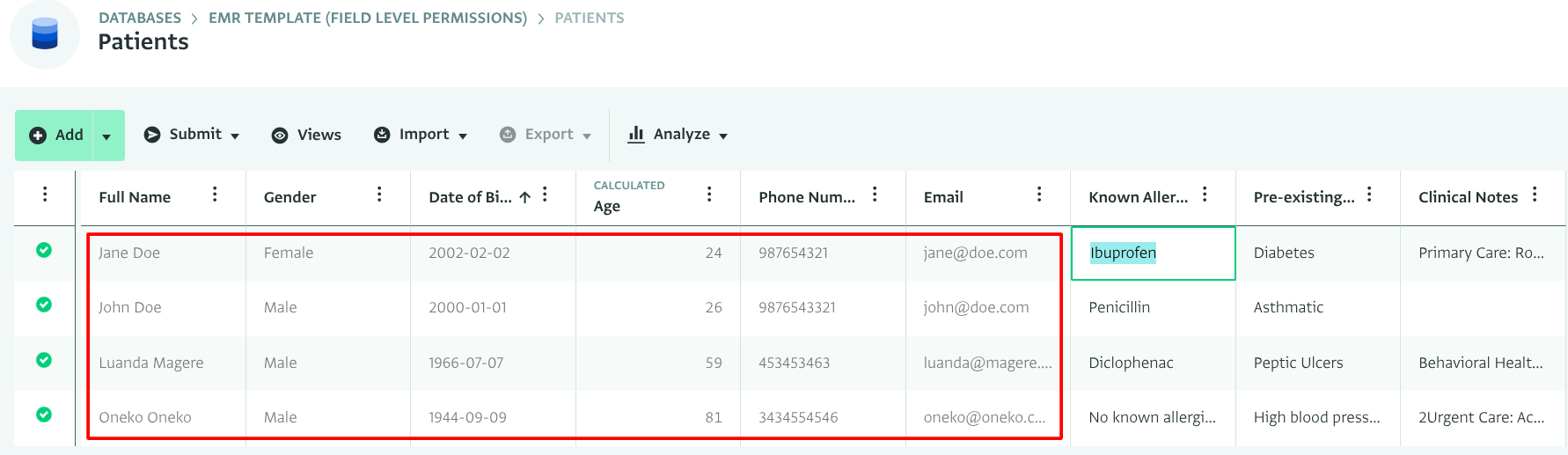
In addition to the ‘view’ operation, with field-level permissions, you can define which fields can be edited by specific groups of users (under a role). This makes it possible for multiple, diverse teams to collaborate on the same form and dataset. In the past, this was possible with the ‘reviewer’s only’ field but you weren’t able to refine that further so as to match specific ‘reviewer’s only’ fields to distinct roles.
Field-level permissions and the conditions you can set on the edit operation is a building block for enhancing your workflows (e.g. in grant management, proposals, case management, etc.) They ensure there are rules defining who can contribute to what in a secured and controlled way. They are also ideal for complex approval cases and project management collaboration.
For example, in a project dossier, the finance team can only edit fields related to the budget, field teams can only submit photos, and the program director is the only one who can approve the budget. Or in a case management system, case workers can only view but not edit specific fields related to the review phase of the case whereas the supervisor can view and edit these fields.
Lastly, it is also possible to set field-level permissions in such a way so that users can add new records to a form but not view them. This is for example useful if you want to allow users to submit data related to a sensitive topic but you don’t want them to access that record after submission.
Do you wish to learn more about field-level permissions? Take a look at our Documentation article on setting up field level permissions and feel free to address your questions in the ActivityInfo Online Community.